Dreamy, Magical and Lighting Effects Photoshop Tutorials

Dreamy, Magical and Lighting Effects Photoshop Tutorials

Many years ago, Photoshop tutorials primarily focused on special effects, often resulting in some rather unattractive results. At that time, even the most basic effects were appreciated, as designers and artists started to explore the Internet as a rich source of inspiration and creativity.

However, as the demand for more sophisticated and visually appealing effects grew, tutorial creators began to respond accordingly. A new era of well-designed tutorials emerged, offering a variety of eye-catching techniques that showcased innovative ideas. This shift brought forth an array of tutorials highlighting dreamy, magical, and luminous effects that truly enhance artistic expression.

Today, these resources not only foster creativity but also inspire artists to experiment and refine their skills. Engaging with these tutorials can lead to the discovery of new styles and methods that will enrich any design project.

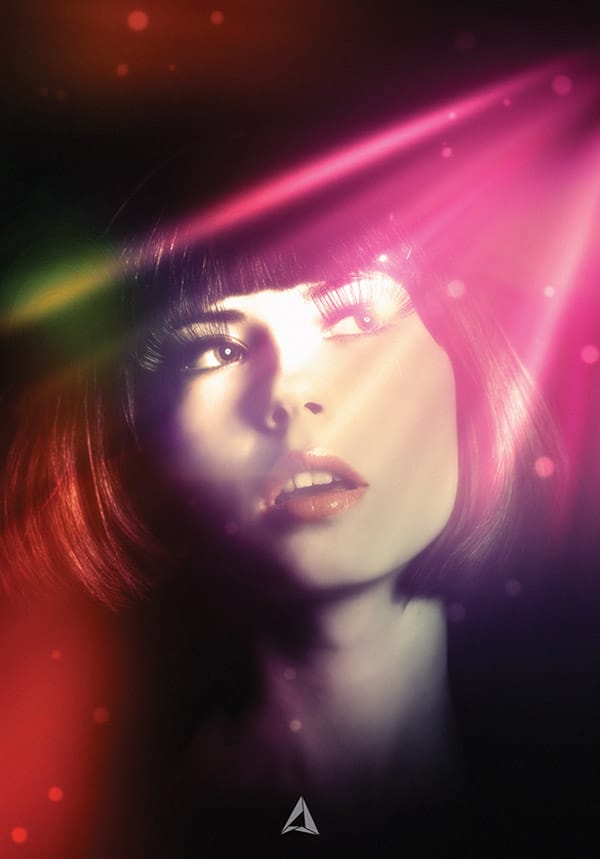
Create a Dreamy Lighting Portrait Effect in Photoshop
In this Photoshop tutorial by Andrei Oprinca you will learn how to create a nice spotlight illumination on an image using the brush tool for a dreamy lighting effect. It’s not a difficult effect to achieve but patience is needed. The author used a single stock image which can be downloaded for free here. More
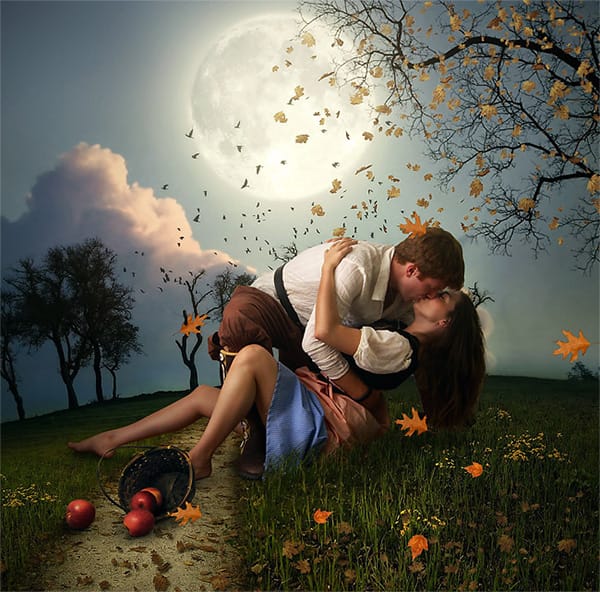
Create a Beautiful Romantic Photomanipulation in Photoshop
Learn how to create a beautiful romantic scene with a dreamy surreal style in a few easy steps using Adobe Photoshop.
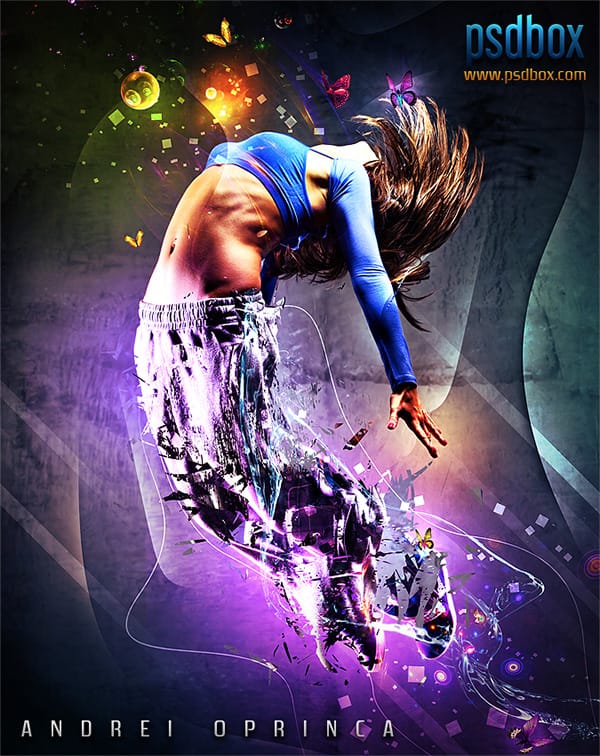
Shattered Photocomposition With Lighting Effects in Photoshop
Learn how to create an striking shattered photo composition with colorful lighting effects in Adobe Photoshop.
Advanced Dave Hill Effect Photo Manipulation Tutorial – Photoshop Roadmap
In this advanced Photoshop tutorial by PSD Box, Andrei shows how to transform a daytime photo into a nighttime scene. They start with basic adjustments like cropping and precise sky selection using color range and layer masks. Adding a dark, cloudy sky layer sets the nighttime tone, enhanced by layer
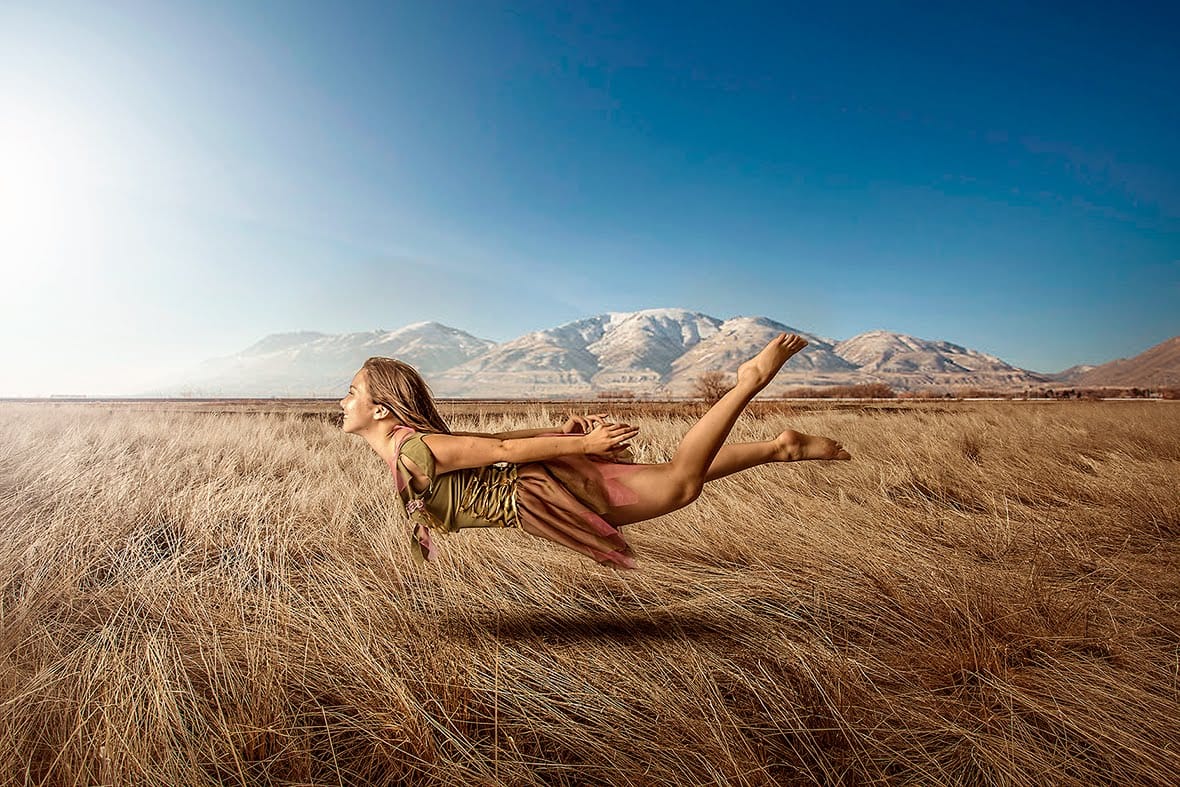
Create a Levitation Photo Effect in Photoshop
In this video tutorial, you’ll learn how to create a flying effect in a photo. The author shows how to use a background image and a levitating model image, explaining each step in detail. He begins by cutting the model out from the original background using the quick selection tool
Fantasy Lighting Effects in Photoshop
In this tutorial, Murilo Maciel will show youhow to use a standard stock model, and apply layers of light and, brushes and vector shapes to generate a beautiful fantasy image. Process Preview Read this tutorial at Digital Arts Online More
Add Stylish Lighting Effects to a Photo in Photoshop
In this tutorial by Fabio Sasso you will learn how to apply lighting effects to a model shot with a fresh, stylish spin. The author’s secret is to keep it simple and give a 1980s look, without overdoing it, for a sophisticated feel and not a retro pastiche. Process Preview Read this tutorial at Digital […] More
Create a Romantic Sunrise Effect in Photoshop
In this intermediate difficulty level tutorial you will learn how to create an awesome romantic manipulation in Photoshop. You will see how to create the lighting conditions that you want using layer styles and adjustment layers. Read tutorial at PSDBox More

Get tutorials & freebies delivered to you.

Subscribe to the Photoshop Roadmap newsletter, a weekly roundup of new tutorials, insights and quality downloads, trusted by 6500+ readers.

You might also like

How to Use AI Masking in Adobe Camera Raw for Professional Photo Editing

Adobe Camera Raw's AI masking tools automatically detect subjects, backgrounds, skies, and landscapes, letting you make precise adjustments to specific areas of your photos. These intelligent masks eliminate the need for manual selection work, while allowing you to combine and refine them for complete creative control. The technique...

How to Remove Objects from Photos Using AI Tools in Photoshop

Photoshop's AI-powered object removal tools can eliminate unwanted distractions from your photos with minimal effort. The Remove Tool and Generative Fill feature automated detection for common distractions like people and wires, plus manual painting options for custom removals. These tools work on separate layers, preserving your original image...

Speed Up Your Color Grading Workflow with Photoshop Actions

Color grading can transform your images, but manually adjusting curves and levels for every photo takes time. Photoshop actions offer a faster approach by applying professional color treatments with a single click. This workflow uses pre-built actions, tints, and LUTs to achieve various moods and styles instantly, letting you layer...

7 Essential Tips for Speed Painting in Digital Art

Speed painting isn't just about working faster—it's about eliminating friction from your creative process. These seven techniques help you get ideas onto canvas quickly without getting bogged down in unnecessary decisions or premature details. Whether you're exploring concepts for professional work or personal...

Professional Color Grading Techniques in Photoshop

Color grading transforms ordinary photos into compelling images with professional mood and atmosphere. These non-destructive techniques let you adjust tones, enhance specific colors, and create cinematic looks while preserving your original image data. Master these four essential color grading methods to develop a consistent editing workflow that elevates your photography....

How to Save Cut-Out Elements with Transparent Backgrounds in Photoshop

Creating seamless photo composites requires properly saving cut-out elements with transparent backgrounds. Whether you're extracting people, objects, or other elements for later use, the file format you choose determines how easily you can place these elements into new scenes. Two main approaches work best: saving as PSD files...

You’ve successfully subscribed to Photoshop Roadmap
Welcome back! You’ve successfully signed in.
Great! You’ve successfully signed up.
Success! Your email is updated.
Your link has expired
Success! Check your email for magic link to sign-in.