Learn how to make a Pop Art portrait from a photo in Photoshop

Learn how to make a Pop Art portrait from a photo in Photoshop

This tutorial explores a simplified method for transforming an ordinary photograph into a vibrant pop art portrait. It draws inspiration from the iconic celebrity silkscreens popularized by Andy Warhol, offering a distinct aesthetic that combines photography with graphic art.

Viewers will learn efficient Photoshop techniques to convert a photo into a halftone dot pattern, isolate the subject, and apply bold, flat colors, ultimately creating a striking visual piece reminiscent of classic pop art.

Watch the Video

Video by Blue Lightning. Any links or downloads mentioned by the creator are available only on YouTube

The Enduring Appeal of Pop Art Portraits

Pop art emerged in the 1950s and 60s, challenging traditional fine art by incorporating elements from popular culture, advertising, and mass media. Artists like Andy Warhol famously utilized techniques such as silk-screening to reproduce images of celebrities and everyday objects, democratizing art and making it accessible. This movement often employed vibrant colors and repetitive imagery to comment on consumerism and celebrity culture.

The distinctive aesthetic of pop art portraits, particularly those using halftone patterns, translates well into digital mediums like Photoshop. Halftone dots, originally used in printing to simulate continuous tone through varying sizes of dots, create a graphic, almost comic-book-like appearance. This technique allows for a stylized representation of a subject, emphasizing form and contrast rather than subtle detail.

Creating such portraits involves a blend of photographic manipulation and graphic design principles. The process often begins with simplifying an image to its core elements, then adding a bold, graphic layer of color and texture. This approach not only transforms the original photo but also imbues it with the playful, yet often critical, spirit of the pop art movement.

Practical Tips for Creating Pop Art Portraits

  • Optimize Image Size: Before applying filters, resize your photo to a width of 500 pixels at 72 pixels per inch for optimal filter performance.
  • Enhance Contrast with Auto-Tone: Use Ctrl/Cmd + Shift + L to automatically adjust tones, making dark areas black and light areas white for a strong base.
  • Isolate Subject with Quickmask: Employ the Quickmask mode (activated by pressing Q) with the Pencil tool to accurately select the subject, ensuring a clean separation from the background.
  • Refine Halftone Pattern: After applying the Halftone Pattern filter, use Smart Sharpen (Amount 500%, Radius 1 pixel) to achieve crisp, well-defined dots in your portrait.
  • Layer Colors Strategically: Apply flat colors for the background, skin, and other features on separate layers below the halftone layer, using the "Multiply" blend mode on the halftone layer for effective overlay.

Explore more creative techniques for transforming your photos into unique artistic expressions.
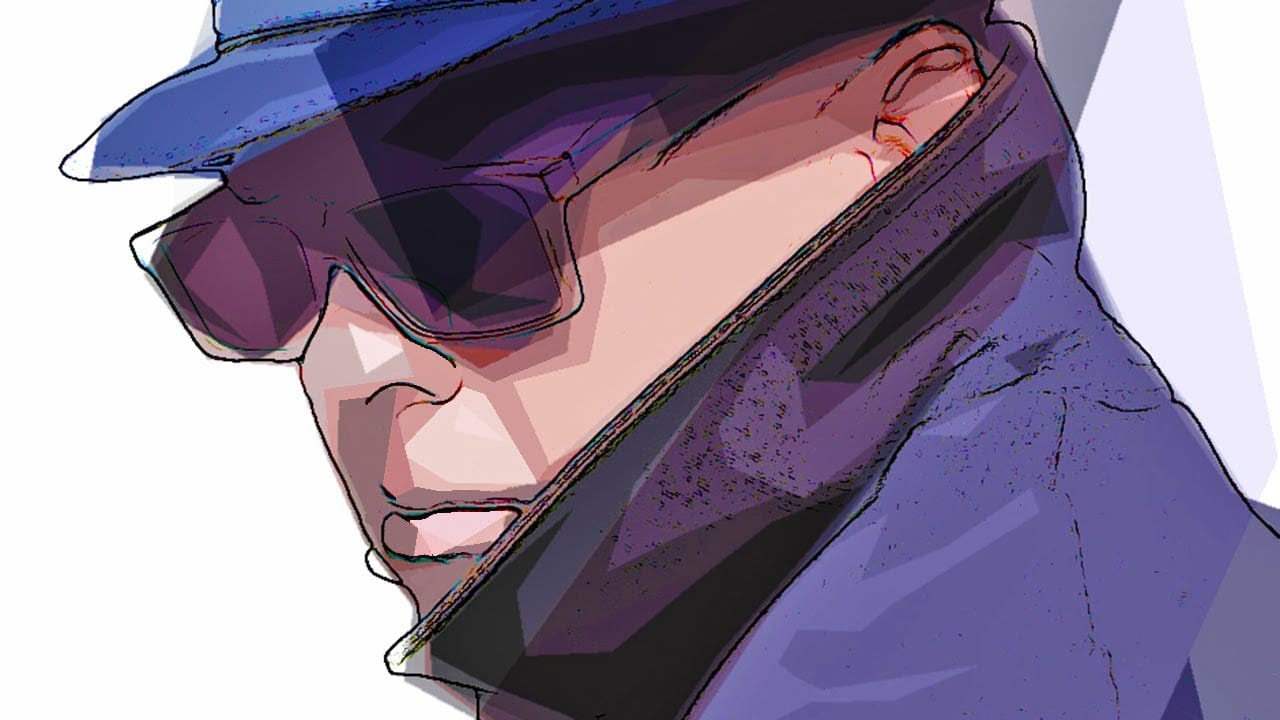
How to make a stylish pop art portrait from a photo in Photoshop
In this Photoshop tutorial by Marty Geller from Blue Lightning Tv, you will learn how to create a stylish, pop art portrait from a photo and how to replace it with another without having to redo the effects. Basically, the author not only will show you how to create an interesting artistic effect, but also how to create a template for any photo you insert in the layered file. Watch tutorial
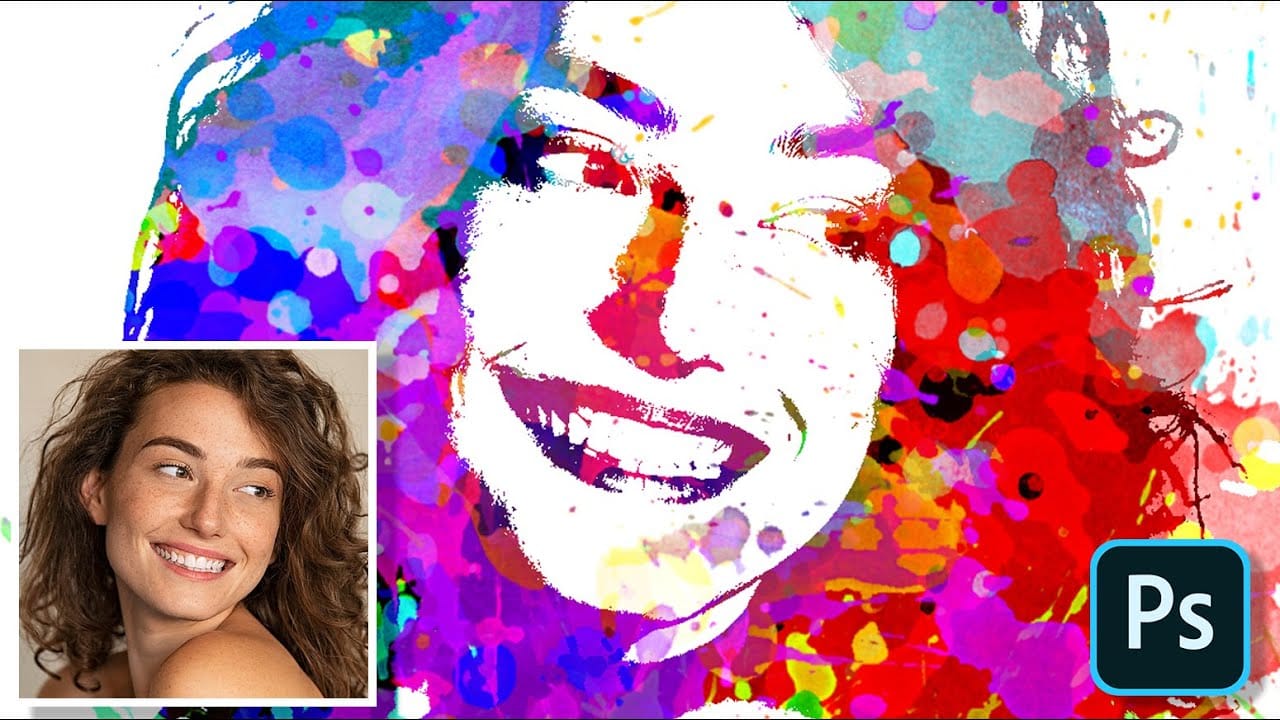
Create Paint Splatter Pop Art Portraits from Photos in Photoshop
This tutorial provides a straightforward guide to transforming ordinary photos into vibrant pop art portraits with a paint splatter effect. Marty Geller from Blue Lightning TV shares his techniques, making it easy for anyone to follow along. You will learn how to manipulate colors and textures, allowing your creative vision to come to life. The step-by-step instructions help break down the process, ensuring you can achieve impressive results even if you are new to Photoshop. By the end of the
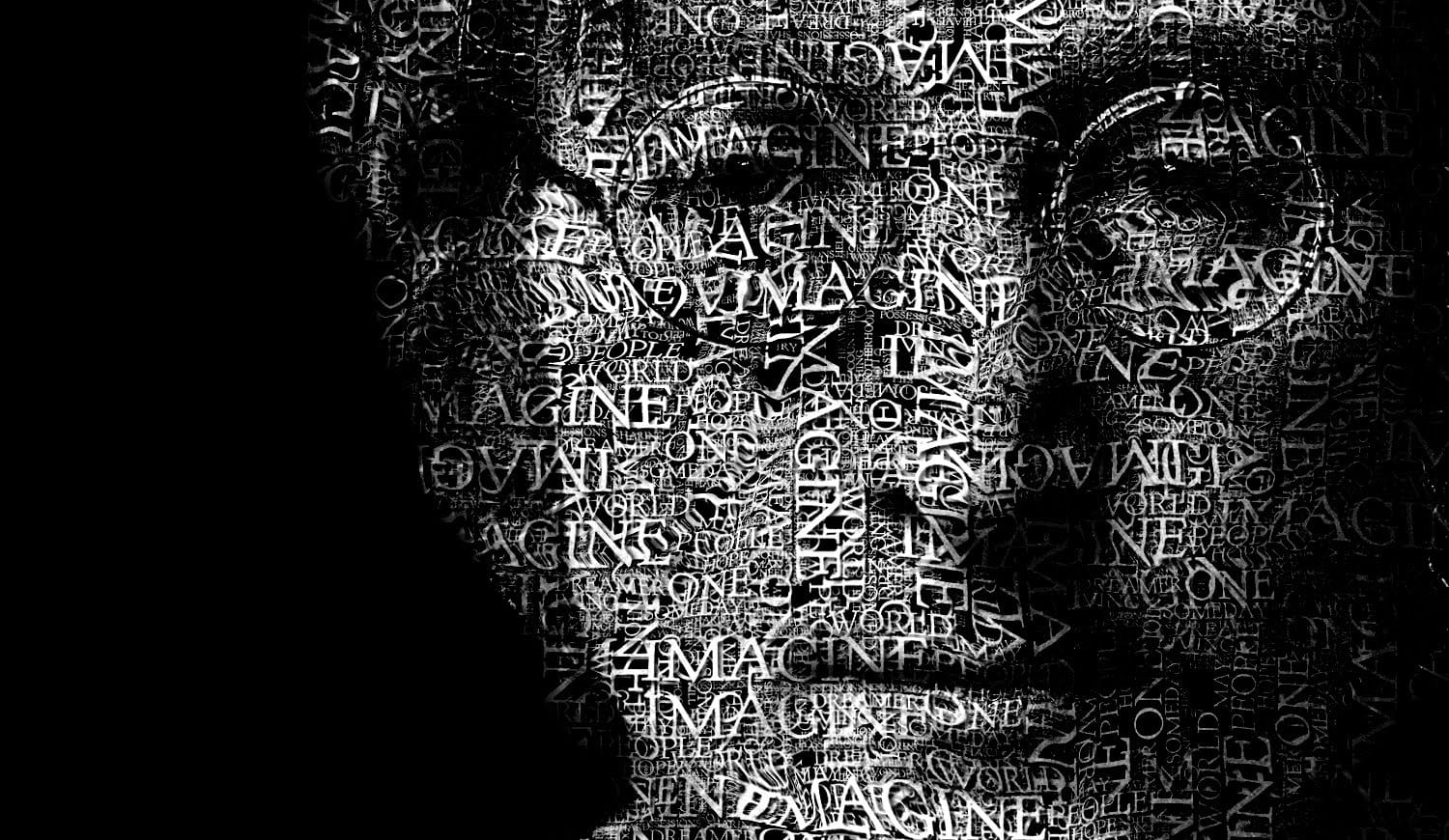
Create a Typographic Portrait in Photoshop
This Photoshop tutorial by Blue Lightning TV takes you through crafting a stunning portrait built entirely from words. Learn to prep your photo, create a text cloud filled with the subject's special words, and position and manipulate the text to perfectly follow the contours of the face. The video guides you through using displacement maps, smart objects, and adjustment layers to achieve a cohesive and personalized final image. It's a creative twist on portraiture, perfect for adding a unique t
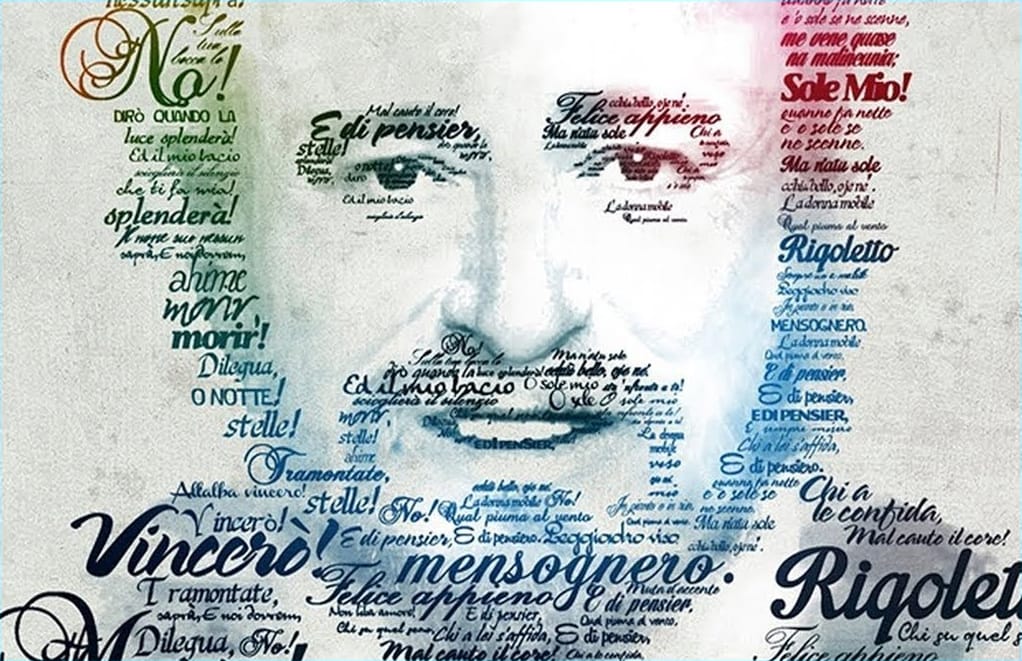
Create a creative typographic portrait in Photoshop
This tutorial by Gareth David, guides you through creating a typographic portrait of Pavarotti in Adobe Photoshop, divided into four main stages: preparation, creating a type base, type positioning, and color blending. The preparation stage involves gathering a subject image, canvas texture, color image, and text, along with downloading necessary fonts. Next, you arrange the prepared text in Photoshop to form the portrait. The final stage focuses on blending, using a type mask and color layer t

Get tutorials & freebies delivered to you.

Subscribe to the Photoshop Roadmap newsletter, a weekly roundup of new tutorials, insights and quality downloads, trusted by 6500+ readers.

You might also like

How to Expand Photos Beyond Their Edges Using AI Generative Expand in Photoshop

Sometimes your best photos need more breathing room or a different aspect ratio. Generative Expand in Photoshop lets you extend your canvas beyond the original image boundaries, using AI to intelligently fill in missing areas with content that matches your scene. This technique works for changing portrait photos to landscape...

How to Create Digital Scrapbook Carousels in Photoshop

Digital scrapbook pages capture memories beautifully, but a single page limits your storytelling. Creating a carousel format lets you design multiple connected panels that work together as one cohesive piece while giving viewers more content to explore. This technique uses frames, custom shapes, and smart export settings to build templates...

How to Use Auto Align Layers in Photoshop for Perfect Layer Alignment

When working with multiple layers that need perfect alignment, manual positioning often falls short. Slight camera movement, different crops, or rotated images can make precise alignment seem impossible through visual adjustment alone. Auto Align Layers automatically handles rotation, scaling, and positioning to create perfect layer alignment, even when images have...

How to Use Nano Banana Pro in Adobe Firefly for Advanced AI Image Generation

Adobe Firefly now includes Gemini 3 with Nano Banana Pro, offering sharper 2K image generation with improved text clarity and precision blending. This advanced AI model works seamlessly within Firefly's generative workspace, enabling powerful workflows like multi-image composition and virtual try-on effects. The integration provides access to sophisticated...

Create Colorful Retro Text Compositions in Photoshop

Retro design trends continue to captivate audiences with their bold colors and geometric shapes. This tutorial demonstrates how to build a complete vintage-inspired composition using text, geometric elements, and vibrant color schemes that capture the essence of classic graphic design. You'll learn to combine typography with custom shapes,...

Photoshop's New Color and Temperature Tool for Advanced Color Grading

Photoshop's latest update introduces temperature and tint controls directly into the adjustment layer panel, bringing white balance tools from Camera Raw into the main editing workspace. This addition transforms color grading workflows by enabling precise local adjustments with custom brushes and blend modes. The new Color and Vibrance...

You’ve successfully subscribed to Photoshop Roadmap
Welcome back! You’ve successfully signed in.
Great! You’ve successfully signed up.
Success! Your email is updated.
Your link has expired
Success! Check your email for magic link to sign-in.