How to Use Dynamic Text Shapes in Photoshop

How to Use Dynamic Text Shapes in Photoshop

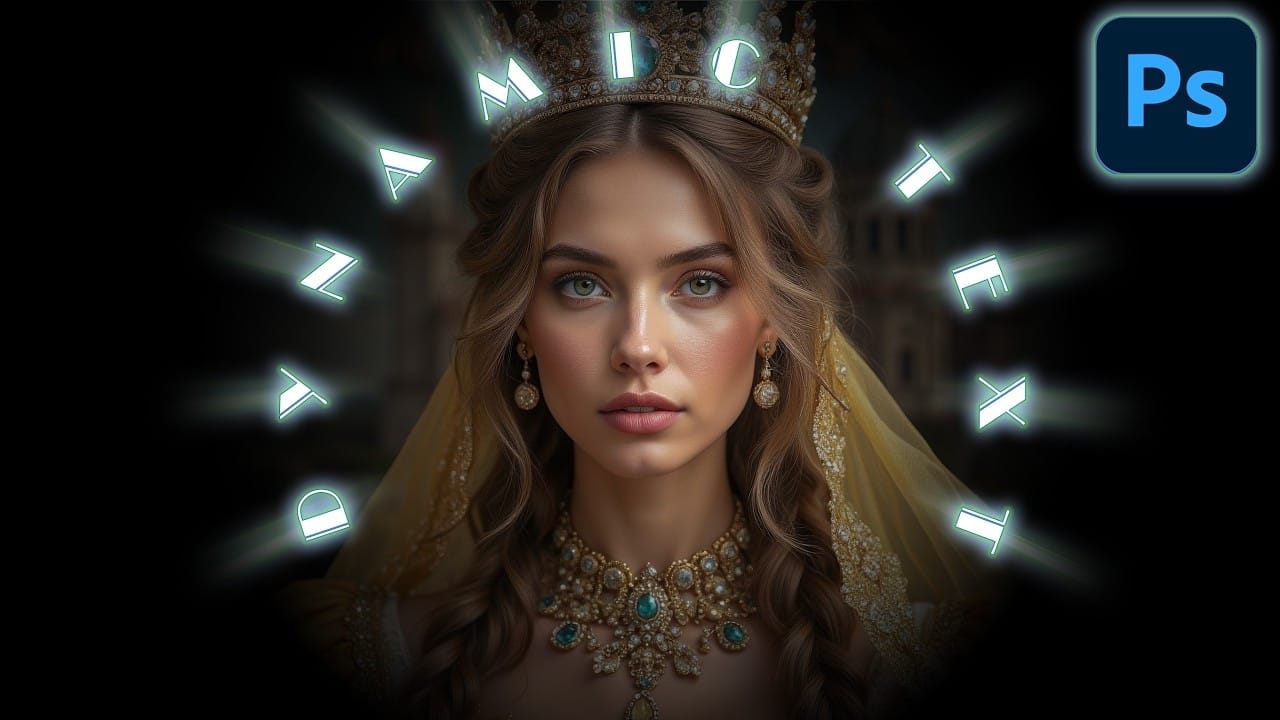
The Dynamic Text tool introduced in 2025 was revolutionary for automatic text sizing and layout, but 2026 brings an exciting update that adds shape options to this powerful feature. You can now create circular text, arches, and bow configurations with the same intelligent resizing capabilities that made the original tool so valuable.

This update transforms what was previously a complex manual process into a simple click-and-go workflow, making curved typography accessible to designers at any skill level.

Watch the Video

Video by PHLEARN. Any links or downloads mentioned by the creator are available only on YouTube

Practical Tips

Follow these key techniques to master the updated Dynamic Text tool:

  • Access the beta version through Creative Cloud's "All Apps" section under the Beta tab - it's available to all current subscribers
  • Use the Properties panel to fine-tune text positioning with above path, centered on path, and below path options
  • Add spacing between words by clicking with the Type tool and pressing the spacebar multiple times for better visual separation
  • Hold Control/Command while using the Type tool to access rotation handles for precise circular text positioning
  • Always commit changes using the checkmark button rather than pressing Enter when working with dynamic text layers

Explore more tutorials covering advanced typography techniques and creative text effects:

Photoshop Introduces Dynamic Text Feature
Designers frequently encounter the challenge of fitting text creatively into layouts without compromising readability or aesthetics. Traditional text handling in design software often means manually adjusting font sizes, leading, or tracking every time a text box is resized, which can be a time-consuming and frustrating process, especially for complex designs or when experimenting with different layouts. This tutorial introduces Photoshop's groundbreaking Dynamic Text feature, available in the
Dynamic Text Tool in Photoshop - Auto-Resizing Text Feature
Text alignment and sizing across multiple layers can quickly turn into a time-consuming puzzle. Manually adjusting each text element, creating guides for alignment, and constantly repositioning elements whenever you make changes disrupts the creative flow. Photoshop's new Dynamic Text feature bridges the gap between point text and paragraph text, automatically resizing your text to fit any text box while maintaining proper alignment and proportions. This tool eliminates the tedious manual adjus
How to Create Curved Text in Photoshop Using the New Dynamic Text Tool
Creating curved text in Photoshop has traditionally required complex workarounds that often distorted the letters. The new Dynamic Text tool in Photoshop Beta changes this completely, allowing you to place text on arches, circles, and custom curves while maintaining perfect letter shapes. This tool offers three main options: arch, circle, and bow configurations, each with precise controls for positioning, spacing, and direction that make curved typography both simple and professional. Watch t
Photoshop's Dynamic Text Feature: Automatic Text Alignment and Resizing
Text alignment in Photoshop has long been a tedious process of manual adjustments, multiple layers, and constant realignment whenever you change font sizes or content. The traditional workflow forces designers to work with separate text layers and spend valuable time fine-tuning positions with transform tools and guides. Photoshop's new Dynamic Text feature eliminates this frustration by automatically handling text flow, alignment, and resizing within a single responsive layer. This beta featur
Photoshop Dynamic Text Feature Tutorial: Auto-Fitting Typography Design
Typography design often involves endless manual adjustments to make text fit perfectly within defined spaces. Every resize means recalculating font sizes, line breaks, and spacing to maintain clean alignment and readability. Photoshop's new Dynamic Text feature automatically handles these calculations, creating pixel-perfect left and right margins while intelligently adjusting font sizes across different lines. This tool transforms how designers approach text layout by eliminating tedious manua
Photoshop Beta: Discover the New Actions Panel
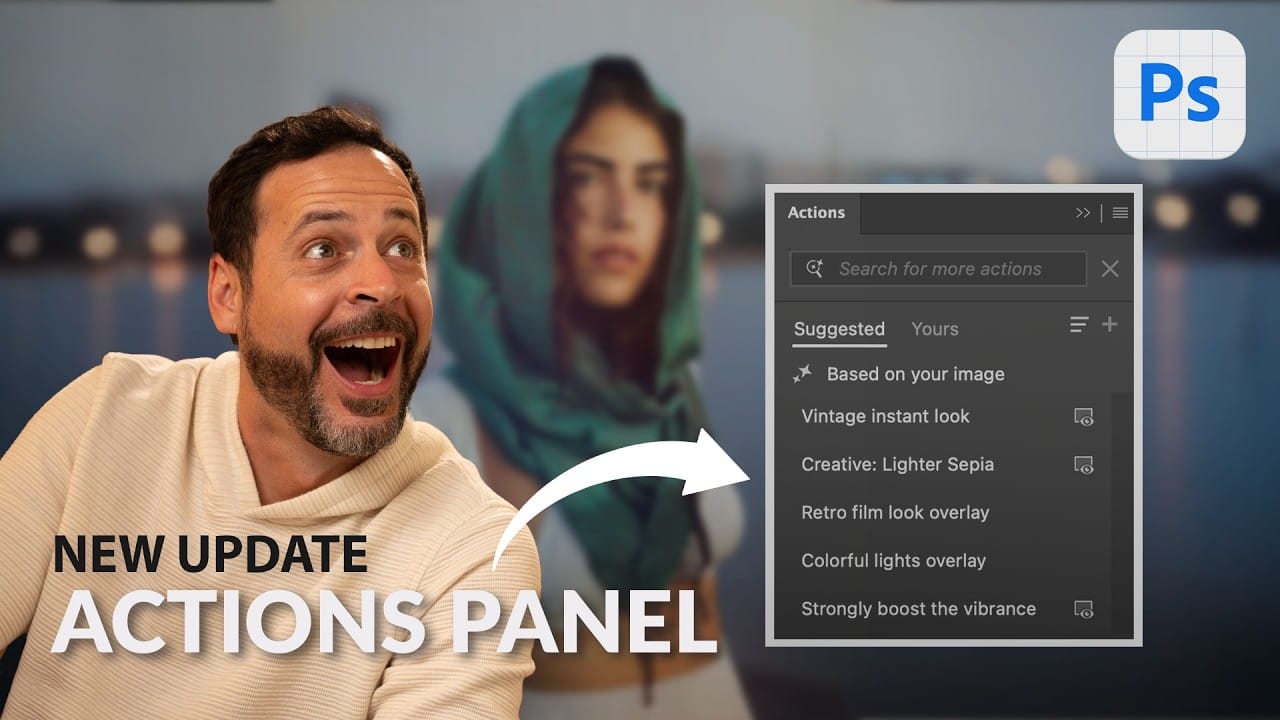
Achieving a specific creative look in Photoshop often requires knowing the right combination of tools and techniques, which can be a significant hurdle for both new and experienced users. While traditional actions can automate repetitive tasks, finding or creating the perfect one for a unique artistic goal isn't always straightforward. This tutorial explores the completely redesigned Actions panel in Photoshop Beta, which uses AI to simplify complex edits. You will learn how to use natural lang
Essential Type Tool Techniques in Photoshop
Text in Photoshop offers far more creative potential than basic typing and font selection. Advanced type tool techniques unlock professional-level text manipulation, from precise warping control to custom character distortion and knockout effects. These methods transform ordinary text into dynamic design elements that integrate seamlessly with complex compositions and visual effects. Watch the Tutorial Beyond Basic Typography in Digital Design Typography in digital design extends far beyond
Photoshop Beta: Exploring the New Generative Workspace
The new Generative Workspace in Photoshop 2025 Beta transforms how you create and iterate on AI-generated images. This dedicated environment streamlines the entire process from initial prompts to final compositions, offering powerful tools for batch generation and precise control over your creative output. Unlike traditional workflows that require switching between different panels and tools, the Generative Workspace centralizes everything in one interface, making it faster to experiment with v

Get tutorials & freebies delivered to you.

Subscribe to the Photoshop Roadmap newsletter, a weekly roundup of new tutorials, insights and quality downloads, trusted by 6500+ readers.

You might also like

How to Remove Glasses Reflections with Firefly Image Model 5 in Photoshop

Glasses reflections can ruin otherwise perfect portraits, obscuring your subject's eyes and creating distracting bright spots. While traditional AI models can remove these reflections, they often alter facial features and frame details in the process. Photoshop's new Firefly Image Model 5 changes this by preserving facial...

How to Create Realistic Specular Highlights Using Basic Brush Techniques

Specular highlights bring objects to life by simulating how light reflects off surfaces. These bright spots of reflected light add dimension and realism to your digital artwork, making flat surfaces appear three-dimensional and convincing. This technique uses simple brush strokes combined with strategic blending modes to create professional-looking highlights that...

How to Create a Wood Engraving Effect from Photos in Photoshop

Wood engravings capture the timeless aesthetic of traditional printmaking, transforming ordinary photographs into artwork that resembles hand-carved illustrations. This technique combines the rustic charm of wood textures with the precise detail of engraved lines, creating images that feel both historical and artistic. The process uses non-destructive editing methods and smart...

When to Skip Layer Duplication in Modern Photoshop Workflows

The old advice to always duplicate layers when editing in Photoshop stems from earlier versions that lacked today's powerful tools. Modern Photoshop workflows often make layer duplication unnecessary, especially for common tasks like object removal, sky replacement, and background changes. Understanding when to skip this step saves storage...

Why Testing Your Thumbnails Across Generations Improves Video Performance

The best thumbnail designs make sense to everyone, not just your target audience. When you create thumbnails that only speak to your specific niche or generation, you limit your video's potential reach and engagement. Testing your thumbnails with people from different age groups reveals clarity issues you might...

How to Use Photoshop 2026's New Dehaze Tool for Better Background Clarity

Hazy backgrounds can make even the most stunning landscapes look flat and lifeless. Photoshop 2026's new dehaze feature transforms these atmospheric challenges into clear, vibrant scenes with precise control. The key to getting professional results lies in making targeted selections before applying the dehaze effect. This approach ensures...

You’ve successfully subscribed to Photoshop Roadmap
Welcome back! You’ve successfully signed in.
Great! You’ve successfully signed up.
Success! Your email is updated.
Your link has expired
Success! Check your email for magic link to sign-in.