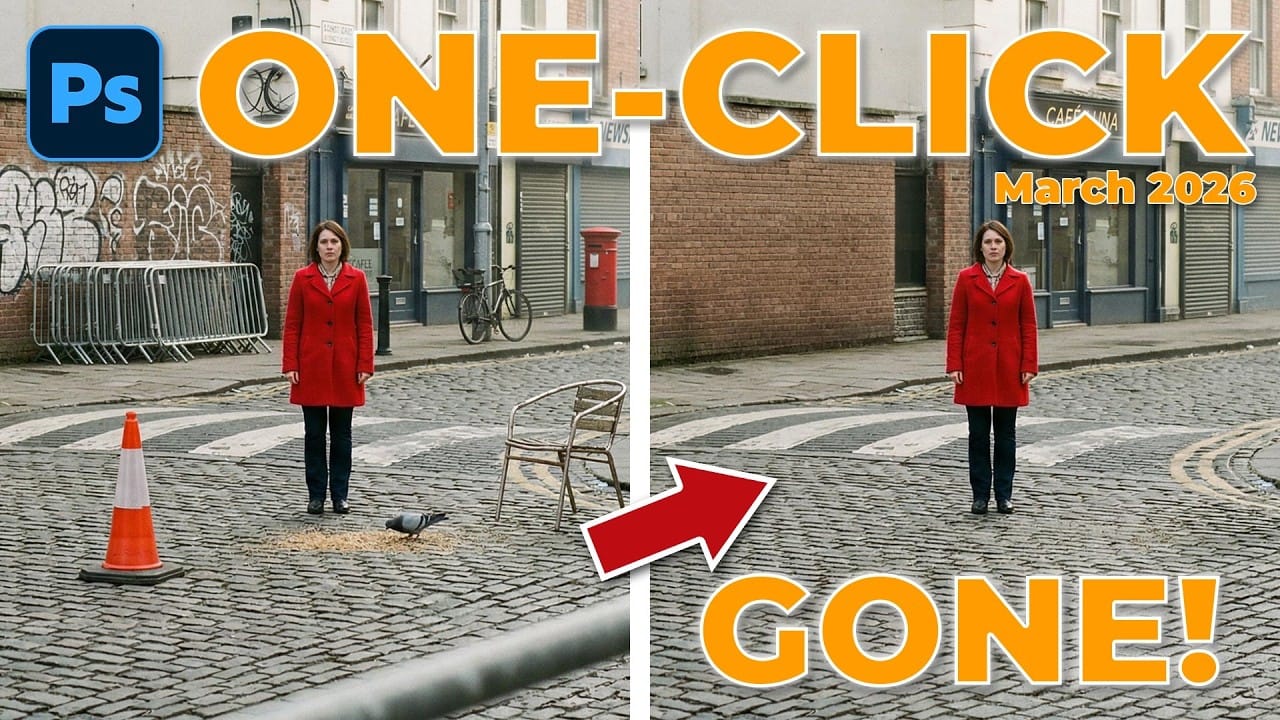

Reflections can hide the subject of a photo, while foreground clutter can pull attention away from the scene. Photoshop’s AI tools can separate reflections, identify distractions, and help replace objects that need a more careful fix. This workflow shows how to remove a window reflection, choose which detected elements to keep, and use Generative Fill to repair a laptop.
Watch the Video
Video by Adobe Photoshop. Any links or downloads mentioned by the creator are available only on YouTube
Practical Tips
Use the tools in stages, and review each result before moving on.
- Choose Standard quality for reflection removal to balance processing speed and image quality.
- Adjust the reflection layer’s opacity if you want to retain some visible glass reflection.
- Enable Create new layer and Sample all layers before using the Remove Tool to keep edits separate from the original.
- Use the distraction-detection controls to keep important objects and paint away highlights on elements you want to preserve.
- Select an object that needs repair and use a clear Generative Fill prompt, then compare the generated variations.
Related Articles and Tutorials
Explore more guides to removing reflections, cleaning up photos, and refining Photoshop edits.
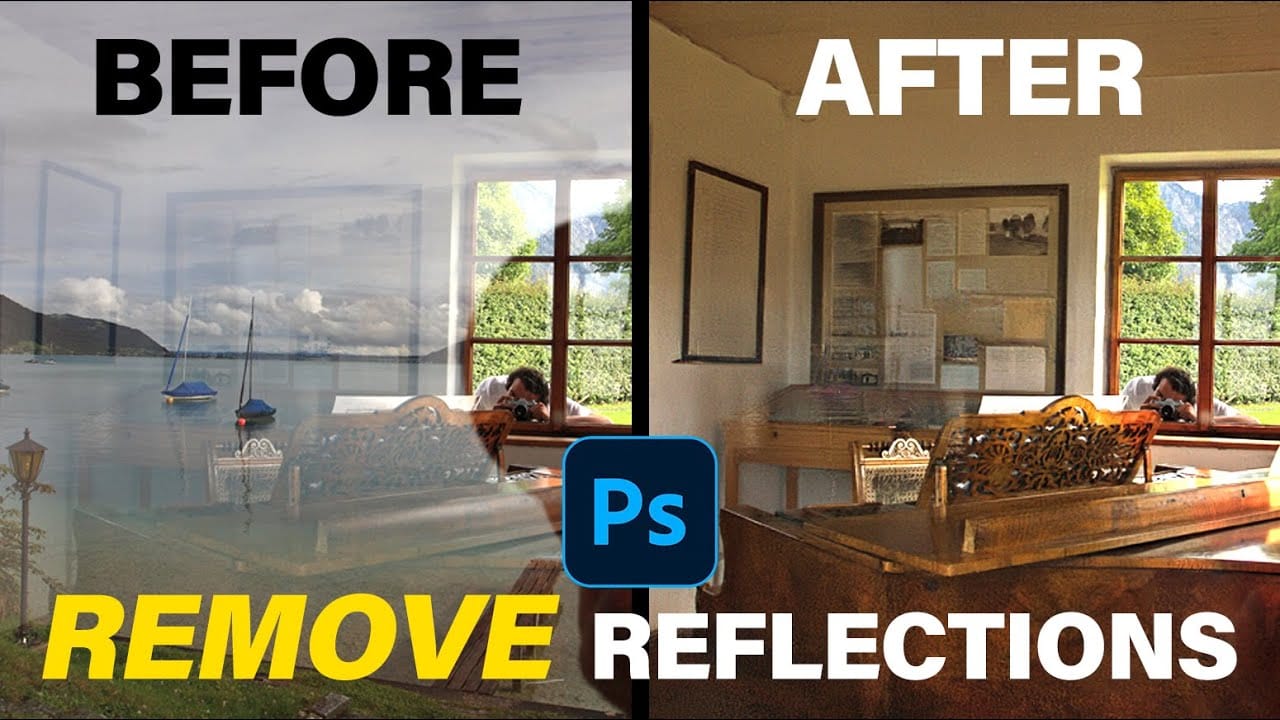
New Reflection Removal Tool in Photoshop
Capturing the perfect shot often means battling environmental challenges, and few are as persistent as unwanted reflections in windows or glass. These glare points can obscure subjects, distort details, and fundamentally compromise an image's impact.
Fortunately, Photoshop has introduced a new AI-powered feature designed to tackle this common photographic issue. This video demonstrates how to activate and effectively use this tool, showcasing its capabilities and outlining crucial workflow cons

How to Remove Reflections from Photos Using Photoshop's AI Tool
Glass surfaces create some of photography's most persistent challenges. Windows, storefronts, and displays often produce unwanted reflections that obscure subjects and compromise image clarity.
Photoshop's latest AI-powered reflection removal tool addresses this common problem with automated detection and removal capabilities. This video demonstrates the complete workflow for eliminating reflections while preserving underlying image details.
Watch the Tutorial
Understanding Reflection Remov
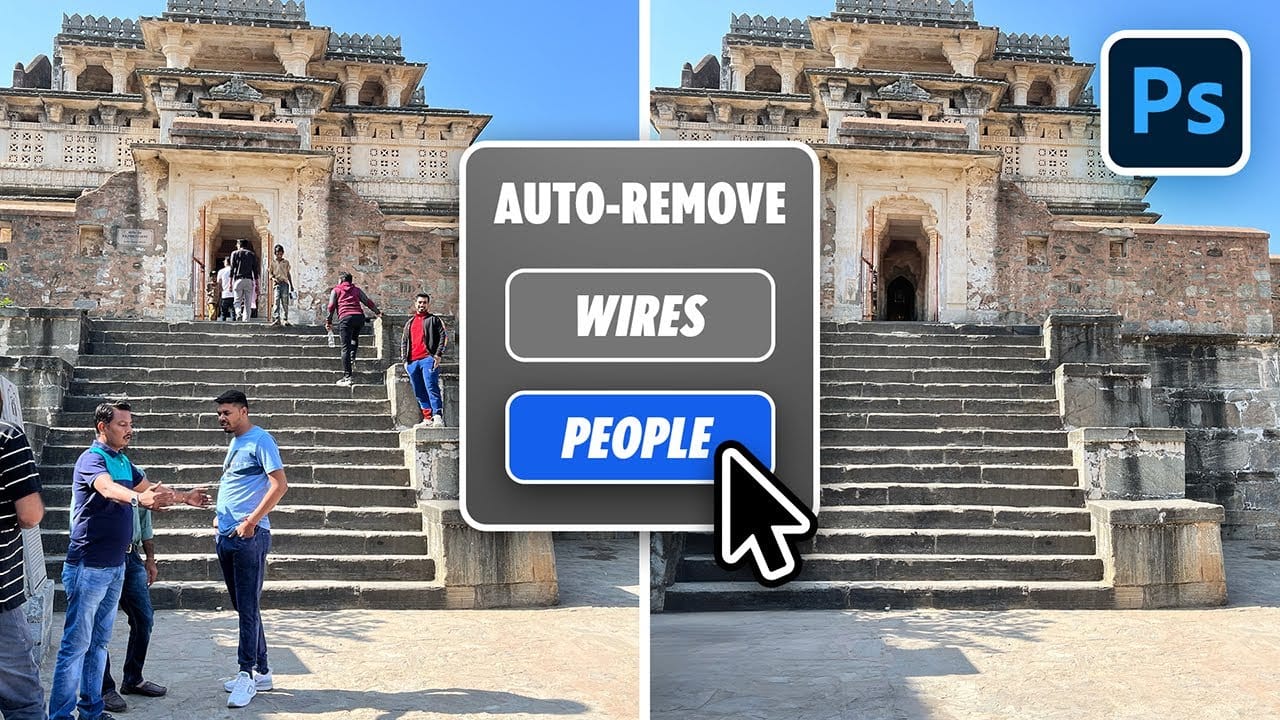
Remove All Distractions From a Photo in One Click using Adobe Photoshop
This tutorial by PiXimperfect introduces an impressive new feature in Adobe Photoshop Beta that simplifies photo editing. By utilizing the updated Remove Tool, users can effortlessly eliminate distractions from their images with just one click.
The tutorial highlights how this feature can efficiently remove unwanted elements such as people, power lines, and various other distractions that can detract from the overall quality of a photograph. Ideal for photographers and graphic designers alike,
Photoshop 27.6: Complete Guide to New Features and Tools
Photoshop 27.6 introduces several powerful features that streamline common editing tasks. From bringing reflection removal directly into the main interface to AI-powered distraction detection, these updates focus on making complex workflows more accessible and efficient.
The update also includes enhanced generative models, improved layer management tools, and a redesigned actions panel that provides visual previews before applying effects.
Watch the Video
Practical Tips
Key techniques to m
How to Remove Distractions, Expand Borders, and Polish a Portrait in Photoshop
A cluttered background, tight framing, and flat lighting can undermine an otherwise strong portrait. This workflow covers the full process of cleaning up a photo using Photoshop's AI-powered Remove Tool, extending the canvas with Generative Expand, replacing the sky, and finishing with Camera Raw adjustments for grain, vignetting, and background blur.
Watch the Video
Practical Tips
These techniques work together as a sequential editing workflow, each step building on the last to produce a c

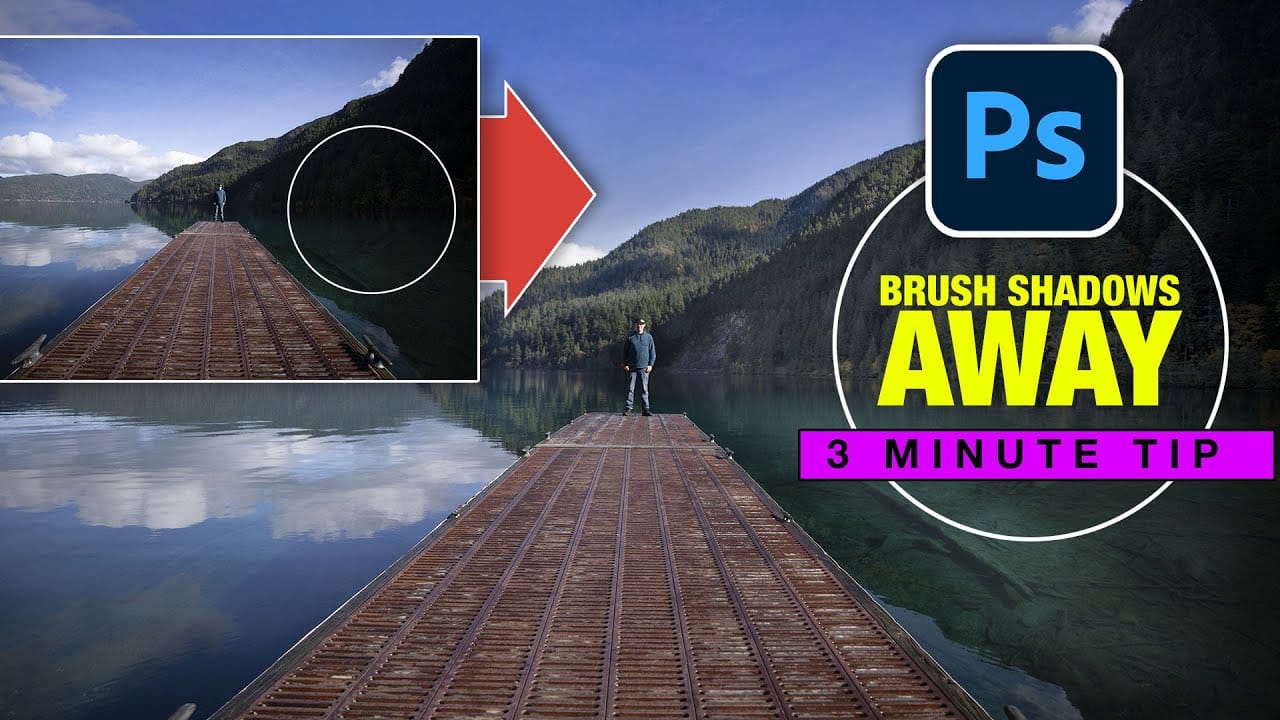
Instantly Recover details in photos with Photoshop
In this tutorial, Colin Smith reveals an effective technique for recovering hidden details in photos using Photoshop. The focus is on a method known as reverse dodge and burn, which allows you to selectively enhance shadow and highlight areas to bring out fine details.
Colin demonstrates how to paint over shadows and highlights in a realistic manner, blending the adjustments seamlessly into the image. This approach helps to restore lost details and improve the overall dynamic range of your phot
AI Reflection Removal in Photoshop 2026: Complete Workflow with Masking and Generative Fill
Photoshop 2026 introduces built-in AI reflection removal for the first time, bringing a capability previously limited to Lightroom and Camera Raw directly into a layer-based workflow. The key advantage here is control: results appear on a separate layer, which means you can mask out problem areas where the AI misidentifies subject details as reflections and patch remaining issues with generative fill.
Watch the Video
Practical Tips
Key techniques to get the most out of the reflection remova

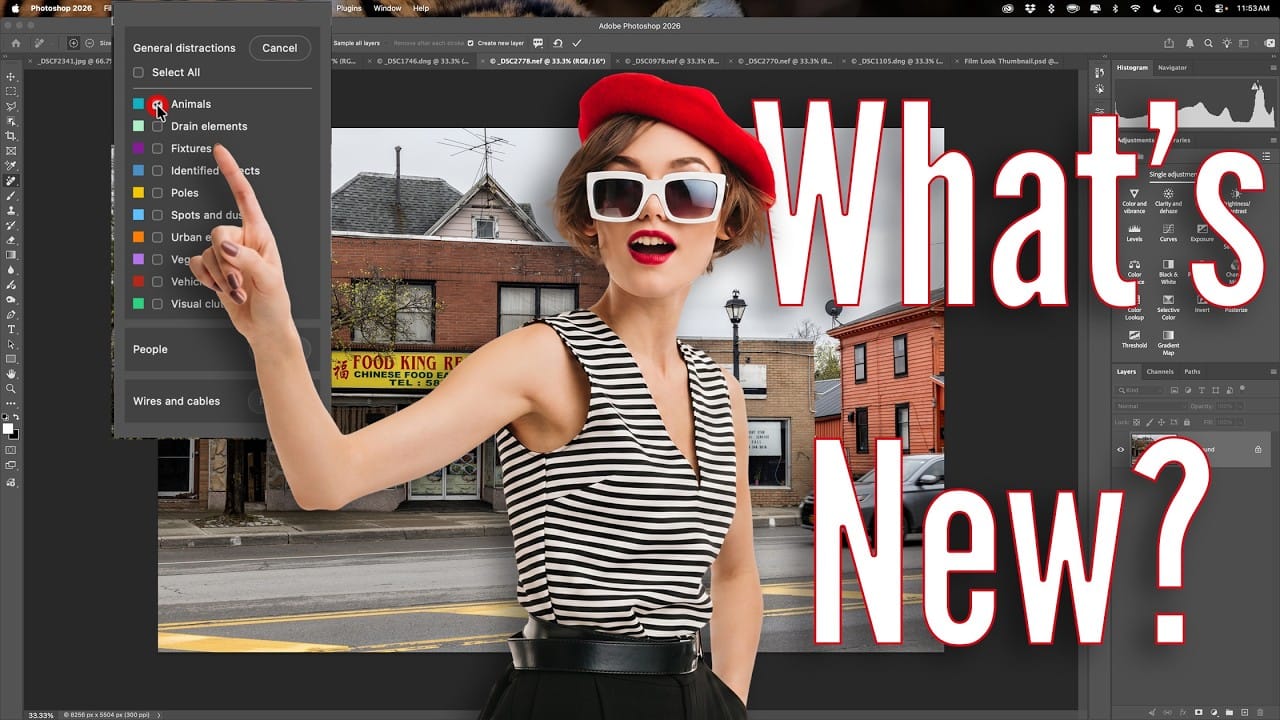
How to Use Photoshop's Auto Distraction Removal Tool
Removing unwanted elements from photos used to require hours of careful work with clone stamps and healing brushes. The new General Distractions feature in Photoshop's Remove Tool changes this completely by automatically detecting and eliminating distractions across 26 different categories with a single click.
This AI-powered upgrade can identify everything from people and vehicles to wires, vegetation, and urban clutter, then seamlessly remove them while preserving your original image on separ