
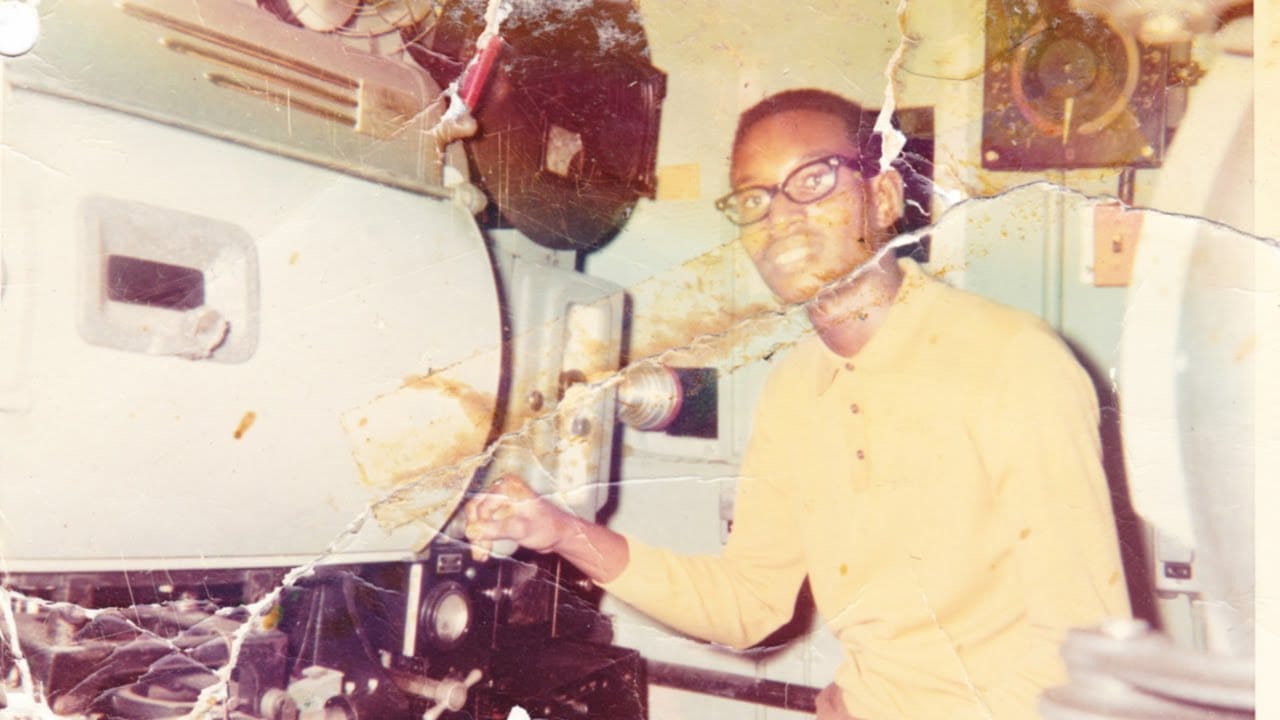
Scratches, faded color, and soft details can make an old family photograph difficult to enjoy. Photoshop’s Photo Restoration neural filter can help repair visible damage, followed by subtle color and clarity adjustments to bring the image back to life while keeping it natural.
Watch the Video
Video by Adobe Photoshop. Any links or downloads mentioned by the creator are available only on YouTube
Practical Tips
Use the restoration filter first, then refine the image with restrained adjustments:
- Scan the photograph before editing so you have a digital copy to work with.
- Open Filter > Neural Filters and apply Photo Restoration.
- Adjust scratch reduction, face enhancement, and photo enhancement to suit the image.
- Use Hue/Saturation to make small overall and color-specific changes.
- Add only a little clarity or dehaze, and stop before the photo looks unnatural.
Related Articles and Tutorials
Explore more guides to repairing, enhancing, and creatively transforming old photographs.
How to repair an old torn photo in Photoshop
Old family photographs often suffer from tears, scratches, discoloration, and missing pieces over time. These precious memories can seem beyond repair, but with the right approach, even severely damaged photos can be restored to their former glory.
This comprehensive restoration workflow covers everything from reassembling torn pieces to removing blemishes and correcting color casts that develop in aging photographs.
Watch the Video
Practical Tips
These essential techniques will help you t
Create an Old Photo Effect in Photoshop
The author, Photoshop Pro Help, provides a tutorial on how to create an old photo effect in Photoshop. They explain that if you have ever admired the style of vintage photos and wanted to give your modern photos a similar look, this tutorial will show you how to apply an old photo style with a torn and damaged brown vintage effect. This can transform your photos to look as if they were taken straight from a history book.
The tutorial guides the user through the process of achieving this retro a
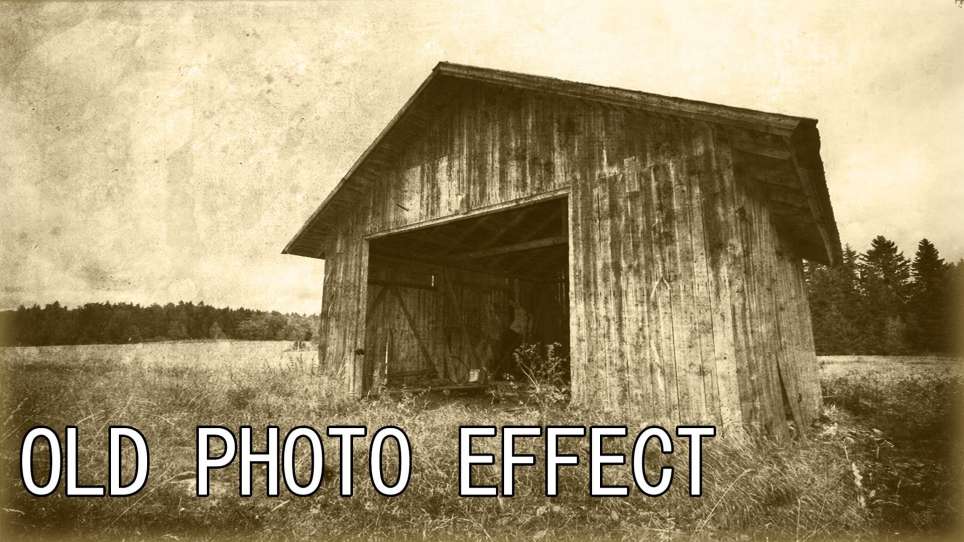
Create a realistic old vintage photo effect in Photoshop
Photographs are timeless. In fact, it’s often our old, weathered and faded photographs that we treasure the most. Snapshots from a bygone era fill our hearts with nostalgia and romantic notions of how much simpler life must have been.
While today’s digital cameras continue to amaze us with their technology, there’s still something magical and irreplaceable about old, vintage photographs. And not only do we love to look at them, but we also love to recreate the look of them in programs like Phot
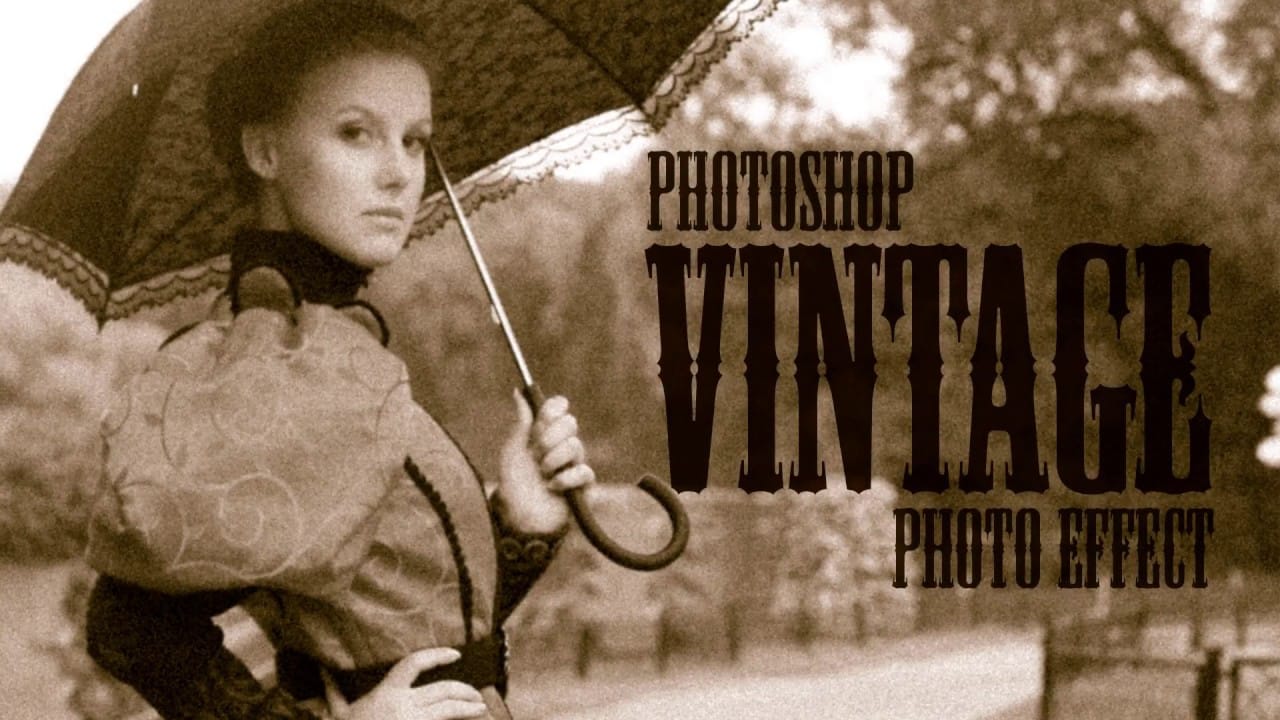
Photo Restoration: Combining AI with Photoshop for Optimal Results
Restoring old, damaged photographs can be a challenging endeavor. While many AI-powered tools promise to breathe new life into vintage images, they often fall short, either over-sharpening details, neglecting certain areas, or, most critically, altering the original likeness of individuals. This often leads to frustrating and uncanny results that strip the photos of their authentic charm.
This tutorial unveils a comprehensive workflow that marries the efficiency of AI-driven enhancement with th
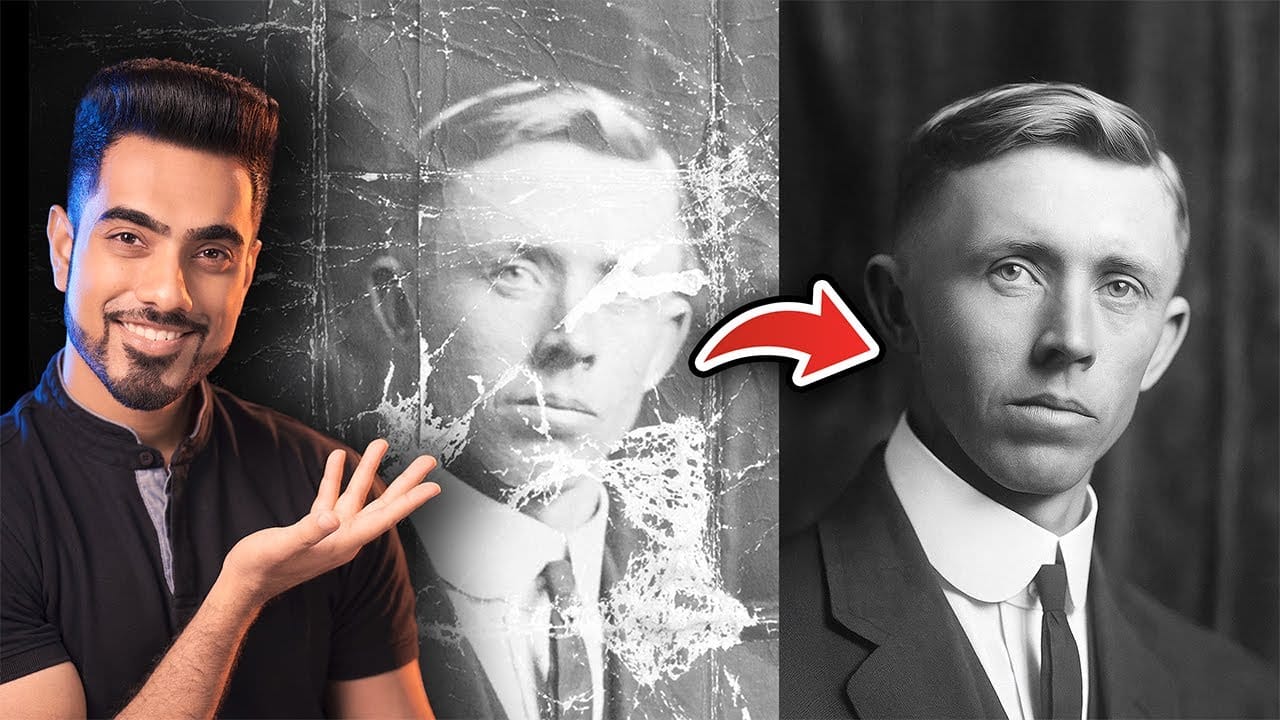
How to Restore Old Photos Using AI and Photoshop While Preserving Original Details
Traditional AI photo restoration tools often change facial features, alter poses, or distort important details when enhancing old photographs. This hybrid workflow combines AI enhancement with precise manual alignment techniques to restore vintage images while keeping every original detail intact.
The method uses strategic cropping, AI processing with specific prompts, and Photoshop's alignment tools to maintain the authentic character of historic photographs.
Watch the Video
Practical Tips
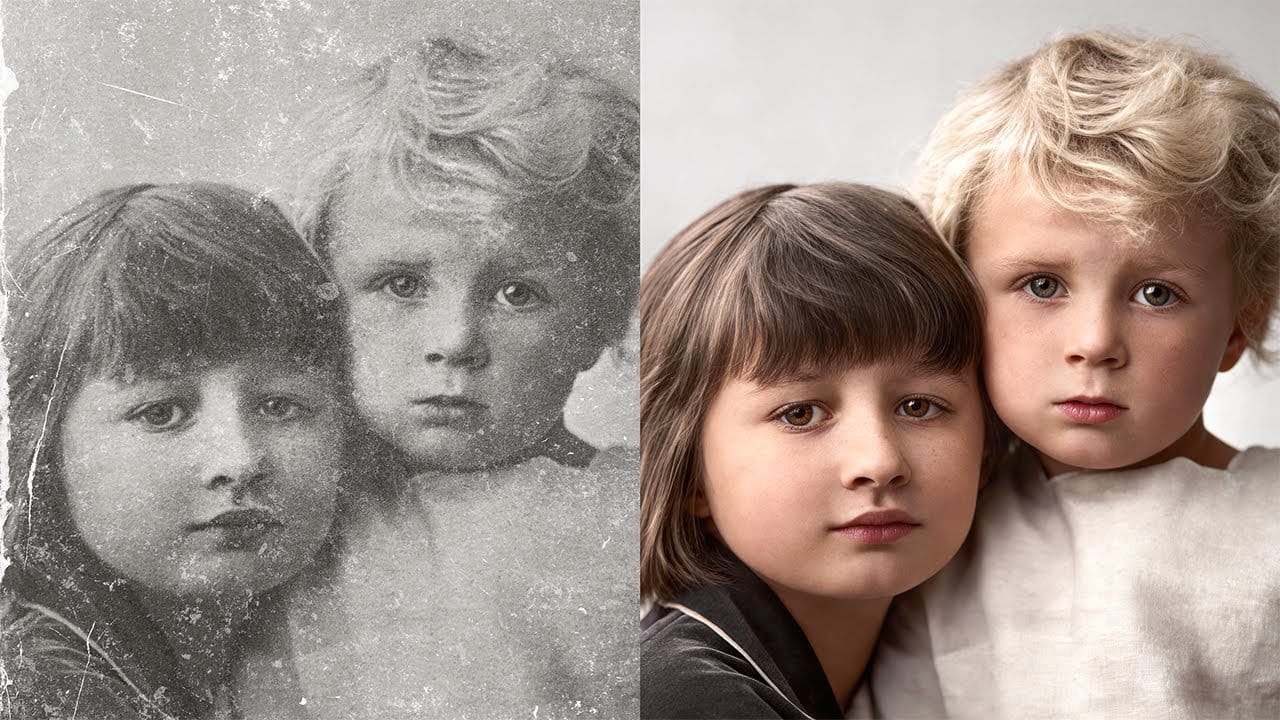
How Photoshop Photo Restoration Got Better Than Ever
This tutorial by Matt Kloskowski on Photoshop photo restoration reveals an impressive evolution in photo editing technology over the past few years. Many tasks that once required extensive time and complex processes can now be completed in just minutes. This is especially relevant after recent storms, which emphasized the need for restoring valuable family memories.
Photoshop’s new tools and techniques make it easier than ever to tackle damaged images. Kloskowski emphasizes that achieving perfe
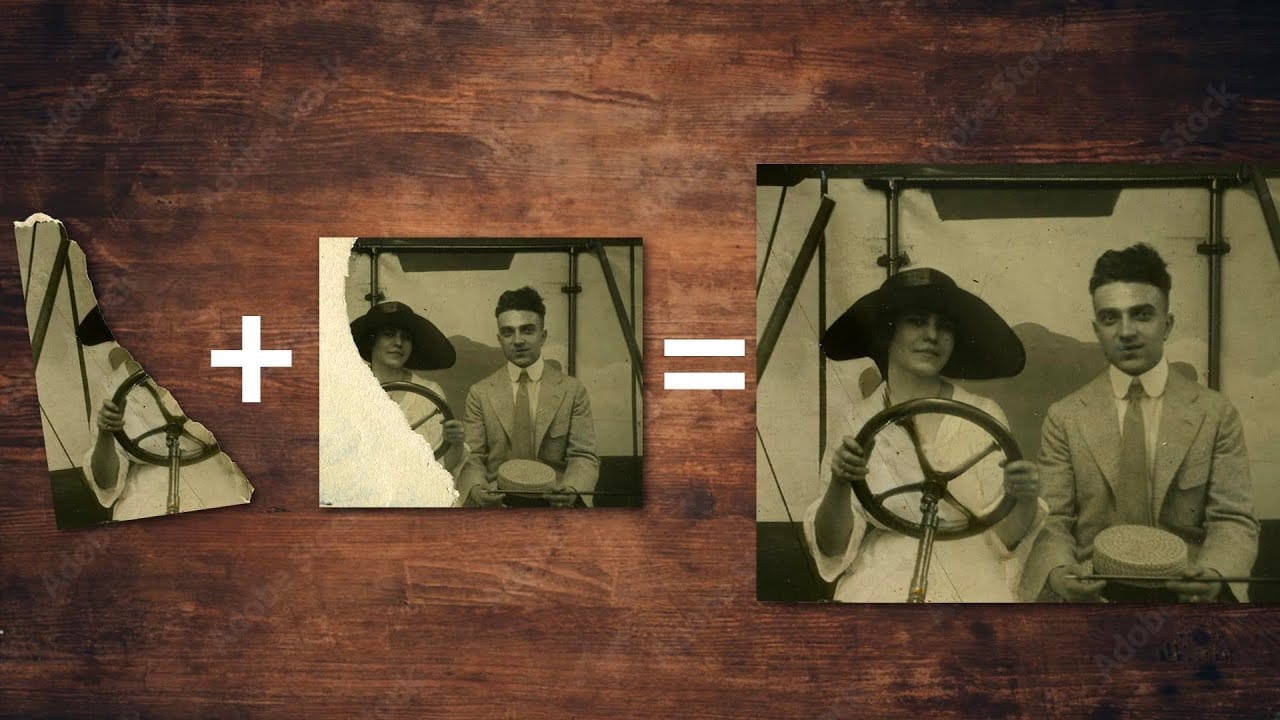
How to Colorize a Old Black and White Photo in Photoshop
Bringing vintage photos into life in Photoshop is fun, especially if it involves old family pictures and portraits. Your first attempts probably were a mess. Don’t worry, it’s not that simple without the proper knowledge, but it isn’t a complex task either. In fact, after watching this video tutorial chances are that you’ll become a serial colorizer.
John Shaver from Photoshop Video Academy, explains in this detailed tutorial how to colorize photos using a 100% non-desctrucive technique, wich w
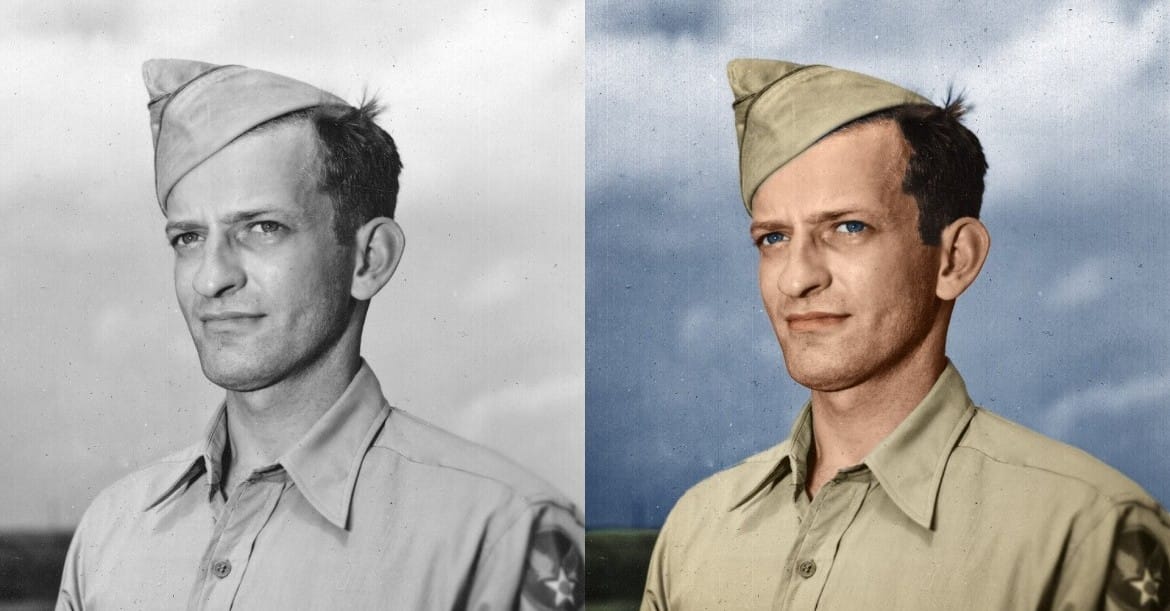
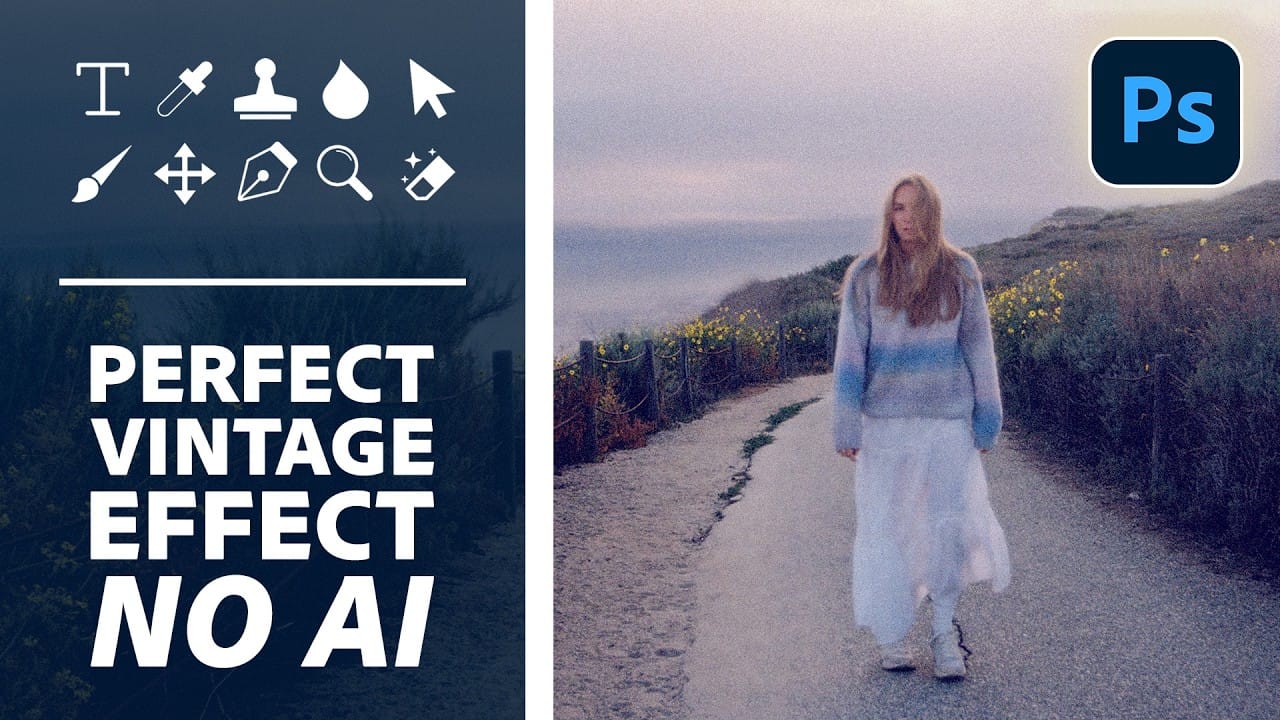
How to Create a Vintage Film Look in Photoshop Using Adjustment Layers
Aging a photo convincingly takes more than a preset — it requires control over highlights, color channels, and grain working together. This walkthrough covers a fully manual, non-destructive workflow for building a vintage film effect in Photoshop, using Color Range selections, Smart Filters, a Grain adjustment layer, and per-channel Levels editing to shift shadows and highlights into aged tones.
Watch the Video
Practical Tips
These key techniques from the tutorial will help you build a mor