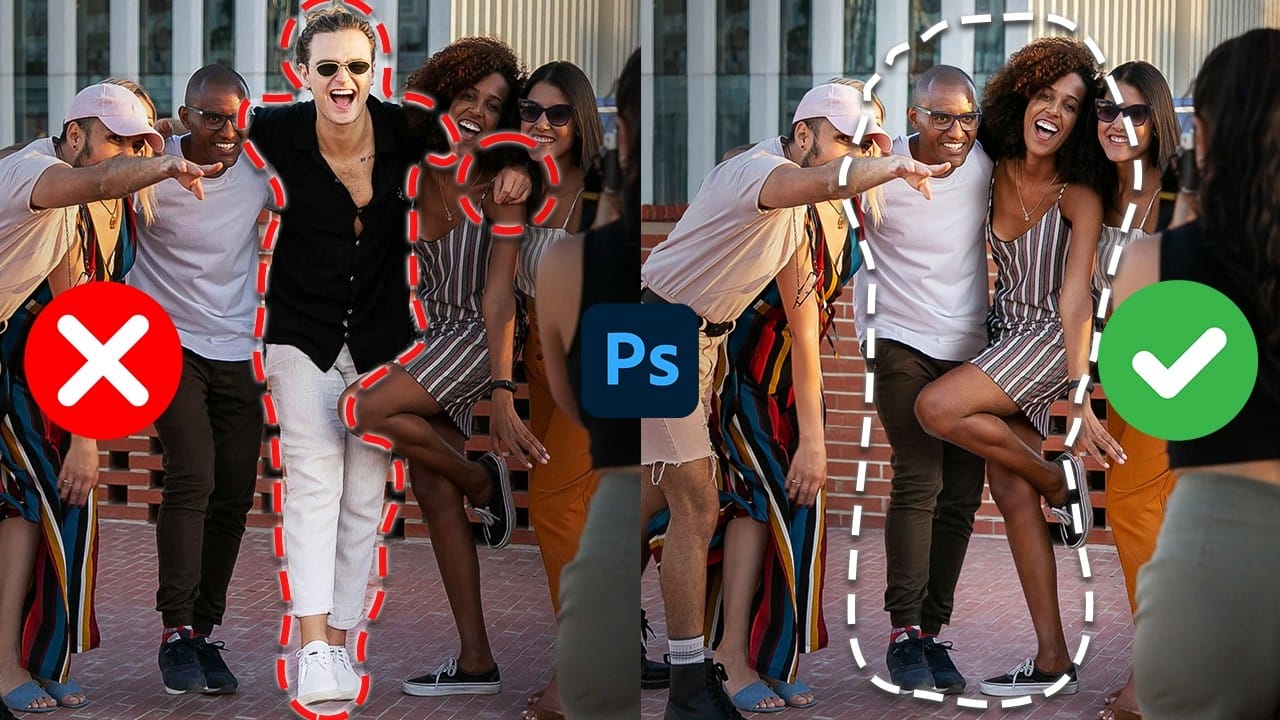
Photoshop’s Remove Tool can clear unwanted objects, but its Related Elements option can also target traces such as shadows, reflections, and lens flare. This guide explains how to set up a non-destructive workflow, choose between automatic and generative processing, and refine results when the first pass falls short. Related Elements is available in Photoshop Beta and uses generative credits.
Watch the Video
Video by Photoshop Training Channel. Any links or downloads mentioned by the creator are available only on YouTube
Practical Tips
Use these steps to improve object-removal results and keep edits easy to refine.
- Create a blank layer and enable Sample All Layers to preserve the original image.
- Include an object’s shadows in your selection to help Photoshop fill the area cleanly.
- Try Generative AI On if Auto leaves visible seams or blending problems.
- Use a black layer mask to reveal only the generated areas that look convincing.
- Choose another method for complex removals when generated results distort nearby details.
Related Articles and Tutorials
Explore more techniques for removing distractions, repairing backgrounds, and choosing a workflow for challenging edits.
Remove All Distractions From a Photo in One Click using Adobe Photoshop
This tutorial by PiXimperfect introduces an impressive new feature in Adobe Photoshop Beta that simplifies photo editing. By utilizing the updated Remove Tool, users can effortlessly eliminate distractions from their images with just one click.
The tutorial highlights how this feature can efficiently remove unwanted elements such as people, power lines, and various other distractions that can detract from the overall quality of a photograph. Ideal for photographers and graphic designers alike,
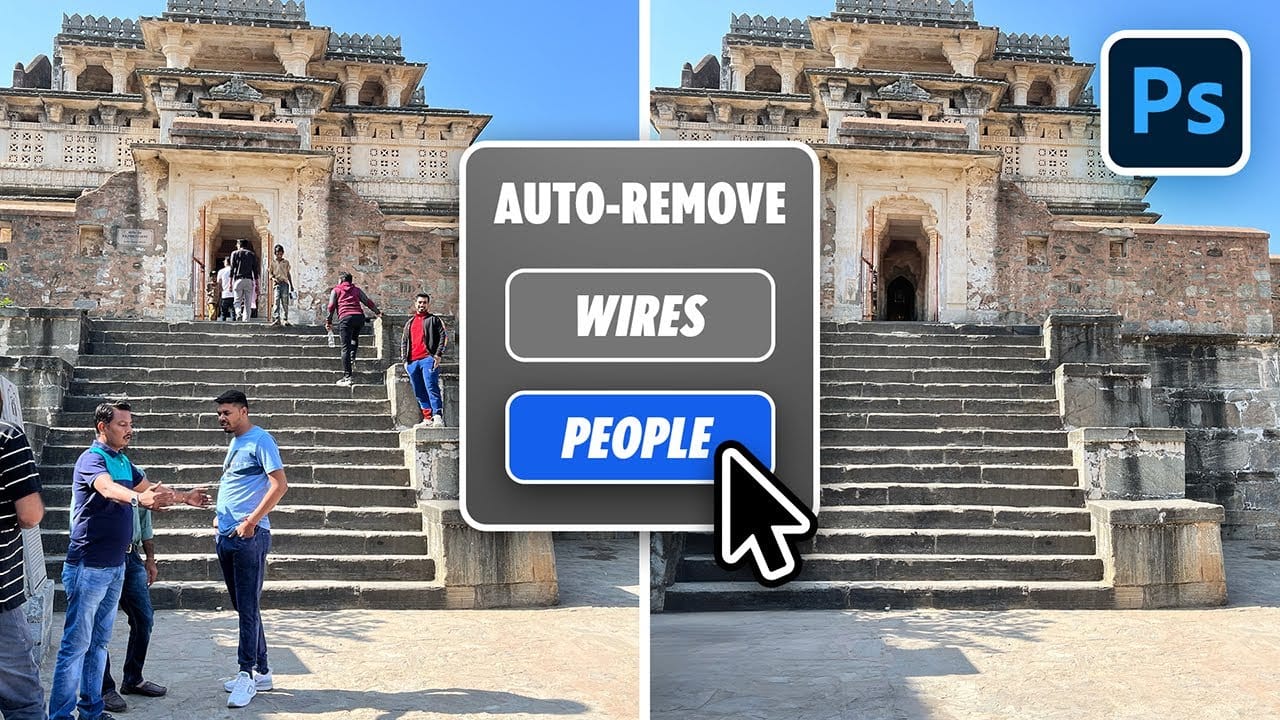
Testing Photoshop 2025's One-Click Remove Tool
Photoshop 2025 introduces a revolutionary "Find Distractions" feature that automatically identifies and removes unwanted elements from your photos with a single click. This new capability can detect wires, cables, and people, then use generative AI to seamlessly eliminate them without manual selection.
The feature works within the existing Remove Tool, combining automatic detection with the flexibility to manually paint over additional elements you want to remove.
Watch the Video
Practical

How to Remove Objects Using Photoshop's Updated Remove Tool Without Credits
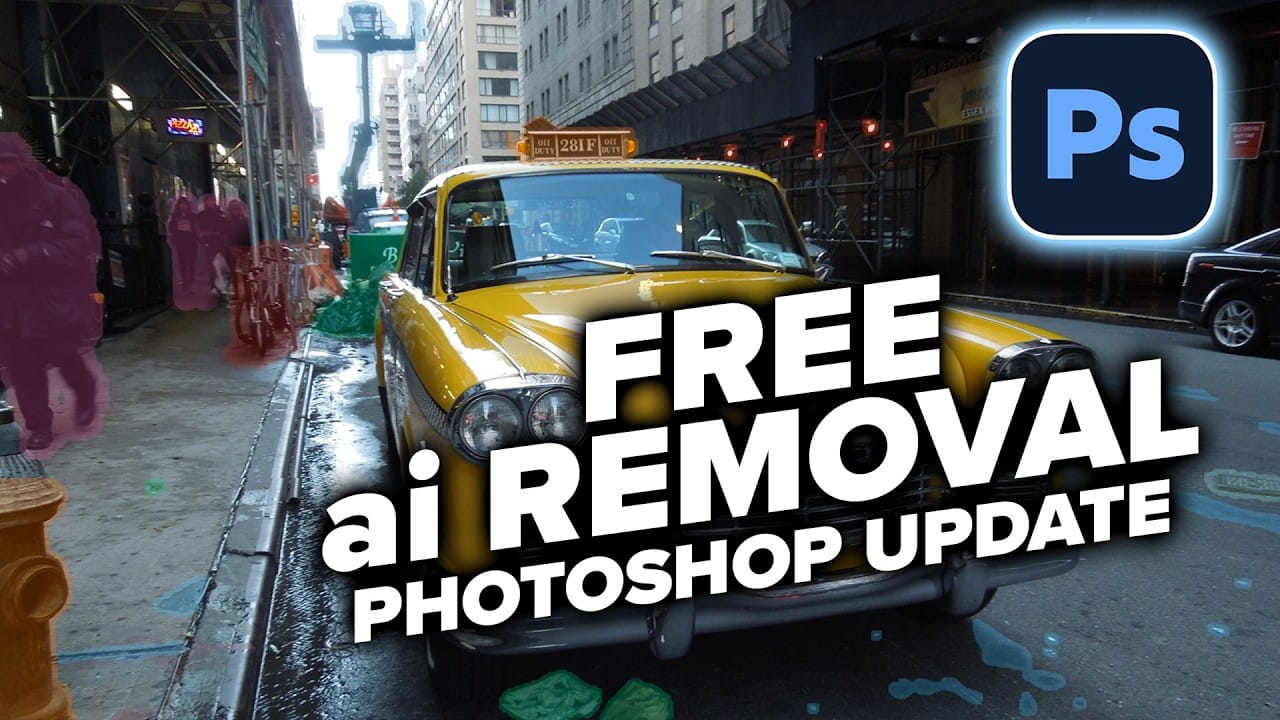
Photoshop's updated Remove tool offers powerful AI-powered object removal without consuming any generative credits, regardless of your subscription plan. The tool features automated distraction detection that categorizes different types of visual clutter—from trash and people to urban elements and blemishes—making it easy to selectively remove them from photos.
This non-destructive workflow creates separate layers for each removal operation, preserving your original image whil
How to Remove Objects from Photos Using Photoshop's Remove Tool and Clean Plate Technique
Professional photo editing often requires removing unwanted objects while maintaining natural-looking results. The challenge lies in creating seamless edges and realistic backgrounds, especially around complex subjects like hair or intricate details.
This tutorial demonstrates both basic object removal using Photoshop's Remove Tool and an advanced "clean plate" technique used in professional TV and movie poster production.
Watch the Tutorial
Essential Tips for Object Removal
* Create a ne
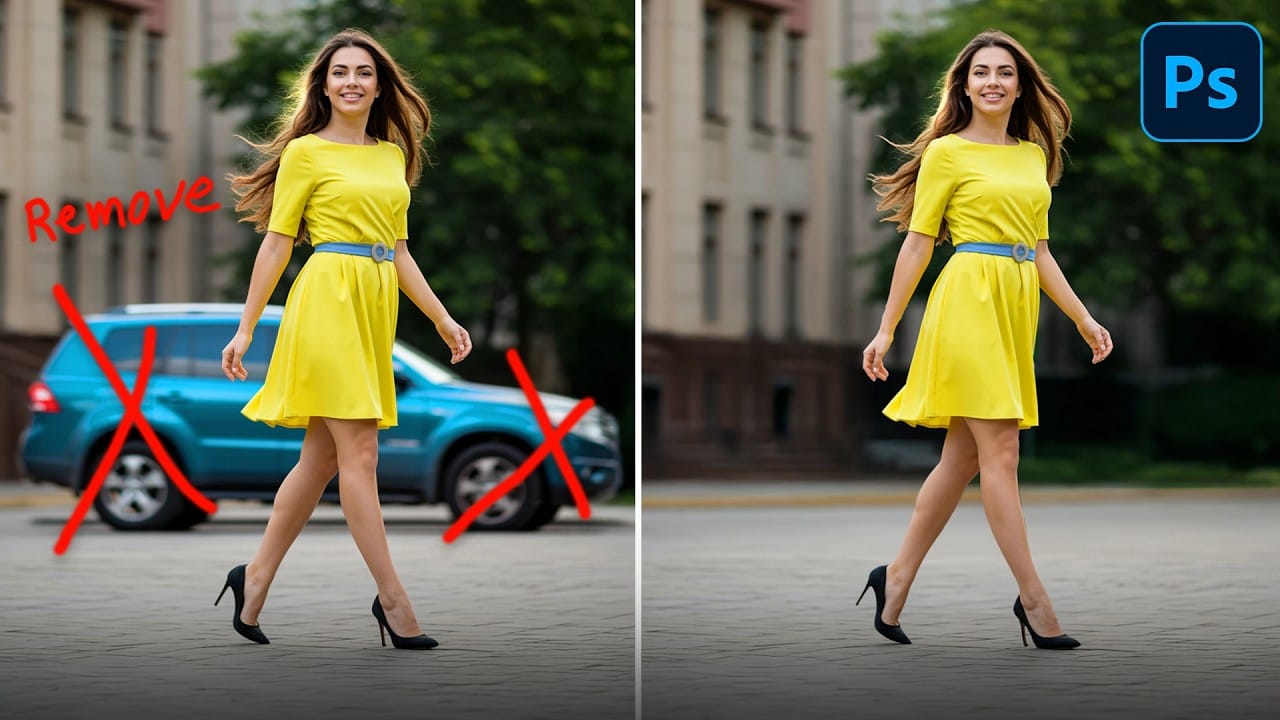
How to Remove Objects from Photos Using AI Tools in Photoshop
Photoshop's AI-powered object removal tools can eliminate unwanted distractions from photos with minimal effort. The Remove Tool and Generative Fill feature automated detection for common distractions like people and wires, plus manual painting options for custom removals.
These tools work on separate layers, preserving your original image while giving you complete control over what gets removed and how the final result looks.
Watch the Video
Practical Tips
These key techniques will h

Photoshop Object Removal: Remove Tool vs Contextual Remove Button Compared
Photoshop offers two main approaches for removing unwanted objects: the Remove Tool brush and the contextual Remove button that appears after making selections. Each method has distinct advantages depending on your image and workflow.
This comparison explores both techniques across multiple real-world examples to help you choose the most effective approach for different situations.
Watch the Tutorial
Key Techniques for Object Removal
* Use the Remove Tool for faster selection
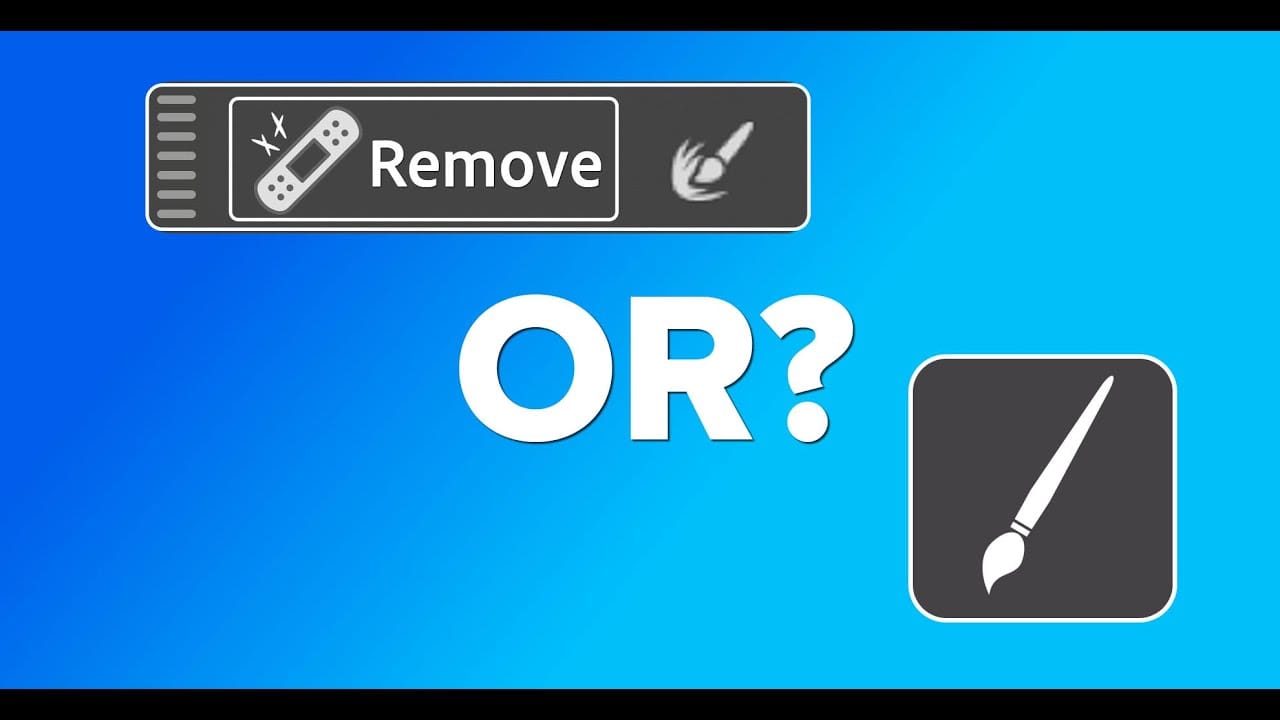
Photoshop’s Remove Tool is Broken—What Now?
Object removal is a fundamental task in photo editing, but AI-powered tools can sometimes produce unpredictable results. It can be frustrating when a tool designed to remove an object instead replaces it with another unwanted element, disrupting your workflow and requiring extra steps to correct.
This tutorial demonstrates how recent updates to the Remove Tool in Photoshop Beta solve these common issues. You will learn how to access the tool and use a selection-based workflow for more
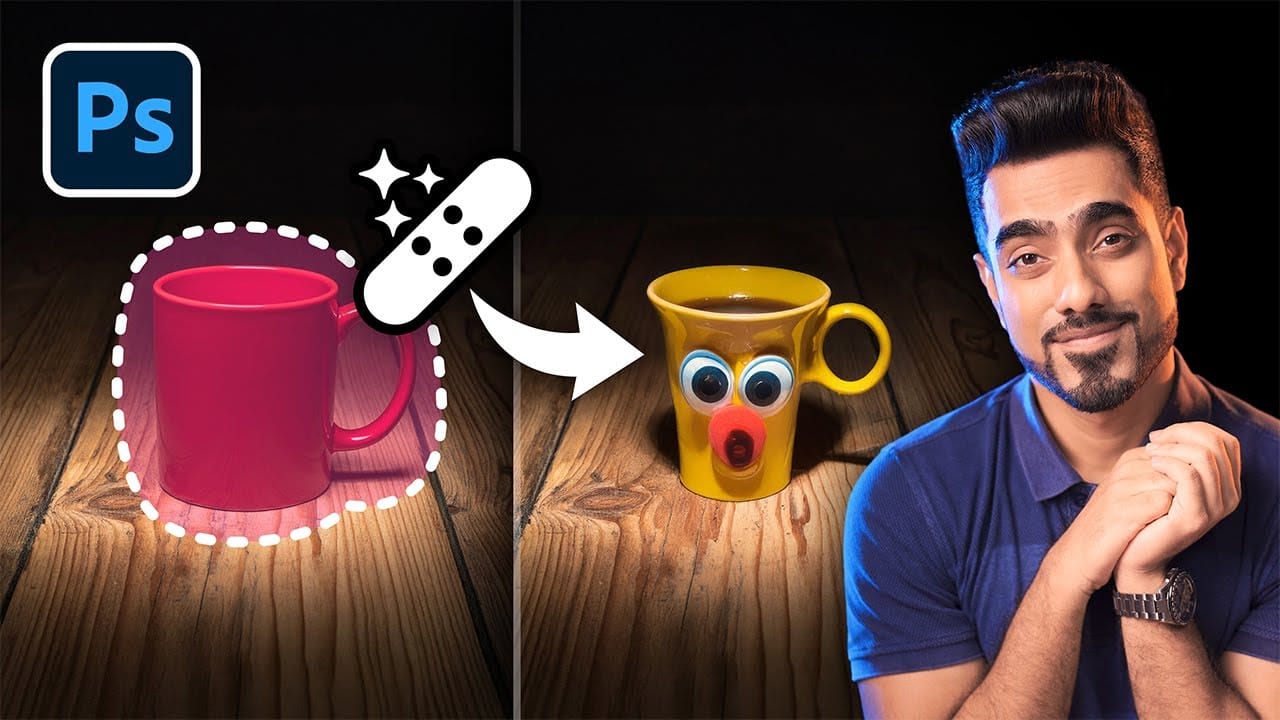
How to Use Photoshop's Auto Distraction Removal Tool
Removing unwanted elements from photos used to require hours of careful work with clone stamps and healing brushes. The new General Distractions feature in Photoshop's Remove Tool changes this completely by automatically detecting and eliminating distractions across 26 different categories with a single click.
This AI-powered upgrade can identify everything from people and vehicles to wires, vegetation, and urban clutter, then seamlessly remove them while preserving your original image on separ
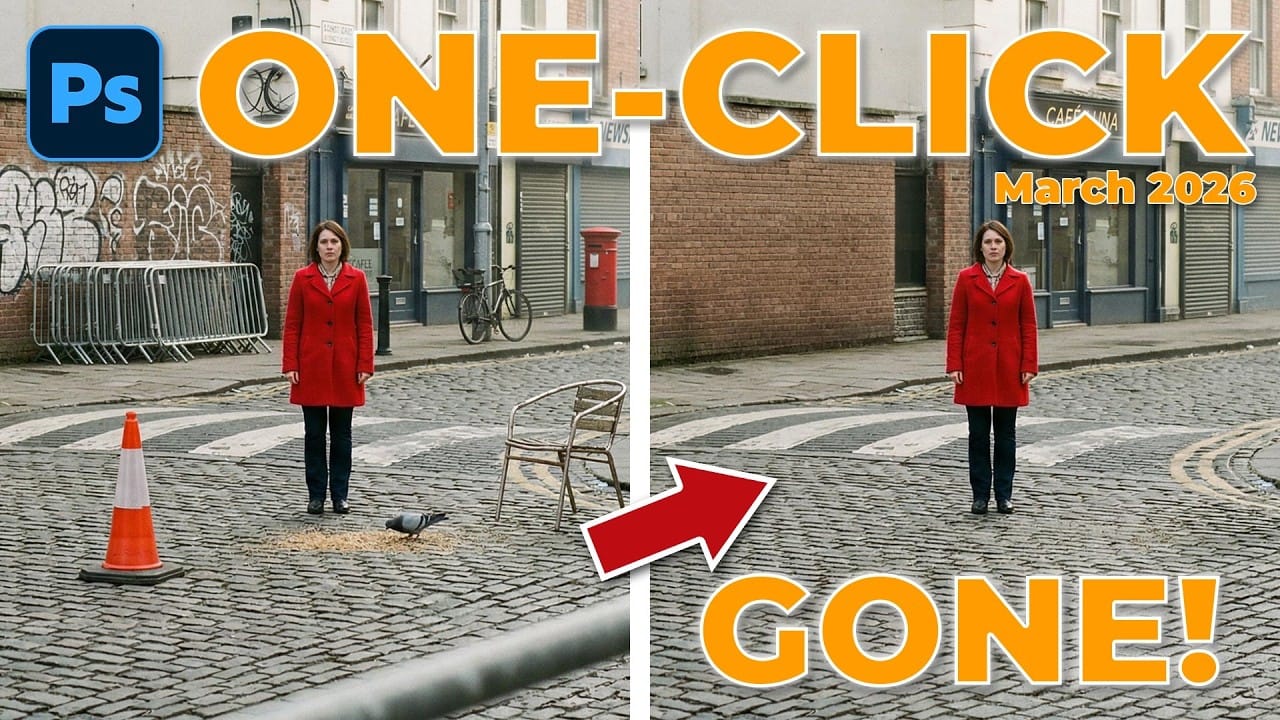
How to Use the New Remove Tool to Automatically Find and Remove Image Distractions
The updated Remove Tool now features AI-powered distraction detection that automatically identifies and categorizes unwanted elements in your photos. This new "Find Distractions" feature can locate cars, poles, fixtures, and visual clutter, then remove everything with a single click.
The tutorial also demonstrates how to combine this automated removal with Generative Expand for improved composition and Camera Raw finishing techniques for professional results.
Watch the Video
Practical Tips
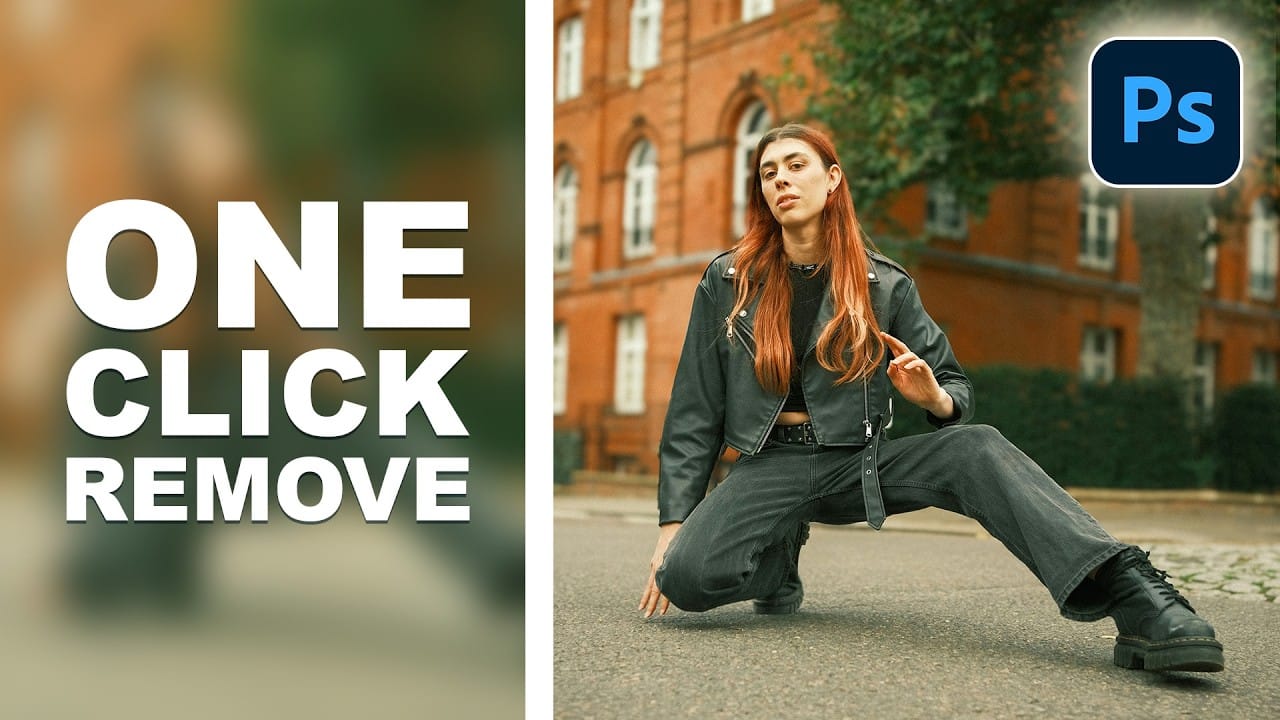
How to Remove People From Photos in Photoshop: Easy and Advanced Methods
Removing unwanted elements from photographs, especially people, is a common task in digital image editing. Whether you're a professional photographer or an enthusiast, the ability to clean up a scene can transform an ordinary shot into a compelling visual, allowing the true subject or landscape to shine without distractions.
This video explores two distinct approaches to achieve this in Photoshop. Viewers will discover how to use the automated features for simpler scenarios involving crowds, an