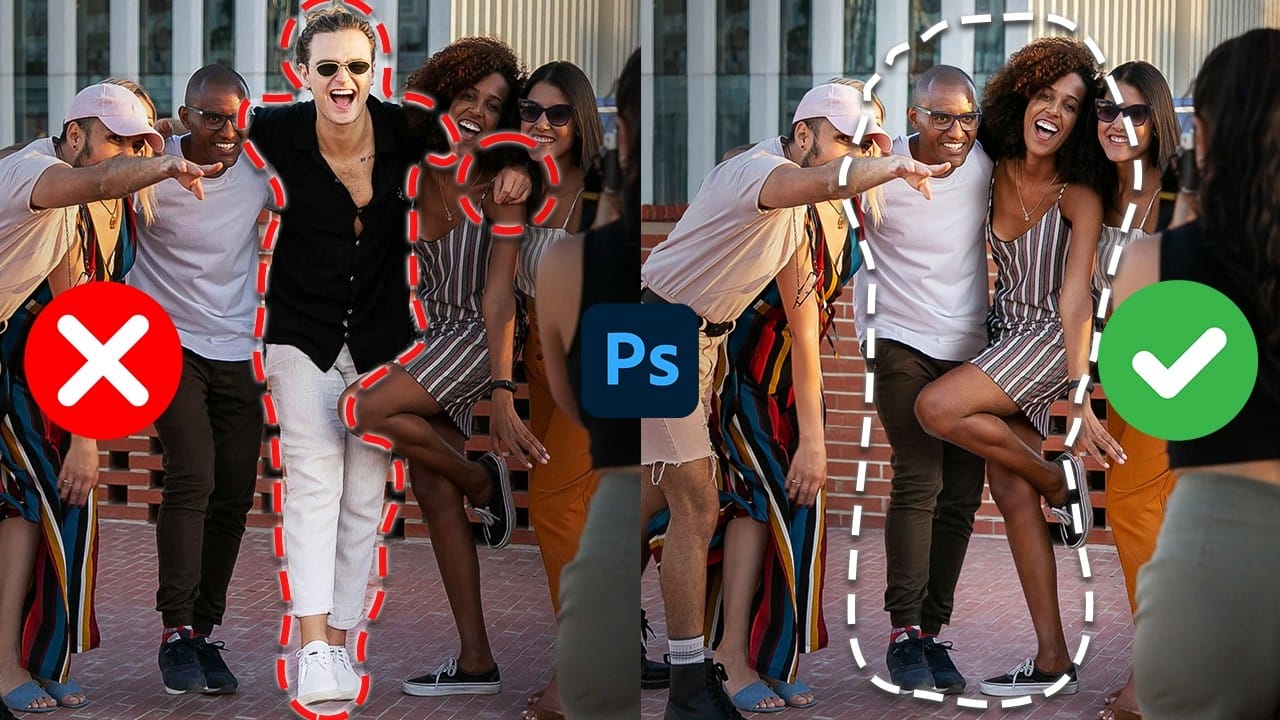
Photoshop offers two main approaches for removing unwanted objects: the Remove Tool brush and the contextual Remove button that appears after making selections. Each method has distinct advantages depending on your image and workflow needs.
This comparison explores both techniques across multiple real-world examples to help you choose the most effective approach for different removal scenarios.
Watch the Tutorial
Video by Matt Kloskowski. Any links or downloads mentioned by the creator are available only on YouTube
Key Techniques for Object Removal
- Use the Remove Tool for faster selections — The brush automatically closes loops around objects, eliminating manual selection work for most removal tasks.
- Choose Gen AI On for better fills — While slightly lower in resolution, generative AI consistently produces more accurate removal results than traditional content-aware methods.
- Try Select Subject for background replacement — When removing everything except the main subject, use Select Subject followed by the Remove button for quick results.
- Switch methods when results disappoint — Different removal technologies work better on different image types, so experiment with both approaches if your first attempt fails.
- Expect some cleanup work — Both methods may leave small artifacts that require additional touch-up with healing tools, especially on detailed textures like branches or grass.
Related Tutorials About Object Removal
Explore more techniques for removing unwanted elements from your photos.
How to Remove Unwanted Objects in Different Ways in Photoshop
Do you have photographs with distracting elements that need removing? In this insightful Photoshop tutorial from artist Zak Eazy, viewers will learn several effective techniques for eliminating unwanted objects from their images. Whether it's removing superfluous signs, wires or passersby, Zak walks through practical use cases that showcase the Patch and Clone Stamp tools as well as Content-Aware Fill.
Through demonstration on real-world sample images, viewers will gain an understanding of when
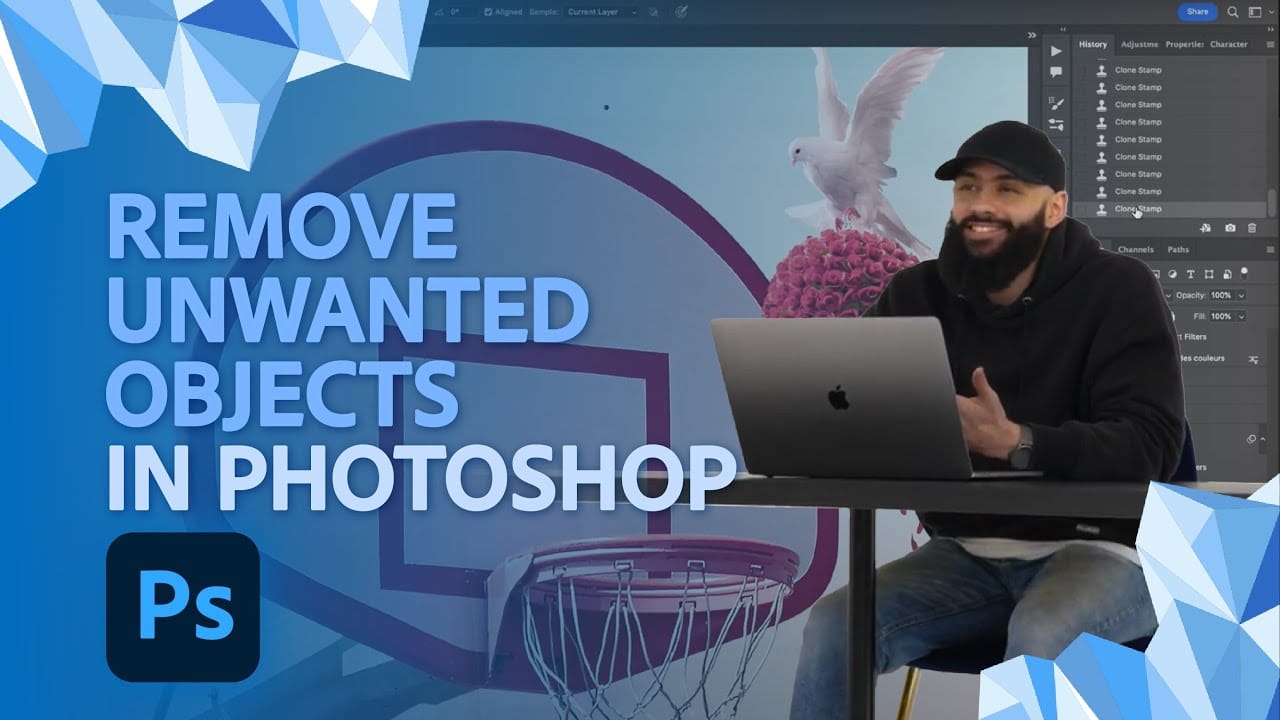
The 3 Easiest Ways To Cut Out Images In Photoshop
In this informative tutorial, author Brendan Williams shares three of the most effective techniques for image cropping in Photoshop. The guide covers the infamous Quick Selection Tool, the Channels method, and the highly versatile Pen Tool. Whether you're a newcomer to the program or a seasoned professional, these methods are sure to elevate your workflow and take your work to new heights.
The Quick Selection Tool, known for its intuitive and efficient selection capabilities, is explored in-dep
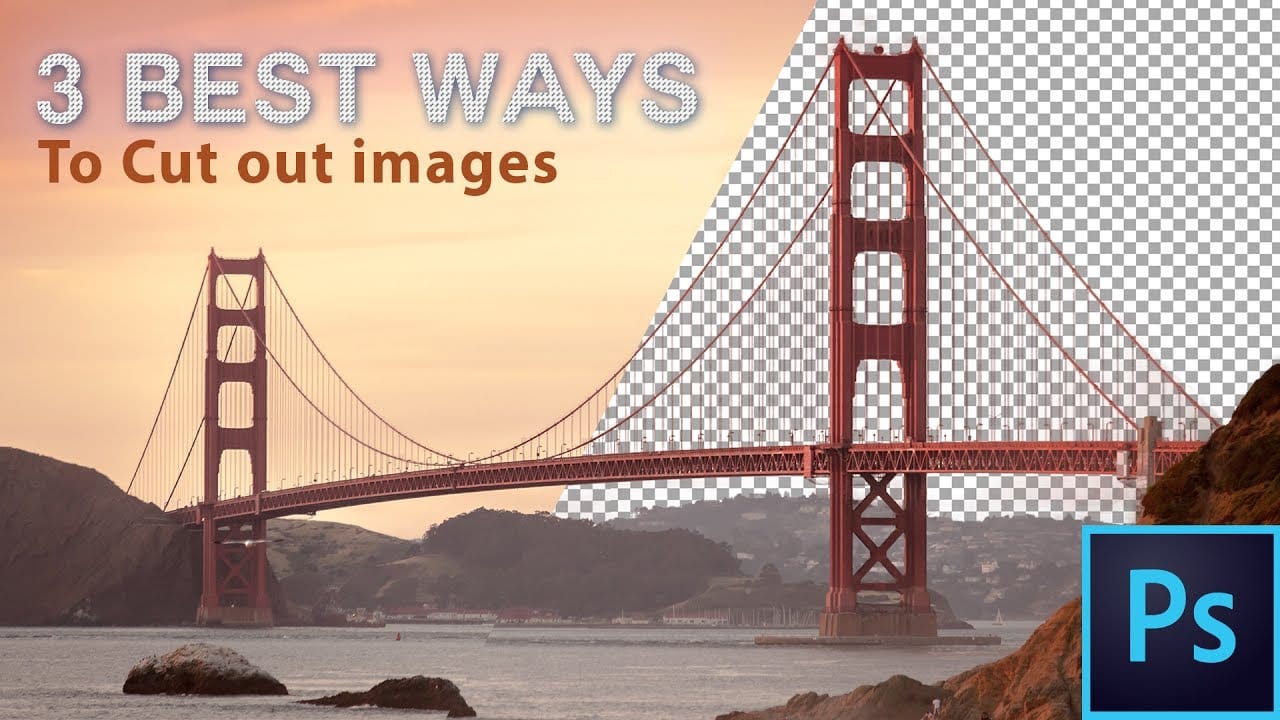
How to Remove People From Photos in Photoshop: Easy and Advanced Methods
Removing unwanted elements from photographs, especially people, is a common task in digital image editing. Whether you're a professional photographer or an enthusiast, the ability to clean up a scene can transform an ordinary shot into a compelling visual, allowing the true subject or landscape to shine without distractions.
This video explores two distinct approaches to achieve this in Photoshop. Viewers will discover how to use the automated features for simpler scenarios involving crowds, an