Photoshop’s Rotate Object tool lets you turn a flat image into a new angle or perspective using interactive controls. The workflow starts by converting the subject layer to a Smart Object and opening the tool from the Contextual Task Bar. You can rotate and tilt the result, then refine its perspective—but keep in mind that the AI may invent details, and the rendered image can lose quality.
Watch the Video
Video by P A N T E R. Any links or downloads mentioned by the creator are available only on YouTube
Practical Tips
Use these steps to prepare the layer, adjust the object, and check the rendered result.
- Enable the Contextual Task Bar from the Window menu if it is not visible.
- Convert the subject layer to a Smart Object before opening the tool.
- Choose Rotate Object to create a 3D-style view rather than using the 2D Perspective option.
- Drag the rotation and tilt controls to adjust the angle, then refine the perspective with the bounding box.
- Inspect the rendered result at full size; strong perspective changes can reduce image quality or distort details.
Related Articles and Tutorials
Explore more guides to rotating, transforming, and compositing images.
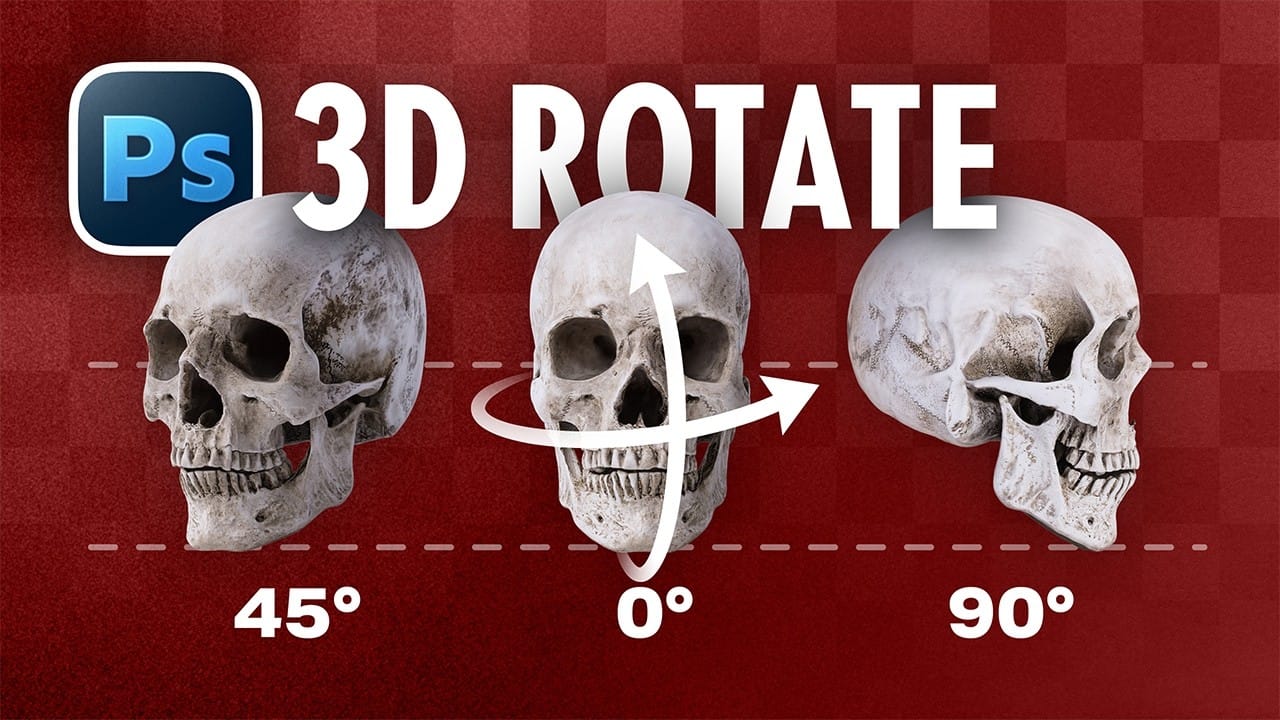
How to Use the New 3D Object Rotation Feature in Photoshop
Photoshop's new Rotate Object feature transforms flat 2D images into interactive 3D models that can be repositioned from any angle. This AI-powered tool automatically creates cutouts, maintains original textures, and generates missing details when objects are rotated beyond their original perspective.
The feature opens new possibilities for product photography, compositing, and creative positioning, though it works better with some subjects than others.
Watch the Video
Practical Tips
Maste
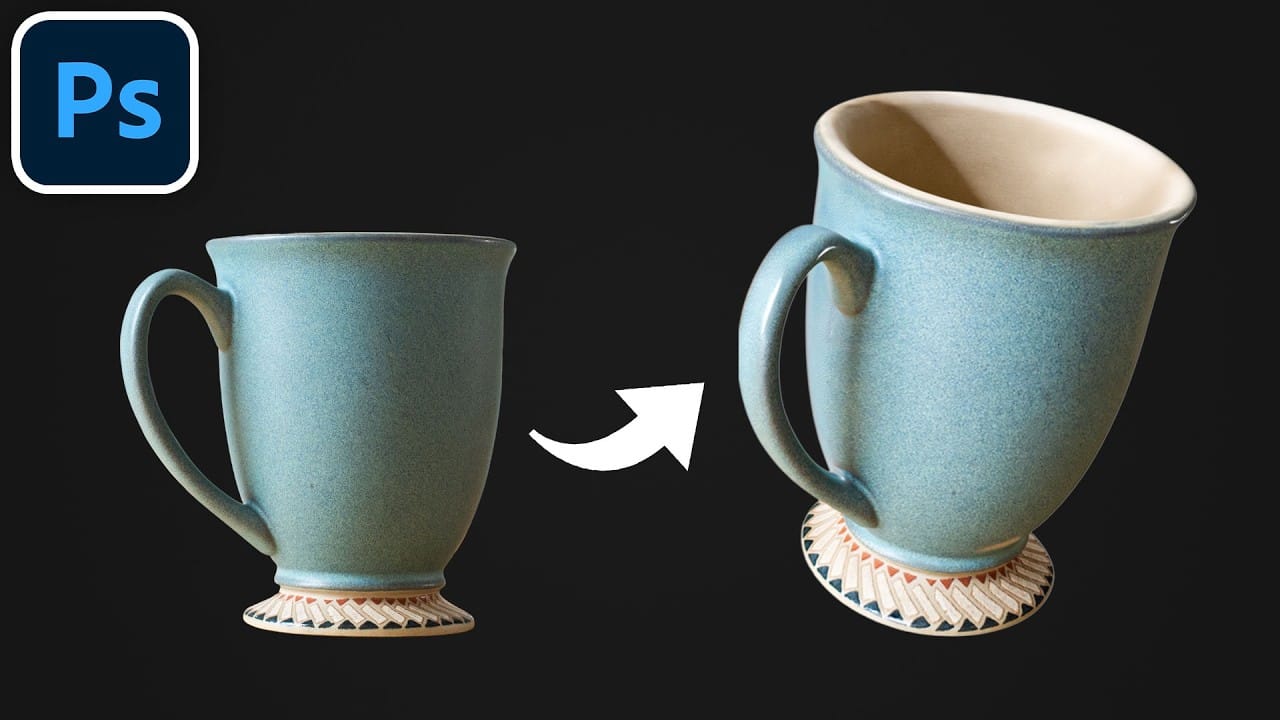
How to Use the New Rotate Object Feature in Photoshop Beta
Photoshop's latest beta introduces a revolutionary feature that transforms flat 2D images into rotatable 3D objects. The new Rotate Object tool uses generative AI to create new angles and perspectives from a single image, then seamlessly composites them into scenes with realistic lighting and shadows.
This breakthrough feature eliminates the need for multiple product shots or complex 3D modeling, making professional compositing accessible with just a few clicks.
Watch the Video
Practical Ti

How to Use the 3D Object Rotation Tool in Photoshop Beta
Adobe's new Rotate Object feature transforms flat 2D images into interactive 3D models that can be repositioned from any angle. This AI-powered tool automatically creates cutouts, maintains original textures, and generates missing details when objects are rotated beyond their original perspective.
The feature opens new possibilities for product photography, compositing, and creative positioning, though it works better with some subjects than others.
Watch the Video
Practical Tips
Master th
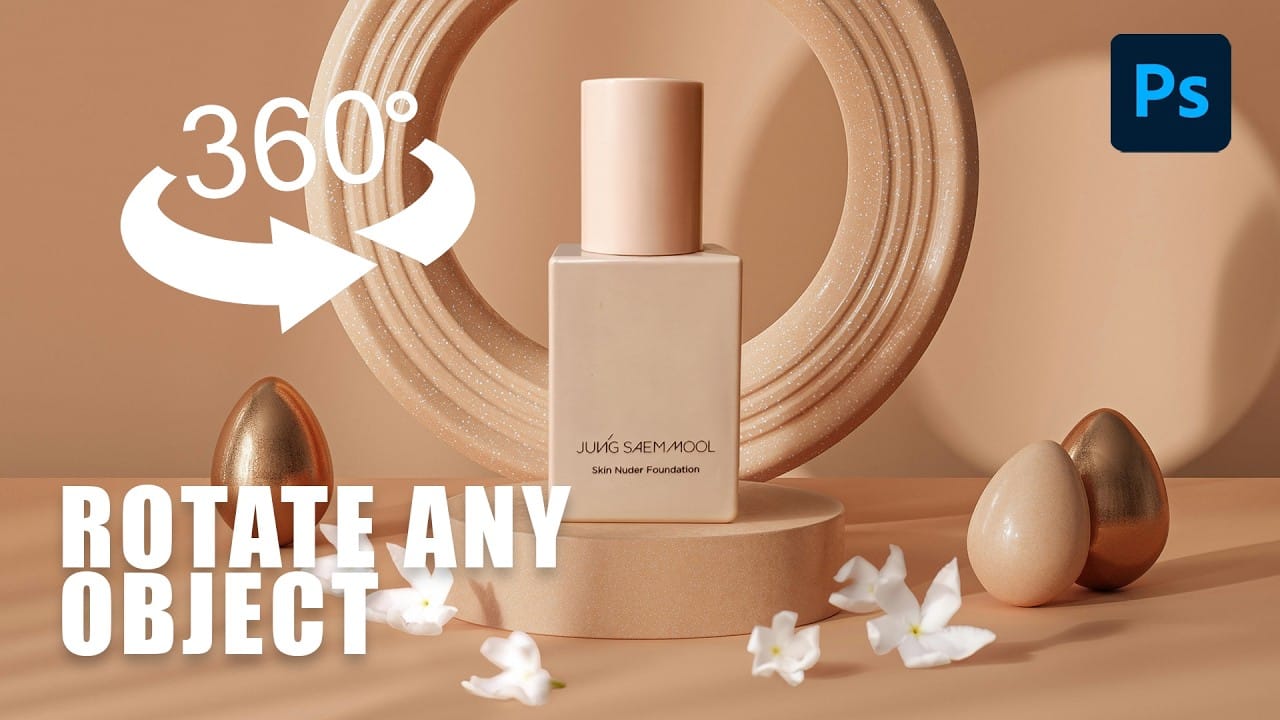
How to Rotate, Harmonize, and Composite Objects Realistically in Photoshop
Placing a product into a scene used to fall apart the moment the perspective didn't match. Photoshop's new Rotate Object tool solves that by using AI to reposition a flat image in three-dimensional space, letting you tilt, turn, and adjust perspective until it fits the scene naturally.
This tutorial covers the full three-step compositing workflow: rotating the object to match the background's perspective, using Harmonize to match lighting and cast shadows, and using Generative Fill to clean up
How to Use Harmonize and Rotate Object Tools for Better Composites in Photoshop
Creating believable composites traditionally required hours of manual perspective adjustments and color matching. Two new AI-powered tools in Photoshop change this workflow dramatically. The Rotate Object tool lets you adjust positioning and perspective with interactive 3D controls, while the Harmonize tool automatically matches lighting, shadows, and color tones to blend elements naturally into any scene.
These tools work together to eliminate much of the technical frustration in compositing,

Rotate and Flip Images and Layers with Precision in Photoshop
Often in image editing, photographs or design elements are not oriented correctly or require a creative re-orientation for a new composition. This common challenge can be frustrating when simple rotation tools affect the entire canvas, disrupting other layers, or when precise control over individual elements is needed.
This tutorial demonstrates two distinct methods for rotating and flipping images in Photoshop: one for the entire canvas and another for individual layers.
Understanding these a

How to Use the Photoshop Transform Tool: Scale, Warp, Flip, and More
The Transform tool in Photoshop does something neither the crop tool nor the resize command can: it lets you change the size, shape, angle, or perspective of a single layer without touching the rest of the image. That distinction opens up practical uses in landscape photography, composite work, and creative editing that are easy to overlook.
Watch the Video
Practical Tips
These tips cover the key techniques shown in the tutorial, from accessing the tool to using its most useful functions.
Rotate or straighten images without cropping in Photoshop
In this tutorial, PiXimperfect shows how to rotate or straighten an image without having to crop it in Photoshop. The instructor explains the process of using the Content-Aware Fill feature to fill in the spaces created when rotating the image.
The tutorial guides the viewer through the step-by-step process. First, the image is rotated to the desired angle. Then, the Content-Aware Fill tool is used to fill in the empty spaces around the edges of the image. The author demonstrates how this techn

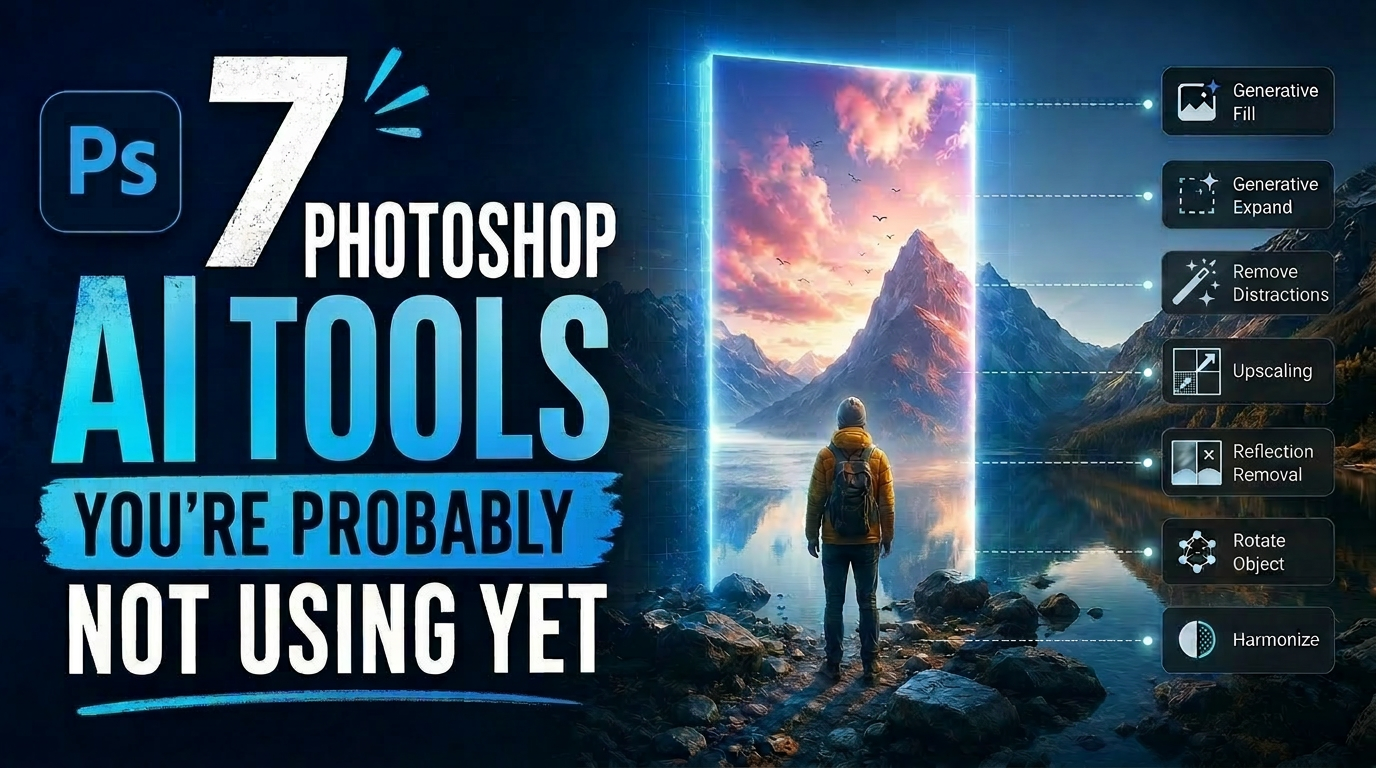
7 Photoshop AI Tools You're Probably Not Using Yet
Photoshop’s AI features now go far beyond simple object removal. Some of the newer tools can completely change the way you edit photos, create composites, clean up distractions, or expand scenes — often with just a few clicks.
The interesting part is that many of these features still feel surprisingly underused. While Generative Fill gets most of the attention, Photoshop now includes several AI-powered tools that can produce genuinely impressive results without requiring overly complicated work
How to Use the Object Selection Tool in Photoshop for Faster Edits
The Object Selection tool lets you isolate parts of an image with a simple drag, and it becomes even more useful when paired with adjustment layers and layer masks. These techniques are practical for targeted color edits, texture work, and building selections that cover multiple elements like a flower, stem, and bud together.
Watch the Video
Practical Tips
These techniques from the tutorial will help you work more efficiently with selections and targeted adjustments.
* Draw your rectangle