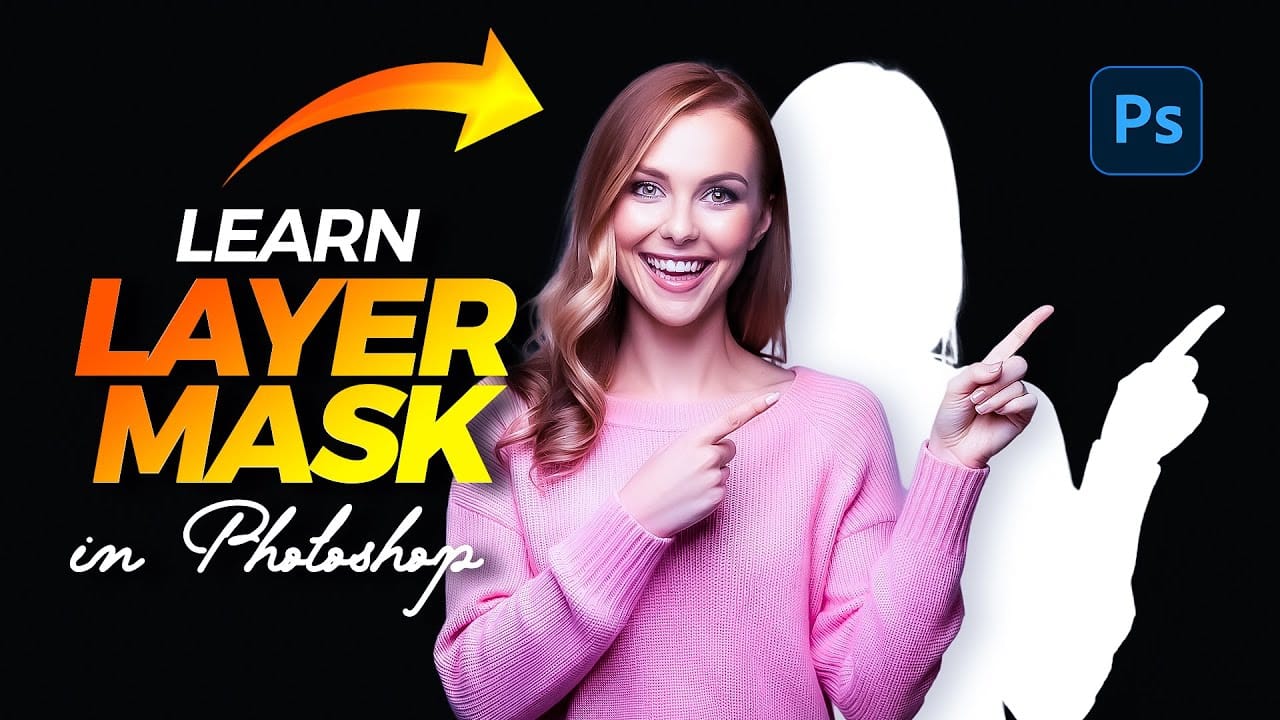
Layer masks let you hide or reveal parts of a layer without deleting pixels, so you can refine edits whenever your composition changes. Learn the essential rule—black conceals, white reveals—and use masks to blend overlays, isolate objects, apply adjustments selectively, and keep edits reversible.
Watch the Video
Video by PiXimperfect. Any links or downloads mentioned by the creator are available only on YouTube
Practical Tips
Use these habits to keep mask edits flexible and easy to refine:
- Select the mask thumbnail before painting, then use black to hide and white to reveal.
- Lower brush flow for gradual blending, and raise it when you need to remove an area fully.
- Use a selection before adding a mask to isolate a subject or apply an adjustment to a specific area.
- Preview the mask with Alt/Option-click, and toggle it with Shift-click to compare the result.
- Use a group mask when several layers need the same visibility control, or when you want to protect an existing mask.
Related Articles and Tutorials
Explore these guides for more techniques for masks, selections, and flexible image composites.
How to use Photoshop layer masks for beginners
In this Photoshop tutorial, Colin Smith teaches beginners the fundamentals of Layer Masks. Comprehensive explanations, step-by-step demos, and practical applications help you master Photoshop's Layer Masks, unlocking their powerful capabilities and creative possibilities.
The tutorial covers core Layer Mask concepts, their purpose and functionality, and how they enhance your workflow and achieve stunning results. You'll learn to selectively hide or reveal layer elements, blend and composite ima
How to Create and Use Layer Masks in Photoshop
Layer masks represent one of Photoshop's most powerful non-destructive editing tools, providing photographers and designers with precise control over image visibility. Unlike permanently deleting parts of an image, layer masks allow for reversible adjustments that can be refined throughout the creative process.
In this comprehensive tutorial, you'll explore everything from fundamental layer mask concepts to advanced techniques like mask copying, unlinking, and group masking. Learn how to use th
Unlocking the Power of Layer Masks in Photoshop
Layer masks are a fundamental feature in Photoshop that allow for greater control over images. They enable you to hide or reveal portions of a layer without permanently altering the original content. This non-destructive editing approach is beneficial for making precise adjustments to your designs.
You can use layer masks in various ways. For example, they help blend multiple images, create seamless transitions, or apply effects to specific areas. By painting on the mask with black or white, yo
Photoshop Layers: A Beginner’s Guide
Layers let you edit, arrange, and combine parts of an image without flattening everything into one fixed result. This beginner-friendly guide explains how to work with the Layers panel, control opacity, organize elements, and use different layer types. It also introduces practical techniques such as clipping masks, layer styles, and smart objects so you can build flexible designs and composites.
Watch the Video
Practical Tips
Use these habits to keep your edits flexible and your layer stack
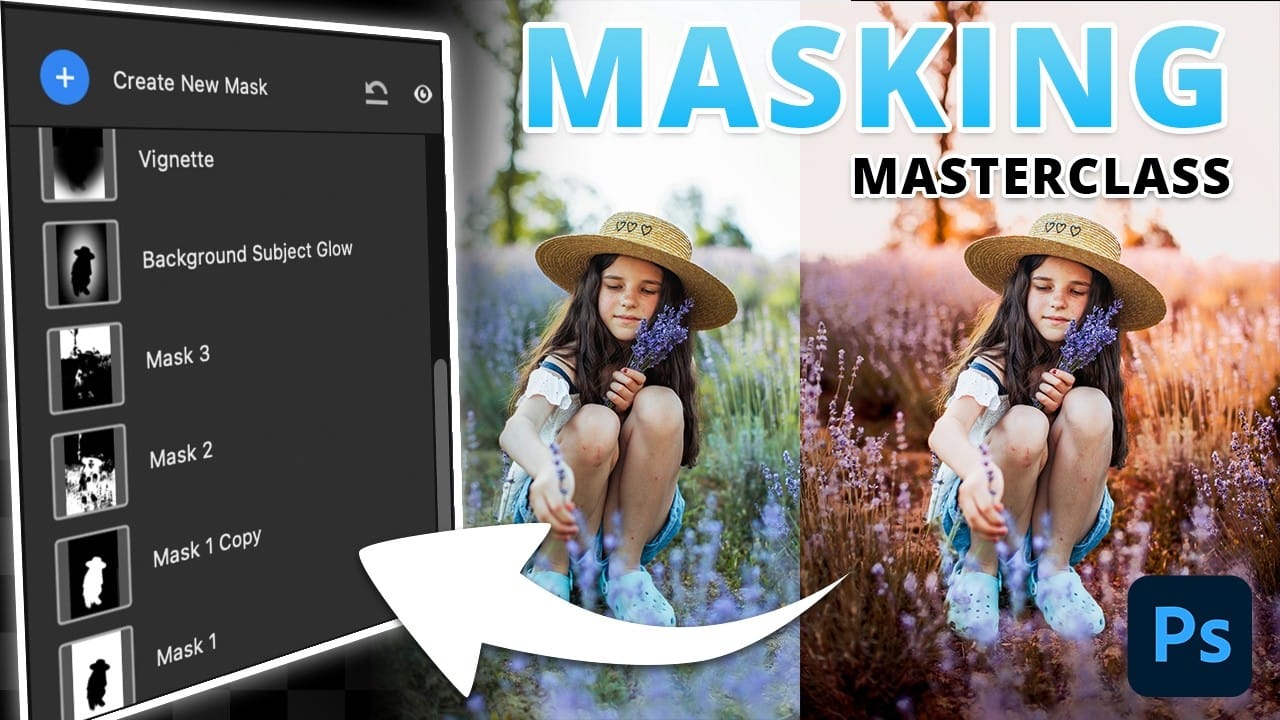
Transform Your Photos with These Photoshop Masks
Masking in Photoshop is a powerful technique to isolate and enhance different parts of an image. However, many users find it complicated and time-consuming, often sticking to basic masks or selections that limit creative control. This can make photo editing feel frustrating and slow, especially when trying to achieve subtle but impactful results.
This tutorial introduces a structured masking workflow within Camera Raw that simplifies the process while giving you precise control over highlig
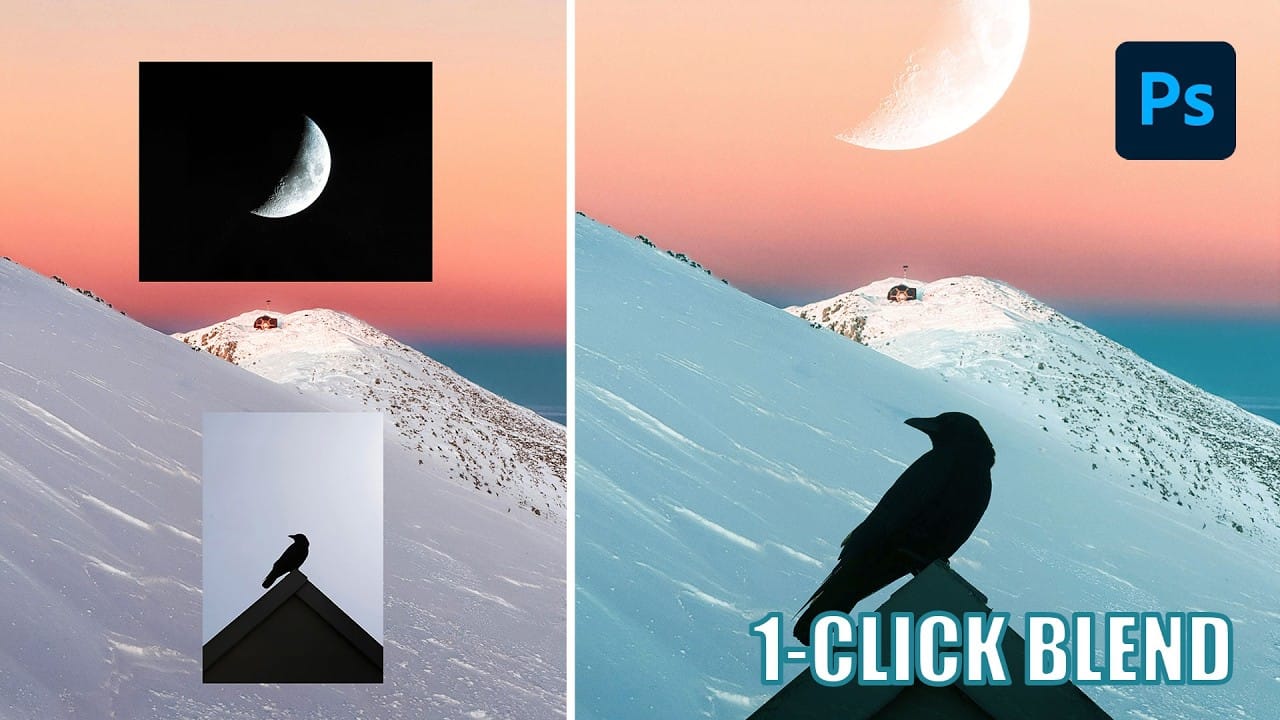
Understanding Photoshop Blending Modes: A Complete Guide to Layer Blending
Blending modes transform how layers interact in Photoshop, letting you seamlessly combine images without complex masking. This technique reveals only light areas, dark areas, or specific colors from each layer.
Master these essential blending groups to create professional composites with just a few clicks.
Watch the Tutorial
Essential Blending Mode Tips
* Use Screen or Lighten modes to make dark backgrounds disappear while keeping bright elements visible
* Apply Mult
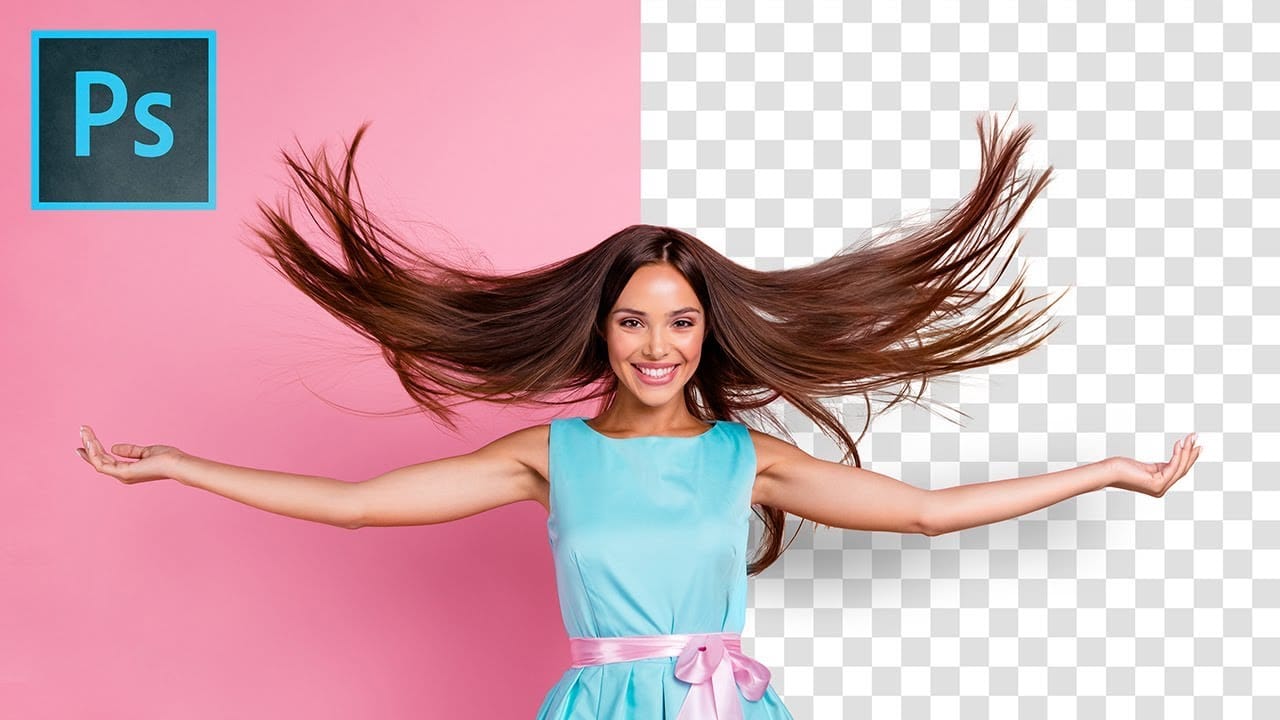
Precisely Cut Out Hair Using Color Range in Photoshop!
Mastering the Right Way to Use Color Range for Hair Masking in Photoshop! In this comprehensive guide, you'll discover how to accurately select and eliminate the background, even around challenging hair textures and styles. We will delve into crucial tips and techniques to enhance the quality of the mask so that it seamlessly blends with your new background.
Throughout this tutorial, we will also focus on effectively removing any unsightly edge fringes or halos that may occur, ensuring you achi
5 hidden Tips to make perfect Photoshop mask edges
Achieving flawless cutouts and seamless composites in Photoshop often depends on one crucial element: clean mask edges. Rough fringes, jagged lines, or semi-transparent halos can instantly undermine the realism of any image. This video demonstrates powerful techniques to transform your selections from good to truly professional.
It provides five actionable tips, allowing you to meticulously refine and perfect your mask edges, ensuring your subjects blend effortlessly into any new background wit