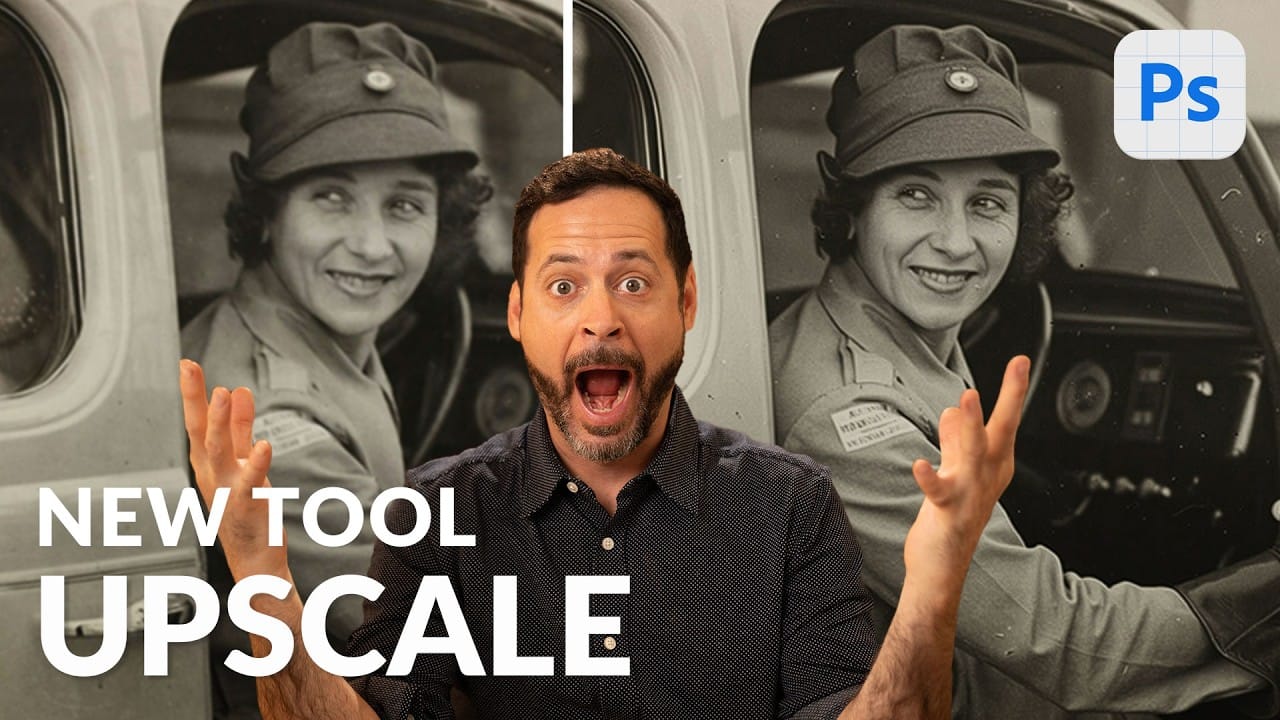
Upscaling can make a small or heavily cropped image more useful for printing, sharing, or design work—but restoring damaged edges and missing areas takes additional steps. This guide compares workflows in Lightroom, Photoshop, and Firefly, including how to choose an upscale model, clean up borders, expand a frame, and check credit use.
Watch the Video
Video by Brendan Williams. Any links or downloads mentioned by the creator are available only on YouTube
Practical Tips
Choose the workflow that matches the image and the kind of repair it needs.
- Use Lightroom Generative Upscale for photos already in your library, and create a stack to keep the new DNG beside the original.
- Check the output dimensions and choose 2× or 4× before starting an upscale.
- Use Photoshop when you need to remove borders, repair missing edges, or change the aspect ratio after enlarging.
- Select only the areas you want to replace, and subtract unwanted parts from the selection before using Generative Fill.
- Review the credit indicator before generating, since model and feature usage can vary.
Related Articles and Tutorials
Explore these guides for more workflows and comparisons for improving image quality and restoring photos.
How to Use Photoshop 2026's New AI Upscale, Sharpen, and Denoise Filters
Photoshop 2026 introduces three powerful AI filters that transform low-quality images into crisp, professional results. These tools tackle common photo problems: pixelated enlargements, soft details, and grain from low-light conditions.
Each filter uses advanced AI models to enhance different aspects of your images, with options ranging from standard to premium quality depending on your Creative Cloud plan.
Watch the Tutorial
Key Tips for AI Image Enhancement
* Choose Topaz Gigapixel for
How to Use Generative Upscale with Multiple AI Models in Photoshop
Pixelated vintage photos and low-resolution images no longer need to stay small. Photoshop's Generative Upscale feature now offers multiple AI models to enlarge images up to 4x their original size while adding remarkable detail and clarity.
This new feature includes three distinct AI models—Adobe's Firefly upscaler, Topaz Gigapixel, and Topaz Bloom—each designed for different image enhancement needs and producing noticeably different results.
Watch the Video
Practical Tips
These key techni
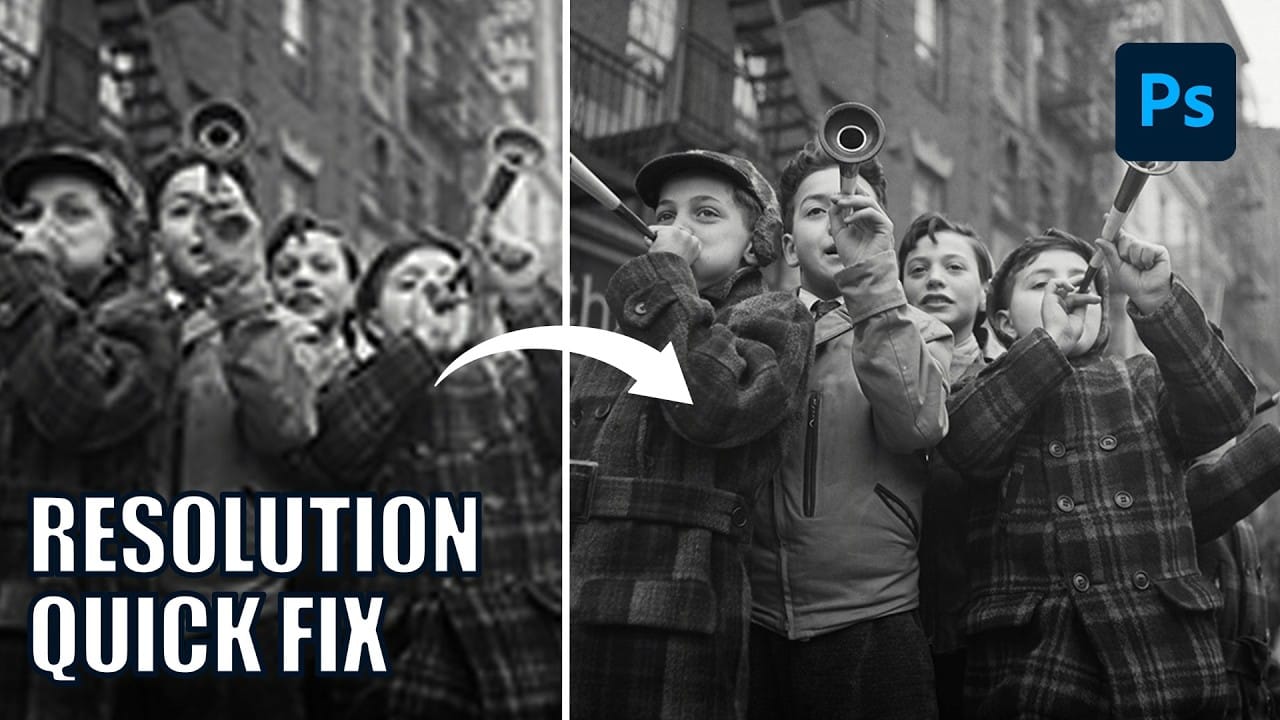
Photo Restoration: Combining AI with Photoshop for Optimal Results
Restoring old, damaged photographs can be a challenging endeavor. While many AI-powered tools promise to breathe new life into vintage images, they often fall short, either over-sharpening details, neglecting certain areas, or, most critically, altering the original likeness of individuals. This often leads to frustrating and uncanny results that strip the photos of their authentic charm.
This tutorial unveils a comprehensive workflow that marries the efficiency of AI-driven enhancement with th
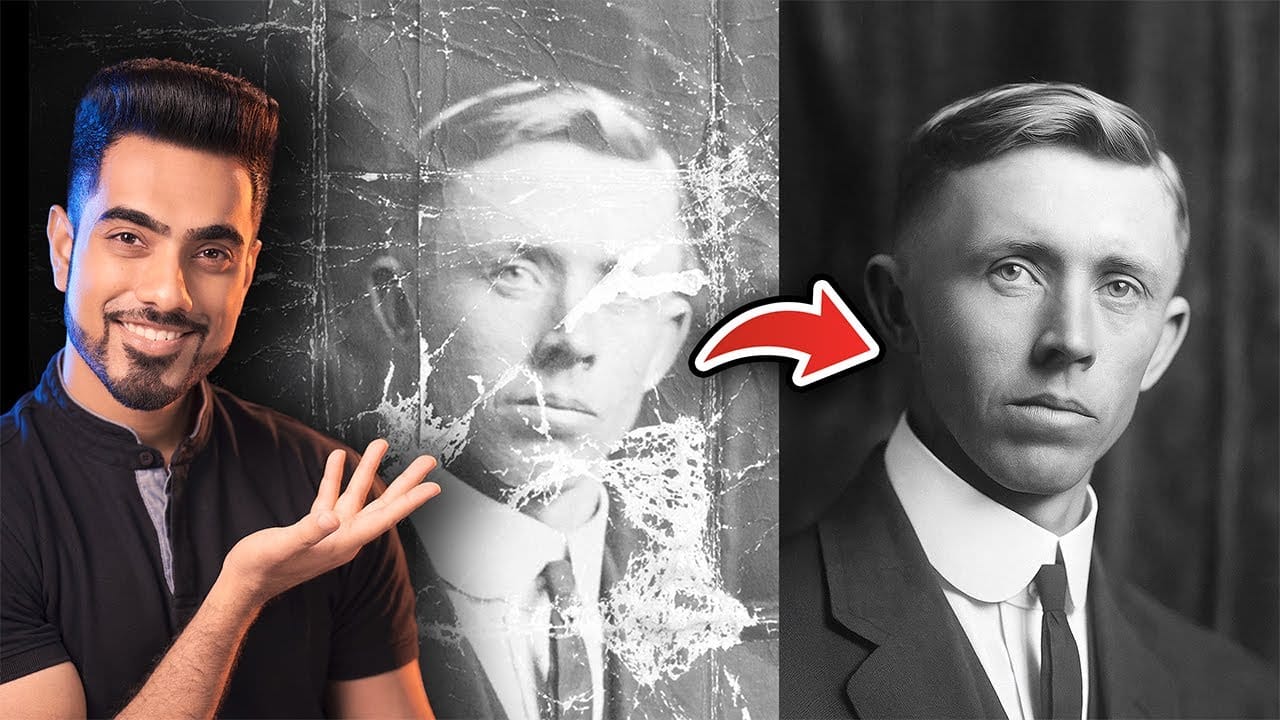
Testing Photoshop's New Generative Upscale Against Topaz Photo AI and AIT Image Enhancer
Photoshop's new generative upscale feature promises to compete with established AI upscaling tools like Topaz Photo AI and AIT Image Enhancer. This comparison reveals significant performance differences between these popular upscaling solutions.
The test results show clear winners and losers when upscaling small 640x480 pixel images to four times their original size.
Watch the Comparison Test
Key Findings About AI Upscaling Performance
* Photoshop's generative upscale requires the beta ve
Comparing Photoshop's Three AI Upscaling Tools: Generative Upscale vs Neural Filters vs Preserve Details
Low-resolution images present a constant challenge for designers and photographers who need crisp, detailed prints or high-quality digital displays. Traditional upscaling methods often produce blurry, pixelated results that fail to meet professional standards.
Photoshop now offers three distinct AI-powered upscaling options, each with unique strengths and limitations. This comprehensive comparison reveals how each tool performs across different image types and helps you choose the right approac
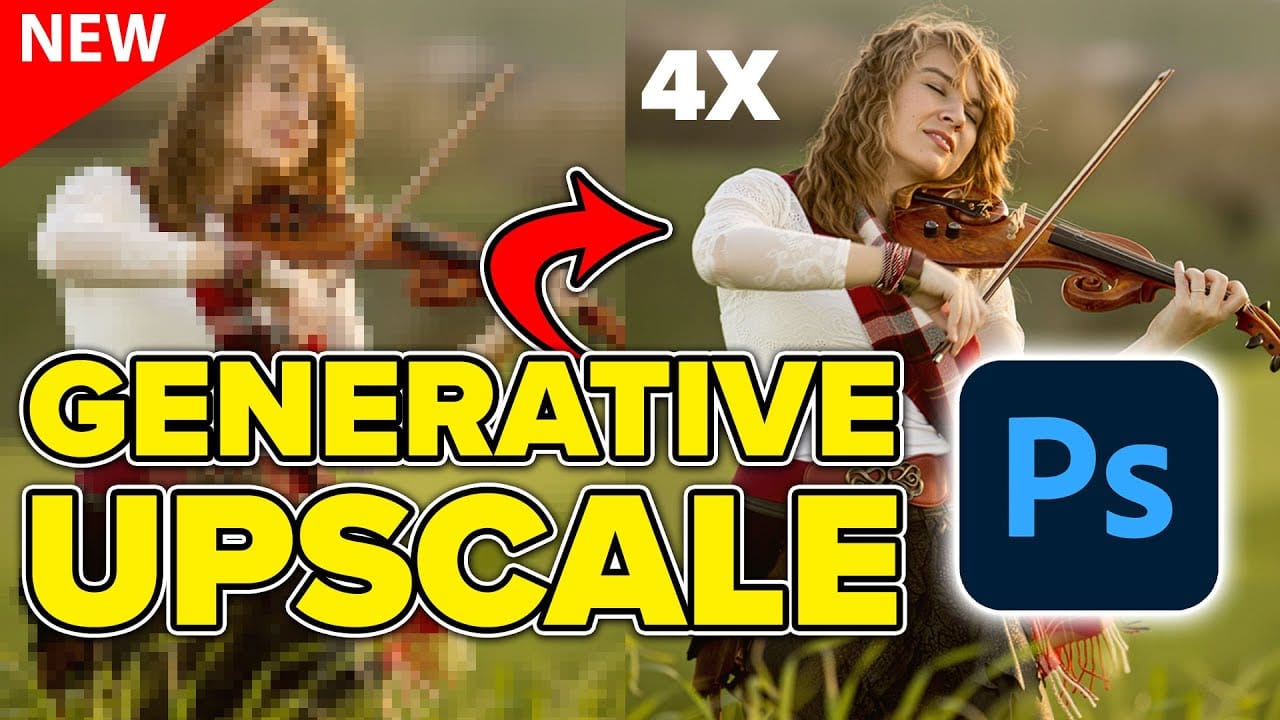
How to Use Generative Upscale to Restore and Enhance Low-Resolution Images in Photoshop
Low-resolution images often limit your creative projects, especially when you need sharp prints or high-quality displays. Photoshop's Generative Upscale feature transforms small, pixelated photos into crisp, detailed images using AI-powered enhancement.
This tool offers three distinct AI models, each designed for specific image types—from landscapes and portraits to digital artwork—allowing you to choose the best approach for your restoration needs.
Watch the Video
Practical Tips
These key
Firefly Image Model 5 in Photoshop: Generative Fill, Distraction Removal, and Color Finishing
Firefly Image Model 5 brings noticeably higher output quality and more natural language prompting to Photoshop's generative fill workflow. Combined with an updated Remove tool that automatically detects distractions and a Camera Raw finishing pass using Point Color, the complete editing pipeline is now faster and more controllable than previous model versions.
Watch the Video
Practical Tips
These strategies will help you get cleaner, more realistic results when using Firefly Image Model 5 i

How to Use Photoshop's Precision Flow AI Slider and Recover Image Quality
Precision Flow is a new AI tool in Photoshop 2026's Firefly Workspace that lets you control how much an edit affects your image using a simple slider. Rather than committing to a single AI-generated result, you can blend between the original and the transformed version at any point along that range.
The catch: the tool automatically downsizes images to 1024 pixels before processing. This guide covers how to use Precision Flow effectively and how to restore original face detail in the final comp
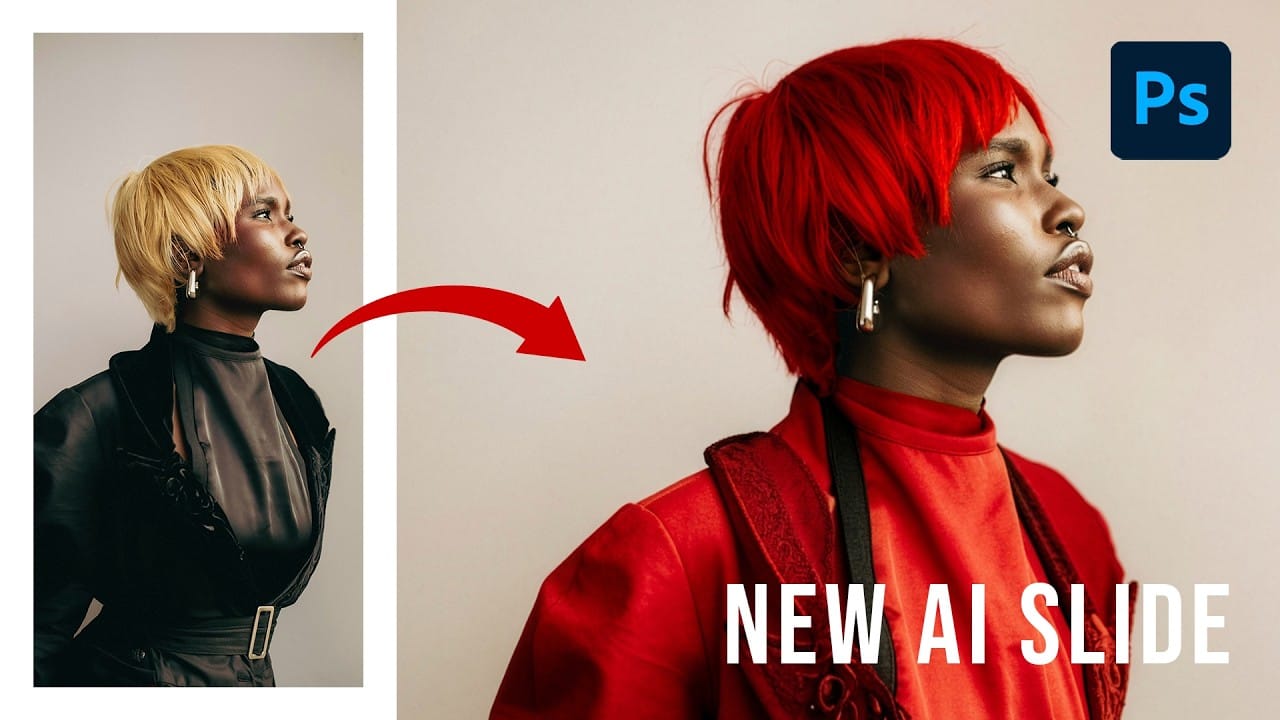
Using Photoshop's New Generative Upscale Tool
Old family photos often hold irreplaceable memories, but their small size and low resolution make them difficult to print or display properly. These cherished images deserve better than pixelated enlargements that lose all their detail and emotional impact.
Photoshop's new AI-powered Generative Upscale tool changes this completely. This beta feature can transform tiny, low-resolution images into crisp, printable photographs using artificial intelligence—all with a single click.
Watch the Tuto