Pixelated vintage photos and low-resolution images no longer need to stay small. Photoshop's Generative Upscale feature now offers multiple AI models to enlarge images up to 4x their original size while adding remarkable detail and clarity.
This new feature includes three distinct AI models—Adobe's Firefly upscaler, Topaz Gigapixel, and Topaz Bloom—each designed for different image enhancement needs and producing noticeably different results.
Watch the Video
Video by PHLEARN. Any links or downloads mentioned by the creator are available only on YouTube
Practical Tips
These key techniques will help you get the best results from each upscaling model:
- Choose Topaz Gigapixel for most photographic images as it preserves facial features and adds realistic detail without altering the original subjects
- Access the feature through Image > Generative Upscale and select your preferred AI model from the dropdown menu
- Set your scale to 4x for maximum enlargement while maintaining quality and detail enhancement
- Avoid Topaz Bloom for realistic photo restoration as it tends to create entirely different faces and subjects rather than enhancing existing details
- Compare results by toggling layer visibility since the tool creates a new file, allowing you to see before and after versions side by side
Related Articles and Tutorials
Explore more techniques for enhancing image resolution and quality:
Topaz Labs Bloom: Creative Upscaling Made Simple and Effective
Topaz Labs recently introduced Bloom, a web app that enlarges AI-generated images by up to 8×, opening new creative possibilities for digital artists.
 Enrique Flouret
How to Use Generative Upscale to Restore and Enhance Low-Resolution Images in Photoshop
Low-resolution images often limit your creative projects, especially when you need sharp prints or high-quality displays. Photoshop's Generative Upscale feature transforms small, pixelated photos into crisp, detailed images using AI-powered enhancement.
This tool offers three distinct AI models, each designed for specific image types—from landscapes and portraits to digital artwork—allowing you to choose the best approach for your restoration needs.
Watch the Video
Practical Tips
These key
Convert Low-Resolution Graphics to High Resolution in Photoshop
Low-resolution graphics often limit design projects, especially when you need to scale logos, icons, or simple illustrations for print or large-format displays. While vector formats offer infinite scalability, many graphics exist only as pixelated bitmap files that become unusable when enlarged.
This tutorial demonstrates two effective methods for converting low-resolution graphics into crisp, high-resolution versions using Photoshop's built-in tools. You'll learn techniques that work specifica
Using Photoshop's New Generative Upscale Tool
Old family photos often hold irreplaceable memories, but their small size and low resolution make them difficult to print or display properly. These cherished images deserve better than pixelated enlargements that lose all their detail and emotional impact.
Photoshop's new AI-powered Generative Upscale tool changes this completely. This beta feature can transform tiny, low-resolution images into crisp, printable photographs using artificial intelligence—all with a single click.
Watch the Tuto
How to convert a low-resolution image to high-resolution in Photoshop
In this tutorial, Aaron Nace demonstrates how to enhance low-resolution images using Photoshop's Super Resolution feature. This tool, available in Adobe Camera RAW, allows you to increase image resolution significantly by doubling the width and height of your photos, resulting in a fourfold increase in pixel count.
Aaron walks you through the process of applying Super Resolution, explaining how it uses advanced algorithms to improve image detail and clarity. The tutorial covers preparation tips
Best unknown trick for retouching in Photoshop
In this insightful Photoshop tutorial, Colin Smith uncovers a valuable but often overlooked trick to enhance your retouching process. The tutorial introduces a method to simultaneously display your image at two different sizes—one for detailed editing and the other for a broader overview. This dual-view setup allows you to efficiently monitor and adjust both fine details and overall composition without constantly switching between zoom levels.
Colin explains how this technique helps in identify
How to Use Harmonize and Generative Upscale Tools in Photoshop
Creating realistic photo composites requires matching lighting and color between different images—a traditionally time-consuming process. Two new AI-powered tools in Photoshop solve these challenges: Harmonize automatically adjusts lighting and shadows to blend subjects seamlessly into backgrounds, while Generative Upscale enlarges small images without losing detail.
These tools work together to streamline complex editing workflows, from cutting out subjects and matching environmental lighting
How to Create Convincing Scale Effects in Photoshop Composites
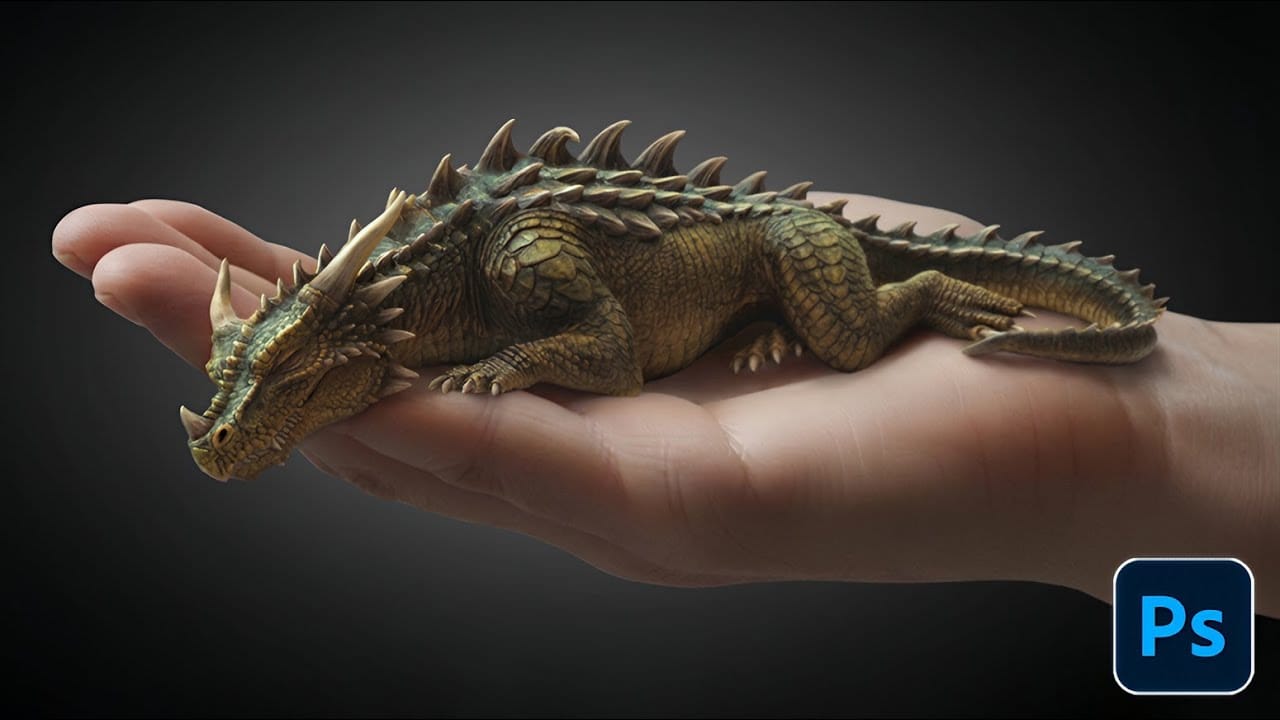
Creating believable scale effects requires more than simply resizing objects—it demands understanding how light, perspective, and atmospheric conditions change with distance. When tiny subjects appear massive or giant objects seem miniature, viewers should feel the illusion is completely natural.
This technique combines careful attention to lighting consistency, depth cues, and environmental details to sell dramatic size transformations that capture attention while maintaining photographic cred
Comparing Photoshop's Three AI Upscaling Tools: Generative Upscale vs Neural Filters vs Preserve Details
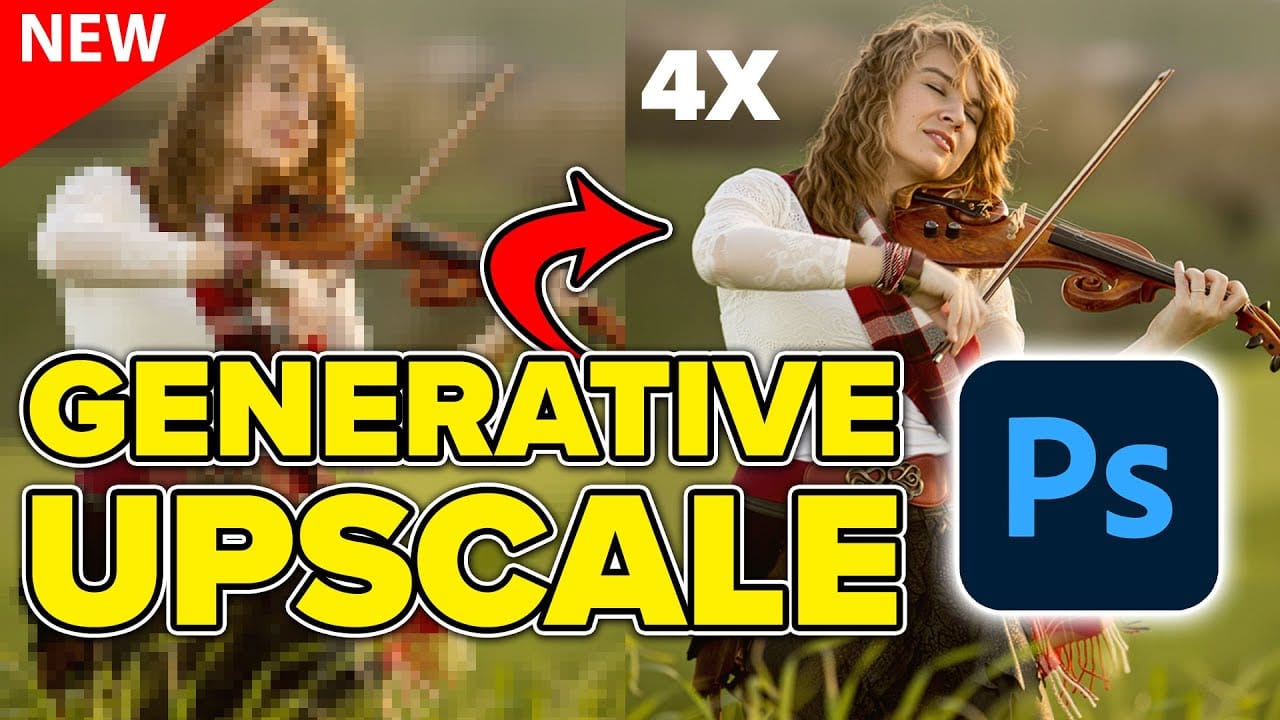
Low-resolution images present a constant challenge for designers and photographers who need crisp, detailed prints or high-quality digital displays. Traditional upscaling methods often produce blurry, pixelated results that fail to meet professional standards.
Photoshop now offers three distinct AI-powered upscaling options, each with unique strengths and limitations. This comprehensive comparison reveals how each tool performs across different image types and helps you choose the right approac
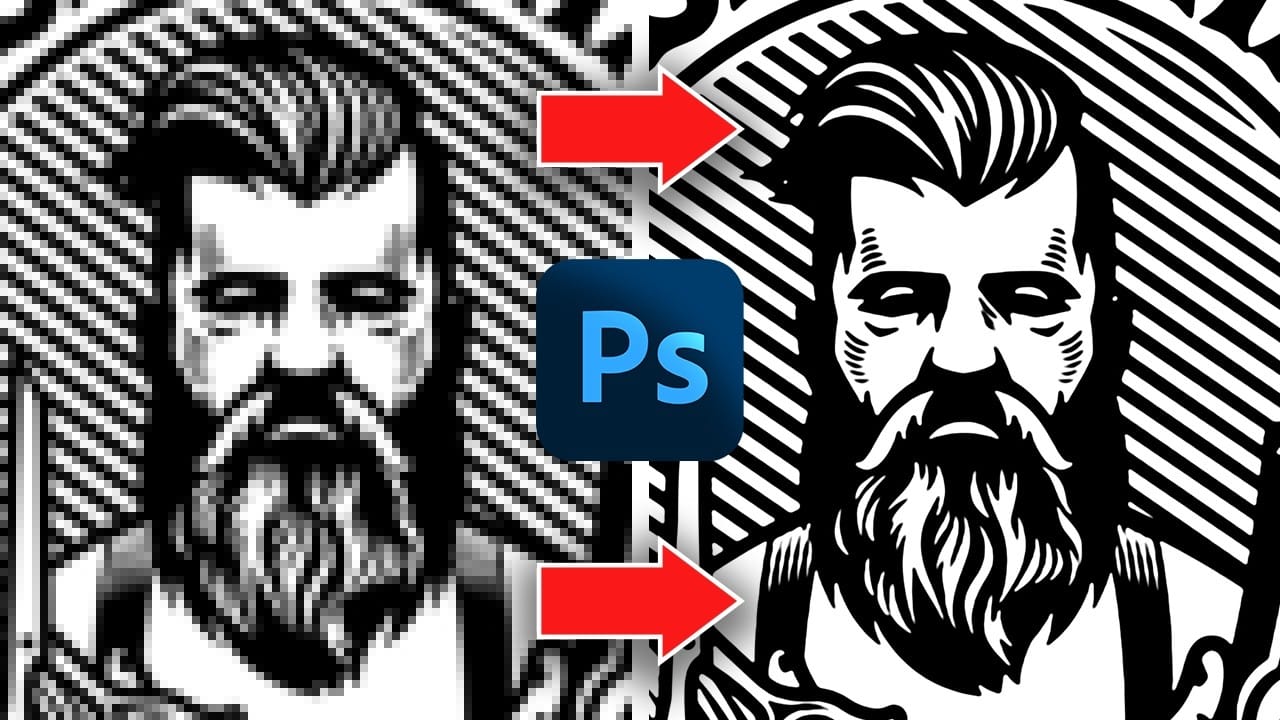
How to Convert Low-Resolution Graphics to Vector Shapes in Photoshop
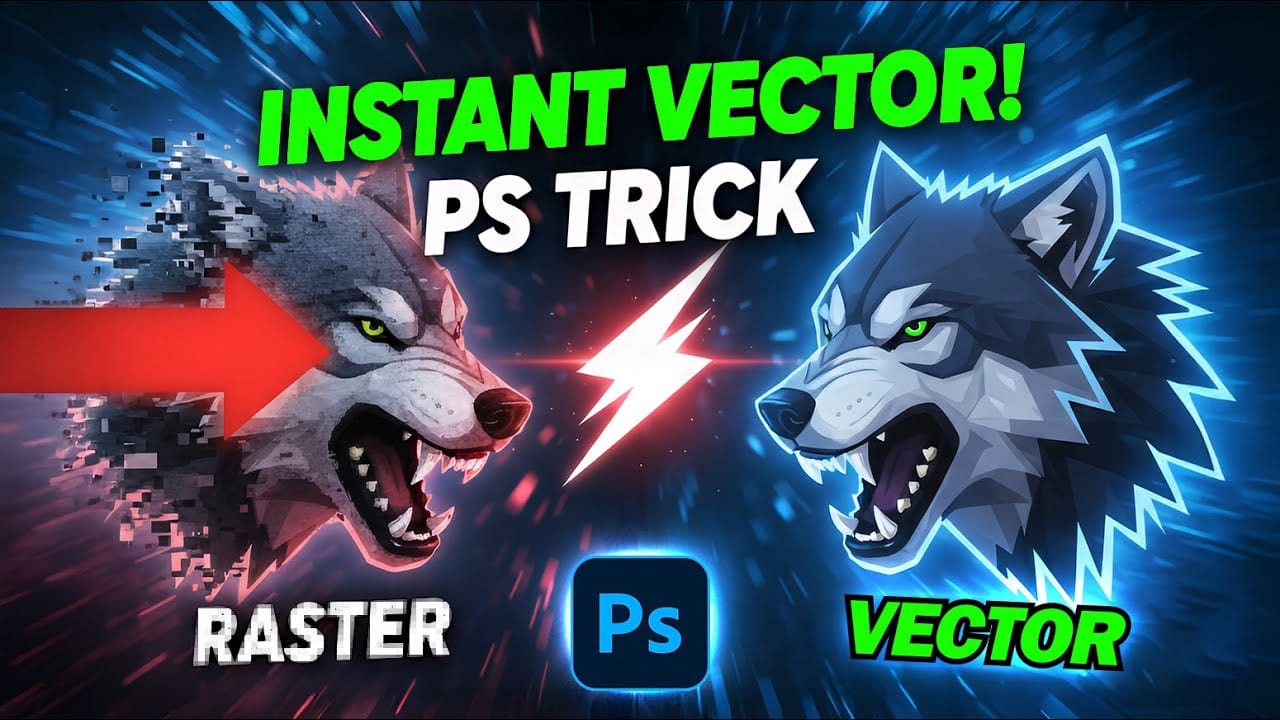
Pixelated logos and graphics lose their impact when scaled up for print or web projects. Photoshop's Creative Cloud Libraries feature offers a built-in solution for transforming low-resolution black and white images into crisp, scalable vector shapes.
This technique works particularly well for simple graphics, logos, and icons that need to maintain sharp edges at any size.
Watch the Tutorial
Practical Tips for Vector Conversion
* Trim your image first using Image > Trim to remove excess w
Understanding the basics of Photoshop Smart Objects
Photoshop users often face the challenge of maintaining image quality when resizing or making multiple adjustments, which can lead to frustrating pixelation and loss of detail. This technical hurdle can significantly impact the final output, especially in professional design and photo compositing.
This video tutorial demonstrates how Smart Objects in Photoshop provide a powerful solution to these common editing issues. Viewers will learn how to preserve image quality through unlimited transform