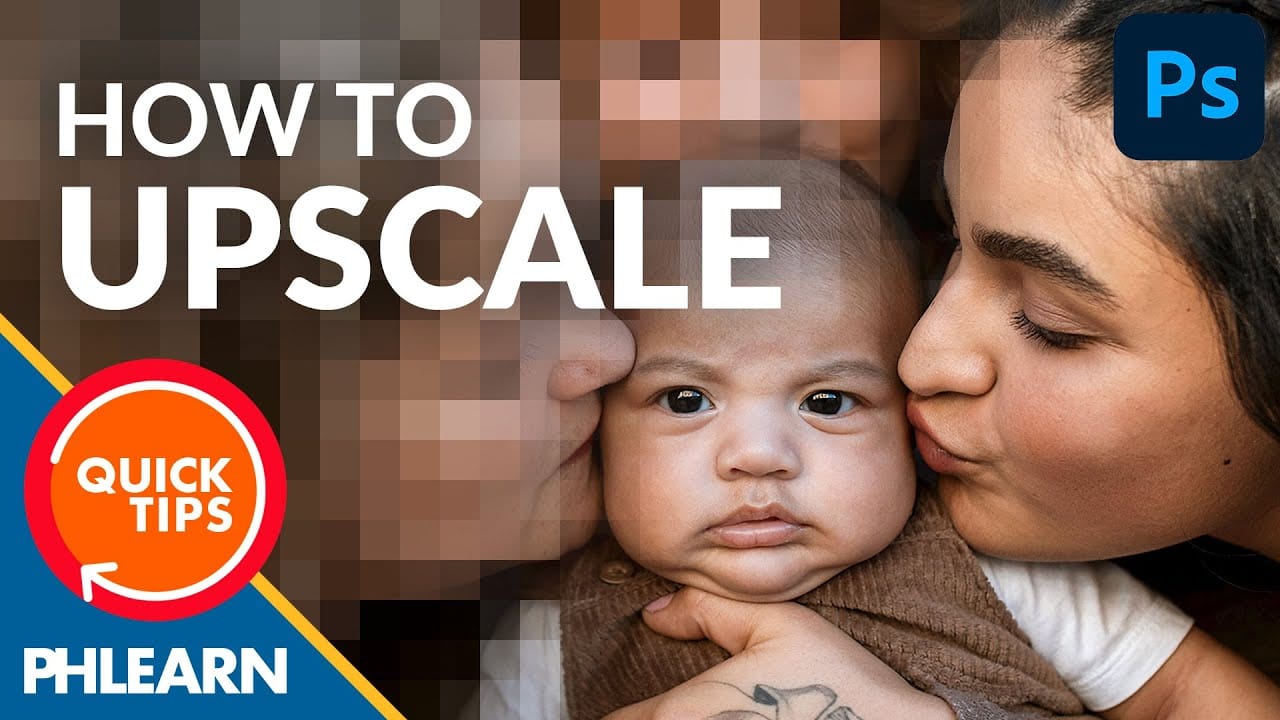
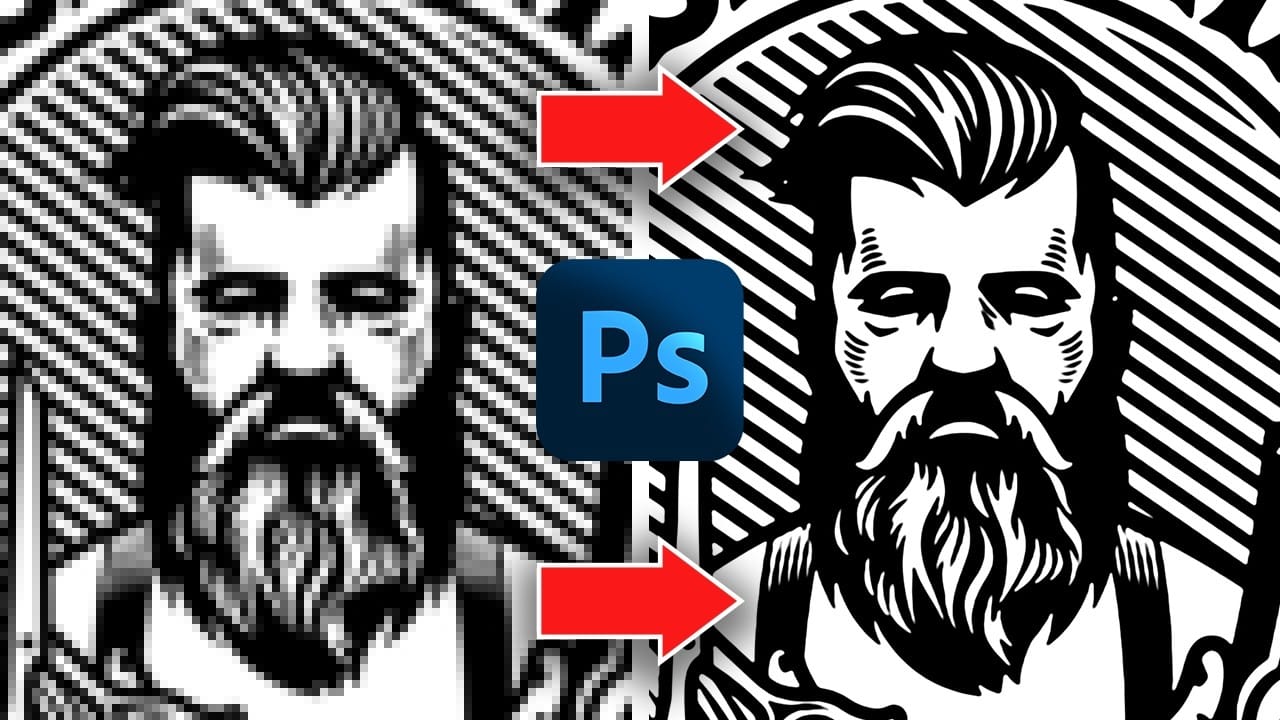
Pixelated logos and graphics lose their impact when scaled up for print or web projects. Photoshop's Creative Cloud Libraries feature offers a built-in solution for transforming low-resolution black and white images into crisp, scalable vector shapes.
This technique works particularly well for simple graphics, logos, and icons that need to maintain sharp edges at any size.
Watch the Tutorial
Video by Photoshop Arthouse. Any links or downloads mentioned by the creator are available only on YouTube
Practical Tips for Vector Conversion
- Trim your image first using Image > Trim to remove excess white space and focus the conversion on the graphic itself
- Keep the detail setting at 50% in the Extract from Image dialog for balanced results between smoothness and accuracy
- Enable smoothing when extracting shapes to create cleaner vector paths and reduce jagged edges
- Hold Alt or Option when dragging the vector shape from Libraries to avoid creating a linked smart object
- Test your converted vector by scaling it to 300+ DPI and enlarging with Transform to verify it maintains sharpness
More Tutorials About Image Resolution and Vector Graphics
Explore additional techniques for improving image quality and working with vector graphics.
Convert Low-Resolution Graphics to High Resolution in Photoshop
Low-resolution graphics often limit design projects, especially when you need to scale logos, icons, or simple illustrations for print or large-format displays. While vector formats offer infinite scalability, many graphics exist only as pixelated bitmap files that become unusable when enlarged.
This tutorial demonstrates two effective methods for converting low-resolution graphics into crisp, high-resolution versions using Photoshop's built-in tools. You'll learn techniques that work specifica
How to Create a Vector Stencil from a Portrait Using Photoshop and Illustrator
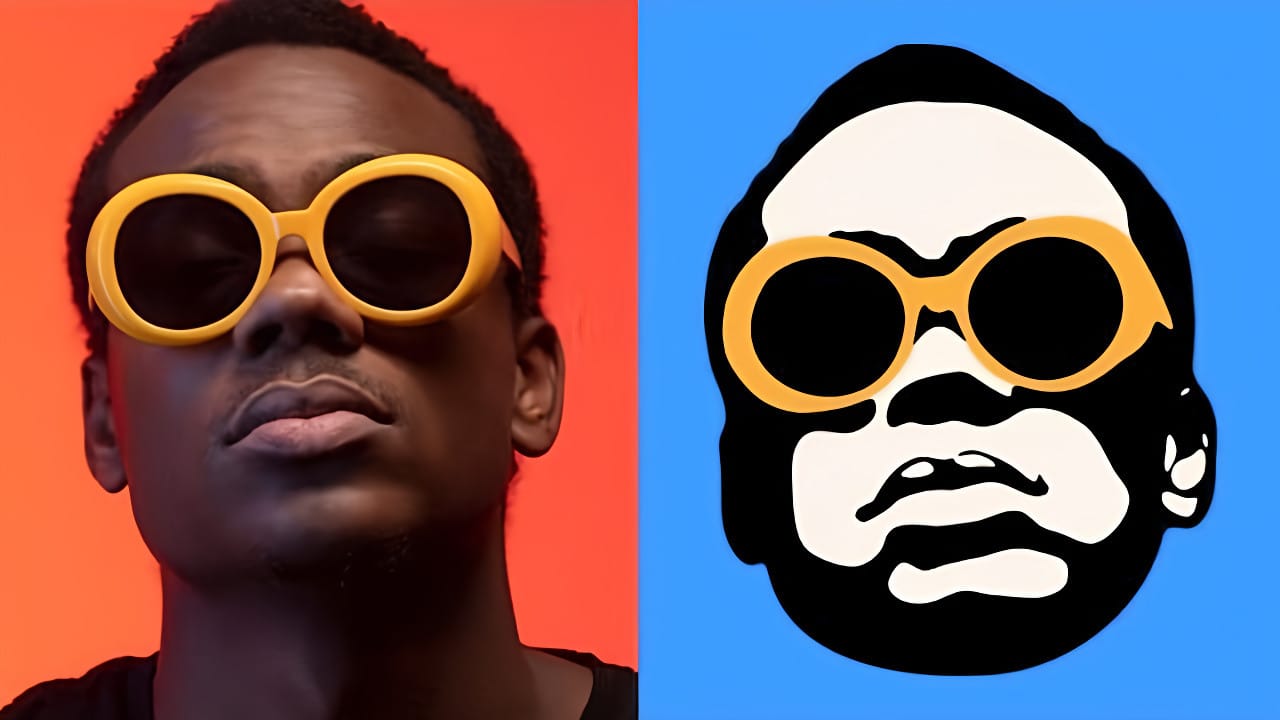
Stencil art transforms complex portraits into bold, graphic statements using just black and white shapes. This simplified aesthetic has defined everything from street art to commercial design, creating instantly recognizable images that work across any medium.
This tutorial demonstrates the complete workflow for converting a photograph into a clean vector stencil, combining Photoshop's image processing power with Illustrator's precision vector tools.
Watch the Tutorial
The Art of Stencil De
How to Create Low Polygon Images from Photos in Photoshop
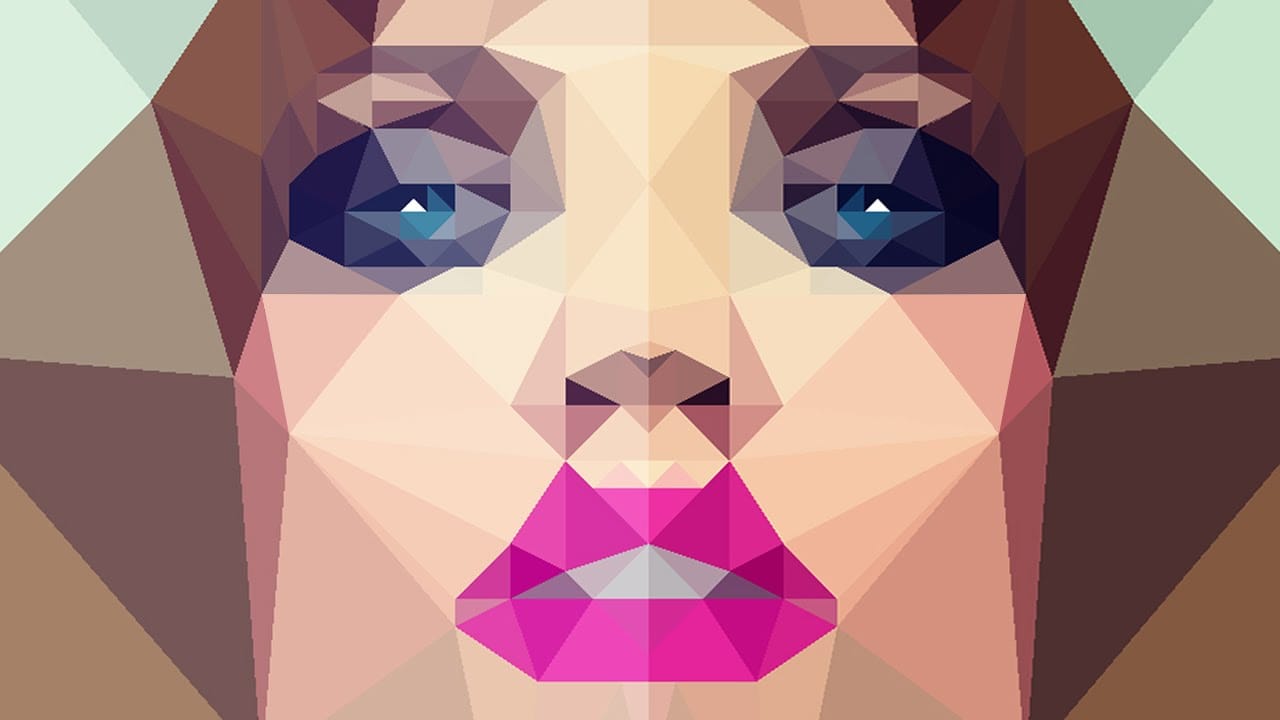
In this Photoshop tutorial, you will learn how to transform your photos into stunning low-polygon images. The process is straightforward and can be applied to various types of images, allowing you to create captivating low-poly portraits or abstract artwork.
The tutorial, presented by Marty Geller from Blue Lightning TV, guides you through the essential steps to achieve this visually striking effect. You'll discover how to use Photoshop's powerful tools and techniques to seamlessly convert your
How to convert a low-resolution image to high-resolution in Photoshop
In this tutorial, Aaron Nace demonstrates how to enhance low-resolution images using Photoshop's Super Resolution feature. This tool, available in Adobe Camera RAW, allows you to increase image resolution significantly by doubling the width and height of your photos, resulting in a fourfold increase in pixel count.
Aaron walks you through the process of applying Super Resolution, explaining how it uses advanced algorithms to improve image detail and clarity. The tutorial covers preparation tips