Photoshop Beta introduces a redesigned interface with a new toolbar, updated color picker, and refreshed controls in several panels. This walkthrough shows where to find the new options, how to switch back to the previous interface, and how to compare edits with Quick Compare. The changes are still in beta, so you can try them out before deciding which interface works best for your workflow.
Watch the Video
Video by Zenzdesign. Any links or downloads mentioned by the creator are available only on YouTube
Practical Tips
Use these steps to explore the beta interface and adjust it to your preferences:
- Install Photoshop Beta from the Beta apps section in Creative Cloud to access the features shown.
- Open Settings > Interface to enable or disable the modern user interface.
- Toggle the modern color user interface setting to switch between the updated picker and the previous web-colors option.
- Use the new channel buttons in Curves, Levels, and Hue/Saturation to switch color channels directly.
- Try Quick Compare to view an edit before and after, then choose a split view or single view.
Related Articles and Tutorials
Explore more updates, beta features, and practical Photoshop guides.
Photoshop Beta: Discover the New Actions Panel
Achieving a specific creative look in Photoshop often requires knowing the right combination of tools and techniques, which can be a significant hurdle for both new and experienced users. While traditional actions can automate repetitive tasks, finding or creating the perfect one for a unique artistic goal isn't always straightforward.
This tutorial explores the completely redesigned Actions panel in Photoshop Beta, which uses AI to simplify complex edits. You will learn how to use natural lang

Photoshop Beta: Exploring the New Generative Workspace
The new Generative Workspace in Photoshop 2025 Beta transforms how you create and iterate on AI-generated images. This dedicated environment streamlines the entire process from initial prompts to final compositions, offering powerful tools for batch generation and precise control over your creative output.
Unlike traditional workflows that require switching between different panels and tools, the Generative Workspace centralizes everything in one interface, making it faster to experiment with v

TOP New Features in Photoshop – May 2025 Update
Many Photoshop users frequently encounter common challenges such as time-consuming manual selections for complex objects, difficulties in achieving precise color adjustments across an image, or struggling with inconsistent results when removing unwanted elements like reflections. These hurdles often slow down the creative process, making it frustrating to achieve a desired professional look efficiently.
This guide explains how Photoshop's latest updates introduce powerful new functionalities, i
Photoshop 27.6: Complete Guide to New Features and Tools
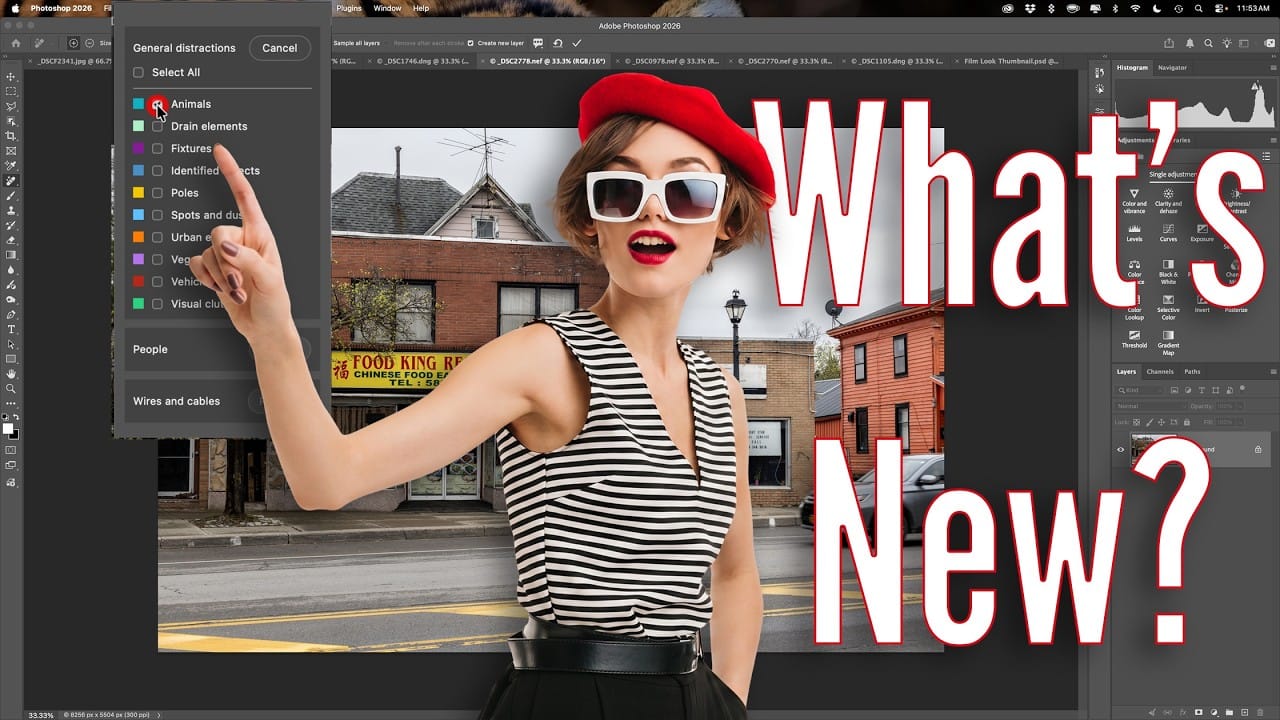
Photoshop 27.6 introduces several powerful features that streamline common editing tasks. From bringing reflection removal directly into the main interface to AI-powered distraction detection, these updates focus on making complex workflows more accessible and efficient.
The update also includes enhanced generative models, improved layer management tools, and a redesigned actions panel that provides visual previews before applying effects.
Watch the Video
Practical Tips
Key techniques to m
Photoshop 2024 Reveals Major New Tools and Enhancements
For creative professionals, Photoshop is an indispensable part of the workflow. As the leading digital imaging software, each new version from Adobe brings excitement as artists and designers anticipate how their capabilities may be expanded. In this video preview, we get a sneak peek at some of Photoshop 2024’s standout new features.
Elsewhere, the updated Content-Aware Fill algorithm feels even more intelligent, seamlessly replacing or removing objects, textures and colors within images. Phot

Photoshop 2025 Top 7 New Features and Updates Explained
Photoshop 2025 brings significant improvements to everyday editing tasks with smarter AI tools, enhanced 3D capabilities, and more intuitive workflows. From automatic distraction removal to advanced generative features, these updates focus on making complex tasks faster and more accessible.
The standout addition is the Substance 3D viewer, which reintroduces 3D object compositing with sophisticated lighting and material controls that weren't available in previous versions.
Watch the Complete

14 New Features in Photoshop 27.6 You Need to Know
Photoshop 27.6 brings significant updates that enhance workflow efficiency and creative possibilities. From improved reflection removal tools to smarter AI models, these features address real challenges photographers and designers face daily.
This comprehensive overview covers 14 key additions, including enhanced distraction detection, new AI capabilities, and improved workspace organization tools that can streamline your editing process.
Watch the Video
Practical Tips
Key techniques to ma