Thin halos along the edge of a mountain, treeline, or other subject can become more obvious as you edit a photo. Fixing them early helps prevent contrast adjustments from exaggerating the problem. This Photoshop workflow uses a downloadable action to create a targeted selection, then the Clone Stamp to clean up light or dark halos more quickly.
Watch the Video
Video by f64 Academy. Any links or downloads mentioned by the creator are available only on YouTube
Practical Tips
Use these steps to make the correction more controlled and keep the edge looking natural.
- Fix halos near the beginning of your editing workflow, before contrast adjustments make them more pronounced.
- Choose the action for the halo type: use Darken for light halos and Lighten for dark halos.
- Select the layer containing the sky before running the action, so the selection is based on the correct image area.
- Use the Clone Stamp on the created layer and sample often from nearby sky that matches the area you are correcting.
- Use a smaller brush around detailed edges, and avoid sampling from or painting over the foreground.
Related Articles and Tutorials
Explore more guides on Photoshop editing, cleanup, and image effects.
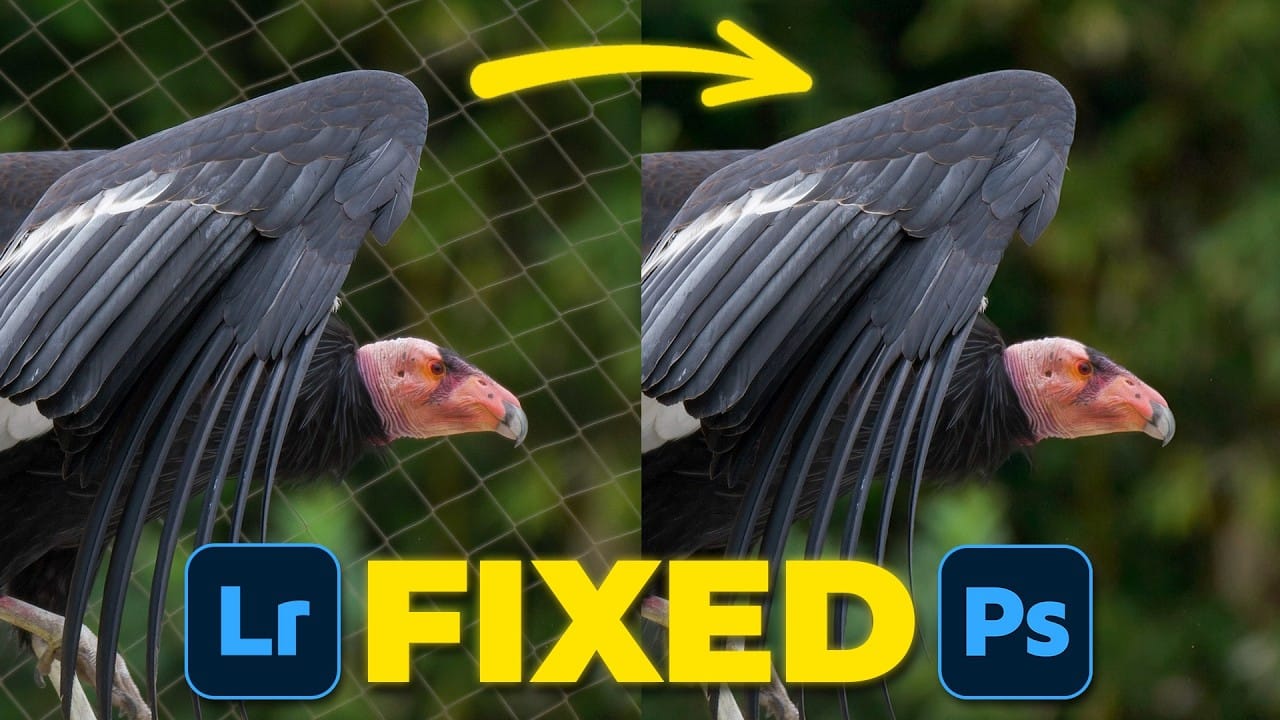
How to Remove Complex Background Elements Using AI in Photoshop
Removing complex background elements like fencing or wire mesh has traditionally been one of the most time-consuming tasks in photo editing. New AI-powered tools in Photoshop can now eliminate these distracting elements while preserving fine details in your subject.
This tutorial demonstrates two practical workflows: one using the latest Firefly Image 5 model in Photoshop Beta, and another using the Firefly web platform for those who prefer the standard version of Photoshop.
Watch the Video
Did you know Photoshop has new Quick Actions?
Discover how to speed up your workflow with Photoshop's new Quick Actions, presented by Colin Smith from Photoshop Cafe. This tutorial reveals the ease and efficiency of using Quick Actions to perform common tasks with just one click. Colin walks you through locating these Quick Actions and demonstrates how to blur backgrounds, apply duotones, remove backgrounds, and more.
While some features, like the Blur Background action, might not always produce perfect results, Colin shares a

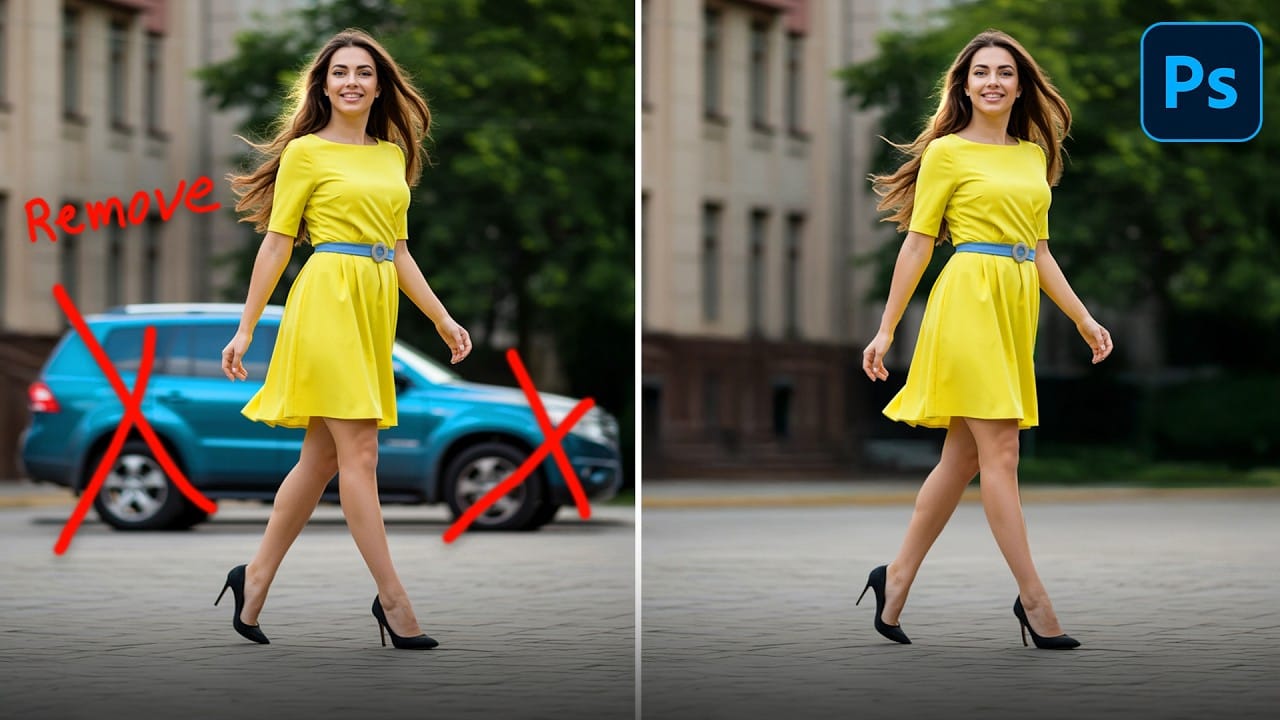
How to Remove Objects from Photos Using Photoshop's Remove Tool and Clean Plate Technique
Professional photo editing often requires removing unwanted objects while maintaining natural-looking results. The challenge lies in creating seamless edges and realistic backgrounds, especially around complex subjects like hair or intricate details.
This tutorial demonstrates both basic object removal using Photoshop's Remove Tool and an advanced "clean plate" technique used in professional TV and movie poster production.
Watch the Tutorial
Essential Tips for Object Removal
* Create a ne
How to Use a Grey Layer to Spot and Fix Mask Edges in Photoshop
Edge halos and stray artifacts are easy to miss when masking a subject, especially with AI-generated selections. Placing a neutral grey layer beneath your masked subject forces those problem areas into plain view, making cleanup faster and more precise.
Practical Tips
These steps cover the core workflow shown in the video for finding and cleaning up mask edges.
* Place a solid grey layer directly beneath your masked subject to make white halos and edge artifacts immediately visible against

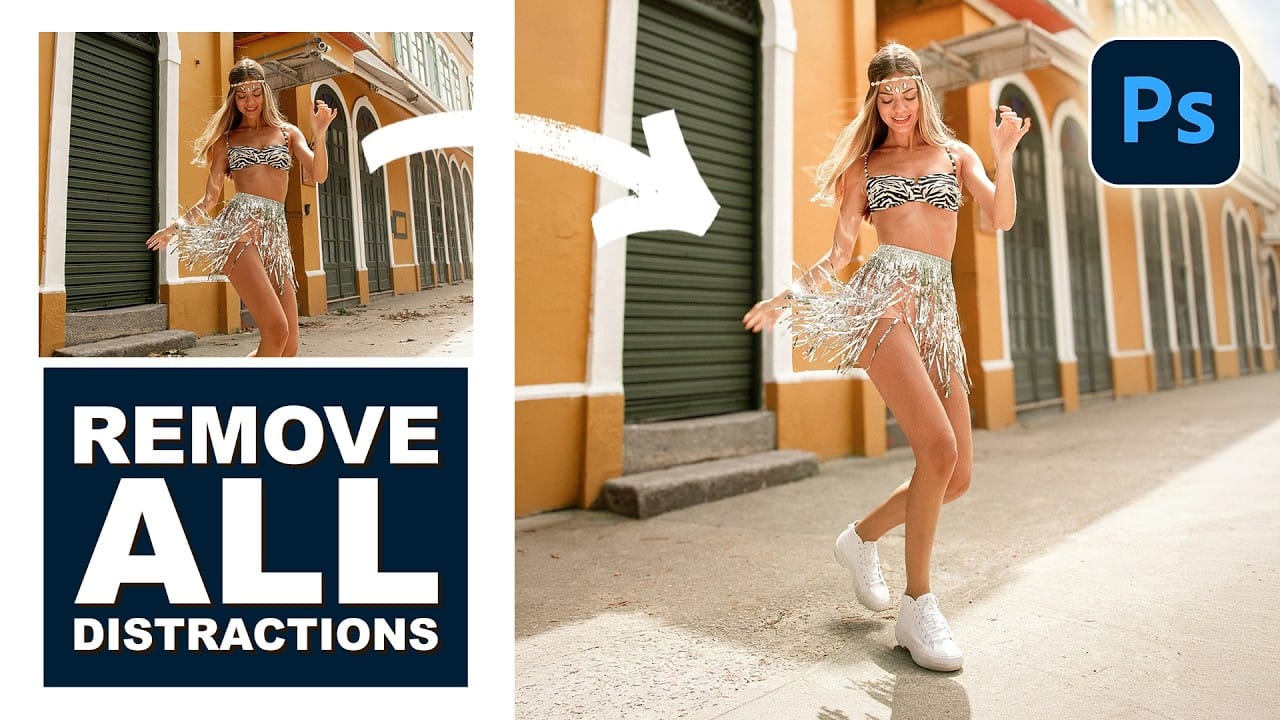
Remove All Distractions From a Photo in One Click using Adobe Photoshop
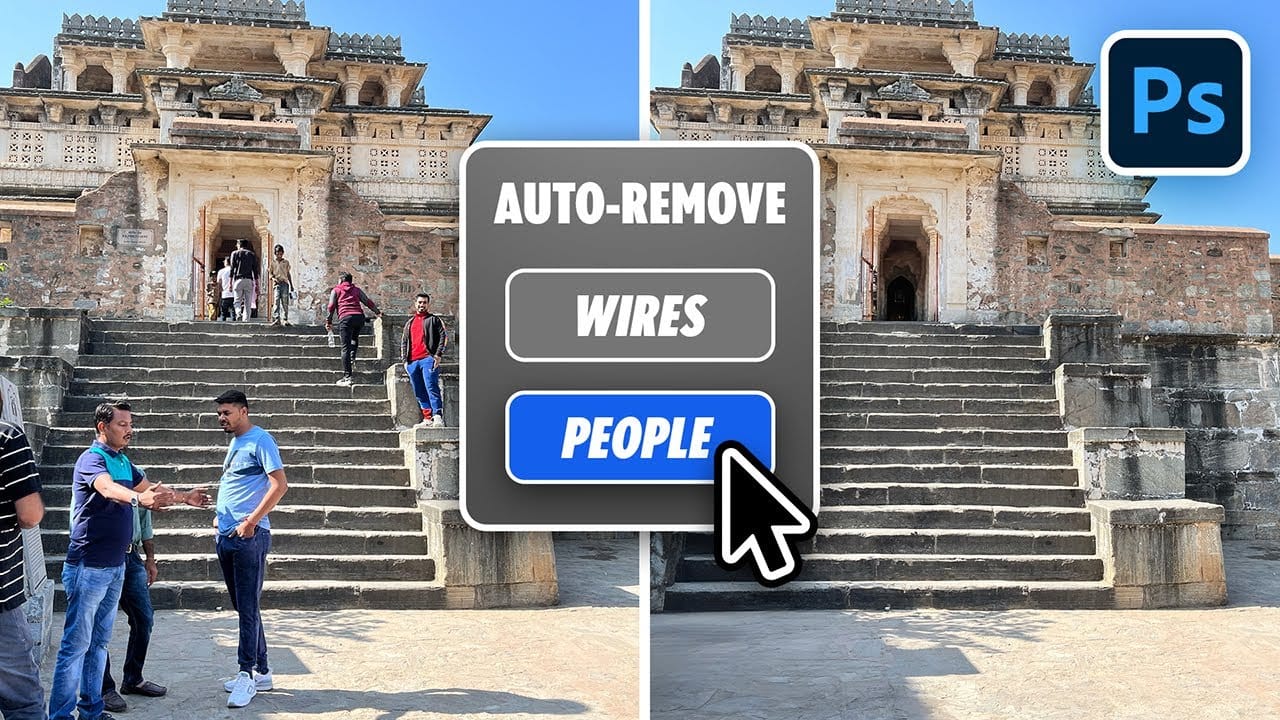
This tutorial by PiXimperfect introduces an impressive new feature in Adobe Photoshop Beta that simplifies photo editing. By utilizing the updated Remove Tool, users can effortlessly eliminate distractions with just one click.
The tutorial highlights how this feature can efficiently remove unwanted elements such as people, power lines, and various other distractions that can detract from the overall quality of a photograph. Ideal for photographers and graphic designers alike,
How to Remove Distractions, Expand Borders, and Polish a Portrait in Photoshop
A cluttered background, tight framing, and flat lighting can undermine an otherwise strong portrait. This workflow covers the full process of cleaning up a photo using Photoshop's AI-powered Remove Tool, extending the canvas with Generative Expand, replacing the sky, and finishing with Camera Raw adjustments for grain, vignetting, and background blur.
Watch the Video
Practical Tips
These techniques work together as a sequential editing workflow, each step building on the last to produce a c