How to Remove Complex Background Elements Using AI in Photoshop

How to Remove Complex Background Elements Using AI in Photoshop

Removing complex background elements like fencing or wire mesh has traditionally been one of the most time-consuming tasks in photo editing. New AI-powered tools in Photoshop can now eliminate these distracting elements while preserving fine details in your subject.

This tutorial demonstrates two practical workflows: one using the latest Firefly Image 5 model in Photoshop Beta, and another using the Firefly web platform for those who prefer the standard version of Photoshop.

Watch the Video

Video by Glyn Dewis. Any links or downloads mentioned by the creator are available only on YouTube

Practical Tips

Master these essential techniques for removing complex background elements while maintaining image quality:

  • Use Firefly Image 5 model with descriptive prompts like "remove the fence from this picture" for best AI removal results
  • Select your entire image before accessing Generative Fill to ensure the AI considers the full context
  • Preserve original detail by masking the AI-generated layer to reveal sharp areas of your subject and foreground elements
  • Use Object Selection Tool with cloud processing enabled for more accurate subject selections
  • Auto-align layers when combining images from different sources to ensure perfect registration

Explore more background editing techniques and advanced selection methods:
How to Change Backgrounds and Match Lighting in Photoshop
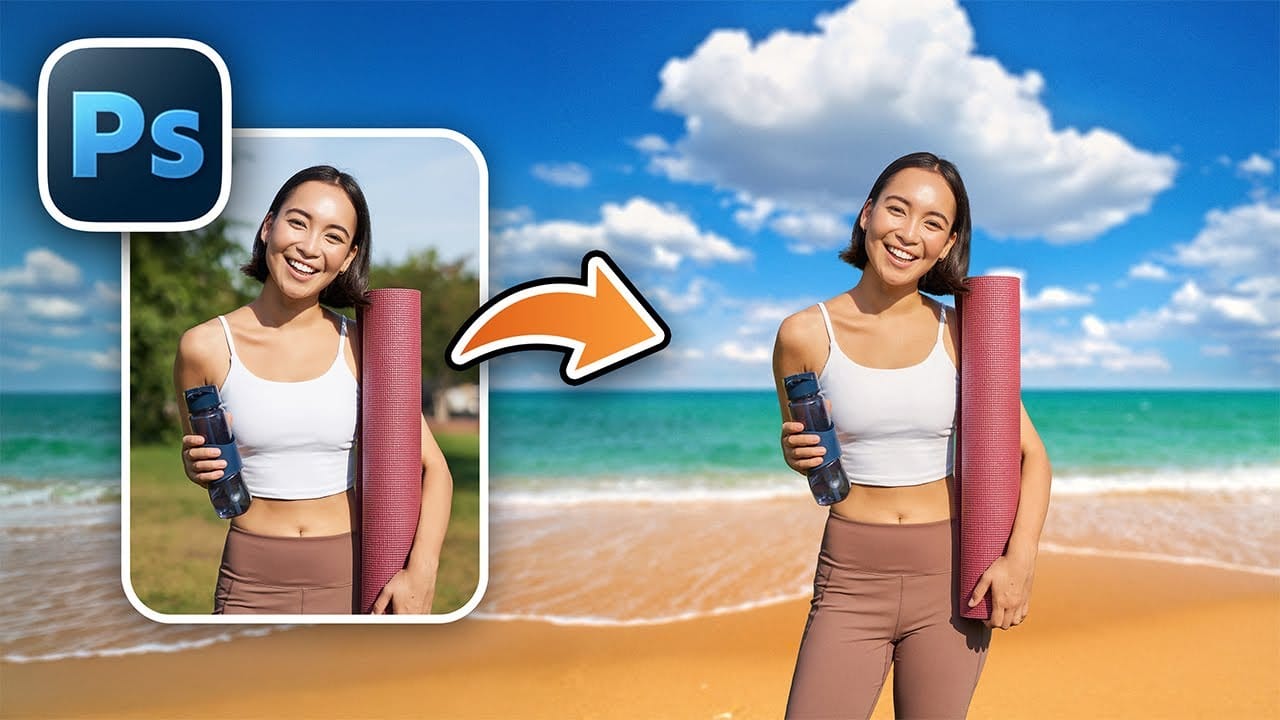
Creating seamless background replacements requires more than just cutting out your subject. The real challenge lies in making the new composition look natural through proper lighting, color matching, and depth of field consistency. Modern Photoshop tools have simplified this process significantly, allowing you to achieve professional results with automated background removal and smart masking techniques that handle even complex details like hair. Watch the Video Practical Tips These essent
How To Create A Seamless Backdrop In Photoshop
When working with smaller backgrounds, especially on location, it can be challenging to achieve a professional studio look. Fortunately, Photoshop offers simple techniques to transform your images effectively. While generative fill may seem like an easy option, it often leads to unexpected results, such as distorted limbs or mismatched backgrounds. Instead, a manual approach can yield better outcomes.Start by selecting your subject and creating a new color fill layer that matches the original b
How to Remove Backgrounds in Photoshop: 5 Essential Tools
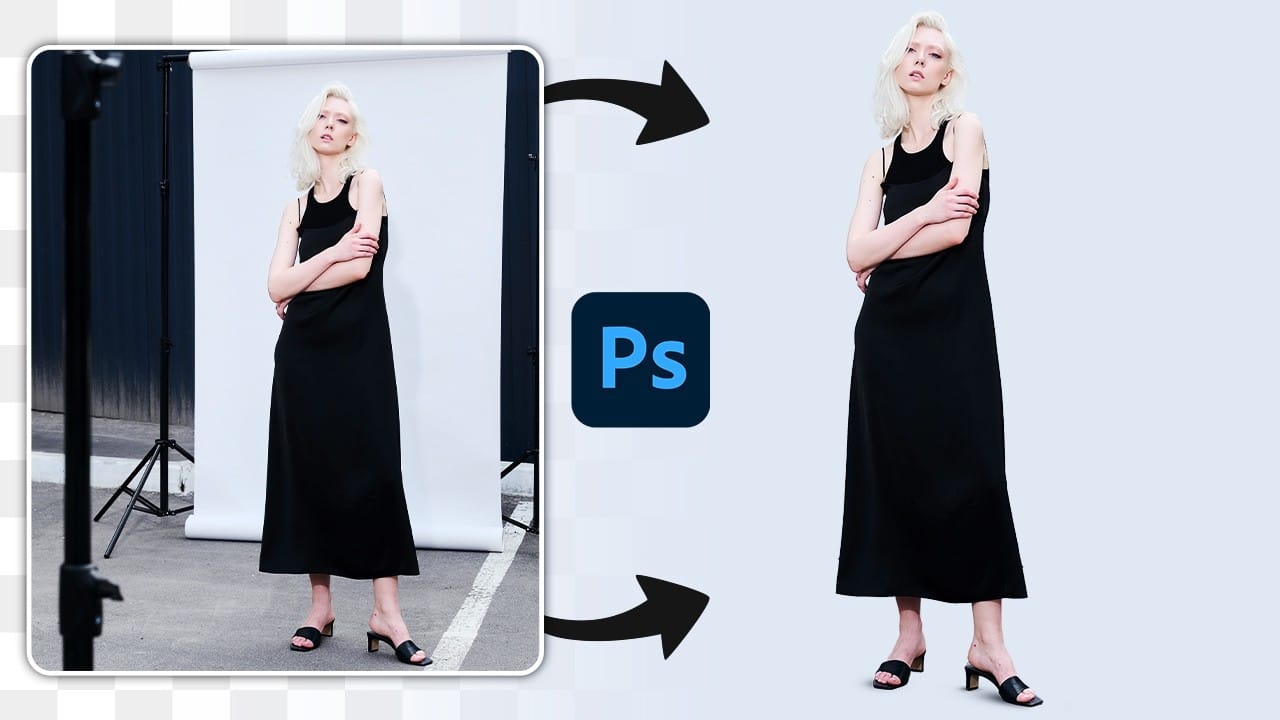
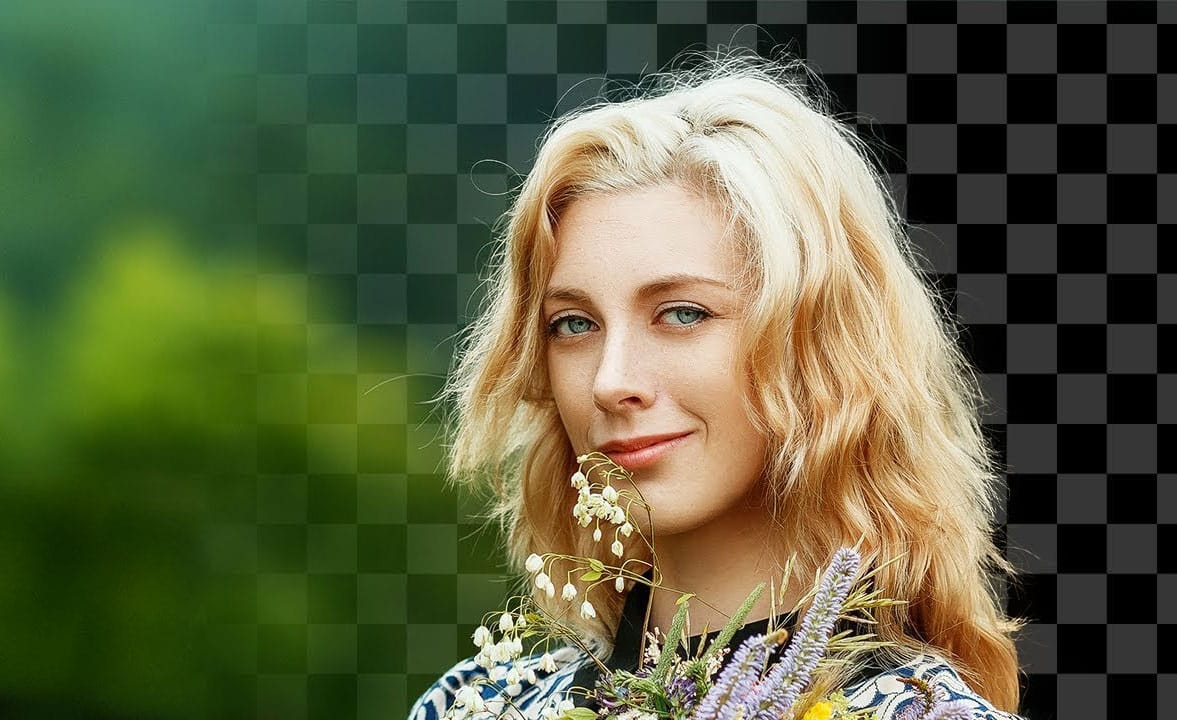
Background removal can make or break your image editing workflow. The right tool depends on your specific image: solid backgrounds need different approaches than complex hair details or high-contrast scenes. This tutorial covers five powerful Photoshop tools that handle different background removal challenges, from simple graphics to intricate details. Watch the Tutorial Practical Tips for Background Removal * Use Blend If for solid colored backgrounds by accessing layer styles and adjust
How to Change Background Using AI in Photoshop
Modern background replacement in Photoshop combines automated selection tools with AI-generated content to streamline what was once a complex manual process. The new Remove Background and Generate Background features work together to cut out subjects and create realistic new environments in minutes. This workflow demonstrates both complete background replacement and selective editing techniques that preserve original elements while generating new surroundings. The approach works particularly we
How to Blur Backgrounds in Photoshop with Precision and Speed
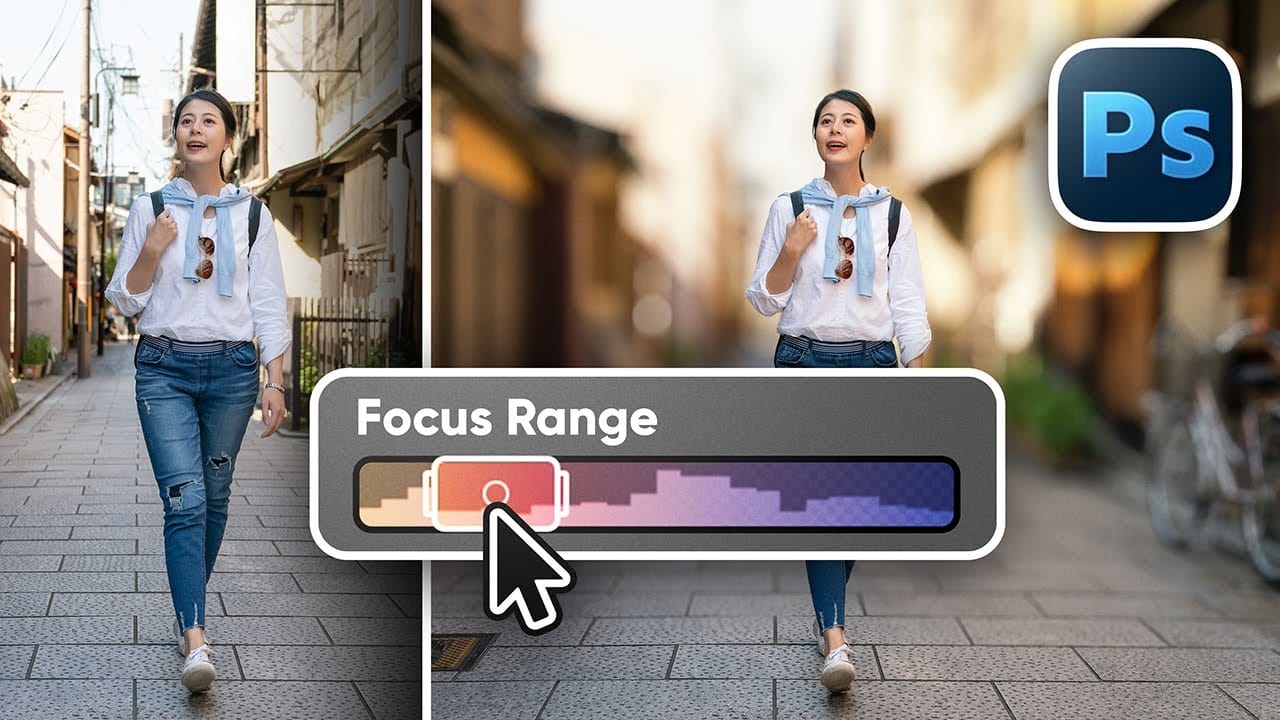
Creating professional-looking background blur can transform ordinary photos into stunning portraits with proper depth of field. The key lies in combining the right selection techniques with blur filters to achieve natural-looking results that rival expensive camera lenses. This approach focuses on precision and speed, ensuring your subject remains sharp while the background gradually transitions into a smooth, pleasing blur that draws attention to your main focal point. Watch the Video Prac
Add beautiful natural background light effects in Photoshop
In this Photoshop tutorial by Unmesh Dinda from Piximperfect you will learn how to make the subject stand out by adding realistic light effects on the background. Learn to create beams of light pouring in from a source (like a window) and falling on the background naturally in Photoshop. We'll create the light by using Step and Repeat and then apply blend modes and masking to make it as realistic as possible. Watch tutorial
Create painterly backgrounds in Photoshop FAST!
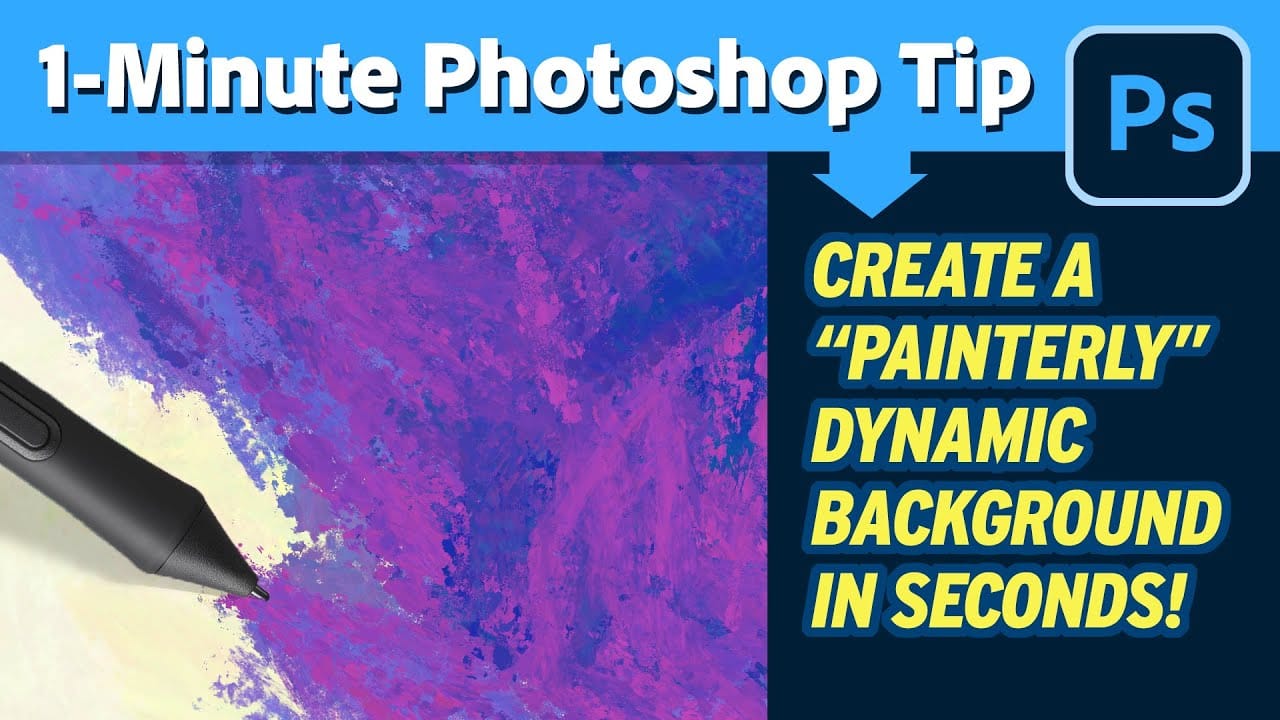
Painting in Photoshop doesn't have to be flat and lifeless. In this quick 1-minute video tutorial, Kyle T Webster shows you how to create vibrant painterly backgrounds with ease. By taking advantage of color dynamics, you can add depth and life to your backgrounds, transforming them from flat to fabulous in no time. Kyle demonstrates how simple adjustments and techniques can significantly enhance the overall look and feel of your digital paintings. Whether you're a beginner or an experienced ar
The easy background remover tool hidden in Photoshop!
In this Photoshop tutorial, PiXimperfect shares their insights on the amazing power of the Background Eraser tool. Viewers will learn how to easily cut out hair or complex edges using this versatile tool, as well as the best settings for various situations. The tutorial also covers how to make the Background Eraser tool completely non-destructive. This allows users to change the background or make it transparent without permanently altering the original image. Whether you want to remove the bac
How to Create a Speed Effect in Photoshop
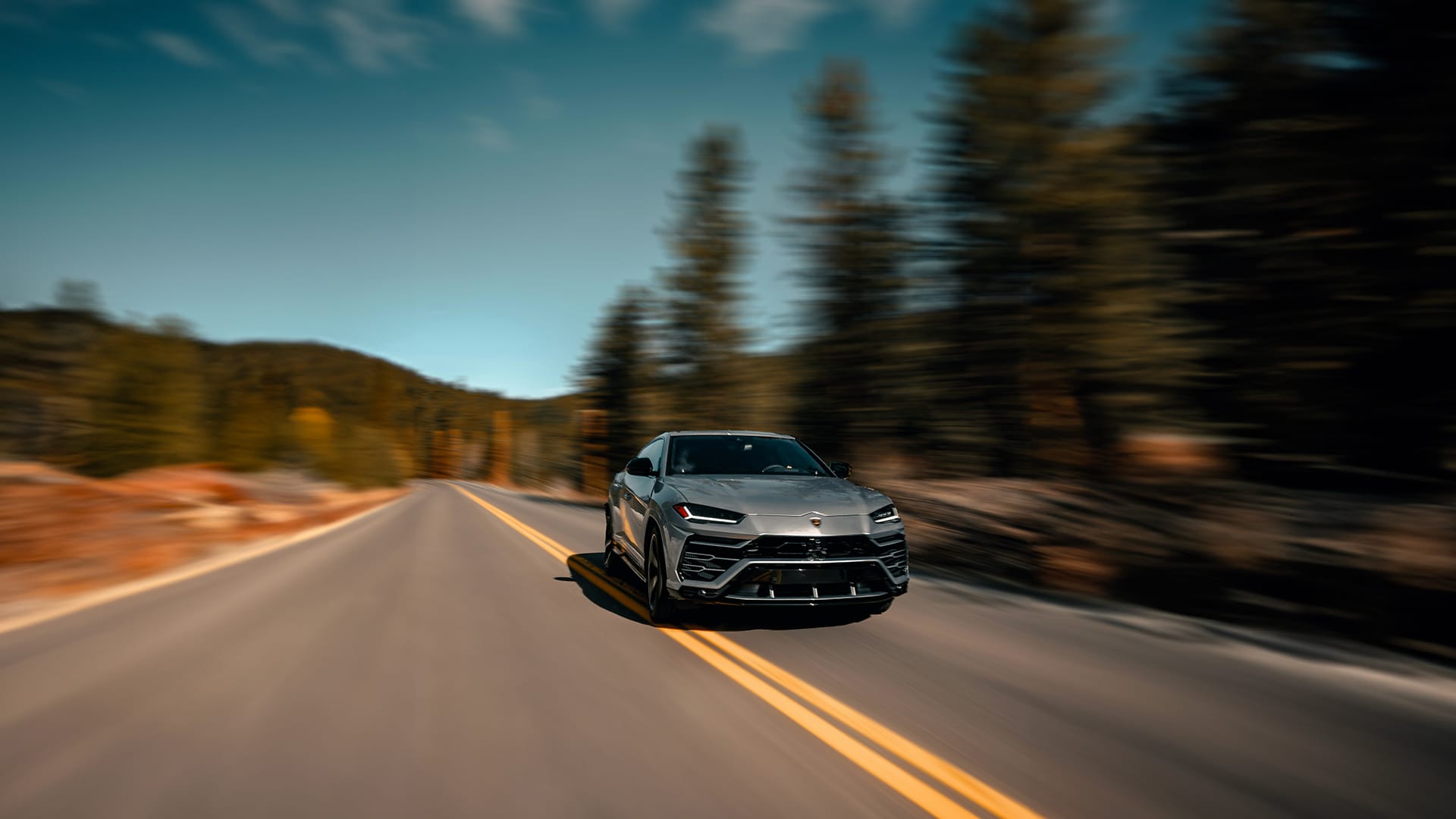
Static photos transform into dynamic action scenes when the background appears to race past your subject. This speed effect simulates the motion blur captured in high-speed photography, where the camera follows a moving subject while the background streaks by. The technique combines subject isolation, generative fill for clean backgrounds, and path blur filters to create realistic motion trails that follow natural perspective lines. Watch the Video Practical Tips Master these essential tec
2-Min Photoshop: Right Way to Change Backdrop Color
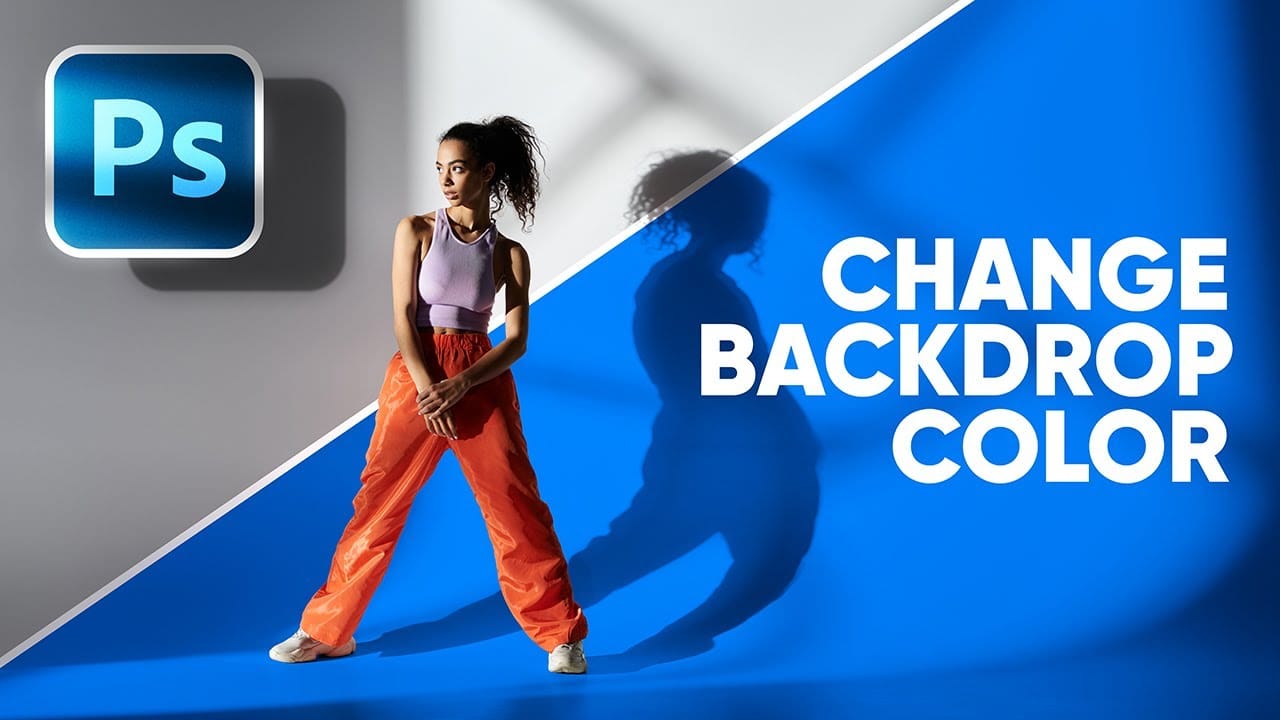
Changing the background color of an image is a common task in photo editing, whether for creative purposes, branding, or simply to improve visual appeal. However, the approach to achieving a seamless background change often depends on the original backdrop's characteristics, presenting unique challenges for different scenarios. This tutorial explores two distinct and effective methods for altering background colors in Photoshop, tailored to specific starting conditions: one for white or light g

Get tutorials & freebies delivered to you.

Subscribe to the Photoshop Roadmap newsletter, a weekly roundup of new tutorials, insights and quality downloads, trusted by 6500+ readers.

You might also like

How to Use Color Average for Color Toning in Photoshop

Color average creates a unified color tone by analyzing all the colors in your image and calculating their mathematical average. This technique adds depth and cohesion to photos, composites, and AI-generated images by applying a subtle color wash that ties all elements together. The method works particularly well for composites...

How to Use Photoshop's Auto Layer Rename Feature

Messy layer names like "Layer 52 copy 4" and "Untitled 5" clutter your workspace and slow down complex projects. Photoshop's new auto-rename feature uses AI to automatically identify and name layers based on their content, from "Woman in yellow shirt" to "...

New Generative Fill Features in Photoshop Beta: Reference Images and Credit Tracking

Photoshop Beta introduces significant improvements to Generative Fill that address the most requested features from users. The updated interface now displays your generative credit balance and usage, while the new reference image capability lets you add up to eight specific images to guide AI generation with precise visual examples. These...

Essential Photoshop Tools for Beginners: Brush, Crop, and Move Tool Tutorial

Learning Photoshop tools feels overwhelming when you don't know where to start. This tutorial focuses on three essential tools that form the foundation of most Photoshop work: the brush tool for painting and retouching, the crop tool for resizing and straightening images, and the move tool for positioning...

How to Add Custom Textures to Photos in Photoshop

Adding textures to photographs can transform ordinary images into compelling artistic compositions. This technique uses multiple texture layers combined with strategic blending modes and color adjustments to create depth and visual interest. The process involves layering different texture types—color overlays, surface patterns, and lighting effects—then using masking techniques...

Using AI-Generated Images as Inspiration for Fine Art Portrait Edits

Creative blocks happen to every photographer. When you're struggling to find fresh editing ideas for your portraits, AI-generated images can serve as powerful visual references to spark new artistic directions. This comprehensive tutorial demonstrates how to transform an ordinary child portrait into a painterly masterpiece using an AI...

You’ve successfully subscribed to Photoshop Roadmap
Welcome back! You’ve successfully signed in.
Great! You’ve successfully signed up.
Success! Your email is updated.
Your link has expired
Success! Check your email for magic link to sign-in.