Background removal can make or break your image editing workflow. The right tool depends on your specific image: solid backgrounds need different approaches than complex hair details or high-contrast scenes.
This tutorial covers five powerful Photoshop tools that handle different background removal challenges, from simple graphics to intricate details.
Watch the Tutorial
Video by Brendan Williams. Any links or downloads mentioned by the creator are available only on YouTube
Practical Tips for Background Removal
- Use Blend If for solid colored backgrounds by accessing layer styles and adjusting the highlight or shadow sliders based on the background tone
- Enable Cloud Detailed Results in Preferences > Image Processing for better automatic selections with Select Subject
- Combine the Object Selection Tool's rectangle mode for initial selection with lasso mode for precise edge refinements
- Apply the Pen Tool for maximum control on clean edges, then use Select and Mask workspace to refine complex areas like hair
- Use Channels for high-contrast images by duplicating the channel with most contrast and using Levels to push gray areas to pure black or white
Related Articles and Tutorials about Background Removal
Explore more techniques and tools for professional background removal in Photoshop.
The easy background remover tool hidden in Photoshop!
In this Photoshop tutorial, PiXimperfect shares their insights on the amazing power of the Background Eraser tool. Viewers will learn how to easily cut out hair or complex edges using this versatile tool, as well as the best settings for various situations.
The tutorial also covers how to make the Background Eraser tool completely non-destructive. This allows users to change the background or make it transparent without permanently altering the original image. Whether you want to remove the bac

In-Depth Comparison: Free Background Removers for Image Editing
Removing backgrounds from images can be a tedious and time-consuming task, especially when dealing with complex details like intricate hair strands or bicycle spokes. Many users seek quick, automated solutions, but the promise of free, high-quality results often leads to frustration when tools fail to deliver on resolution or masking precision.
This comprehensive guide dives into various free online background removal tools, evaluating their performance against challenging and simple images. Re

How to use the object selection tool for easy background removal in Photoshop
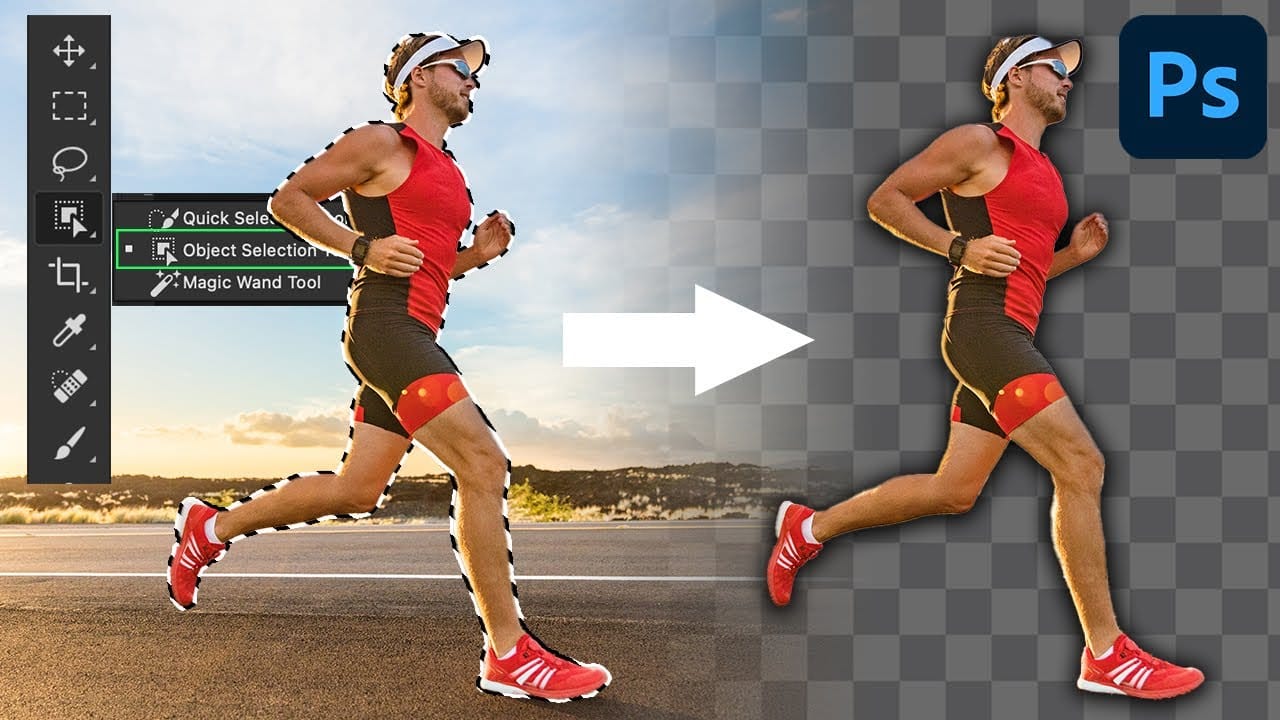
There are many different ways to cut out images and remove backgrounds in Photoshop, but one of the easiest options is with the object selection tool. This tool allows you to create accurate selections, remove backgrounds, and cut out images with very little effort. It's the perfect tool for both the beginner and advanced photoshop user.
In this video, you'll learn everything you need to know about how to use the object selection tool and how you can refine selections in both the rectangle and
How to Remove White or Black Backgrounds Using Blend If in Photoshop
When standard selection tools fail to cleanly remove backgrounds from logos, icons, or graphics, you need a different approach. White edges, missed details, and poor selections can ruin what should be a simple task.
The Blend If feature offers a direct solution for images with solid white or black backgrounds. This technique instantly hides specific tones and converts the result into true transparency for further editing.
Watch the Tutorial
Understanding Blend If for Background Removal
The