How to Remove White or Black Backgrounds Using Blend If in Photoshop

How to Remove White or Black Backgrounds Using Blend If in Photoshop

When standard selection tools fail to cleanly remove backgrounds from logos, icons, or graphics, you need a different approach. White edges, missed details, and poor selections can ruin what should be a simple task.

The Blend If feature offers a direct solution for images with solid white or black backgrounds. This technique instantly hides specific tones and converts the result into true transparency for further editing.

Watch the Tutorial

Video by Brendan Williams. Any links or downloads mentioned by the creator are available only on YouTube

Understanding Blend If for Background Removal

The Blend If sliders work differently from traditional selection tools. Instead of creating selections based on edge detection or subject recognition, these controls hide pixels based on their luminance values. This makes them particularly effective for graphics with pure white or black backgrounds where tone separation is clean and distinct.

Found within Layer Styles under Blending Options, Blend If operates more like a visibility mask than a cutting tool. The sliders control which tonal ranges remain visible on the current layer. Moving the white slider inward hides bright pixels, while the black slider affects dark areas.

The technique requires an additional step to convert the hidden pixels into actual transparency. Blend If initially just hides pixels rather than removing them, which means other effects won't recognize the transparent areas until you convert the layer to a smart object.

Practical Tips for Blend If Background Removal

  • Unlock your background layer before accessing Blend If through the Layer Styles dialog
  • Move the appropriate slider (white for white backgrounds, black for dark backgrounds) to hide unwanted tones
  • Convert the layer to a smart object after applying Blend If to create true transparency
  • Check the layer thumbnail to confirm transparency is properly recognized before applying additional effects
  • Use this method primarily for graphics with solid backgrounds rather than photographs with complex tonal ranges

Explore additional background removal techniques and selection methods for different image types.

The easy background remover tool hidden in Photoshop!
In this Photoshop tutorial, PiXimperfect shares their insights on the amazing power of the Background Eraser tool. Viewers will learn how to easily cut out hair or complex edges using this versatile tool, as well as the best settings for various situations. The tutorial also covers how to make the Background Eraser tool completely non-destructive. This allows users to change the background or make it transparent without permanently altering the original image. Whether you want to remove the bac
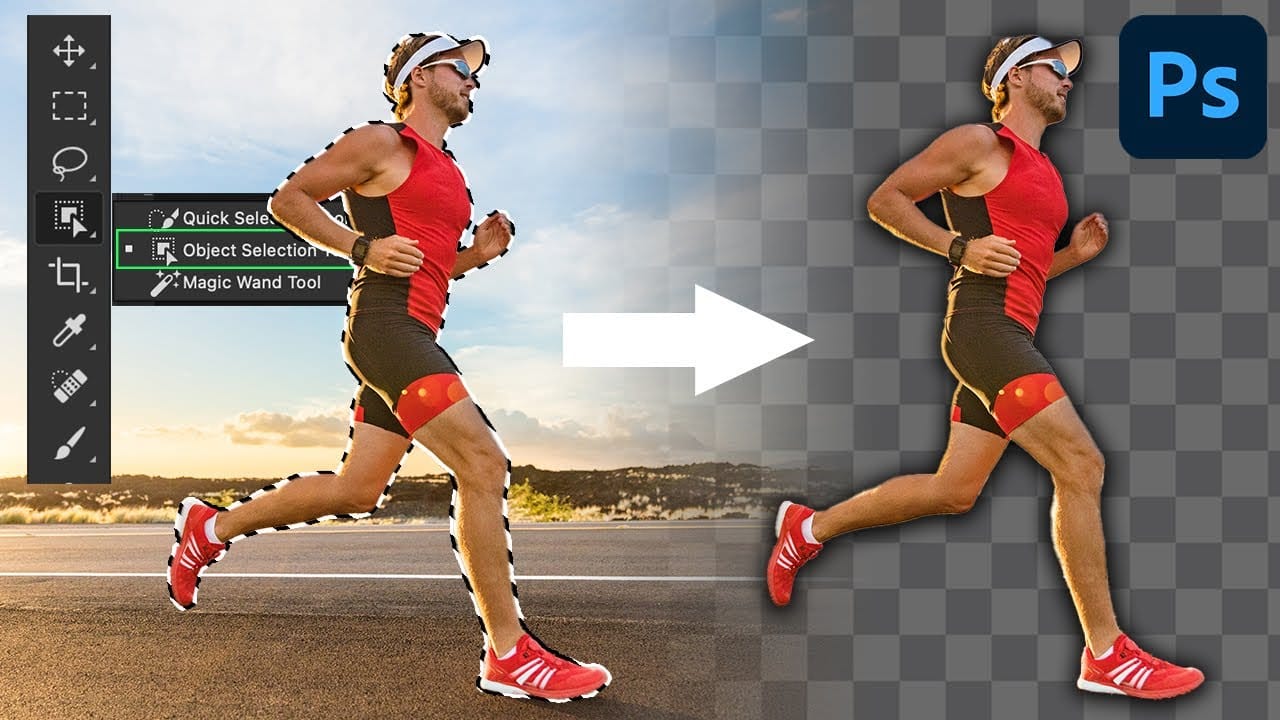
How to use the object selection tool for easy background removal in Photoshop
There are many different ways to cut out images and remove backgrounds in Photoshop, but one of the easiest options is with the object selection tool. This tool allows you to create accurate selections, remove backgrounds, and cut out images with very little effort. It's the perfect tool for both the beginner and advanced photoshop user. In this video, you'll learn everything you need to know about how to use the object selection tool and how you can refine selections in both the rectangle and
In-Depth Comparison: Free Background Removers for Image Editing
Removing backgrounds from images can be a tedious and time-consuming task, especially when dealing with complex details like intricate hair strands or bicycle spokes. Many users seek quick, automated solutions, but the promise of free, high-quality results often leads to frustration when tools fail to deliver on resolution or masking precision. This comprehensive guide dives into various free online background removal tools, evaluating their performance against challenging and simple images. Re
The Single Best Color Tool in Photoshop
In this tutorial, you will uncover the often-overlooked capabilities of Photoshop's Selective Color Adjustment Layer. This powerful tool allows you to perform both subtle and dramatic color grading, giving your images a polished look similar to fine art. You'll learn techniques to intensify colors, separate various hues for added depth, and achieve better overall color balance in your work. This ensures that your images maintain their vibrancy without the risk of over-saturation. The tutorial

Get tutorials & freebies delivered to you.

Subscribe to the Photoshop Roadmap newsletter, a weekly roundup of new tutorials, insights and quality downloads, trusted by 6500+ readers.

You might also like

7 Photoshop AI Tools You're Probably Not Using Yet

Photoshop’s AI features now go far beyond simple object removal. Some of the newer tools can completely change the way you edit photos, create composites, clean up distractions, or expand scenes — often with just a few clicks. The interesting part is that many of these features still feel surprisingly...

Transform Photos into Ink Drawings in Photoshop

Traditional ink drawings capture bold contrasts and artistic expression through pure black and white elements. This technique transforms ordinary photographs into striking ink artwork by combining specific filters with smart object workflows for complete creative control. The method uses oil paint effects, shadow adjustments, and threshold conversion to create authentic...

How to Build Monochromatic Color Palettes with Layers in Photoshop

Creating harmonious color schemes requires understanding how to layer colors strategically rather than relying on single adjustments. A monochromatic palette uses tints, tones, and shades from the same color family to create depth and visual unity. This technique demonstrates how to build rich, textured backgrounds by combining solid color fills,...

How to Use the New 3D Object Rotation Feature in Photoshop

Photoshop's new Rotate Object feature transforms flat 2D images into interactive 3D models that can be repositioned from any angle. This AI-powered tool automatically creates cutouts, maintains original textures, and generates missing details when objects are rotated beyond their original perspective. The feature opens new possibilities for product...

How to Use Depth Range Masking in Camera Raw

Adobe Camera Raw's depth range masking feature allows you to select and adjust specific depth layers in any photograph without needing special camera equipment. Unlike traditional subject and background masks that focus on shapes, depth range masking works with the spatial distance between elements in your image. This...

How to Remove Objects Using Photoshop's Updated Remove Tool Without Credits

Photoshop's updated Remove tool offers powerful AI-powered object removal without consuming any generative credits, regardless of your subscription plan. The tool features automated distraction detection that categorizes different types of visual clutter—from trash and people to urban elements and blemishes—making it easy to selectively remove unwanted...

You’ve successfully subscribed to Photoshop Roadmap
Welcome back! You’ve successfully signed in.
Great! You’ve successfully signed up.
Success! Your email is updated.
Your link has expired
Success! Check your email for magic link to sign-in.