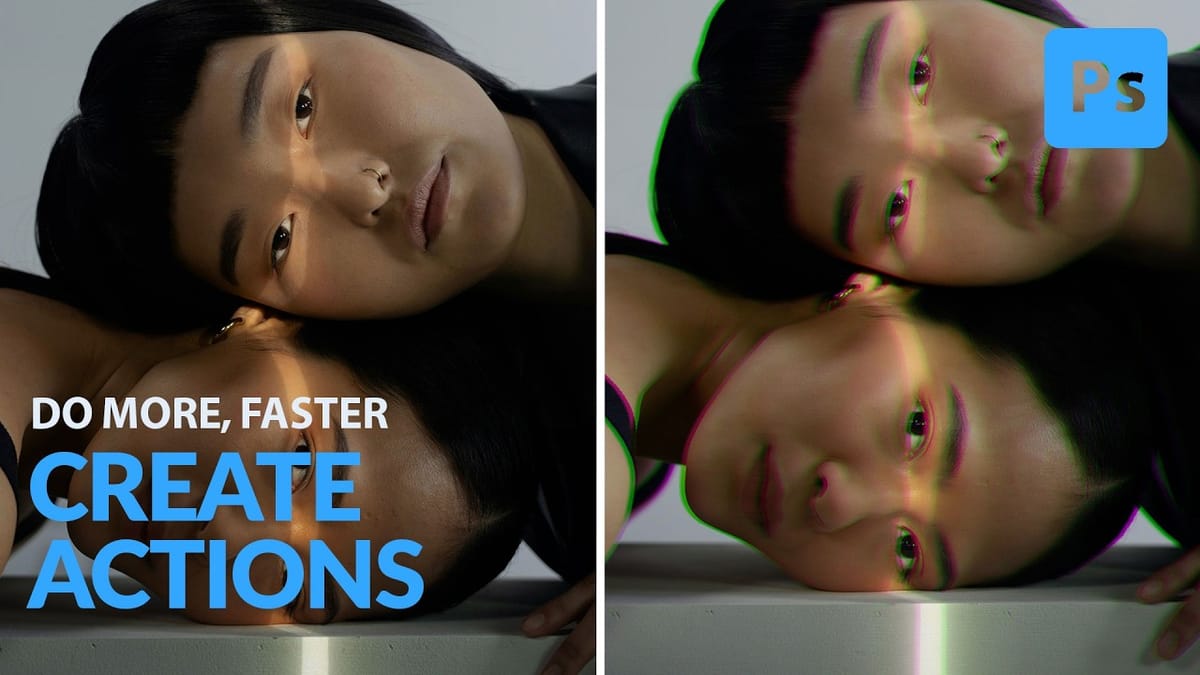
Photoshop Beta: Discover the New Actions Panel

Photoshop Beta: Discover the New Actions Panel

Achieving a specific creative look in Photoshop often requires knowing the right combination of tools and techniques, which can be a significant hurdle for both new and experienced users. While traditional actions can automate repetitive tasks, finding or creating the perfect one for a unique artistic goal isn't always straightforward.

This tutorial explores the completely redesigned Actions panel in Photoshop Beta, which uses AI to simplify complex edits. You will learn how to use natural language prompts and intelligent suggestions to apply sophisticated, non-destructive effects, speeding up your workflow and providing new avenues for creative experimentation.

Watch the Tutorial

Any links or downloads mentioned by the creator are available only on YouTube

Beyond One-Click Filters: AI Actions as Building Blocks

The new Actions panel represents a significant evolution in how Photoshop handles automation. Instead of relying on rigid, pre-recorded macros, this feature functions more like a creative assistant. By analyzing the content of your image, it suggests relevant edits and allows you to search for effects using simple, descriptive terms like "vintage look" or "blur background." This approach makes advanced techniques accessible without requiring deep technical knowledge.

What makes this feature particularly powerful is that it builds effects using Photoshop's core, non-destructive tools. When you apply an action like "Make Subject Pop," the panel doesn't just flatten a filter onto your image. Instead, it generates a series of adjustable layers, Smart Filters, and layer masks. This transparent process provides several key advantages:

  • Control: You can modify every component of the effect, such as tweaking a Camera Raw filter's settings or adjusting an overlay's opacity.
  • Customization: The generated layers serve as a starting point, which you can adapt to perfectly fit your creative vision.
  • Learning: By examining the layer stack, you can deconstruct how a professional-level effect is created and apply that knowledge to your own work.

This method transforms actions from a simple convenience into an interactive learning tool. It bridges the gap between automated results and manual control, empowering you to experiment freely while retaining the ability to fine-tune every detail.

Practical Tips for Using the New Actions Panel

  • Use the search bar to find actions with natural language, such as "glowing highlights" or "vintage paper texture," to quickly access relevant effects.
  • Create a new, empty layer before applying overlay actions like light leaks or textures to ensure they are applied correctly on top of your existing work.
  • Inspect the Layers panel after running an action to understand how it was constructed. You can then adjust individual settings like blend modes, filter strength, or layer opacity.
  • Access your classic, user-created actions by clicking the "Yours" tab in the panel, which keeps your established workflows separate from the new AI suggestions.
  • Hover your cursor over a suggested action to see a live preview on your image before committing to the change, allowing for rapid visual comparison.

Explore these resources for more on Photoshop's automation, AI features, and creative editing techniques.

Photoshop Beta: Exploring the New Generative Workspace
This Photoshop tutorial focuses on blending graphics with portrait photography to create striking visuals. You will learn how to use the Super Zoom feature, which allows you to upscale graphics while maintaining their resolution. This is particularly useful for achieving high-quality results in your projects. Another key component of the
Did you know Photoshop has new Quick Actions?
Do things faster in Photoshop with 1-click quick actions. Colin Smith shows you how to find and use Quick actions in photoshop. You can blur backgrounds, apply duotones, remove backgrounds and more. The Blur background doesn’t work well, but Colin has a hack that will give you perfect background blurs. More
How to Create and Play Back Actions in Photoshop
This Photoshop tutorial from Aaron Nace at Phlearn offers a clear process for blending graphics with portraits. You will learn how to use the Super Zoom feature, which allows you to upscale graphics while maintaining their original resolution. This is crucial for ensuring that your images remain sharp and professional.
Exploring the Latest Features in Photoshop 2025
Designers and digital artists frequently encounter challenges with precise selections, efficient object manipulation, and keeping workflows streamlined. As creative software evolves, staying current with the latest features can be daunting, yet it is essential for enhancing productivity and expanding creative possibilities. This article and accompanying video delve into the significant

Get tutorials & freebies delivered to you.

Subscribe to the Photoshop Roadmap newsletter, a weekly roundup of new tutorials, insights and quality downloads, trusted by 6500+ readers.

You might also like

Basic Photoshop techniques you really need to learn

Photoshop hasn’t changed as much as it looks. New features come and go, but the same core techniques keep showing up in real work. If you skip them, everything feels harder than it should. This post focuses on those basics, not as isolated tricks, but as skills you’ll...

How to Use Select Subject for Background Removal and Edge Refinement

Background removal becomes effortless when you know how to use the right tools. AI-powered selection can instantly isolate subjects from their backgrounds, but the real skill lies in refining those selections to create professional results. This guide covers the complete workflow from initial selection to edge refinement, plus creative techniques...

How to Wrap Text Around Any Shape in Photoshop

Creating text that flows naturally around irregular shapes transforms static layouts into dynamic, professional designs. This technique works particularly well for posters, magazine layouts, and editorial designs where text needs to integrate seamlessly with complex subjects rather than simply sitting in rigid rectangular boxes. The process combines selection tools, path...

How to Edit Text in Images Using Generative Fill

Changing text within existing images has traditionally required complex masking and reconstruction techniques. Modern AI-powered tools now make it possible to seamlessly replace words and phrases in photographs while maintaining realistic typography, lighting, and perspective that matches the original scene. This technique works particularly well for signs, storefronts, billboards, and...

How to Remove Dust and Sensor Spots Using Photoshop Tools

Dust spots and sensor particles are inevitable challenges in digital photography, appearing as dark specks that distract from otherwise clean images. Camera sensors collect dust over time, creating consistent spots that show up across multiple photos, particularly in bright sky areas or uniform backgrounds. Both Lightroom and Photoshop offer specialized...

Photoshop vs Affinity Photo: Feature Comparison and Professional Analysis

When choosing professional photo editing software, the decision often comes down to comparing features, performance, and value. This detailed comparison examines the core capabilities of both applications across noise reduction, smart selections, object removal, masking, and AI-powered tools. The analysis covers real-world scenarios that professionals encounter daily, from complex background...

You’ve successfully subscribed to Photoshop Roadmap
Welcome back! You’ve successfully signed in.
Great! You’ve successfully signed up.
Success! Your email is updated.
Your link has expired
Success! Check your email for magic link to sign-in.