Generative Fill with Nano Banana on a large canvas often produces stretched or squashed results with visible selection edges. The problem is a resolution mismatch — the model generates into a small area but gets scaled up to fit a much larger document. A simple Smart Object workaround solves this completely and also delivers sharper output as a bonus.
Watch the Video
Video by photoshopCAFE. Any links or downloads mentioned by the creator are available only on YouTube
Practical Tips
These steps will help you get clean, proportional results from Nano Banana every time you generate into a selection.
- Hold Shift while drawing a Rectangular Marquee selection to constrain it to a perfect square — this prevents the model from distorting the aspect ratio of generated content.
- Copy the selection to a new layer with Ctrl+J (Cmd+J on Mac), then convert it to a Smart Object before generating — this lets you open and edit the content in its own isolated document.
- Generate inside the Smart Object document, not on the main canvas — the smaller native resolution means the AI fills at full quality without stretching.
- Save the Smart Object with Ctrl+S (Cmd+S) to automatically update it in the main document, with no seams and no squashing.
- Give the square selection a little extra room around the target area so generated shadows and edges have space to blend naturally.
Related Articles and Tutorials
Explore more tutorials covering AI generative techniques and model comparisons for Photoshop.
50+ Nano Banana Uses in Photoshop Beta for Advanced Image Editing
Google's Nano Banana AI model now integrates directly into Photoshop Beta, bringing powerful generative capabilities to image editing. The tool excels at maintaining subject likeness while transforming backgrounds, clothing, and entire scenes with simple text prompts.
This integration offers professional-grade AI editing within Photoshop's familiar interface, complete with advanced selection tools and workflow optimization.
Watch the Tutorial
Essential Tips for Using Nano Banana in Photosho
How to Restore Old Damaged Photos Using Nano Banana in Photoshop
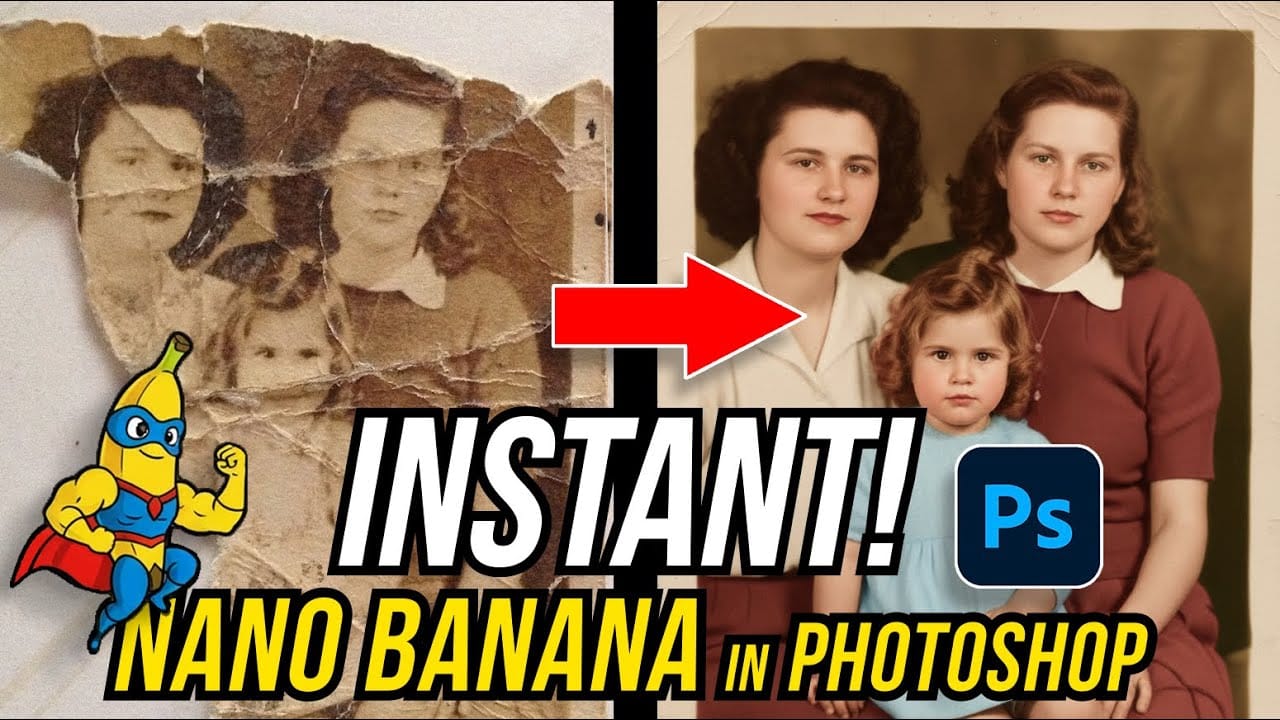
Old family photos with scratches, tears, and missing sections can seem beyond repair. Google's Nano Banana AI model, now integrated into Photoshop, makes full restoration possible in minutes rather than hours.
This powerful tool excels at maintaining facial characteristics while automatically filling in damaged areas and adding realistic color to black and white images.
Watch the Tutorial
Essential Tips for Photo Restoration with Nano Banana
* Access the Contextual Taskbar — If you don't
Photoshop Beta: How to Use Google's Nano Banana AI for Advanced Image Editing
Google's Nano Banana AI model now integrates directly into Photoshop Beta, offering superior detail preservation and more realistic results than Adobe's Firefly. This powerful generative fill tool excels at maintaining subject likeness while transforming backgrounds, clothing, and entire scenes.
The integration brings professional-grade AI editing capabilities directly into Photoshop's familiar interface, complete with advanced selection tools and workflow optimization.
Watch the Tutorial
E
How to Use Nano Banana Pro in Photoshop for Background Replacement and Scene Changes
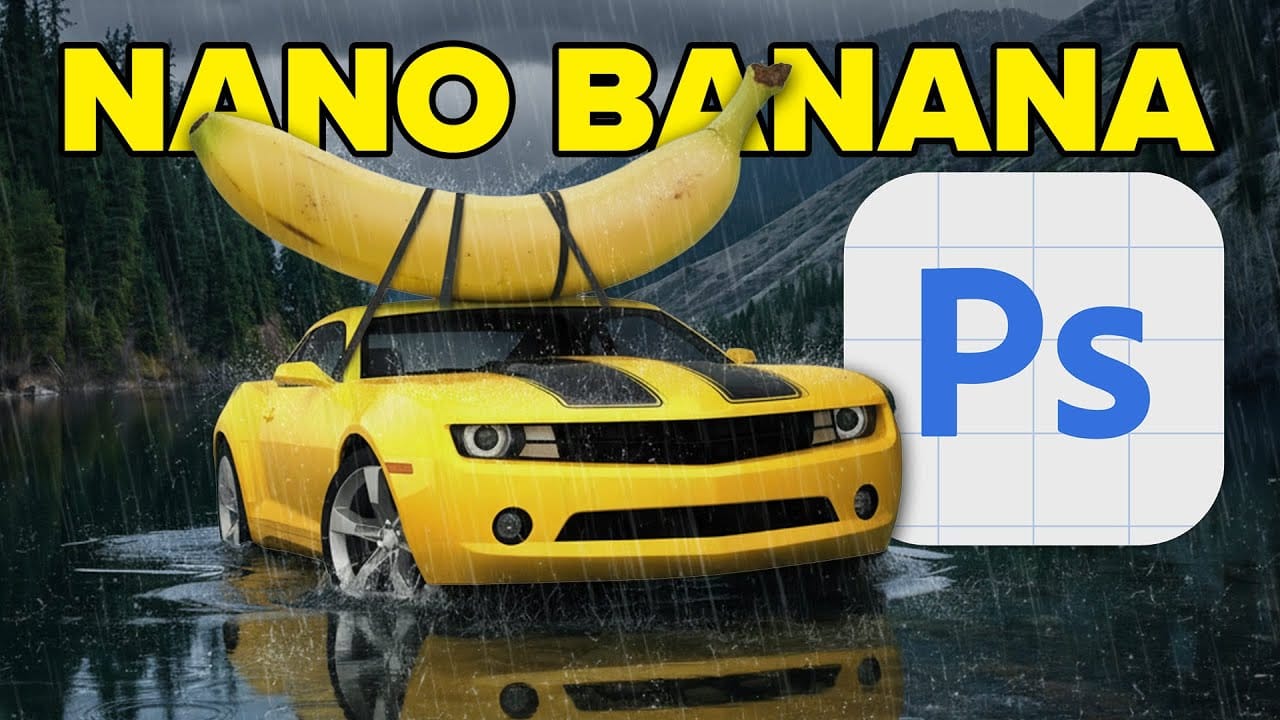
Nano Banana Pro transforms how you place subjects into new environments in Photoshop. This advanced AI model maintains perfect subject likeness while seamlessly integrating them into any background you can imagine.
The tool excels at matching lighting, preserving facial features, and even adapting clothing to complement new scenes, all through simple text prompts that work like natural conversation.
Watch the Video
Practical Tips
These essential techniques will help you get the best result
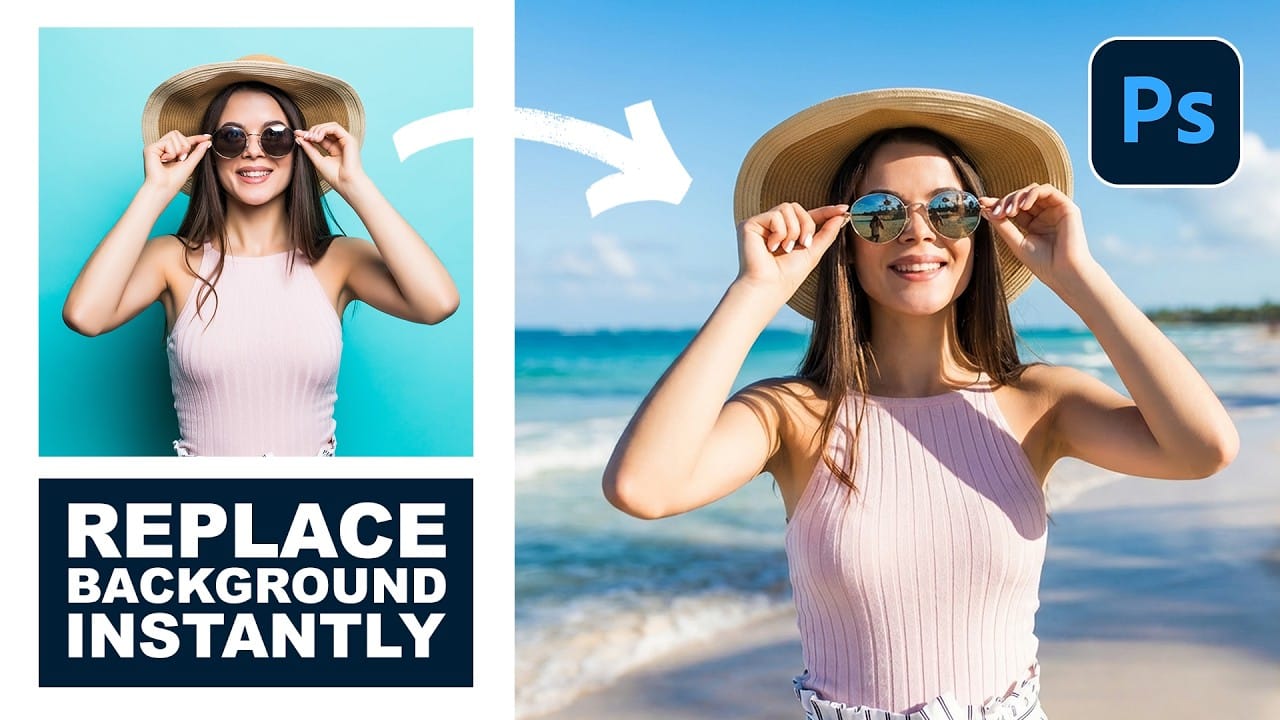
How to Use Gemini 2.5 Nano Banana AI in Photoshop 2026
Photoshop 2026 introduces Gemini 2.5 Nano Banana, a powerful AI model that transforms how you edit images. This advanced tool maintains scene coherence while allowing dramatic changes to poses, backgrounds, and camera angles.
The technology understands context and lighting, creating realistic results that feel naturally integrated into your original photos.
Watch the Video
Key Tips for Using Nano Banana
* Make loose selections around your target area — the model needs context to understan
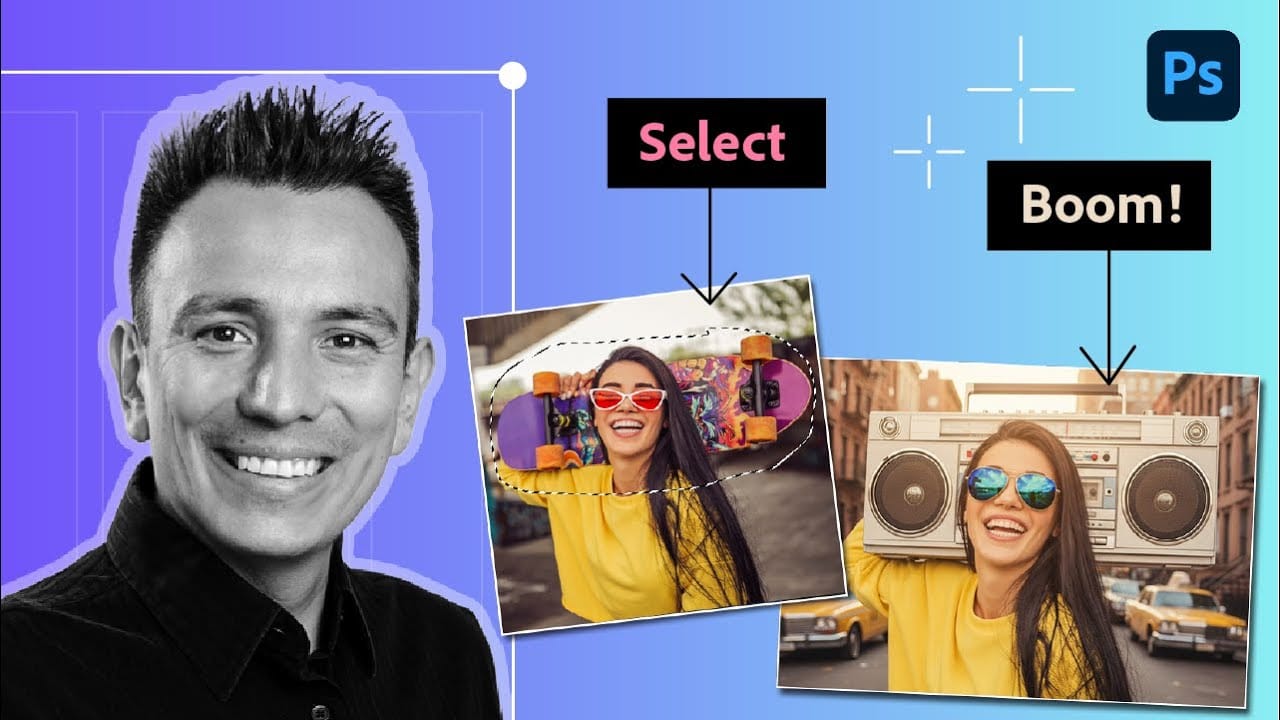
Using Gemini 3 Nano Banana Pro for AI Photo Restoration in Photoshop
Old photographs tell stories, but damage from age, fading, and color casts can make them difficult to appreciate. While traditional photo restoration requires advanced skills and hours of manual work, new AI models are changing the game. The key is finding one that repairs damage without changing how people actually look.
Photoshop's latest generative models include partner options that excel at specific tasks. For photo restoration, one model stands out for preserving facial features while eff

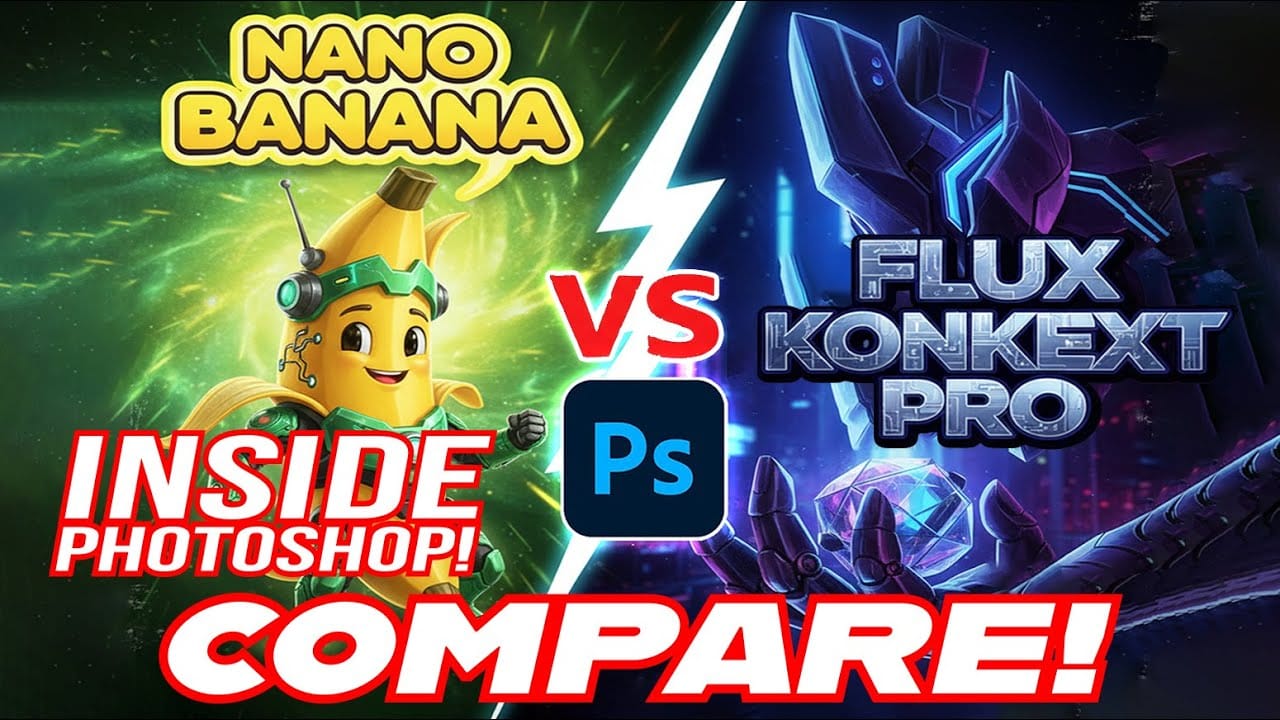
Photoshop AI Comparison: Nano Banana vs Flux Kontext Pro Performance Test
Two powerful AI models now compete within Photoshop Beta: Nano Banana and Flux Kontext Pro. Each handles image generation differently, excelling in specific scenarios while struggling with others.
This comprehensive comparison reveals which model performs better across various editing tasks, from facial expressions to text generation and seasonal transformations.
Watch the Comparison
Practical Tips for AI Model Selection
* Use a softer selection brush to minimize image sliding glitches co
Gemini Nano Banana vs Photoshop: A Detailed Performance Comparison
Modern AI tools promise instant photo editing magic with simple text prompts. Gemini's Nano Banana and similar platforms can generate impressive results for basic tasks, but professional work demands precision and consistency.
This comprehensive comparison tests AI capabilities against traditional Photoshop techniques across skin retouching, compositing, background removal, and photo restoration to reveal where each approach excels.
Watch the Video
Key Insights from AI vs Photoshop Testing

How to Use Nano Banana Pro in Adobe Firefly for Advanced AI Image Generation
Adobe Firefly now includes Gemini 3 with Nano Banana Pro, offering sharper 2K image generation with improved text clarity and precision blending. This advanced AI model works seamlessly within Firefly's generative workspace, enabling powerful workflows like multi-image composition and virtual try-on effects.
The integration provides access to sophisticated presets and reference image capabilities that go beyond basic Photoshop workflows, making complex generative tasks simple and intuitive.
W

Flux Kontext Pro vs Nano Banana: Comparing Photoshop's AI Models for Realistic Image Generation
Photoshop Beta now includes two powerful AI partner models that handle image generation differently. Flux Kontext Pro excels at creating realistic, detailed results while maintaining original photo elements, making it ideal for natural-looking edits.
This comparison reveals when to choose Flux over the popular Nano Banana model for your creative projects.
Watch the Tutorial
Key Differences Between AI Models
* Use Flux Kontext Pro for realistic, photograph-like results that preserve origin