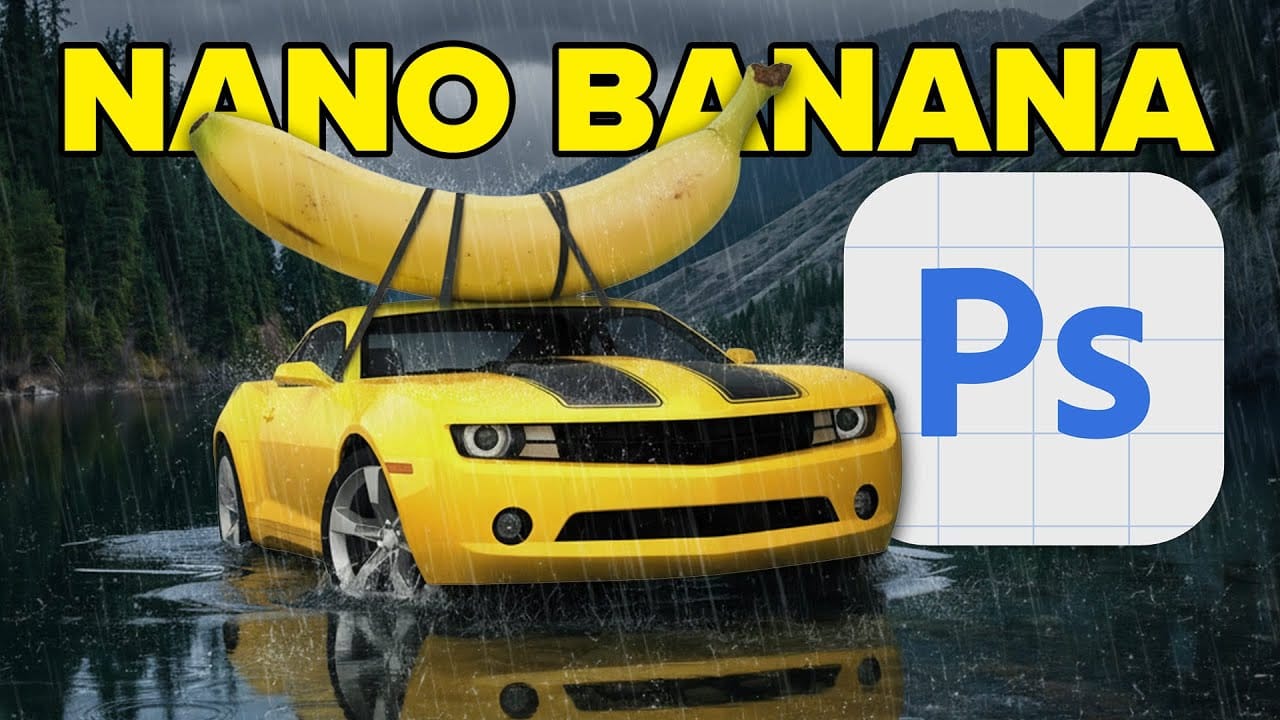
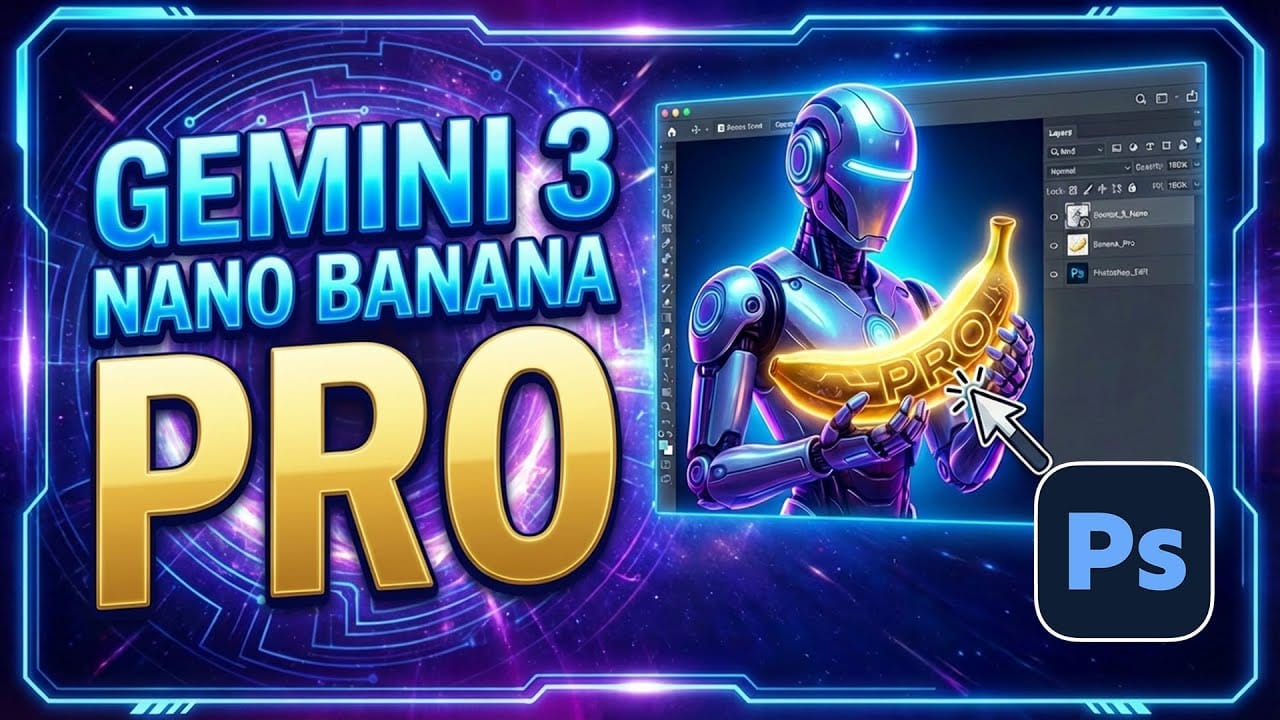
How to Use Nano Banana Pro in Adobe Firefly for Advanced AI Image Generation

How to Use Nano Banana Pro in Adobe Firefly for Advanced AI Image Generation

Adobe Firefly now includes Gemini 3 with Nano Banana Pro, offering sharper 2K image generation with improved text clarity and precision blending. This advanced AI model works seamlessly within Firefly's generative workspace, enabling powerful workflows like multi-image composition and virtual try-on effects.

The integration provides access to sophisticated presets and reference image capabilities that go beyond basic Photoshop workflows, making complex generative tasks simple and intuitive.

Watch the Video

Video by Photoshop Training Channel. Any links or downloads mentioned by the creator are available only on YouTube

Practical Tips

Essential techniques for maximizing Nano Banana Pro's capabilities in Adobe Firefly:

  • Access the generative workspace by clicking "more" for better visibility and easier navigation compared to the dropdown interface
  • Upload up to six reference images from your device or Creative Cloud libraries to create complex multi-image compositions
  • Switch preset models to Gemini 3 with Nano Banana Pro using the "view prompt" option for superior results over default models
  • Use Firefly Boards for organized workflows - create boards, upload multiple images, and apply presets like virtual try-on automatically
  • Take advantage of automatic upscaling to 2K resolution when uploading lower-resolution source images

Explore more advanced AI editing techniques and workflows:
50+ Nano Banana Uses in Photoshop Beta for Advanced Image Editing
Google's Nano Banana AI model now integrates directly into Photoshop Beta, bringing powerful generative capabilities to image editing. The tool excels at maintaining subject likeness while transforming backgrounds, clothing, and entire scenes with simple text prompts. This integration offers professional-grade AI editing within Photoshop's familiar interface, complete with advanced selection tools and workflow optimization. Watch the Tutorial Essential Tips for Using Nano Banana in Photosho
Photoshop Beta: How to Use Google's Nano Banana AI for Advanced Image Editing
Google's Nano Banana AI model now integrates directly into Photoshop Beta, offering superior detail preservation and more realistic results than Adobe's Firefly. This powerful generative fill tool excels at maintaining subject likeness while transforming backgrounds, clothing, and entire scenes. The integration brings professional-grade AI editing capabilities directly into Photoshop's familiar interface, complete with advanced selection tools and workflow optimization. Watch the Tutorial E
How to Use Gemini 3 Nano Banana Pro in Photoshop for Advanced AI Editing
Google's Gemini 3 Nano Banana Pro brings powerful AI capabilities to Photoshop with features like focus shifting, text recognition, and 4K resolution support. Adobe integrated this advanced model immediately upon release. The tool excels at maintaining context while transforming images, creating storyboards, and generating realistic text replacements with proper fonts and reflections. Watch the Video Essential Tips for Gemini 3 Nano Banana Pro * Put text prompts in quotation marks when wo
Flux Kontext Pro vs Nano Banana: Comparing Photoshop's AI Models for Realistic Image Generation
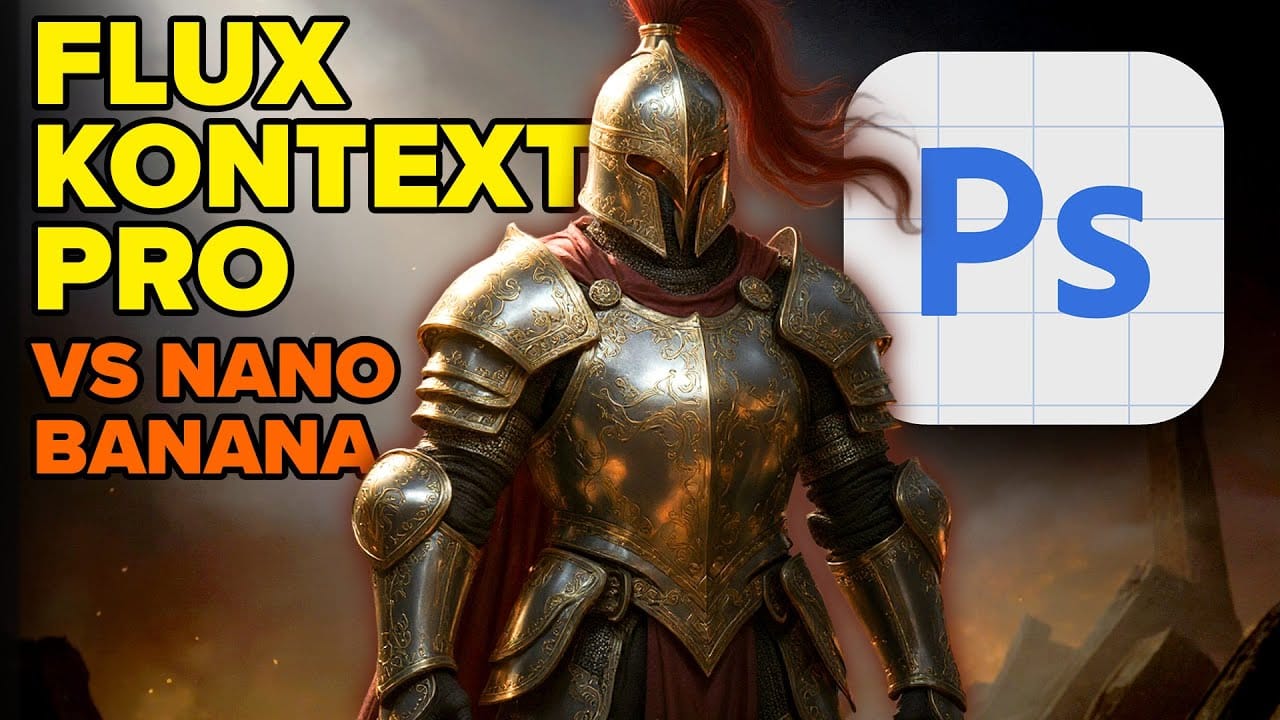
Photoshop Beta now includes two powerful AI partner models that handle image generation differently. Flux Kontext Pro excels at creating realistic, detailed results while maintaining original photo elements, making it ideal for natural-looking edits. This comparison reveals when to choose Flux over the popular Nano Banana model for your creative projects. Watch the Tutorial Key Differences Between AI Models * Use Flux Kontext Pro for realistic, photograph-like results that preserve origin

Get tutorials & freebies delivered to you.

Subscribe to the Photoshop Roadmap newsletter, a weekly roundup of new tutorials, insights and quality downloads, trusted by 6500+ readers.

You might also like

How to Use AI Masking in Adobe Camera Raw for Professional Photo Editing

Adobe Camera Raw's AI masking tools automatically detect subjects, backgrounds, skies, and landscapes, letting you make precise adjustments to specific areas of your photos. These intelligent masks eliminate the need for manual selection work, while allowing you to combine and refine them for complete creative control. The technique...

How to Remove Objects from Photos Using AI Tools in Photoshop

Photoshop's AI-powered object removal tools can eliminate unwanted distractions from your photos with minimal effort. The Remove Tool and Generative Fill feature automated detection for common distractions like people and wires, plus manual painting options for custom removals. These tools work on separate layers, preserving your original image...

Speed Up Your Color Grading Workflow with Photoshop Actions

Color grading can transform your images, but manually adjusting curves and levels for every photo takes time. Photoshop actions offer a faster approach by applying professional color treatments with a single click. This workflow uses pre-built actions, tints, and LUTs to achieve various moods and styles instantly, letting you layer...

7 Essential Tips for Speed Painting in Digital Art

Speed painting isn't just about working faster—it's about eliminating friction from your creative process. These seven techniques help you get ideas onto canvas quickly without getting bogged down in unnecessary decisions or premature details. Whether you're exploring concepts for professional work or personal...

Professional Color Grading Techniques in Photoshop

Color grading transforms ordinary photos into compelling images with professional mood and atmosphere. These non-destructive techniques let you adjust tones, enhance specific colors, and create cinematic looks while preserving your original image data. Master these four essential color grading methods to develop a consistent editing workflow that elevates your photography....

How to Save Cut-Out Elements with Transparent Backgrounds in Photoshop

Creating seamless photo composites requires properly saving cut-out elements with transparent backgrounds. Whether you're extracting people, objects, or other elements for later use, the file format you choose determines how easily you can place these elements into new scenes. Two main approaches work best: saving as PSD files...

You’ve successfully subscribed to Photoshop Roadmap
Welcome back! You’ve successfully signed in.
Great! You’ve successfully signed up.
Success! Your email is updated.
Your link has expired
Success! Check your email for magic link to sign-in.