How to Use Photoshop's New Offline AI Remove Tool (No Credits Required)

How to Use Photoshop's New Offline AI Remove Tool (No Credits Required)

Photoshop's latest update introduces an offline AI-powered Remove tool that works without internet connectivity or generative credits. This on-device feature processes a 4-5GB AI model locally, enabling fast object removal while maintaining complete privacy since your images never leave your computer.

The tool requires high system specifications but offers unlimited usage once properly configured. While quality differs from cloud-based alternatives, the speed and independence from Adobe's servers make it valuable for many workflows.

Watch the Video

Video by PiXimperfect. Any links or downloads mentioned by the creator are available only on YouTube

Practical Tips

Essential setup and usage guidelines for the offline AI Remove tool:

  • Update to Photoshop version 27.7+ and ensure your system meets hardware requirements (NVIDIA 30-series GPU with 14GB VRAM for Windows, or M1 Pro with 24GB RAM for Mac)
  • Enable "Remove tool processing" to "Faster" in preferences and activate "Use graphics processor" in Performance settings
  • Always create new layers before using the tool to maintain non-destructive editing workflows
  • Paint over problem areas multiple times since each generation creates unique results unlike content-aware fill
  • Include shadows when removing objects and use smaller brush strokes for better quality in detailed areas

Explore more advanced editing techniques and AI-powered workflow improvements.

Photoshop 2026 New Features: AI Tools and Credit System Overview
Photoshop 2026 introduces powerful AI-driven features including advanced generative fill models, sophisticated upscaling tools, and seamless harmonization effects. These updates promise to streamline complex editing tasks while delivering professional-quality results. The software now operates on a credit-based system that divides features into standard and premium tiers, fundamentally changing how users access certain tools. Watch the Video Key Features and Practical Tips * Access the co
Photoshop Clone Stamp Tool: Remove Objects Without Using AI Credits
AI tools in Photoshop consume generative credits and may flag your images as artificially generated. The clone stamp tool offers a cost-free alternative for removing unwanted objects while maintaining complete control over your edits. This traditional technique works perfectly for simple removals like cracks, blemishes, and small objects without requiring any AI assistance. Watch the Video Essential Clone Stamp Tips * Create a new layer first - Never work directly on the background layer
How to Remove Objects Using Photoshop's Updated Remove Tool Without Credits
Photoshop's updated Remove tool offers powerful AI-powered object removal without consuming any generative credits, regardless of your subscription plan. The tool features automated distraction detection that categorizes different types of visual clutter—from trash and people to urban elements and blemishes—making it easy to selectively remove unwanted elements from your photos. This non-destructive workflow creates separate layers for each removal operation, preserving your original image whil
New Photoshop AI Features – Smarter, Faster, and More Efficient Tools!
Editing detailed selections, adjusting colors, and removing backgrounds in Photoshop can be tedious, especially when working with complex edges like hair or challenging objects. Manual work often stalls creative flow and makes it tough to achieve clean, professional results on tight deadlines. This article introduces essential, time-saving features in the latest Photoshop update—including advanced AI-powered selection, color, and removal tools. Learn how these updates streamline everyday editin
Photoshop auto masks, new feature no one is talking about
Making precise selections in Photoshop has historically been one of the most time-consuming and challenging aspects of image editing. From intricate hair strands to complex tree foliage, achieving a clean mask often required significant manual effort and advanced techniques. However, recent advancements in artificial intelligence are rapidly transforming this fundamental process. The video demonstrates the groundbreaking improvements in Photoshop's auto-masking capabilities, specifically within
Photoshop's New On-Device Select Subject Tool Matches Cloud Quality
Photoshop's latest update brings cloud-quality selection algorithms directly to your device. This means precise subject selection without internet connectivity or sending images to Adobe's servers. The new on-device algorithm rivals the cloud version's accuracy, handling complex subjects like bicycle spokes, hair details, and backlit scenes with impressive precision. Watch the Video Practical Tips for On-Device Subject Selection The new on-device algorithm delivers professional-quality sel
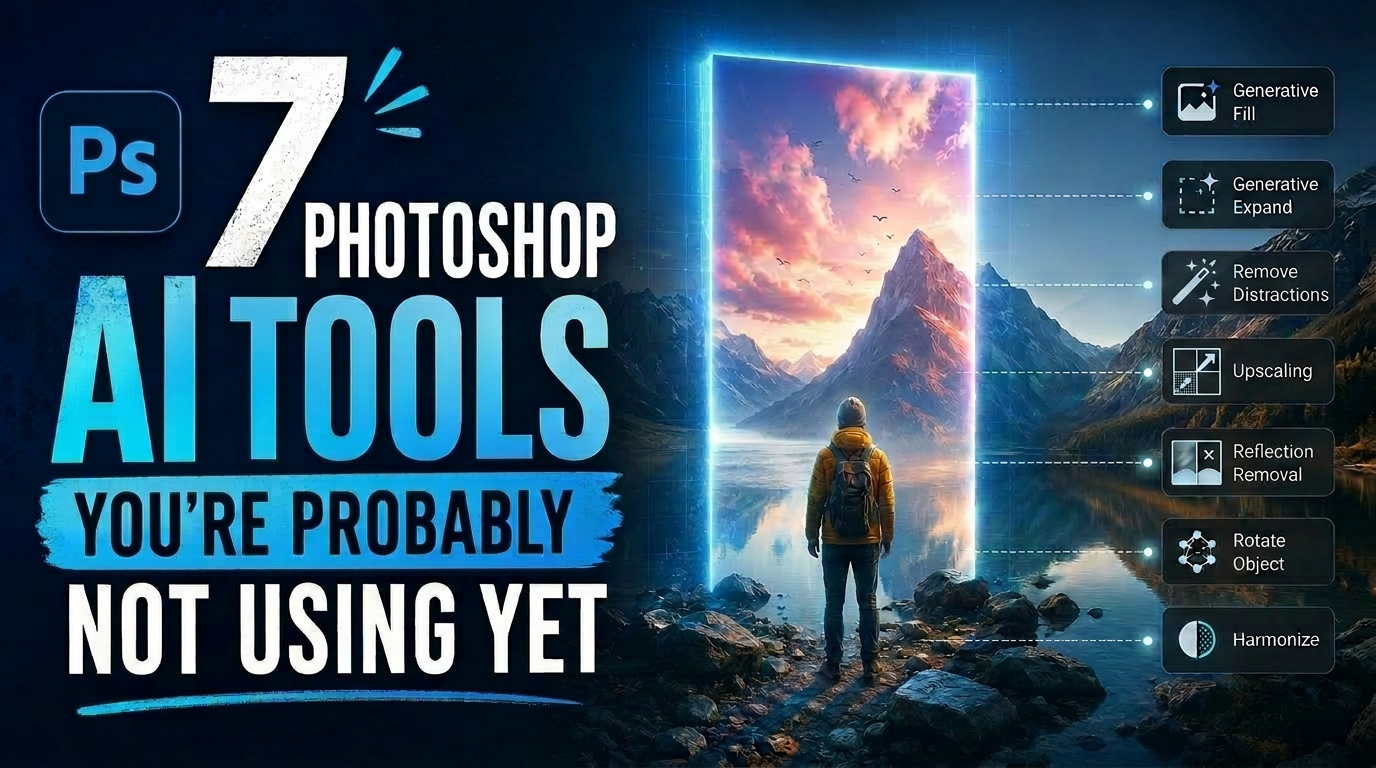
7 Photoshop AI Tools You're Probably Not Using Yet
Photoshop's AI features now go far beyond simple object removal. Some of the newer tools can completely change the way you edit photos, create composites, clean up distractions, or expand scenes — often with just a few clicks. The interesting part is that many of these features still feel surprisingly underused. While Generative Fill gets most of the attention, Photoshop now includes several AI-powered tools that can produce genuinely impressive results without requiring overly complicated work
7 Photoshop Tools Replaced by AI: Are They Still Relevant?
Adobe's integration of AI-powered features has fundamentally changed how photographers and designers approach common editing tasks. From reflection removal to noise reduction, many traditional Photoshop tools now have AI counterparts that promise faster results with minimal manual work. This video demonstrates how seven classic Photoshop tools compare against their AI replacements, showing practical examples of when the new technology excels and when traditional methods still hold their ground.
How to Use Photoshop's New AI-Powered Actions Panel
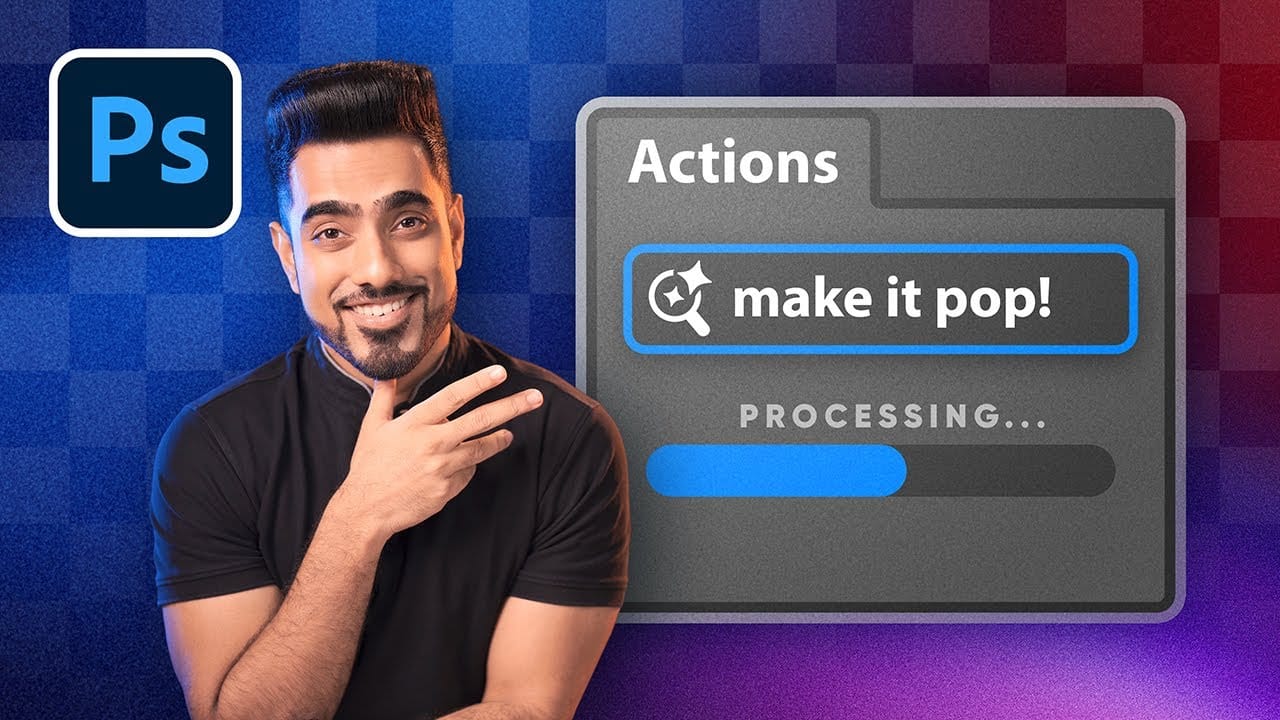
Photoshop's actions just became significantly smarter with AI integration. The new Actions panel understands natural language searches, automatically suggests relevant effects based on your image content, and provides live previews before you commit to changes. This revolutionary update transforms how designers work with automated processes. Instead of browsing through countless preset names, you can simply type "make it pop" or "remove haze" and watch AI deliver exactly what you need. Watch

Get tutorials & freebies delivered to you.

Subscribe to the Photoshop Roadmap newsletter, a weekly roundup of new tutorials, insights and quality downloads, trusted by 6500+ readers.

You might also like

How to Use the Harmonize Tool for Advanced Photo Compositing in Photoshop 2026

The Harmonize tool transforms compositing by automatically adjusting lighting, color, and shadows to blend objects seamlessly into new backgrounds. This AI-powered feature analyzes both your subject and background, then creates realistic color bleed, reflections, and contact shadows with a single click. While the tool delivers impressive results instantly, combining it...

How to Use Split Toning and Enhanced AI Masks in Camera Raw

Adobe's latest Camera Raw update brings two powerful enhancements that transform how photographers work with masks and color grading. Split toning is now available directly within individual masks, allowing precise color control over shadows, midtones, and highlights in specific image areas. Additionally, AI masks like landscape selection and...

How to Use Harmonize and Rotate Object Tools for Better Composites in Photoshop

Creating believable composites traditionally required hours of manual perspective adjustments and color matching. Two new AI-powered tools in Photoshop change this workflow dramatically. The Rotate Object tool lets you adjust positioning and perspective with interactive 3D controls, while the Harmonize tool automatically matches lighting, shadows, and color tones to blend...

Camera Raw Feathering and Color Grading Features (May 2026 Update)

Adobe Camera Raw's latest update introduces two powerful masking features that solve common editing problems. The new feather and edge controls help create cleaner selections around complex shapes like trees, while color grading within masks allows for precise adjustments without affecting the entire image. These tools work exclusively...

Create an Old Masters Painting Effect from a Studio Portrait in Photoshop

Old Masters paintings capture drama and character through rich textures, dramatic lighting, and warm color palettes. By combining strategic dodging and burning with selective color adjustments and composite backgrounds, you can transform a simple studio portrait into a classical painterly masterpiece. This technique focuses on enhancing natural textures rather than...

How to Use AI Depth Masking in Photoshop for Targeted Subject and Background Editing

AI depth masking revolutionizes how you select and edit specific areas of your photos by analyzing three-dimensional space rather than shapes or colors. This powerful feature uses artificial intelligence to calculate depth layers, allowing you to brighten subjects while darkening backgrounds or apply targeted adjustments based on distance from the...

You’ve successfully subscribed to Photoshop Roadmap
Welcome back! You’ve successfully signed in.
Great! You’ve successfully signed up.
Success! Your email is updated.
Your link has expired
Success! Check your email for magic link to sign-in.