New Photoshop AI Features – Smarter, Faster, and More Efficient Tools!

New Photoshop AI Features – Smarter, Faster, and More Efficient Tools!

Editing detailed selections, adjusting colors, and removing backgrounds in Photoshop can be tedious, especially when working with complex edges like hair or challenging objects. Manual work often stalls creative flow and makes it tough to achieve clean, professional results on tight deadlines.

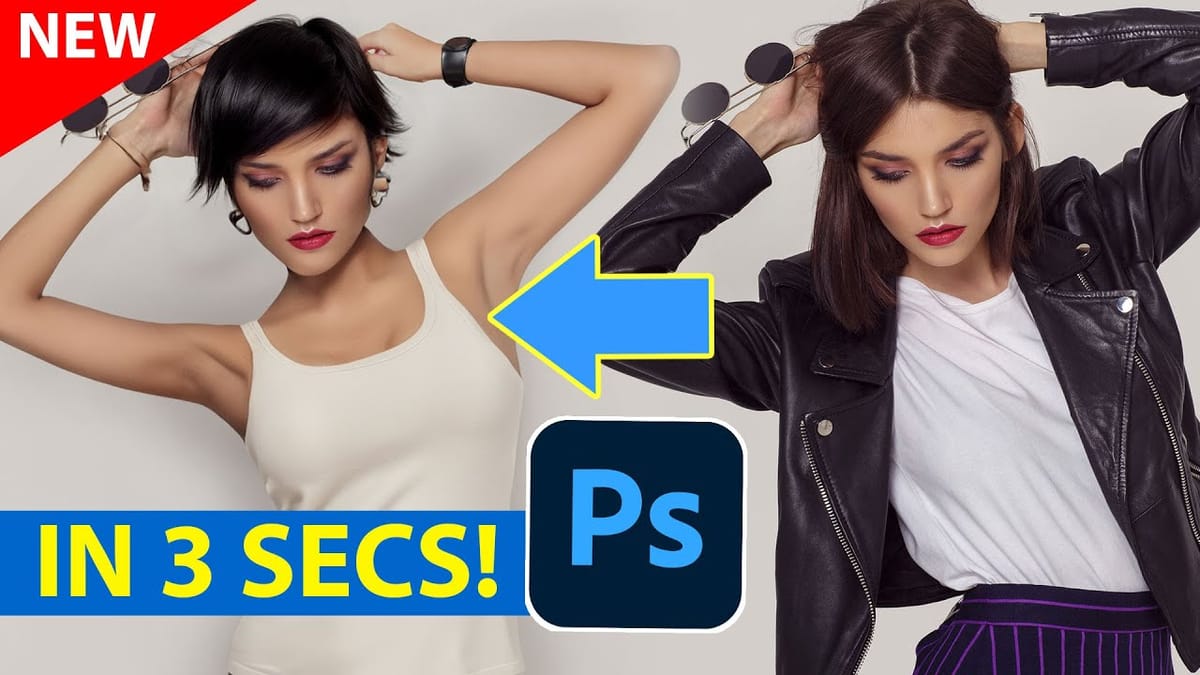
This article introduces essential, time-saving features in the latest Photoshop update—including advanced AI-powered selection, color, and removal tools. Learn how these updates streamline everyday editing tasks, helping you work faster and with greater accuracy.

Watch the Video

Any links or downloads mentioned by the creator are available only on YouTube

Shaping Photoshop Workflows with AI-Powered Precision

Photoshop’s integration of artificial intelligence has transformed how creative professionals approach routine editing challenges. Instead of meticulously painting masks or fiddling with manual selections, users can now rely on smart automation for complex tasks like isolating fine details or re-coloring specific areas. The ability to generate new imagery or refine edges with minimal effort expands what’s feasible within a single project session.

Behind these capabilities are neural networks trained to recognize a variety of visual elements—everything from facial features to textured backgrounds. As a result, tasks that once took several minutes or hours can often be reduced to a few clicks, particularly when working with:

  • Intricate hair or clothing selections
  • Bulk color adjustments to multiple image regions
  • Automated removal of distracting background elements
  • Quick preview and application of creative adjustments

While automation accelerates routine work, it also encourages experimentation—designers can iterate more freely, knowing that manual refinement tools are always on hand when needed. The goal is to blend AI efficiency with expert oversight, using each where it’s most effective.

Practical Tips for Using Photoshop’s New AI Features

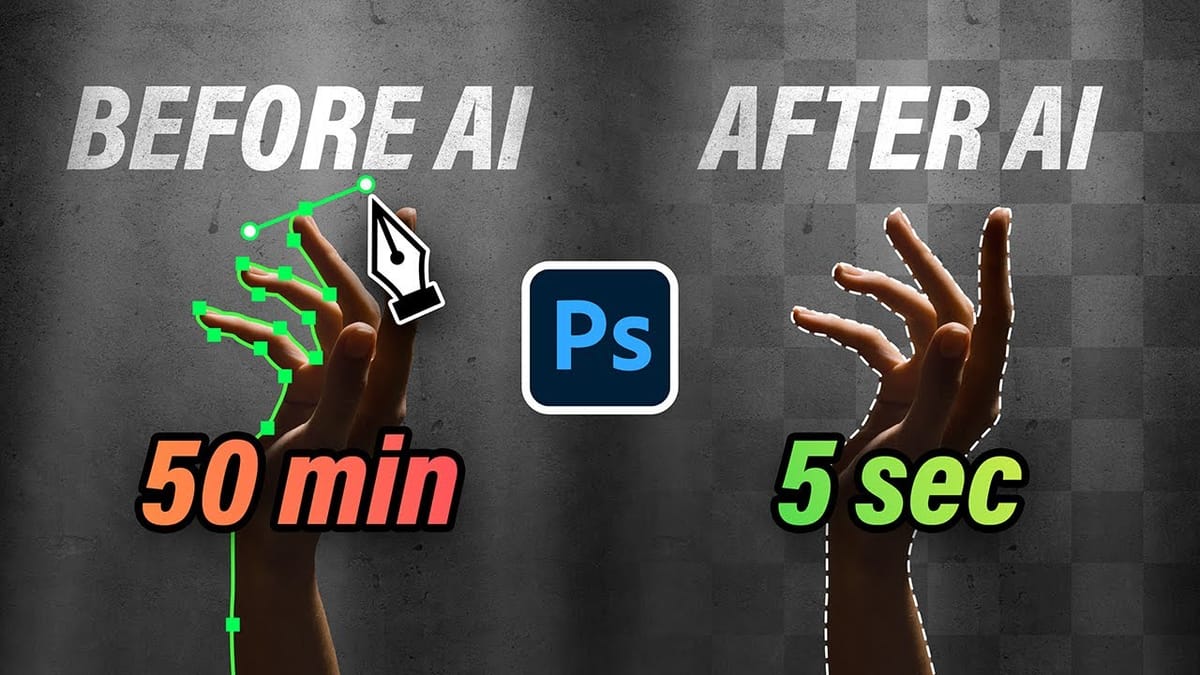
  • Use the improved Select Detail tool for efficient and accurate selections of tricky areas like hair and accessories.
  • Leverage the Select people option to isolate entire people or specific features; works well for grouped subjects.
  • Apply Adjust Colors to edit the six most prominent colors in your image, creating quick and precise color changes using nondestructive layers.
  • Enable cloud processing for Select Subject and Remove Background to generate sharper, cleaner masks—especially useful on complex subjects.
  • Try the upgraded Remove tool to quickly take out unwanted objects, using either direct painting or quick selection plus the Remove button for larger shapes.

Explore more tutorials and articles that expand on Photoshop’s newest AI capabilities and creative workflows.

Generative AI: A new era of Photoshop begins
Generative AI has made its way into the world of Photoshop, and in this fascinating video, Colin Smith from Photoshop Cafe explores its transformative capabilities. Generative AI is an incredible technology that’s transforming the world of artificial intelligence. It’s like having a creative companion that can generate all sorts of new content, from stunning images […] More
7 Photoshop Tools Replaced by AI: Are They Still Relevant?
Photoshop continues to push boundaries with advanced tools like Distraction Removal, the Remove Tool, Generative Expand, Super Resolution, and AI Denoise. These features bring new possibilities to photo editing, making complex tasks faster and easier. However, classic tools such as Content-Aware Fill, Clone Stamp, Spot Healing, Dodge & Burn, and Sharpening
Discover Hidden Photoshop AI Tools to Transform Your Photos
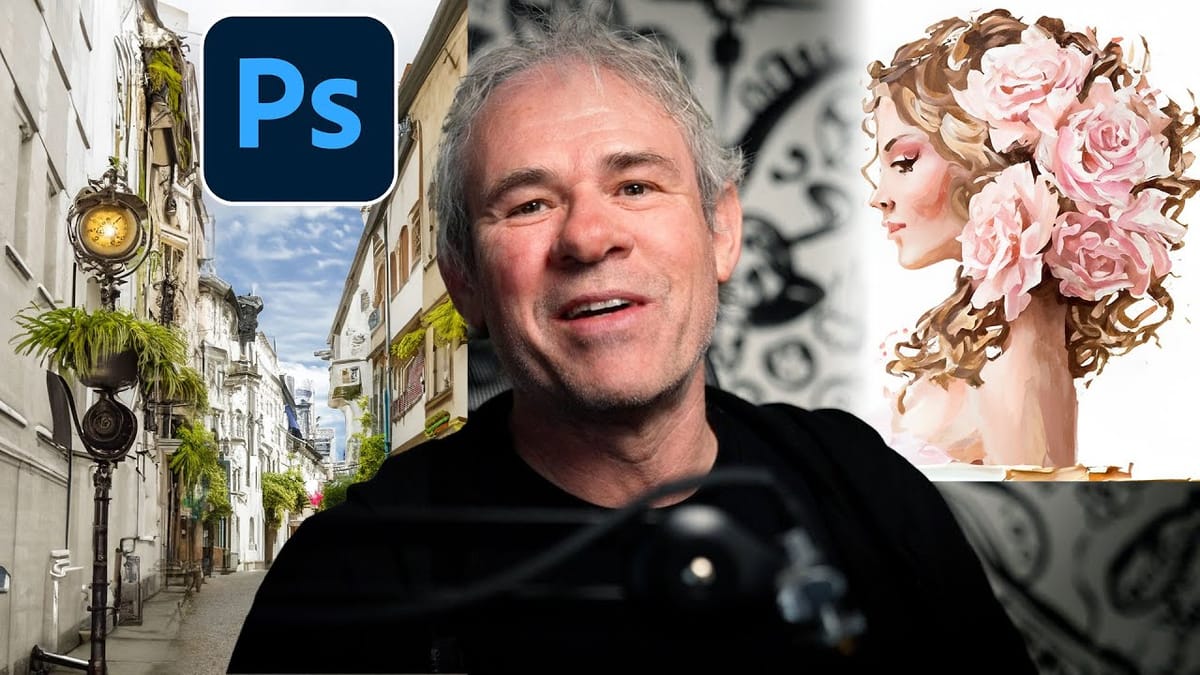
In this Photoshop tutorial, Colin Smith demonstrates some hidden AI features that can transform regular photos into works of art. He shows viewers how to take advantage of Adobe’s powerful generative fill tool to turn images into watercolor and oil paintings with just a few clicks. Colin dives into the settings for generative fill and […] More
10 Ways AI Completely Transformed My Photoshop Techniques
This video shows how AI is changing the way Photoshop is used in everyday tasks. It highlights 10 practical improvements that can make photo editing faster and easier. From automatic selections to blemish removal, the new tools simplify processes that used to take much more time. Viewers will see clear
Photo Restoration: Combining AI with Photoshop for Optimal Results
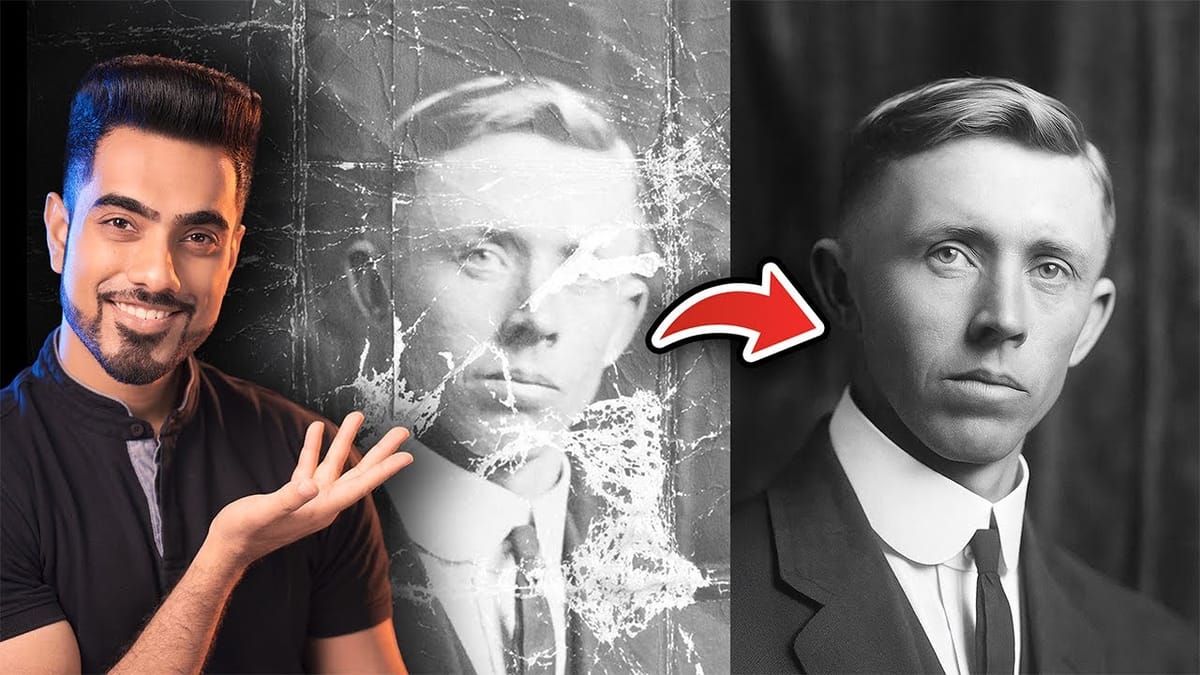
Restoring old, damaged photographs can be a challenging endeavor. While many AI-powered tools promise to breathe new life into vintage images, they often fall short, either over-sharpening details, neglecting certain areas, or, most critically, altering the original likeness of individuals. This often leads to frustrating and uncanny results that strip

Get tutorials & freebies delivered to you.

Subscribe to the Photoshop Roadmap newsletter, a weekly roundup of new tutorials, insights and quality downloads, trusted by 6500+ readers.

You might also like

How to Change Object Colors in Photoshop Using Hue/Saturation

Changing the color of specific objects in your photos requires precision and the right technique. The key is creating an accurate selection and using a targeted adjustment layer that affects only your chosen subject while preserving the rest of the image. This method combines the Object Selection tool with Hue/...

Create a Distorted Wave Glitch Effect in Photoshop

Digital distortion effects transform ordinary portraits into striking visual art by warping reality through deliberate technical manipulation. This technique uses multiple wave filters layered together to create increasingly complex distortions, while selective masking preserves important facial features from becoming completely unrecognizable. Watch the Video Practical Tips Master the wave distortion...

How to Create Glow Motion Effects with Gradient Maps in Photoshop

Motion blur combined with colorful gradients creates striking visual effects that transform ordinary photos into dynamic, cinematic images. This technique uses gradient maps to automatically color light and dark values, producing flowing color transitions that follow the movement of your subject. The process involves subject isolation, strategic gradient placement, path...

How to Use Reference Images with Generative Fill in Photoshop

Reference images revolutionize how Generative Fill works, letting you guide AI with actual photos instead of text prompts. This feature enables precise clothing swaps, object replacements, and realistic additions by showing the AI exactly what you want rather than describing it. The technique works with everything from custom t-shirts and...

How to Remove Eye Bags Using Dodge and Burn in Photoshop

Eye bags can dramatically age a portrait, making subjects appear tired or unhealthy. Traditional removal methods often destroy skin texture or create unnatural results that look obviously retouched. This professional dodge and burn technique removes even severe eye bags while preserving every detail of natural skin texture. The method uses...

You’ve successfully subscribed to Photoshop Roadmap
Welcome back! You’ve successfully signed in.
Great! You’ve successfully signed up.
Success! Your email is updated.
Your link has expired
Success! Check your email for magic link to sign-in.