Photoshop's actions just became significantly smarter with AI integration. The new Actions panel understands natural language searches, automatically suggests relevant effects based on your image content, and provides live previews before you commit to changes.
This revolutionary update transforms how designers work with automated processes. Instead of browsing through countless preset names, you can simply type "make it pop" or "remove haze" and watch AI deliver exactly what you need.
Watch the Tutorial
Video by PiXimperfect. Any links or downloads mentioned by the creator are available only on YouTube
Practical Tips for AI Actions
- Access the feature through Photoshop Beta in your Creative Cloud desktop app under the "Apps Beta" section
- Use natural language searches like "brighten subject" or "warm colors" rather than searching for technical action names
- Apply actions selectively to subjects or backgrounds using the three-dot menu next to each action
- Disable preview-on-hover in the panel menu if your system experiences slowdowns during browsing
- Combine multiple targeted actions for complex effects, such as brightening the subject while darkening the background
Related Articles and Tutorials
Explore more creative techniques and automation workflows for your projects.
New Photoshop AI Features – Smarter, Faster, and More Efficient Tools!
Editing detailed selections, adjusting colors, and removing backgrounds in Photoshop can be tedious, especially when working with complex edges like hair or challenging objects. Manual work often stalls creative flow and makes it tough to achieve clean, professional results on tight deadlines. This article introduces essential, time-saving features in the
 Blue Lightning TV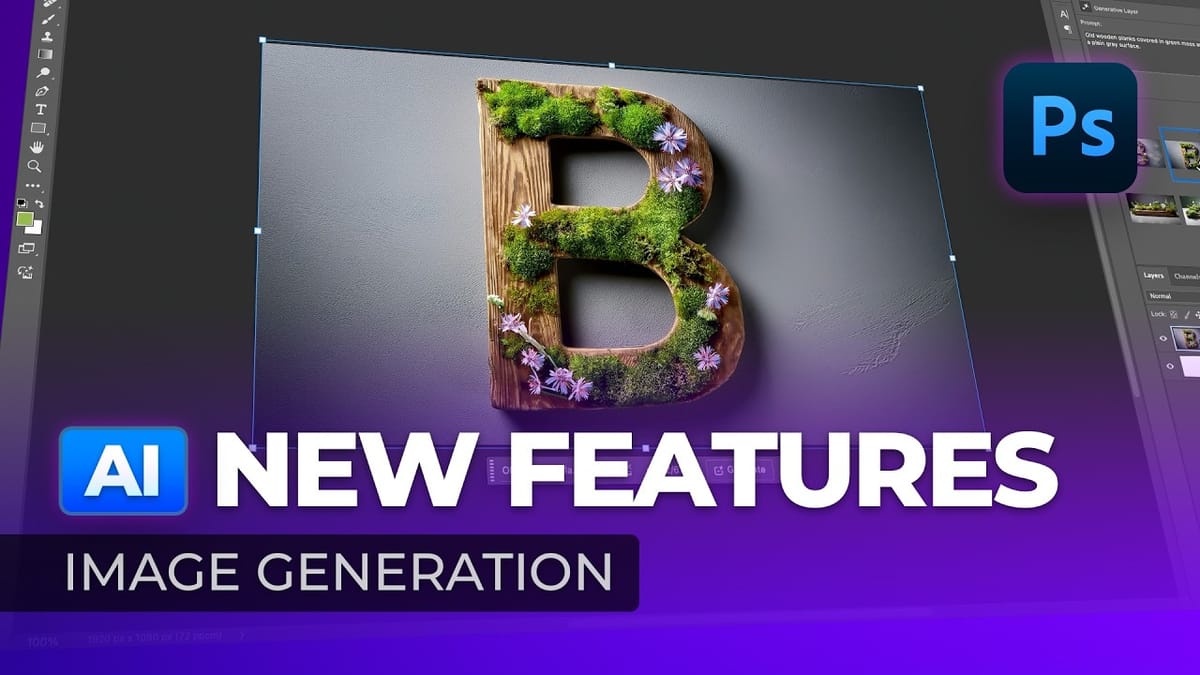
Photoshop Beta: Discover the New Actions Panel
Achieving a specific creative look in Photoshop often requires knowing the right combination of tools and techniques, which can be a significant hurdle for both new and experienced users. While traditional actions can automate repetitive tasks, finding or creating the perfect one for a unique artistic goal isn’t always straightforward.
 Phlearn
10 Ways AI Completely Transformed My Photoshop Techniques
Repetitive tasks like making complex selections, removing unwanted objects, and cleaning up blemishes can consume hours of an editor’s time. While traditional Photoshop methods offer precise control, they are often slow and require significant technical skill for what should be simple fixes. This guide demonstrates how to integrate modern AI
 PiXimperfect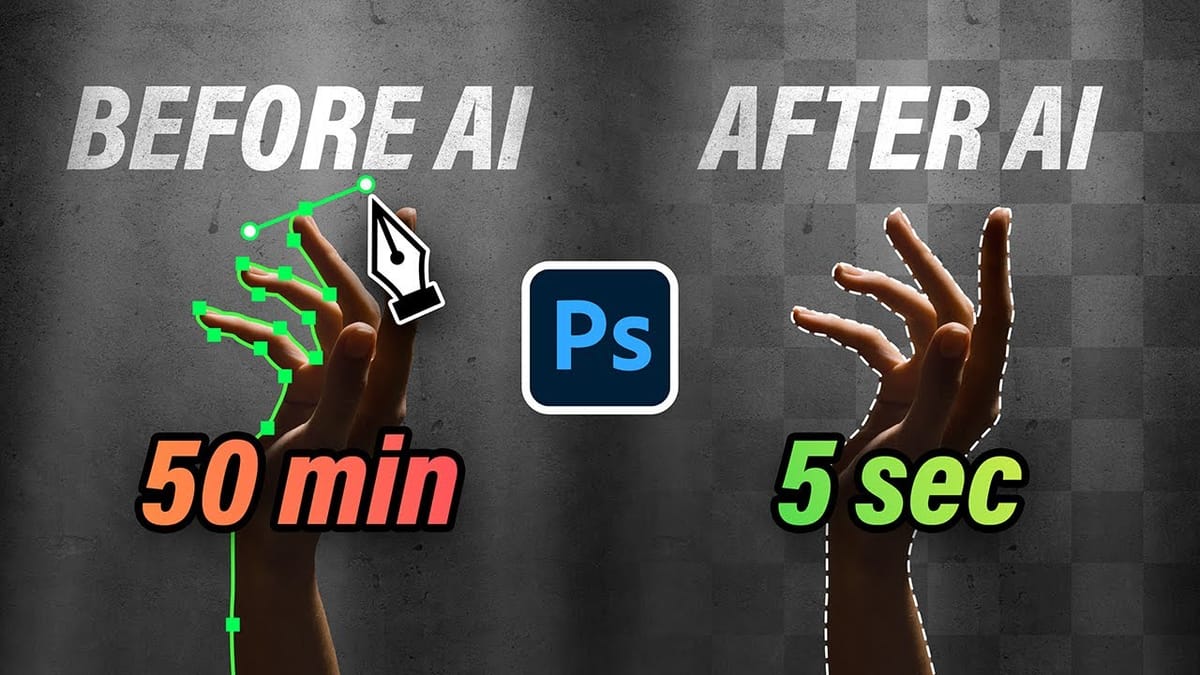
7 Photoshop Tools Replaced by AI: Are They Still Relevant?
Adobe’s integration of AI-powered features has fundamentally changed how photographers and designers approach common editing tasks. From reflection removal to noise reduction, many traditional Photoshop tools now have AI counterparts that promise faster results with minimal manual work. This video demonstrates how seven classic Photoshop tools compare against their AI
 PiXimperfect