How to Remove Objects Using Photoshop's Updated Remove Tool Without Credits

How to Remove Objects Using Photoshop's Updated Remove Tool Without Credits

Photoshop's updated Remove tool offers powerful AI-powered object removal without consuming any generative credits, regardless of your subscription plan. The tool features automated distraction detection that categorizes different types of visual clutter—from trash and people to urban elements and blemishes—making it easy to selectively remove unwanted elements from your photos.

This non-destructive workflow creates separate layers for each removal operation, preserving your original image while giving you complete control over which objects get eliminated and which stay in your composition.

Watch the Video

Video by photoshopCAFE. Any links or downloads mentioned by the creator are available only on YouTube

Practical Tips

These essential techniques will help you achieve better results when removing objects with the updated tool:

  • Always enable "Create New Layer" and "Sample All Layers" before applying removals to maintain a non-destructive workflow
  • Use the Find Distractions feature separately for "General Distractions" and "People" since they work independently
  • Hold Alt (Windows) or Option (Mac) to subtract from highlighted areas you want to keep, or add to areas you want removed
  • Consider whether elements are permanent or temporary when deciding what to remove—temporary items like trash work best
  • Collapse the side panel and use spacebar to reposition your image when the interface covers important areas

These tutorials cover additional object removal techniques and credit-saving strategies:

Photoshop Clone Stamp Tool: Remove Objects Without Using AI Credits
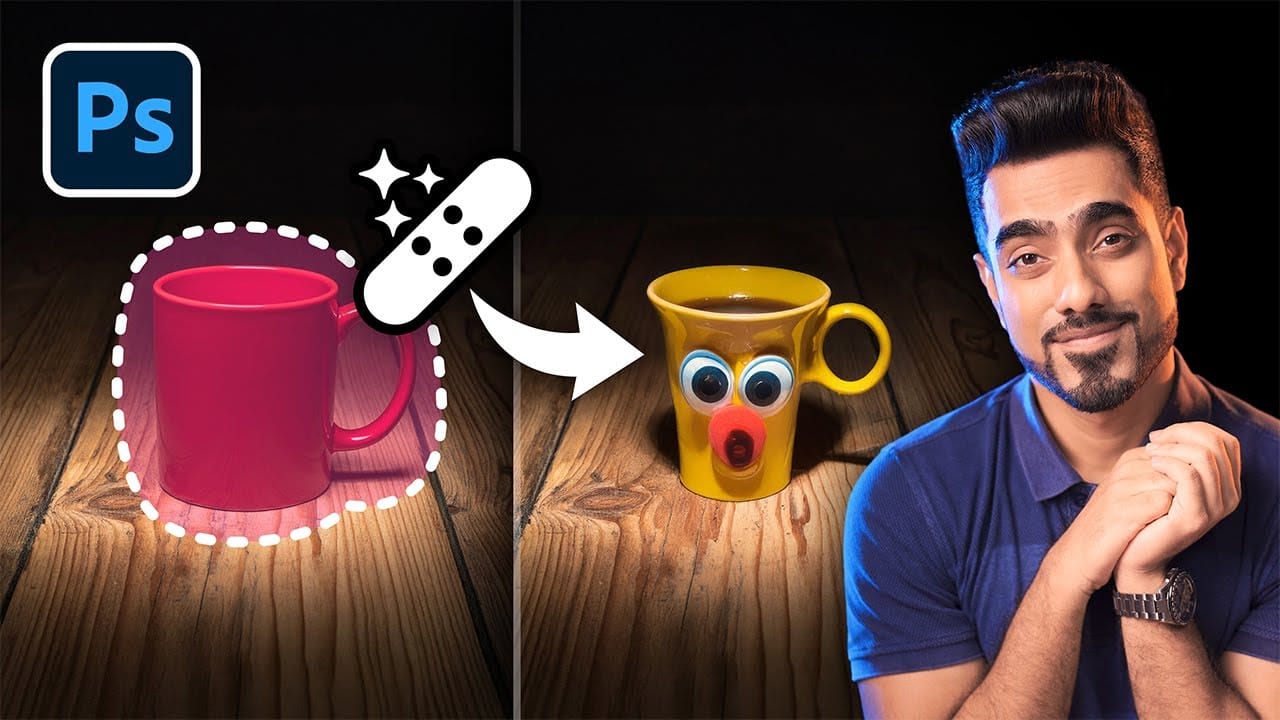
AI tools in Photoshop consume generative credits and may flag your images as artificially generated. The clone stamp tool offers a cost-free alternative for removing unwanted objects while maintaining complete control over your edits. This traditional technique works perfectly for simple removals like cracks, blemishes, and small objects without requiring any AI assistance. Watch the Video Essential Clone Stamp Tips * Create a new layer first - Never work directly on the background layer
How to Remove Objects from Photos Using AI Tools in Photoshop
Photoshop's AI-powered object removal tools can eliminate unwanted distractions from your photos with minimal effort. The Remove Tool and Generative Fill feature automated detection for common distractions like people and wires, plus manual painting options for custom removals. These tools work on separate layers, preserving your original image while giving you complete control over what gets removed and how the final result looks. Watch the Video Practical Tips These key techniques will h
How to Remove Complex Background Elements Using AI in Photoshop
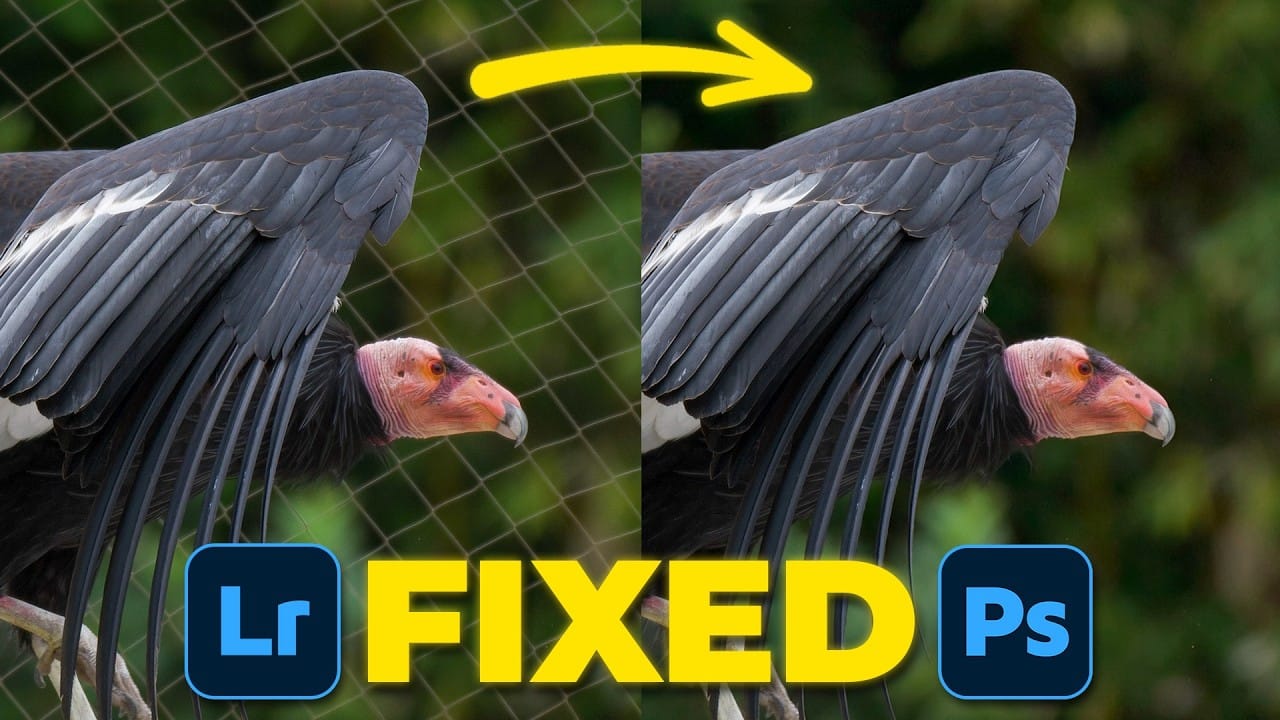
Removing complex background elements like fencing or wire mesh has traditionally been one of the most time-consuming tasks in photo editing. New AI-powered tools in Photoshop can now eliminate these distracting elements while preserving fine details in your subject. This tutorial demonstrates two practical workflows: one using the latest Firefly Image 5 model in Photoshop Beta, and another using the Firefly web platform for those who prefer the standard version of Photoshop. Watch the Video
Photoshop's Remove Tool is Broken—What Now?
Object removal is a fundamental task in photo editing, but AI-powered tools can sometimes produce unpredictable results. It can be frustrating when a tool designed to remove an object instead replaces it with another unwanted element, disrupting your workflow and requiring extra steps to correct. This tutorial demonstrates how recent updates to the Remove Tool in Photoshop Beta solve these common issues. You will learn how to access the improved tool, use a new selection-based workflow for more
New Photoshop AI Features – Smarter, Faster, and More Efficient Tools!
Editing detailed selections, adjusting colors, and removing backgrounds in Photoshop can be tedious, especially when working with complex edges like hair or challenging objects. Manual work often stalls creative flow and makes it tough to achieve clean, professional results on tight deadlines. This article introduces essential, time-saving features in the latest Photoshop update—including advanced AI-powered selection, color, and removal tools. Learn how these updates streamline everyday editin
How to Change Background Using AI in Photoshop
Modern background replacement in Photoshop combines automated selection tools with AI-generated content to streamline what was once a complex manual process. The new Remove Background and Generate Background features work together to cut out subjects and create realistic new environments in minutes. This workflow demonstrates both complete background replacement and selective editing techniques that preserve original elements while generating new surroundings. The approach works particularly we
How to Remove Reflections from Photos Using Photoshop's AI Tool
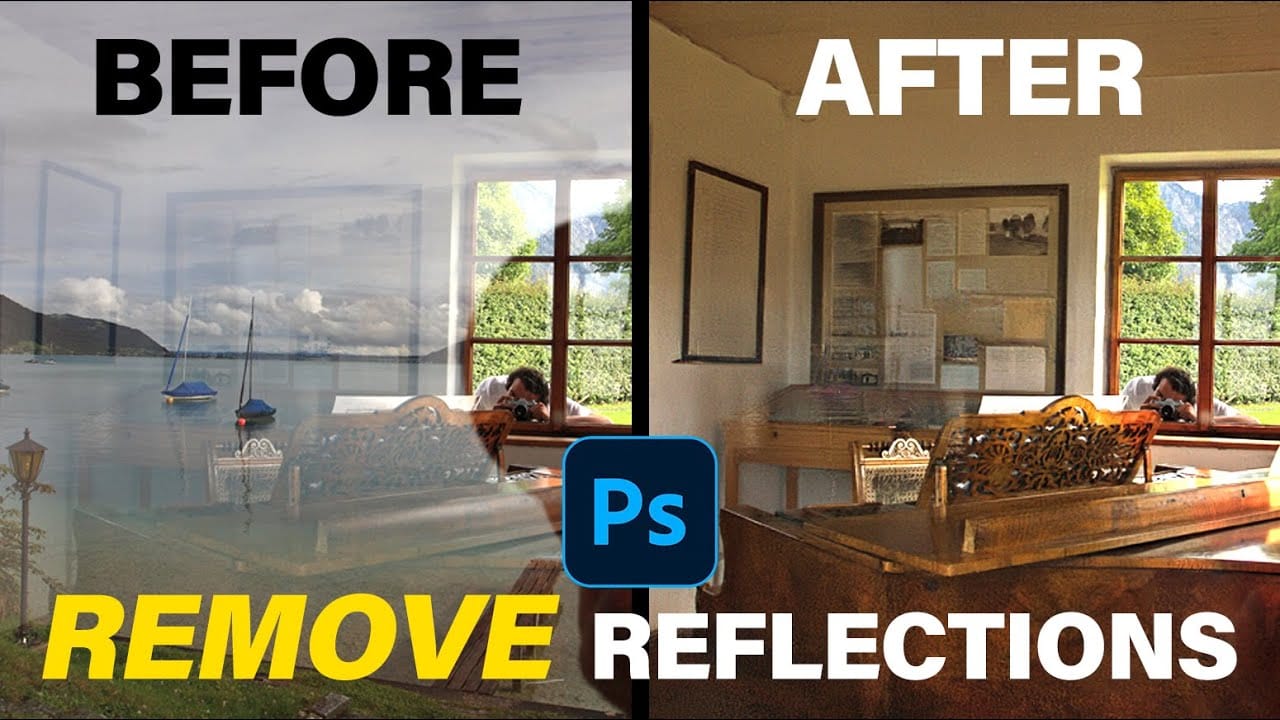
Glass surfaces create some of photography's most persistent challenges. Windows, storefronts, and displays often produce unwanted reflections that obscure subjects and compromise image clarity. Photoshop's latest AI-powered reflection removal tool addresses this common problem with automated detection and removal capabilities. This video demonstrates the complete workflow for eliminating reflections while preserving underlying image details. Watch the Tutorial Understanding Reflection Remov
10 Ways AI Completely Transformed My Photoshop Techniques
Repetitive tasks like making complex selections, removing unwanted objects, and cleaning up blemishes can consume hours of an editor's time. While traditional Photoshop methods offer precise control, they are often slow and require significant technical skill for what should be simple fixes. This guide demonstrates how to integrate modern AI features into your daily workflow. You will learn practical techniques for everything from one-click selections and generative fills to automated retouchin
How to Remove Reflections and Glare from Glasses in Photoshop Using AI
Eyeglass glare can ruin an otherwise perfect portrait, obscuring the subject's eyes with bright reflections. Photoshop's AI tools now offer powerful solutions for removing even the most stubborn reflections while preserving natural eye details. This tutorial demonstrates proven techniques using multiple AI models and strategic masking to tackle any glare situation professionally. Watch the Tutorial Essential Tips for Removing Glare with AI * Use the Rectangular Marquee Tool for selections
Understanding Generative AI Credits: Which Tools Cost Nothing and Which Tools Drain Your Budget
Navigating the world of AI-powered editing tools can be confusing when you're unsure which features consume credits and which are free to use. Many powerful AI functions don't require any credits at all, while others can quickly exhaust your monthly allowance depending on which models and settings you choose. This comprehensive guide breaks down exactly which tools use credits, how many they consume, and smart strategies to maximize your editing power without burning through your budget unneces

Get tutorials & freebies delivered to you.

Subscribe to the Photoshop Roadmap newsletter, a weekly roundup of new tutorials, insights and quality downloads, trusted by 6500+ readers.

You might also like

Transform Photos into Ink Drawings in Photoshop

Traditional ink drawings capture bold contrasts and artistic expression through pure black and white elements. This technique transforms ordinary photographs into striking ink artwork by combining specific filters with smart object workflows for complete creative control. The method uses oil paint effects, shadow adjustments, and threshold conversion to create authentic...

How to Build Monochromatic Color Palettes with Layers in Photoshop

Creating harmonious color schemes requires understanding how to layer colors strategically rather than relying on single adjustments. A monochromatic palette uses tints, tones, and shades from the same color family to create depth and visual unity. This technique demonstrates how to build rich, textured backgrounds by combining solid color fills,...

How to Use the New 3D Object Rotation Feature in Photoshop

Photoshop's new Rotate Object feature transforms flat 2D images into interactive 3D models that can be repositioned from any angle. This AI-powered tool automatically creates cutouts, maintains original textures, and generates missing details when objects are rotated beyond their original perspective. The feature opens new possibilities for product...

How to Use Depth Range Masking in Camera Raw

Adobe Camera Raw's depth range masking feature allows you to select and adjust specific depth layers in any photograph without needing special camera equipment. Unlike traditional subject and background masks that focus on shapes, depth range masking works with the spatial distance between elements in your image. This...

Photoshop 27.6: Complete Guide to New Features and Tools

Photoshop 27.6 introduces several powerful features that streamline common editing tasks. From bringing reflection removal directly into the main interface to AI-powered distraction detection, these updates focus on making complex workflows more accessible and efficient. The update also includes enhanced generative models, improved layer management tools, and a redesigned...

How to Create Realistic Trees from Digital Stamp Brushes in Photoshop

Tree stamp brushes provide an efficient starting point for digital landscapes, but transforming flat stamps into convincing natural elements requires specific layering and painting techniques. This comprehensive tutorial demonstrates how to build complete environmental scenes by combining background creation, water effects, and detailed tree painting methods that add depth and...

You’ve successfully subscribed to Photoshop Roadmap
Welcome back! You’ve successfully signed in.
Great! You’ve successfully signed up.
Success! Your email is updated.
Your link has expired
Success! Check your email for magic link to sign-in.