How to Remove Reflections from Photos Using Photoshop's AI Tool

How to Remove Reflections from Photos Using Photoshop's AI Tool

Glass surfaces create some of photography's most persistent challenges. Windows, storefronts, and displays often produce unwanted reflections that obscure subjects and compromise image clarity.

Photoshop's latest AI-powered reflection removal tool addresses this common problem with automated detection and removal capabilities. This video demonstrates the complete workflow for eliminating reflections while preserving underlying image details.

Watch the Tutorial

Video by Photoshop Arthouse. Any links or downloads mentioned by the creator are available only on YouTube

Understanding Reflection Removal Technology

Adobe's reflection removal tool uses machine learning algorithms trained on thousands of glass surface images. The AI system analyzes light patterns, transparency levels, and surface distortions to distinguish between actual subjects and reflected elements. This computational approach handles complex scenarios where manual editing would require extensive masking and reconstruction work.

The technology works best with clear glass surfaces where reflections create distinct visual layers. Environmental factors like lighting angles, surface cleanliness, and reflection intensity all influence the tool's effectiveness. Professional photographers often encounter these challenges when shooting through storefront windows, car windshields, or architectural glass elements.

Smart Object workflows preserve original image data during the removal process. This non-destructive approach allows photographers to adjust removal intensity, extract reflection elements separately, or revert changes without quality loss.

Practical Tips for Reflection Removal

  • Convert images to Smart Objects before applying filters to maintain editing flexibility and preserve original data quality.
  • Enable "New AI Features and Settings Panel" in Technology Previews to access the latest reflection removal capabilities.
  • Use the "Best" quality setting for final images, as it provides superior results despite longer processing times.
  • Combine AI removal with manual healing tools for areas where automated processing leaves residual artifacts.
  • Create composite snapshots using Ctrl+Alt+Shift+E when additional manual cleanup is needed on processed images.

More Tutorials about Reflection Effects

Explore additional techniques for working with reflections and glass surfaces in Photoshop.

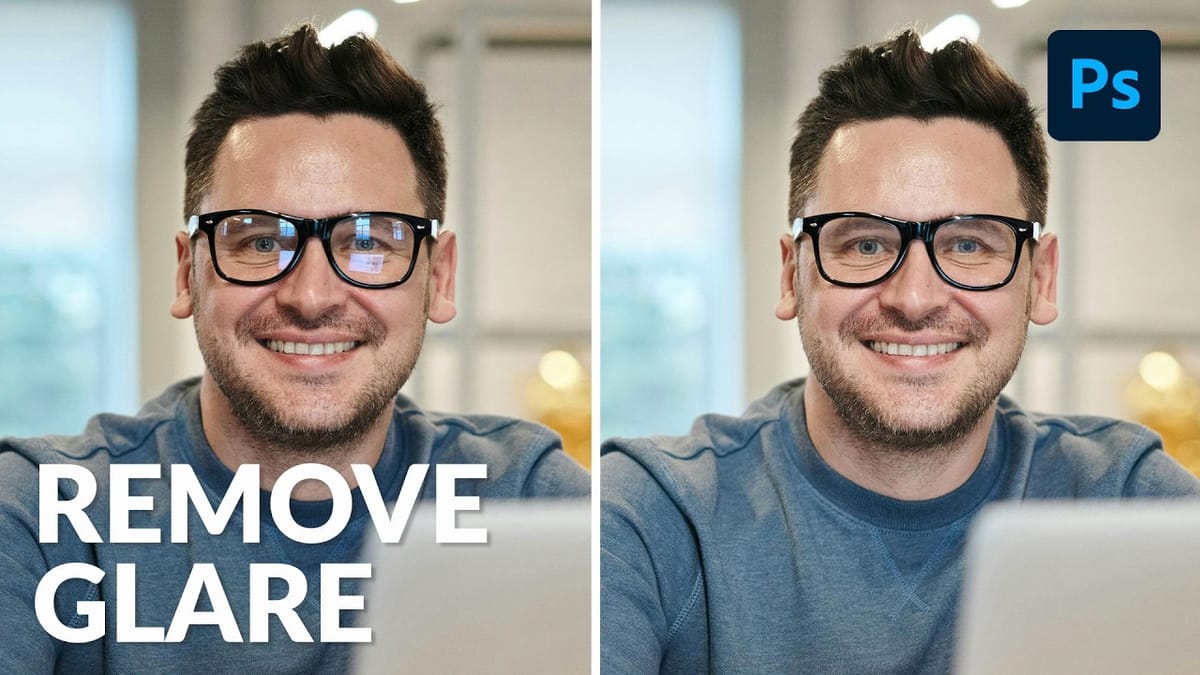
How to Professionally Remove Glare from Eyeglasses in Photoshop
Glare on eyeglasses is a persistent and frustrating problem in photography, often obscuring the subject’s eyes and facial features. This common issue can detract from an otherwise perfectly composed portrait, making it appear unprofessional or distracting due to bright reflections. This tutorial demonstrates a robust hybrid approach to tackling eyeglass
New Reflection Removal Tool in Photoshop
Capturing the perfect shot often means battling environmental challenges, and few are as persistent as unwanted reflections in windows or glass. These glare points can obscure subjects, distort details, and fundamentally compromise an image’s impact. Fortunately, Photoshop has introduced a new AI-powered feature designed to tackle this common photographic issue.
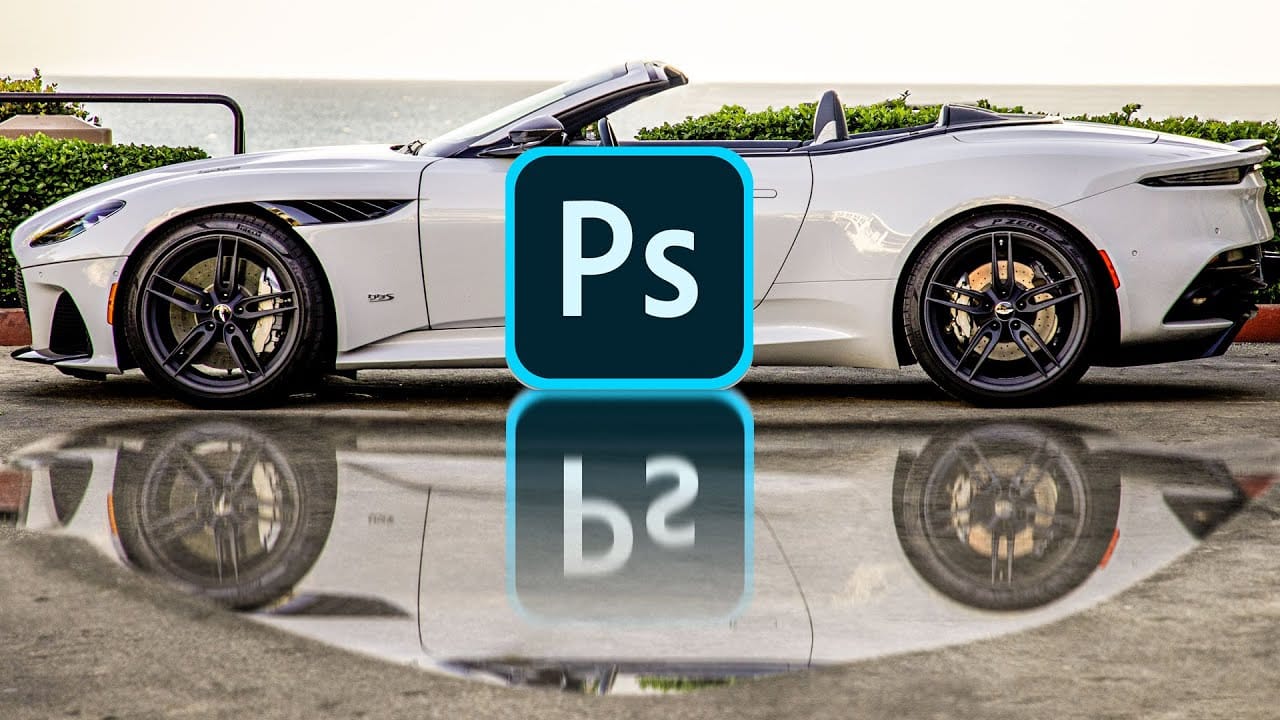
How to make epic reflections in Photoshop
This tutorial will teach you techniques to create captivating reflections and lifelike puddles in Photoshop. Renowned expert Colin Smith will guide you through the process, ensuring your images and designs achieve a heightened sense of realism and visual impact. You'll learn tips and strategies to craft reflections that seamlessly blend with your photographic elements or design compositions, whether replicating the surface of a lake, the facade of a skyscraper, or the rippling effect of a puddl
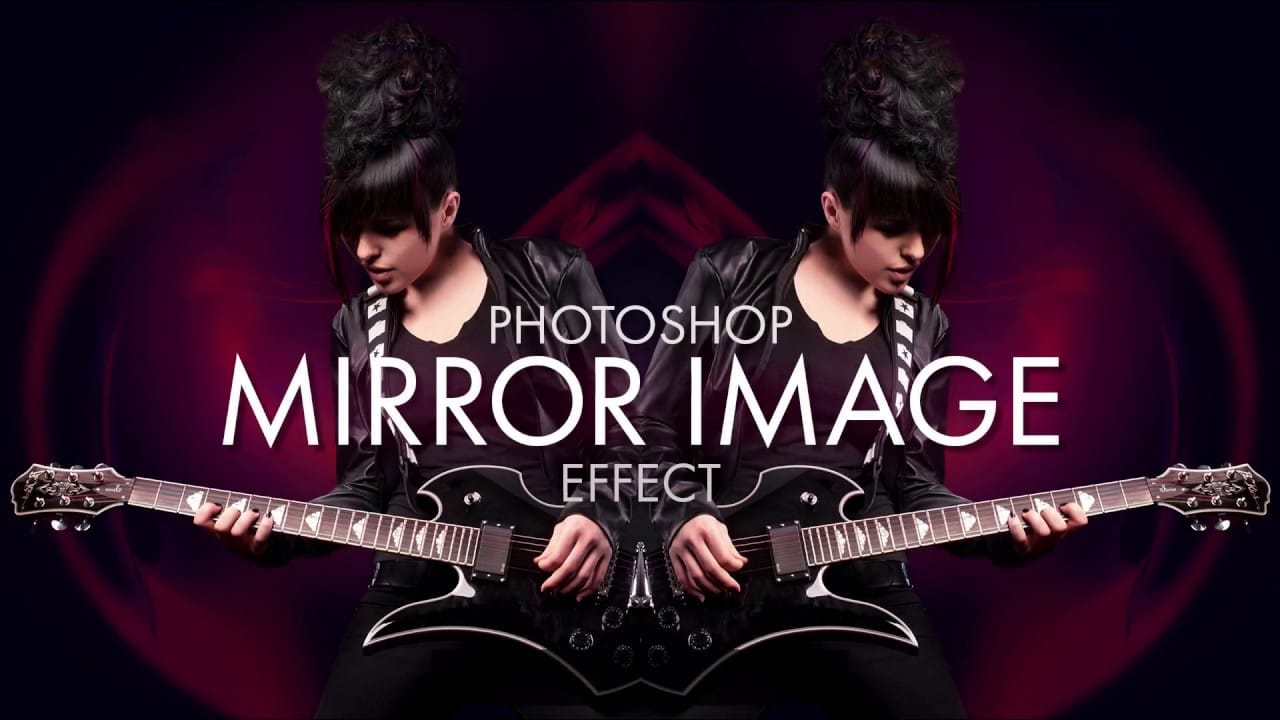
Create a mirror image photo effect in Photoshop
Symmetry is all around us in nature, and as human beings, we can't get enough of it. Symmetry brings math, science and art together in a way that captures both our eye and our imagination. The most basic form of symmetry is Reflection Symmetry, also known as Mirror Symmetry, where one half of something is a perfect mirror reflection of the other half. In this video from Photoshop Essentials, Steve Patterson shows us how to take our natural fascination with symmetry and apply it to any image in

Get tutorials & freebies delivered to you.

Subscribe to the Photoshop Roadmap newsletter, a weekly roundup of new tutorials, insights and quality downloads, trusted by 6500+ readers.

You might also like

Basic Photoshop techniques you really need to learn

Photoshop hasn’t changed as much as it looks. New features come and go, but the same core techniques keep showing up in real work. If you skip them, everything feels harder than it should. This post focuses on those basics, not as isolated tricks, but as skills you’ll...

How to Use Select Subject for Background Removal and Edge Refinement

Background removal becomes effortless when you know how to use the right tools. AI-powered selection can instantly isolate subjects from their backgrounds, but the real skill lies in refining those selections to create professional results. This guide covers the complete workflow from initial selection to edge refinement, plus creative techniques...

How to Wrap Text Around Any Shape in Photoshop

Creating text that flows naturally around irregular shapes transforms static layouts into dynamic, professional designs. This technique works particularly well for posters, magazine layouts, and editorial designs where text needs to integrate seamlessly with complex subjects rather than simply sitting in rigid rectangular boxes. The process combines selection tools, path...

How to Edit Text in Images Using Generative Fill

Changing text within existing images has traditionally required complex masking and reconstruction techniques. Modern AI-powered tools now make it possible to seamlessly replace words and phrases in photographs while maintaining realistic typography, lighting, and perspective that matches the original scene. This technique works particularly well for signs, storefronts, billboards, and...

How to Remove Dust and Sensor Spots Using Photoshop Tools

Dust spots and sensor particles are inevitable challenges in digital photography, appearing as dark specks that distract from otherwise clean images. Camera sensors collect dust over time, creating consistent spots that show up across multiple photos, particularly in bright sky areas or uniform backgrounds. Both Lightroom and Photoshop offer specialized...

Photoshop vs Affinity Photo: Feature Comparison and Professional Analysis

When choosing professional photo editing software, the decision often comes down to comparing features, performance, and value. This detailed comparison examines the core capabilities of both applications across noise reduction, smart selections, object removal, masking, and AI-powered tools. The analysis covers real-world scenarios that professionals encounter daily, from complex background...

You’ve successfully subscribed to Photoshop Roadmap
Welcome back! You’ve successfully signed in.
Great! You’ve successfully signed up.
Success! Your email is updated.
Your link has expired
Success! Check your email for magic link to sign-in.