How to Professionally Remove Glare from Eyeglasses in Photoshop

How to Professionally Remove Glare from Eyeglasses in Photoshop

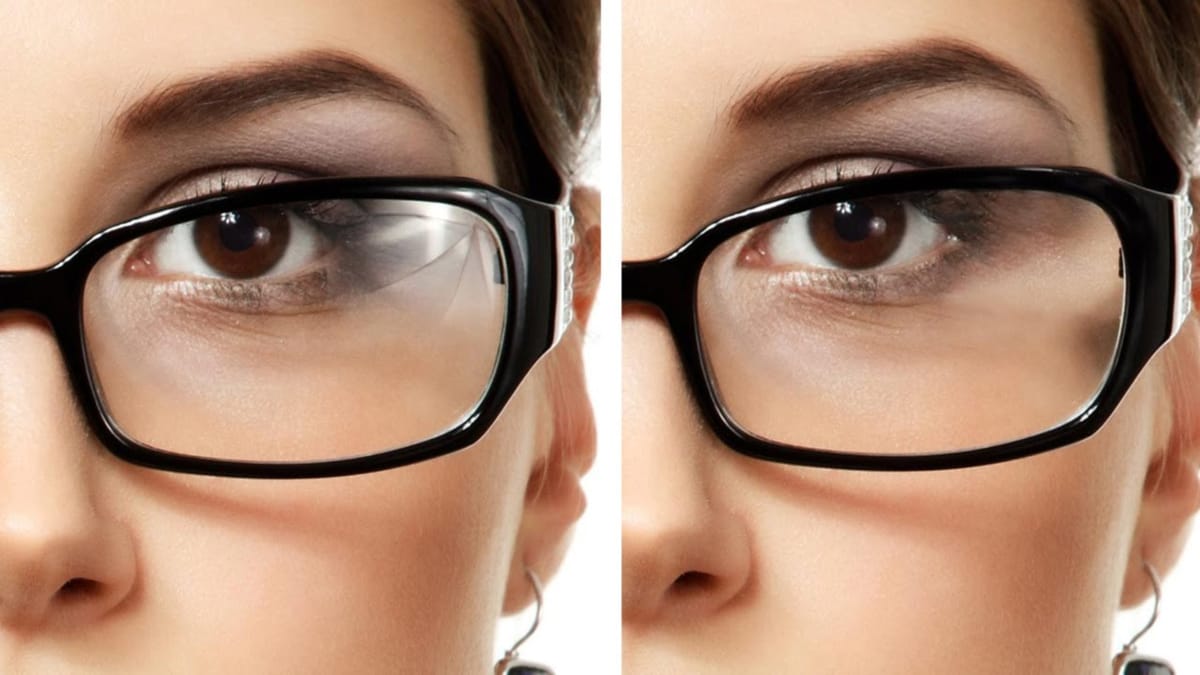
Glare on eyeglasses is a persistent and frustrating problem in photography, often obscuring the subject's eyes and facial features. This common issue can detract from an otherwise perfectly composed portrait, making it appear unprofessional or distracting due to bright reflections.

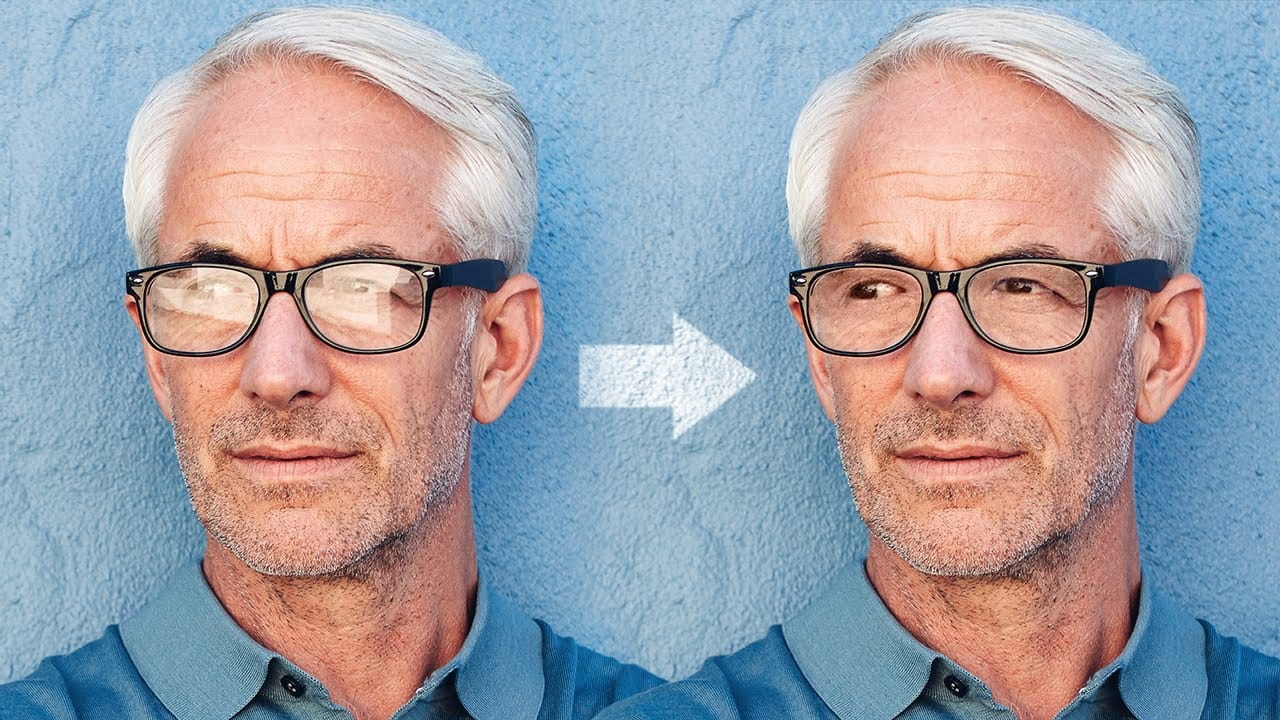
This tutorial demonstrates a robust hybrid approach to tackling eyeglass glare in Photoshop, combining the efficiency of AI-powered Generative Fill for minor touch-ups with the precision of the classic Clone Stamp tool for more critical areas. This methodology ensures natural-looking results, preserving original facial details and significantly enhancing photo editing workflows for portrait photographers.

Watch the video

Any links or downloads mentioned by the creator are available only on YouTube

Breaking It Down

The core strategy for glare removal in Photoshop involves a strategic combination of artificial intelligence and traditional manual tools.

For small, less critical areas of glare, such as those over an eyebrow or along the frame, Photoshop's Generative Fill can provide quick and acceptable results. However, for glare directly over sensitive facial features like the eyes, relying solely on AI risks generating entirely new features that do not resemble the subject, leading to unnatural outcomes.

For precise and realistic glare removal, particularly over the eyes, the Clone Stamp Tool is indispensable. This technique involves copying a glare-free section of the subject's face, typically the symmetrical area from the other eye or side of the face, onto the affected area.

This process is executed on a new layer, using Alt/Option to sample the source, followed by painting, transforming (Ctrl/Command + T), flipping horizontally, and optionally warping the cloned content to perfectly align with the underlying features.

Layer masks are crucial for blending the cloned content seamlessly. After cloning and positioning the glare-free section, a layer mask is applied to the new layer. Painting with black on this mask selectively conceals parts of the cloned image, allowing precise control over what is revealed and ensuring that only the glare is covered while the subject's original eye and facial contours remain visible.

This non-destructive method preserves image quality and allows for detailed adjustments.

Practical Tips

  • For minor glare areas not covering distinct facial features (e.g., over the frame or forehead), consider using Generative Fill for quick edits.
  • Always work on a new layer when using the Clone Stamp Tool, setting the Sample option to Current and Below for non-destructive editing.
  • Copy from a clean, symmetrical area of the subject's face (e.g., the unaffected eye) to ensure the cloned content integrates naturally and maintains realism.
  • After cloning, use Free Transform (Ctrl/Command + T) to accurately size and position the copied area, remembering to flip horizontally if copying from the opposite side.
  • Leverage layer masks extensively to precisely blend the cloned content, painting with black to reveal original features and using a soft brush for seamless transitions.

Explore more tutorials and access project files to enhance your Photoshop skills.

How to Remove Glare from Glasses in Photoshop
It’s always a sad time when you end up with unwanted reflections in someone’s glasses. Learn how to utilize the clone source dialogue to remove glare in Photoshop More
Magically remove glare from glasses in Photoshop
3 Simple Steps to Remove Complex Glare from Glasses in Photoshop! In this tutorial by PiXimperfect discover the best way to avoid and fix glare or reflections. Using advanced dodging and burning, in this tutorial, we will learn how to even out the brightness to make the glass completely transparent. Then, with the help of […] More
How to Color, Brighten and Sharpen Eyes in Photoshop
In this tutorial by Aaron Nace from Phlearn, learn how to enhance eyes in Photoshop to make them captivating and sharp. Techniques include coloring the eyes by sampling natural hues and adjusting lightness and saturation, using blending modes like “Soft Light” or “Overlay” for a natural look, and softening edges

Get tutorials & freebies delivered to you.

Subscribe to the Photoshop Roadmap newsletter, a weekly roundup of new tutorials, insights and quality downloads, trusted by 6500+ readers.

You might also like

How to Use AI Masking in Adobe Camera Raw for Professional Photo Editing

Adobe Camera Raw's AI masking tools automatically detect subjects, backgrounds, skies, and landscapes, letting you make precise adjustments to specific areas of your photos. These intelligent masks eliminate the need for manual selection work, while allowing you to combine and refine them for complete creative control. The technique...

How to Remove Objects from Photos Using AI Tools in Photoshop

Photoshop's AI-powered object removal tools can eliminate unwanted distractions from your photos with minimal effort. The Remove Tool and Generative Fill feature automated detection for common distractions like people and wires, plus manual painting options for custom removals. These tools work on separate layers, preserving your original image...

Speed Up Your Color Grading Workflow with Photoshop Actions

Color grading can transform your images, but manually adjusting curves and levels for every photo takes time. Photoshop actions offer a faster approach by applying professional color treatments with a single click. This workflow uses pre-built actions, tints, and LUTs to achieve various moods and styles instantly, letting you layer...

7 Essential Tips for Speed Painting in Digital Art

Speed painting isn't just about working faster—it's about eliminating friction from your creative process. These seven techniques help you get ideas onto canvas quickly without getting bogged down in unnecessary decisions or premature details. Whether you're exploring concepts for professional work or personal...

Professional Color Grading Techniques in Photoshop

Color grading transforms ordinary photos into compelling images with professional mood and atmosphere. These non-destructive techniques let you adjust tones, enhance specific colors, and create cinematic looks while preserving your original image data. Master these four essential color grading methods to develop a consistent editing workflow that elevates your photography....

How to Save Cut-Out Elements with Transparent Backgrounds in Photoshop

Creating seamless photo composites requires properly saving cut-out elements with transparent backgrounds. Whether you're extracting people, objects, or other elements for later use, the file format you choose determines how easily you can place these elements into new scenes. Two main approaches work best: saving as PSD files...

You’ve successfully subscribed to Photoshop Roadmap
Welcome back! You’ve successfully signed in.
Great! You’ve successfully signed up.
Success! Your email is updated.
Your link has expired
Success! Check your email for magic link to sign-in.