Placing a subject from one photo into a completely different background used to require a long chain of manual steps. Photoshop's AI-powered tools now handle background removal, color matching, and shadow generation in just a few clicks, making the entire process accessible even to beginners.
Watch the Video
Video by photoshopCAFE. Any links or downloads mentioned by the creator are available only on YouTube
Practical Tips
These steps cover the core workflow shown in the video, from moving images into a single document to making the composite look natural.
- Use the Move tool to drag an image into another tab, then hold Shift before releasing to center it automatically on the canvas.
- Click Remove Background from the Contextual Taskbar to isolate your subject — if the taskbar is hidden, right-click just outside the image to reveal it.
- Enable Auto Select Layers and Show Transform Controls in the toolbar to resize and reposition the subject without switching tools.
- Use the Harmonize button to match the subject's lighting and color to the background, and review the available variations in the Properties panel before committing.
- For print work, be aware that the subject's resolution may differ from the background — check the creator's linked video for a workaround.
Related Articles and Tutorials
Explore more tutorials on combining, blending, and compositing images in Photoshop.
How to Combine Two Photos into One Image in Photoshop
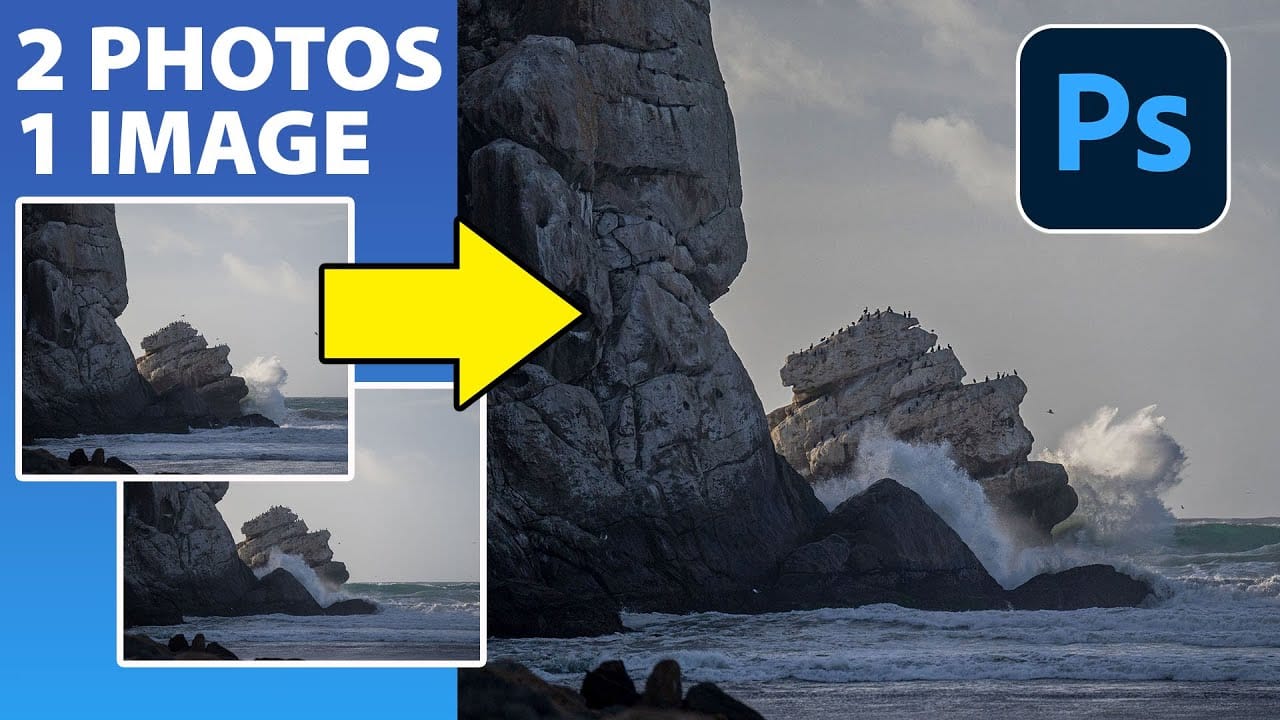
Perfect shots don't always happen in a single frame. You might capture great lighting in one photo and ideal subject positioning in another. The solution isn't choosing between them—it's combining the best elements of both.
This technique transforms multiple good shots into one exceptional image. You can merge different moments, enhance compositions, and create visually compelling results that surpass any single photograph.
Watch the Tutorial
Practical Tips for Combining Photos
* Use File
How to combine and blend photos in Photoshop
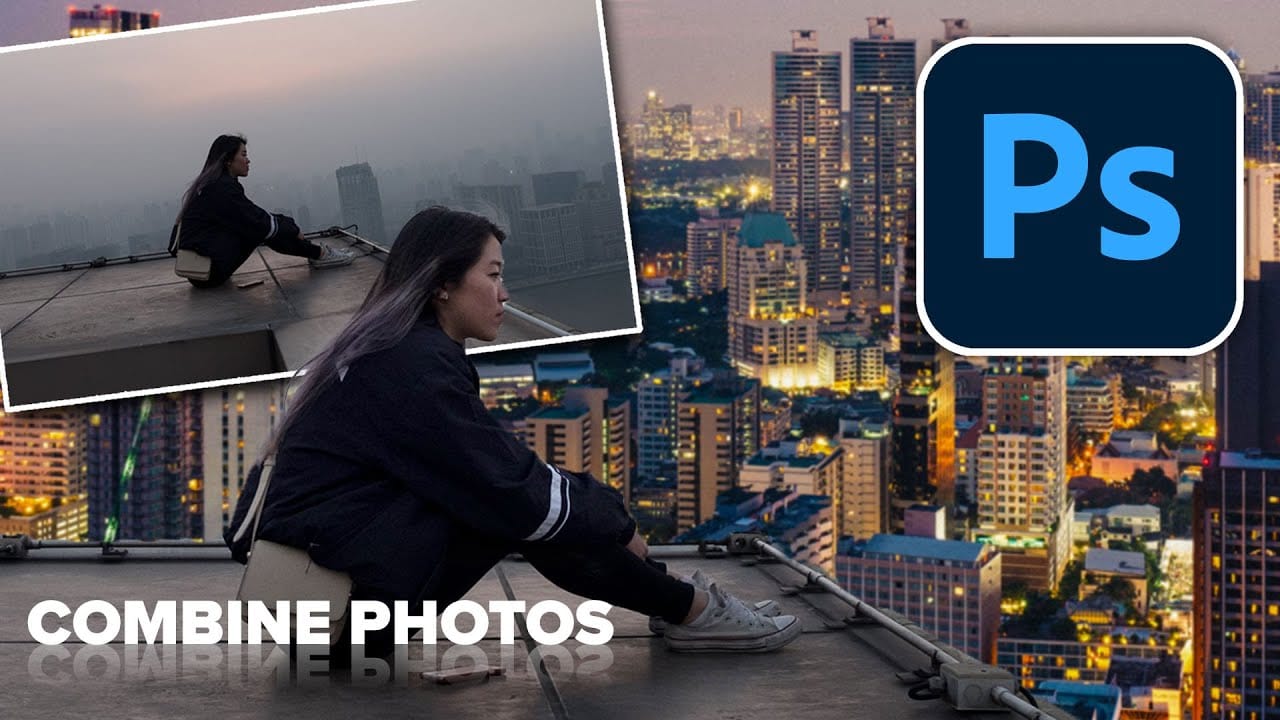
Creating captivating photo composites involves seamlessly bringing different elements together. Mastering the art of combining and blending images allows you to expand your creative possibilities, whether you are crafting surreal landscapes or integrating subjects into new environments.
This guide provides a foundational understanding of how to merge multiple photos into a single canvas and then blend them naturally within Photoshop. You will explore various techniques for combining images and
How to combine multiple images in Photoshop instantly
Working with multiple image files often means juggling numerous open windows, a common challenge when compiling visual research, mood boards, or design layouts. Manually combining these images into a single document can quickly become tedious and inefficient.
This guide presents a powerful method for consolidating all open images into one layered Photoshop document. It demonstrates how to automate this process and offers an essential tip for quickly closing the original individual files, transf
3 Creative ways to combine photos in Photoshop
Transforming ordinary photographs into extraordinary visual narratives is a hallmark of creative design. Combining images effectively allows for the creation of unique composites and engaging collages, opening a world of artistic possibilities. This process lets designers express complex ideas or simply enhance visual appeal by integrating diverse elements.
Discover how to merge multiple photos seamlessly within Photoshop, creating dynamic and imaginative compositions. The techniques covered de
How to combine and blend photos in Photoshop
Transforming ordinary photographs into extraordinary visual narratives often involves combining and blending multiple images. This technique allows creators to merge distinct elements, create surreal scenes, or enhance compositions by integrating textures and atmospheric effects. Mastering these methods unlocks a powerful dimension of digital artistry, enabling you to craft images that captivate and tell a richer story.
This tutorial explores various techniques for seamlessly integrating differ
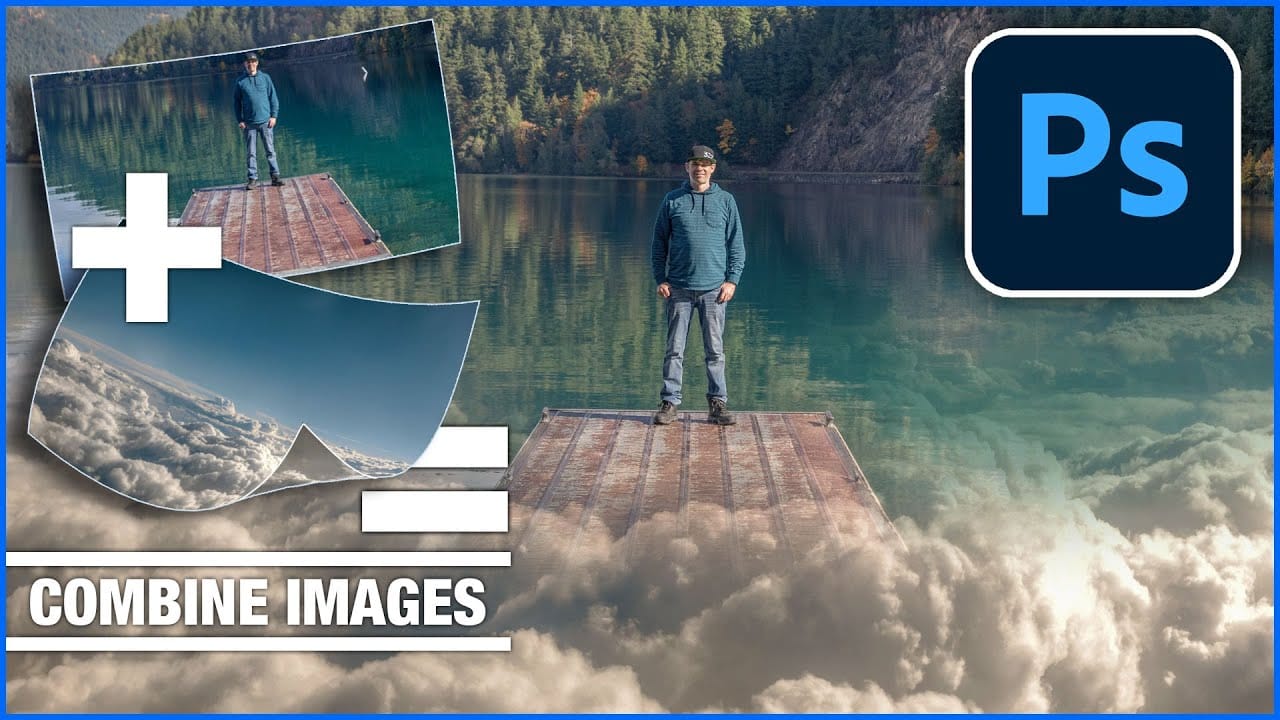
Merge two photos in just a few clicks using Photoshop's Generative Fill
Photoshop Training Channel presents a helpful guide for blending multiple images together with ease. Generative Fill is one of Photoshop's most powerful but underutilized tools, and in this video PTC shows users how they can take advantage of its full capabilities. Through a simple step-by-step process, viewers will learn how to use Generative Fill to automatically composite numerous photos into a single cohesive image.
Presented in PTC's clear training style, photographers and image editors of
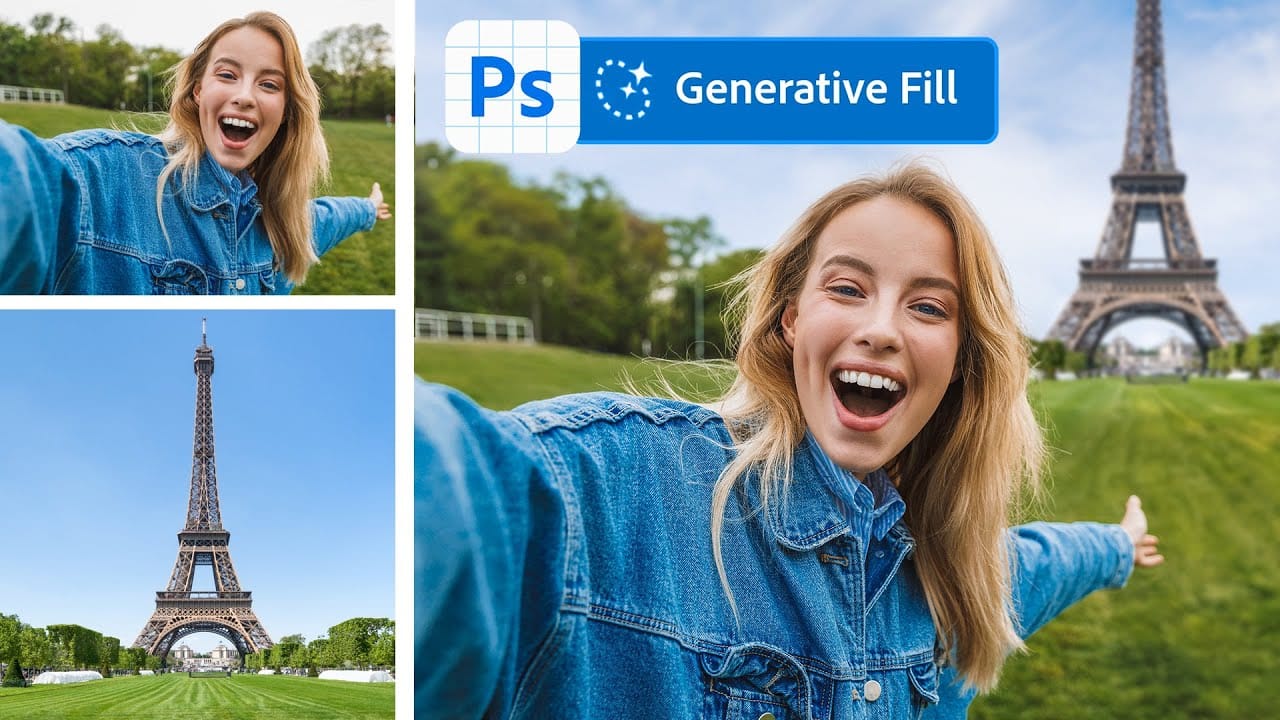
Quick and Easy Method for Color Matching Images in Photoshop
Achieving visual harmony in composite images is a cornerstone of professional photo editing. When combining elements from different sources, discrepancies in color and lighting can immediately break the illusion of a unified scene, making the final image appear unnatural or poorly constructed.
This tutorial demonstrates a straightforward yet powerful method within Photoshop to perfectly align the color profiles of disparate images. Viewers will learn how to leverage Photoshop's built-in tools t
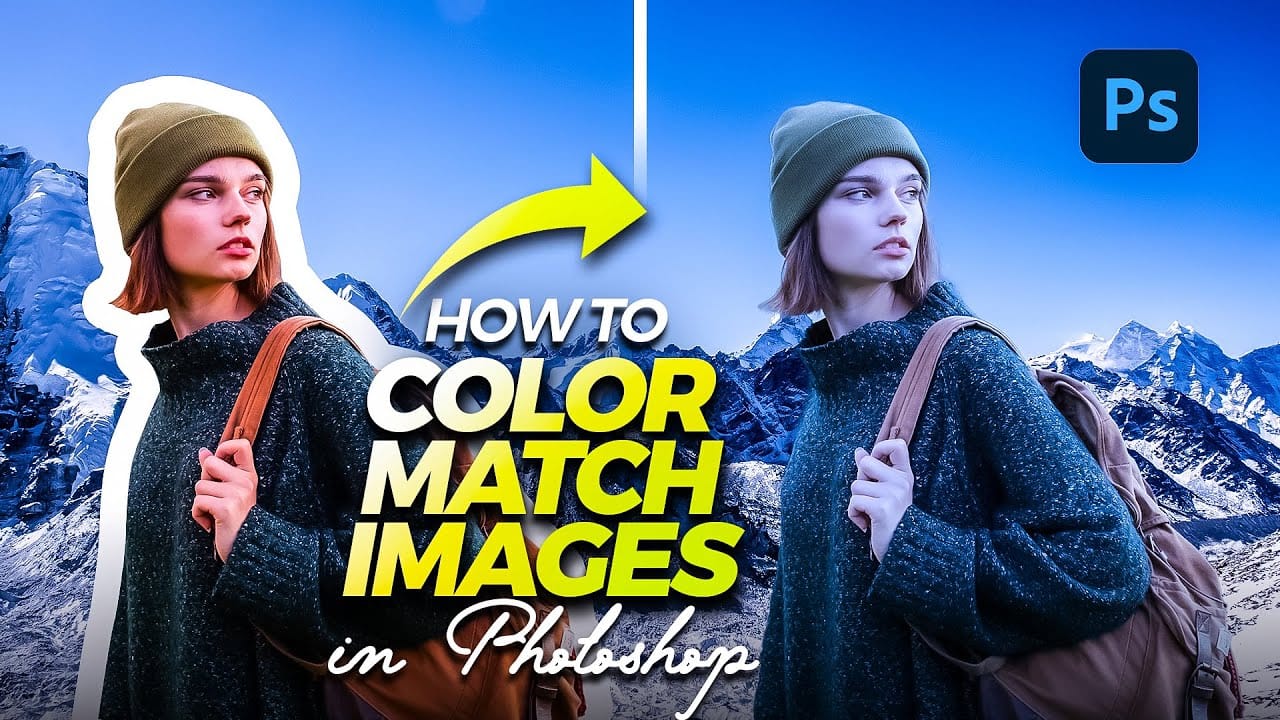
How to Create Professional Photo Composites in Photoshop
Creating compelling photo composites requires more than simply placing images together. This comprehensive tutorial demonstrates how to blend multiple elements seamlessly, from matching lighting and color to painting realistic shadows and highlights.
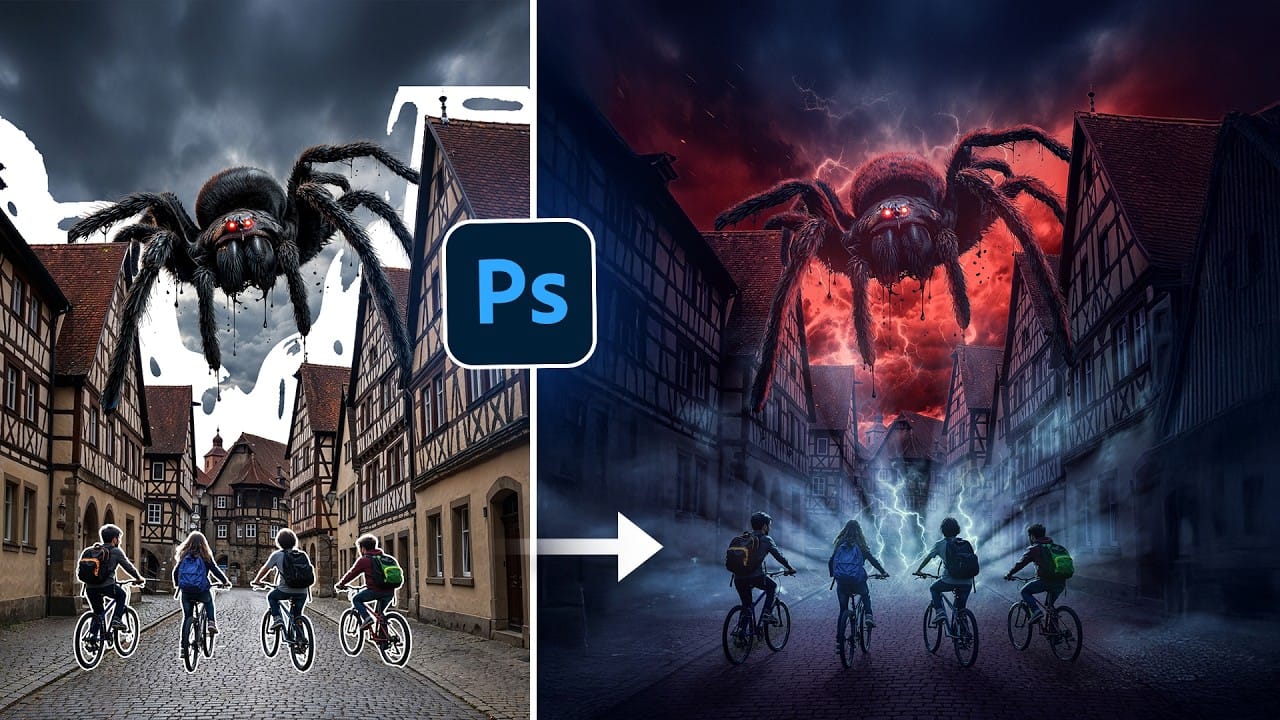
The project showcases a dramatic scene inspired by Stranger Things, combining buildings, characters, and atmospheric effects with precise color grading and lighting techniques that transform ordinary photos into cinematic compositions.
Watch the