How to combine and blend photos in Photoshop

How to combine and blend photos in Photoshop

Transforming ordinary photographs into extraordinary visual narratives often involves combining and blending multiple images. This technique allows creators to merge distinct elements, create surreal scenes, or enhance compositions by integrating textures and atmospheric effects. Mastering these methods unlocks a powerful dimension of digital artistry, enabling you to craft images that captivate and tell a richer story.

This tutorial explores various techniques for seamlessly integrating different photos within Photoshop. You will learn fundamental approaches to bring images together and advanced blending strategies to achieve cohesive and professional-looking results.

Watch the Video Tutorial on Photo Compositing

Video by photoshopCAFE. Any links or downloads mentioned by the creator are available only on YouTube

The Art of Seamless Image Integration

Merging multiple photographs into a single, believable composition goes beyond simply layering them; it requires a thoughtful approach to visual harmony. Successful image integration hinges on creating an illusion that all elements belong together, despite originating from different sources. This often involves adjusting lighting, color, and perspective to match, ensuring a cohesive aesthetic. The ultimate goal is to remove any visual cues that betray the composite nature of the image, making it appear as a single, captured moment.

The techniques for blending range from foundational layer adjustments to more sophisticated mask-based strategies. Each method offers distinct advantages, allowing artists to address specific challenges, such as integrating distinct foreground elements with new backgrounds or adding subtle atmospheric effects. Understanding these different approaches enables greater creative control, transforming a collection of disparate images into a unified and impactful visual statement.

Practical Tips for Combining and Blending Photos

  • Combine images by clicking and dragging a photo's tab into another document, holding Shift to center it upon release.
  • Alternatively, use Window > Arrange > Tile to view multiple documents side-by-side, then drag and drop layers between them.
  • Experiment with layer blending modes, such as Hard Light, to see how different modes affect the interaction between layers.
  • Utilize layer masks with the Gradient tool (black to white linear) to create smooth, transitional blends between two images.
  • For precise blending of subjects, use selection tools like Object Selection or Quick Selection, then click the mask button to isolate the subject.
  • Refine blends using the Blend If sliders in Layer Style > Blending Options; hold Alt (Windows) or Option (Mac) to split the slider for a smoother transition.

Find more resources to enhance your photo blending and compositing skills in Photoshop.
How to combine and blend photos in Photoshop
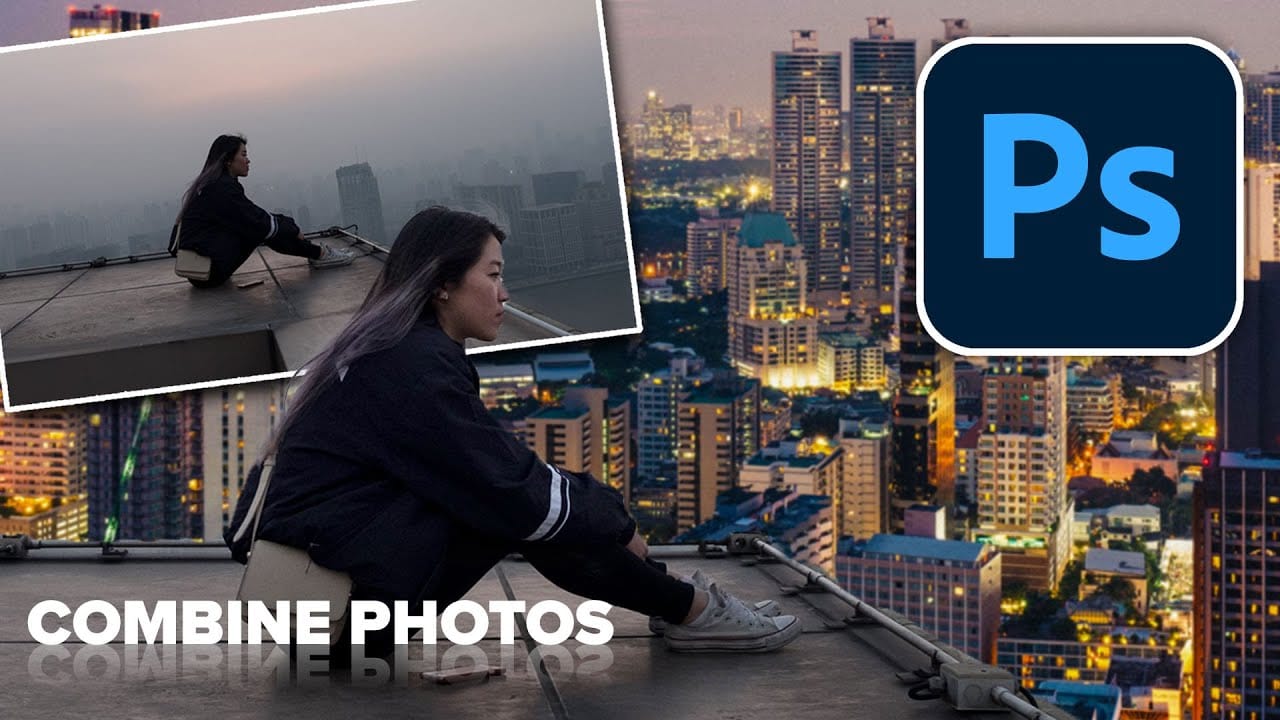
In this tutorial by Colin Smith from Photoshop Cafe, you'll explore various methods to seamlessly combine and blend photos in Photoshop. Colin covers the basics of getting photos into Photoshop and demonstrates different techniques for layering and blending images. The tutorial provides practical guidance on how to integrate multiple photos into a cohesive composition. Whether you’re working with selections or blending layers directly, you’ll learn how to achieve smooth transitions and create v
How to Blend Two Photos in Photoshop
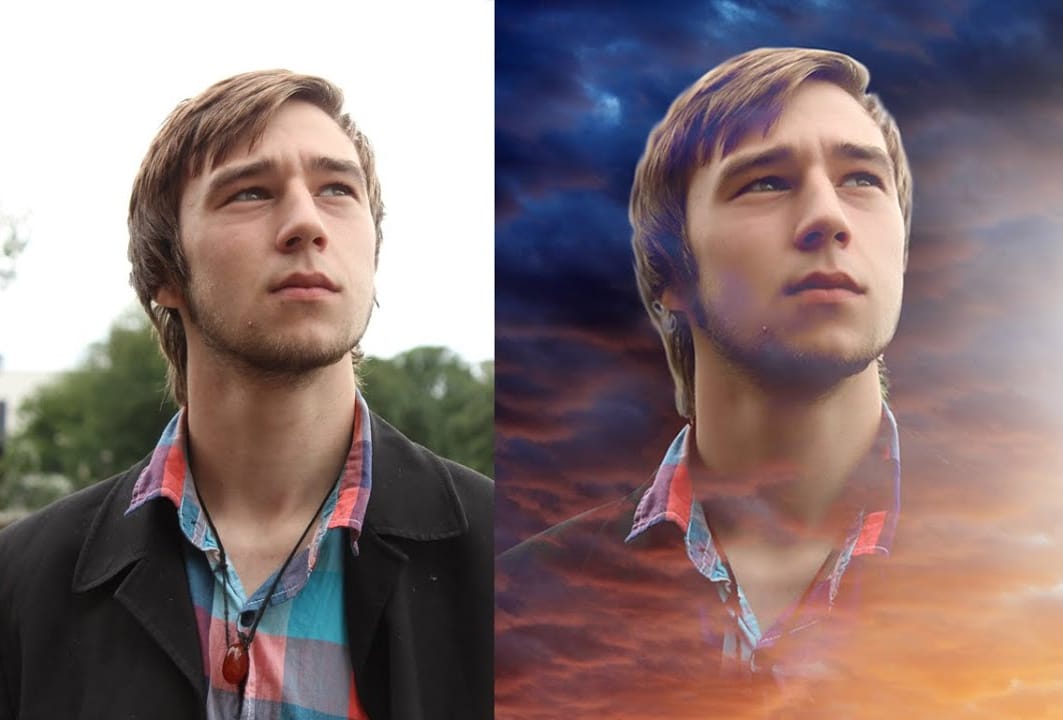
In this Photoshop tutorial, the author Arunz Creations shows how to blend two photos together. The process involves merging a photo of clouds with a portrait using blending modes. The instructions are straightforward and easy to follow. First, the user opens both photos in Photoshop. Then, they select the cloud photo and copy it to the same layer as the portrait. Next, they adjust the blending mode to achieve the desired effect, experimenting with different options until they find the perfect b
How to Use Photoshop's New Harmonize Feature to Blend Images Automatically
Photoshop's latest AI feature promises to solve one of compositing's biggest challenges: making cut-out objects look naturally integrated into new backgrounds. The new Harmonize tool automatically matches lighting, creates shadows, and adds reflections with a single click. This breakthrough technology eliminates hours of manual work that traditionally required advanced knowledge of color theory, lighting principles, and complex adjustment layers. While still in beta, Harmonize represents a sign
3 Creative ways to combine photos in Photoshop
In this tutorial, Colin Smith explores three innovative methods to combine photos in Photoshop. Whether you are creating composites or collages, these techniques will help you blend images together seamlessly. Colin demonstrates how to merge photos using layer masks, blending modes, and adjustment layers. These foundational skills are essential for creating striking and cohesive composites. By mastering these techniques, you can enhance your creativity and produce stunning visual effects. You'

Get tutorials & freebies delivered to you.

Subscribe to the Photoshop Roadmap newsletter, a weekly roundup of new tutorials, insights and quality downloads, trusted by 6500+ readers.

You might also like

Professional Portrait Retouching with the B.S.T. Method in Photoshop

Professional portrait retouching requires artistic choices that automated tools can't make. The B.S.T. method breaks retouching into three focused steps: removing blemishes with precision, smoothing skin while preserving natural texture, and equalizing skin tones throughout the image. This systematic approach gives you complete control over every...

Create Motion Blur Light Effects in Photoshop

Transform ordinary portraits into dynamic, cinematic images by combining path blur effects with creative background textures. This technique creates the illusion of camera movement while maintaining focus on key elements like the subject's eyes, resulting in professional-looking motion blur effects that add energy and visual interest to static...

How to Paint Realistic Jewelry on Portraits in Photoshop

Adding painted jewelry to portraits transforms ordinary photos into fantasy portraits with ornate accessories that never existed. This digital painting technique uses careful layering, proper lighting, and realistic shadows to create convincing rings, earrings, and decorative headpieces. The method combines basic brush work with advanced blending techniques to build up...

How to Sharpen Images Using the High Pass Filter in Photoshop

The High Pass filter method remains one of the most versatile sharpening techniques in Photoshop, offering precise control over which image areas receive enhancement. This non-destructive approach works by identifying edge details and allowing you to selectively apply sharpening exactly where it's needed most. Unlike automated sharpening tools,...

How to Find Missing Actions in the New Photoshop Actions Panel

The redesigned Actions panel in Photoshop can catch users off guard when their custom actions seem to disappear. With the new tabbed interface, your previously created actions are still there—they're just located in a different tab than before. Understanding the new layout will help you quickly access...

Fast Portrait Retouching: Remove Stray Hairs, Clothing Wrinkles, and Fix Backgrounds

Every portrait photographer knows the feeling: you've captured a beautiful shot, but stray hairs, wrinkled clothing, and messy backgrounds turn editing into hours of tedious work. These common retouching challenges can drain your time and energy, especially when dealing with high-volume projects or tight deadlines. This tutorial demonstrates...

You’ve successfully subscribed to Photoshop Roadmap
Welcome back! You’ve successfully signed in.
Great! You’ve successfully signed up.
Success! Your email is updated.
Your link has expired
Success! Check your email for magic link to sign-in.