How to combine and blend photos in Photoshop

How to combine and blend photos in Photoshop

Creating captivating photo composites involves seamlessly bringing different elements together. Mastering the art of combining and blending images allows you to expand your creative possibilities, whether you are crafting surreal landscapes or integrating subjects into new environments.

This guide provides a foundational understanding of how to merge multiple photos into a single canvas and then blend them naturally within Photoshop. You will explore various techniques for combining images and practical methods for achieving smooth transitions between layers.

Watch the Video

Video by photoshopCAFE. Any links or downloads mentioned by the creator are available only on YouTube

The Art and Science of Photo Compositing

The concept of photo compositing has evolved significantly since the early days of photography. Initially, combining elements from different negatives or prints was a painstaking physical process, often involving darkroom trickery and meticulous cutting. Digital tools, particularly Photoshop, revolutionized this practice, offering unprecedented control and precision for artists and photographers.

Modern compositing goes beyond mere technical assembly; it delves into storytelling and visual impact. By strategically layering and blending images, creators can:

  • Construct entirely new realities.
  • Enhance existing scenes with dramatic flair.
  • Communicate complex narratives visually.

This capability empowers photographers to transcend the limitations of a single shot, creating images that are both technically proficient and creatively compelling. The techniques for merging and blending are fundamental skills, laying the groundwork for more advanced digital art.

Practical Tips for Combining and Blending

  • Combine images into layers: Use File > Scripts > Load Files into Stack to automatically place multiple selected images onto separate layers within a new document, or manually drag images between document tabs while holding Shift to center them.
  • Arrange multiple open documents: Utilize Window > Arrange options like Four Up to display several images side-by-side, facilitating easy dragging and dropping between canvases.
  • Blend with quick selections: For subjects against a contrasting background, use the Quick Selection Tool to isolate the subject, then Alt/Option-click the layer mask icon to hide the background, followed by applying a Gaussian Blur to the background layer for depth.
  • Create soft edges with a brush: For a more organic blend, create a layer mask on the top image, then paint with a large, soft black brush to gently reveal the layer below, flipping to white to restore areas as needed.
  • Refine layer mask edges: After creating a selection-based mask, open Levels (Ctrl/Cmd+L) for the layer mask and drag the black slider to sharpen the edges, eliminating unwanted halos.

Explore more resources and deepen your understanding of combining and blending images in Photoshop.
How to combine and blend photos in Photoshop
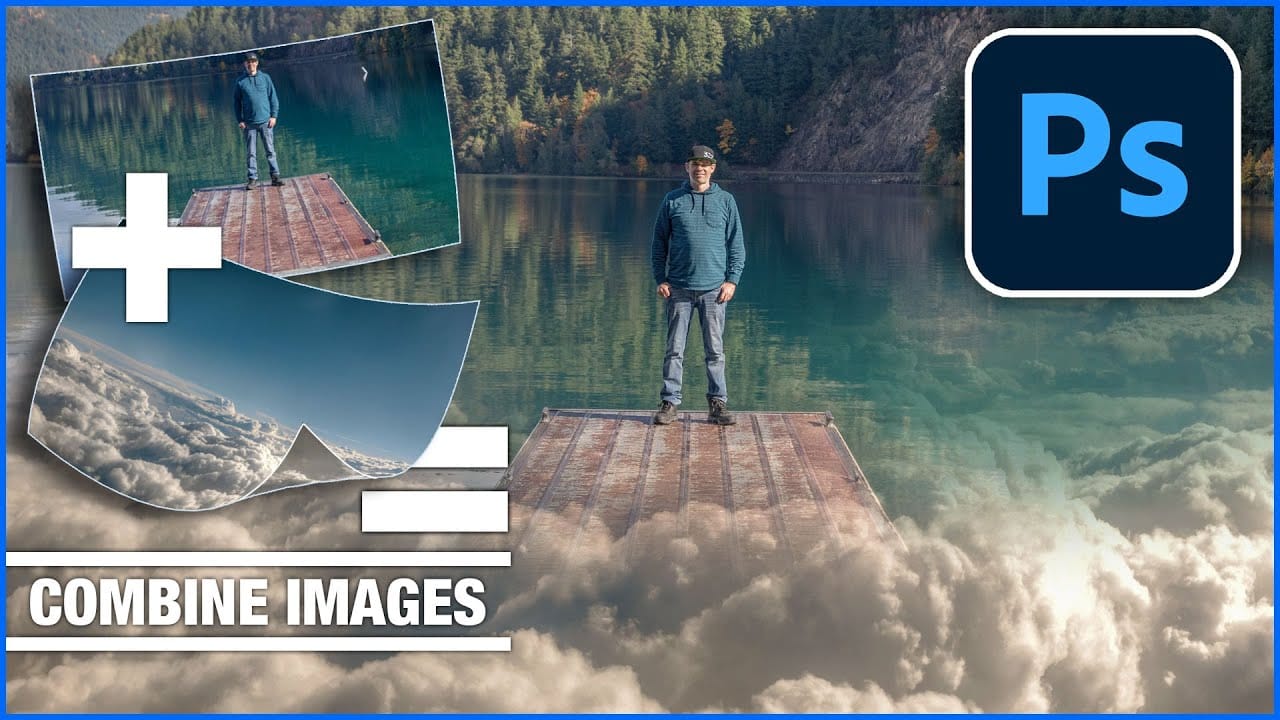
In this tutorial, Colin Smith from Photoshop Cafe demonstrates effective techniques for combining and blending multiple photos in Photoshop. You'll learn two distinct methods for merging images, allowing you to seamlessly integrate different elements into a cohesive composition. Colin also covers four advanced techniques for blending layers together, helping you achieve smooth transitions and harmonious effects. These techniques are essential for creating compelling visuals where multiple image
How to Blend Two Photos in Photoshop
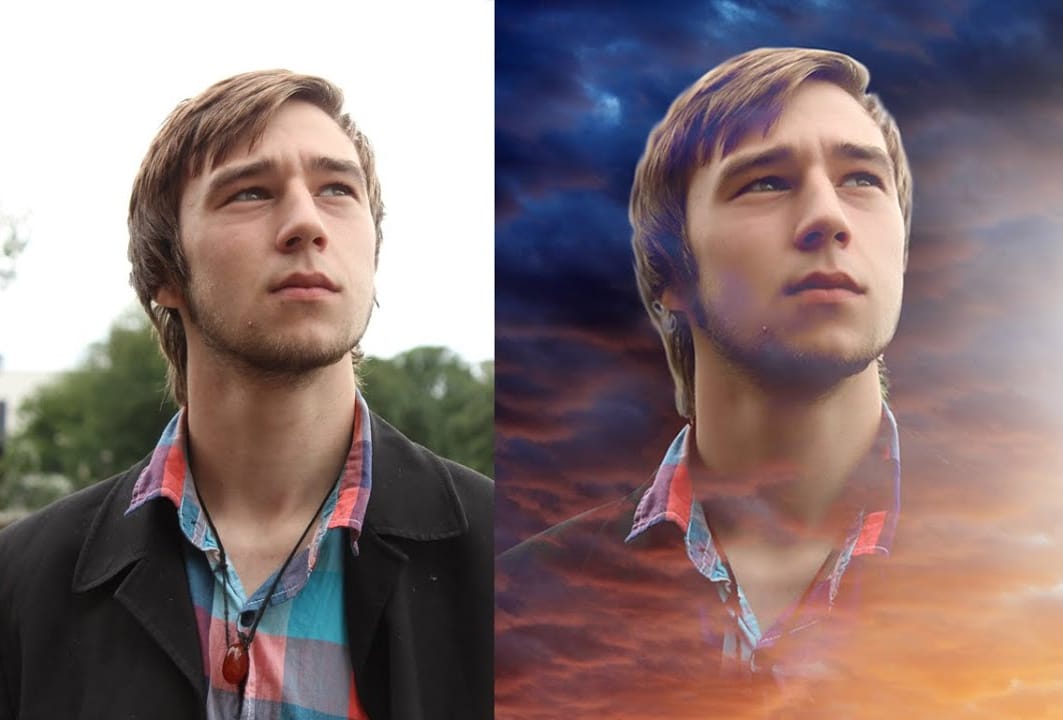
In this Photoshop tutorial, the author Arunz Creations shows how to blend two photos together. The process involves merging a photo of clouds with a portrait using blending modes. The instructions are straightforward and easy to follow. First, the user opens both photos in Photoshop. Then, they select the cloud photo and copy it to the same layer as the portrait. Next, they adjust the blending mode to achieve the desired effect, experimenting with different options until they find the perfect b
3 Creative ways to combine photos in Photoshop
In this tutorial, Colin Smith explores three innovative methods to combine photos in Photoshop. Whether you are creating composites or collages, these techniques will help you blend images together seamlessly. Colin demonstrates how to merge photos using layer masks, blending modes, and adjustment layers. These foundational skills are essential for creating striking and cohesive composites. By mastering these techniques, you can enhance your creativity and produce stunning visual effects. You'
How to combine multiple images in Photoshop instantly
In this detailed tutorial, Colin Smith reveals an efficient method for combining multiple images into a single layered document in Photoshop. This technique is designed to save time and reduce manual effort by allowing you to merge all open tabs into one cohesive file quickly. Colin explains how to leverage this powerful feature to streamline the process of creating complex composites or layered designs. Whether you're working on intricate photo edits or assembling detailed visual projects, this

Get tutorials & freebies delivered to you.

Subscribe to the Photoshop Roadmap newsletter, a weekly roundup of new tutorials, insights and quality downloads, trusted by 6500+ readers.

You might also like

Painting Digital Art Backgrounds: Techniques and Workflow

A well-crafted background can anchor an entire digital painting, providing atmosphere, depth, and visual context for the subject. This video demonstrates practical approaches to building backgrounds from scratch using digital tools, covering brush selection, color layering, and compositional thinking. Watch the Video Practical Tips Keep these core principles in...

How to Use the Light Adjustment Layer in Photoshop

Photoshop's new Light adjustment layer brings Camera Raw controls — exposure, contrast, highlights, shadows, whites, and blacks — directly into the layers panel as a fully non-destructive, maskable layer. This means you can stack multiple light adjustments, target specific subjects, and combine them with Blend If and other adjustment...

How to Use Object Selection, Remove Background, and the Selection Brush in Photoshop

Selections determine the quality and flexibility of almost every edit you make in Photoshop. Three modern tools — the Object Selection tool, Remove Background with Harmonize, and the Selection Brush — handle the most common selection tasks with far less manual effort, while keeping your original image intact through non-destructive layers....

How to Paint a Digital Background and Composite Wildlife Into It

Building a painted digital background from scratch gives you full control over color, mood, and composition before a single wildlife photo is placed. This walkthrough covers the complete process: blocking in shadows on a black canvas, layering foliage with textured brushes, positioning bird subjects on hand-painted stones, and using...

How to Sharpen Skin Texture Using Frequency Separation in Photoshop

Retouched skin can look great up close but lose all its natural texture the moment you zoom out. Rather than relying on standard sharpening filters, you can recover that texture by duplicating the high-frequency layer inside a frequency separation setup — a method that works whether or not you'...

You’ve successfully subscribed to Photoshop Roadmap
Welcome back! You’ve successfully signed in.
Great! You’ve successfully signed up.
Success! Your email is updated.
Your link has expired
Success! Check your email for magic link to sign-in.