3 Creative ways to combine photos in Photoshop

3 Creative ways to combine photos in Photoshop

Transforming ordinary photographs into extraordinary visual narratives is a hallmark of creative design. Combining images effectively allows for the creation of unique composites and engaging collages, opening a world of artistic possibilities. This process lets designers express complex ideas or simply enhance visual appeal by integrating diverse elements.

Discover how to merge multiple photos seamlessly within Photoshop, creating dynamic and imaginative compositions. The techniques covered demonstrate how to blend images with precision, achieving polished results that captivate and inspire, moving beyond basic layering to advanced integration.

Watch the Video

Video by photoshopCAFE. Any links or downloads mentioned by the creator are available only on YouTube

Exploring the Art of Image Merging

Combining photographs in Photoshop extends beyond merely placing one image on top of another. It involves an artistic approach to blending and integration.

Designers often seek to create a unified visual story from disparate elements. This process relies on a deep understanding of light, shadow, and color harmony. The goal is to make the combined images appear as if they naturally belong together, rather than looking like an obvious cut-and-paste job.

Achieving this seamless effect requires consideration of several key factors:

• Perspective alignment
• Resolution matching
• Overall mood consistency
• Lighting direction
• Color temperature balance

Blending techniques leverage Photoshop's powerful tools to manipulate how pixels interact. This allows for the subtle merging of textures and tones. The result creates an illusion of depth and realism, which is essential for compelling visual storytelling.

The strategic use of masks, blend modes, and advanced blending options provides unparalleled control over the merging process. These tools enable selective visibility and interaction between layers. This allows artists to fine-tune the integration of each element.

Mastering these techniques transforms simple image combinations into sophisticated, visually captivating works.

Practical Tips for Blending Photos

  • Use Free Transform (Ctrl/Cmd T) to scale and position images; hold Alt/Option to scale from the center and Shift to maintain aspect ratio.
  • Experiment with Layer Blend Modes like Screen or Lighten to quickly hide dark areas and merge images based on luminosity.
  • Apply a Layer Mask and use the Gradient Tool (black to white) to create smooth, gradual transitions between combined photos.
  • Refine layer masks with a soft brush, painting with black to hide and white to reveal specific areas for precise control.
  • Utilize Blend If sliders in Blending Options, holding Alt/Option to split the slider and create a smoother, more sophisticated luminosity blend.

Explore additional resources to deepen your understanding of photo manipulation and composite creation in Photoshop.
How to combine and blend photos in Photoshop
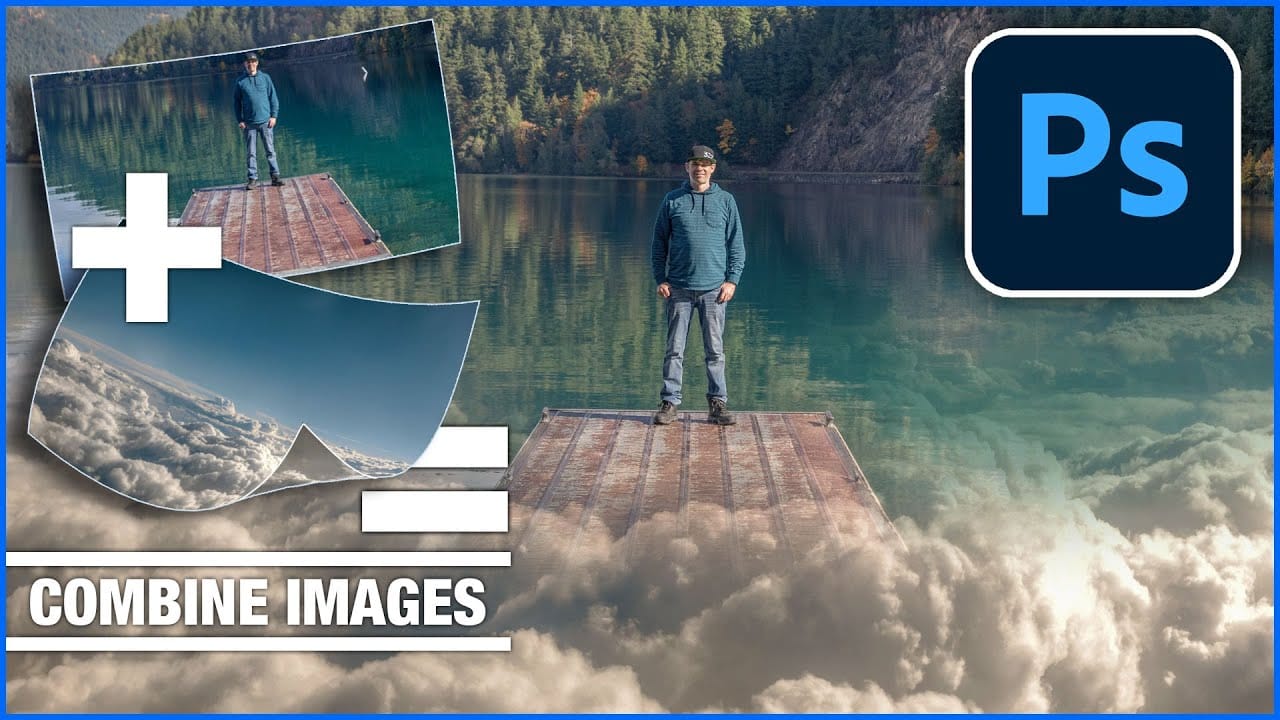
In this tutorial, Colin Smith from Photoshop Cafe demonstrates effective techniques for combining and blending multiple photos in Photoshop. You'll learn two distinct methods for merging images, allowing you to seamlessly integrate different elements into a cohesive composition. Colin also covers four advanced techniques for blending layers together, helping you achieve smooth transitions and harmonious effects. These techniques are essential for creating compelling visuals where multiple image
How to combine and blend photos in Photoshop
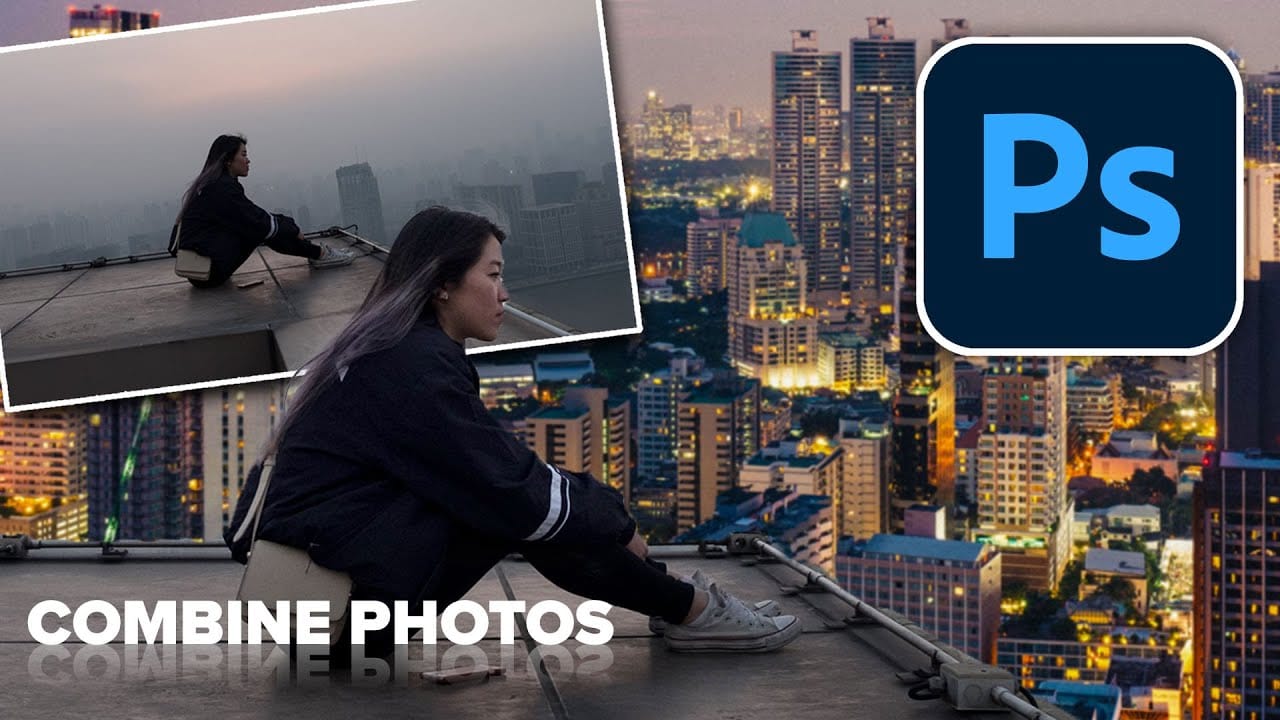
In this tutorial by Colin Smith from Photoshop Cafe, you'll explore various methods to seamlessly combine and blend photos in Photoshop. Colin covers the basics of getting photos into Photoshop and demonstrates different techniques for layering and blending images. The tutorial provides practical guidance on how to integrate multiple photos into a cohesive composition. Whether you’re working with selections or blending layers directly, you’ll learn how to achieve smooth transitions and create v
How to combine multiple images in Photoshop instantly
In this detailed tutorial, Colin Smith reveals an efficient method for combining multiple images into a single layered document in Photoshop. This technique is designed to save time and reduce manual effort by allowing you to merge all open tabs into one cohesive file quickly. Colin explains how to leverage this powerful feature to streamline the process of creating complex composites or layered designs. Whether you're working on intricate photo edits or assembling detailed visual projects, this
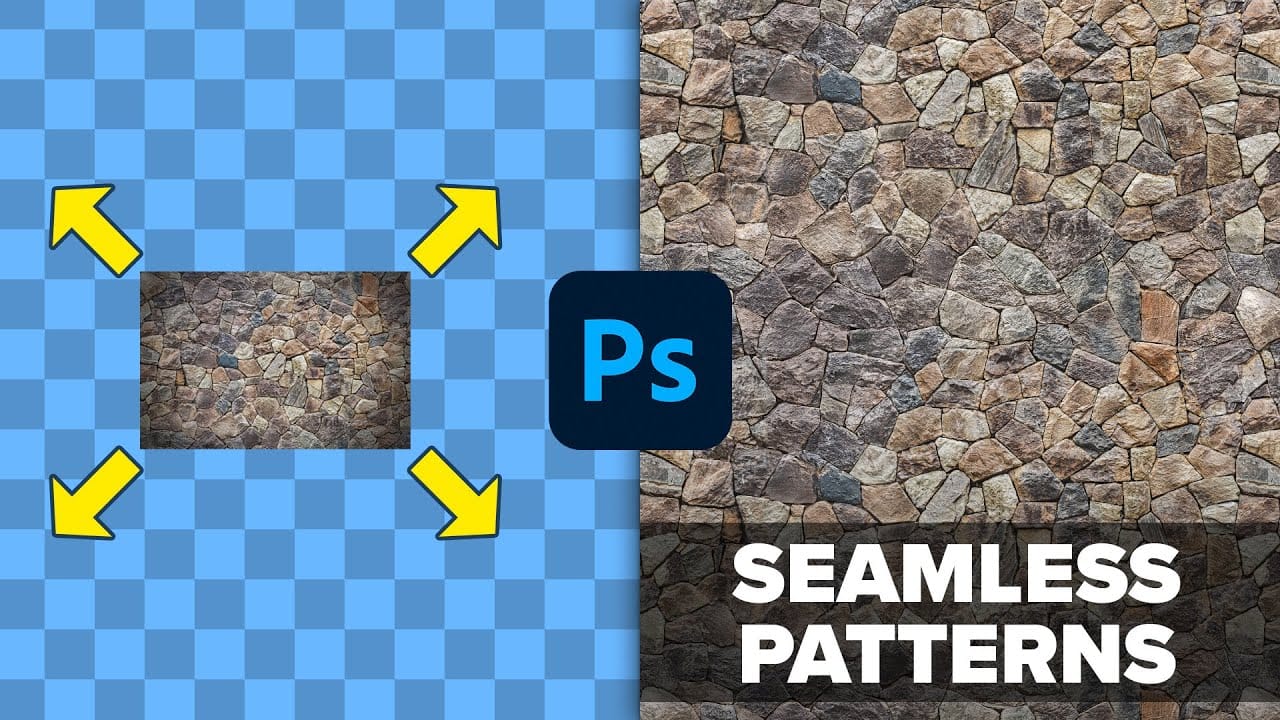
3 Powerful Techniques to Create Seamless Patterns in Photoshop
This tutorial by Jesus Ramirez from the PTC Photoshop Training Channel introduces three effective techniques for creating seamless patterns in Photoshop. If you have ever wanted to transform a simple photo into a beautiful repeating design, this is a great place to start. You will become familiar with essential tools such as Pattern Preview and Generative Fill, which are crucial in this process. These tools will help simplify your workflow and enhance your designs. Additionally, you will discov

Get tutorials & freebies delivered to you.

Subscribe to the Photoshop Roadmap newsletter, a weekly roundup of new tutorials, insights and quality downloads, trusted by 6500+ readers.

You might also like

How to Remove Skin Blemishes and Fix Skin Tones in Camera Raw

Two recent additions to Camera Raw make skin retouching significantly faster: an automatic blemish removal tool with separate controls for moles and freckles, and a vectorscope-based skin tone indicator for correcting off-color skin. Both features work non-destructively inside a smart object workflow, so no pixel data is...

Portrait Retouching in Photoshop: Smooth Skin While Keeping Natural Texture

Smooth skin and natural texture are not opposites — achieving both at once is the mark of a professional retouch. This workflow covers blemish removal, flyaway hair cleanup, dark under-eye correction, and eye brightening, all while keeping the skin looking like skin. Watch the Video Practical Tips These key points...

How to Use Camera Raw's Blemish Removal Tool in Photoshop

Camera Raw 18.5 introduced an automatic blemish removal tool that does something previous solutions rarely managed: it removes skin imperfections while preserving the underlying skin texture. It also distinguishes between temporary marks and permanent ones like moles, giving you separate controls for each. Watch the Video Practical Tips These...

Portrait Slice Effect in Photoshop Using Step and Repeat

The portrait slice effect splits a single image into offset vertical bars, creating the illusion of a displaced or fragmented face. The entire technique relies on layer masks and a lesser-known Photoshop shortcut called step and repeat — no filters, no AI, no destructive edits required. Watch the Video Practical...

How to Remove Blemishes in Photoshop: Camera Raw vs. Generative AI

Photoshop now offers two distinct approaches to removing skin blemishes automatically. The Camera Raw Filter includes a dedicated Blemishes option that analyzes and cleans skin with a single checkbox, while Generative AI fills a face selection with clean, texture-consistent results using a simple text prompt. Each method has clear...

Common Photoshop Compositing Mistakes and How to Fix Them

Most compositing errors come down to a handful of repeatable problems: mismatched lighting direction, inconsistent white points, misaligned perspective, and atmosphere applied in the wrong layer order. Catching these issues early — ideally before you shoot — saves significant time in post. Watch the Video Practical Tips These corrections apply to nearly...

You’ve successfully subscribed to Photoshop Roadmap
Welcome back! You’ve successfully signed in.
Great! You’ve successfully signed up.
Success! Your email is updated.
Your link has expired
Success! Check your email for magic link to sign-in.