How to Use Photoshop's New Harmonize Feature to Blend Images Automatically

How to Use Photoshop's New Harmonize Feature to Blend Images Automatically

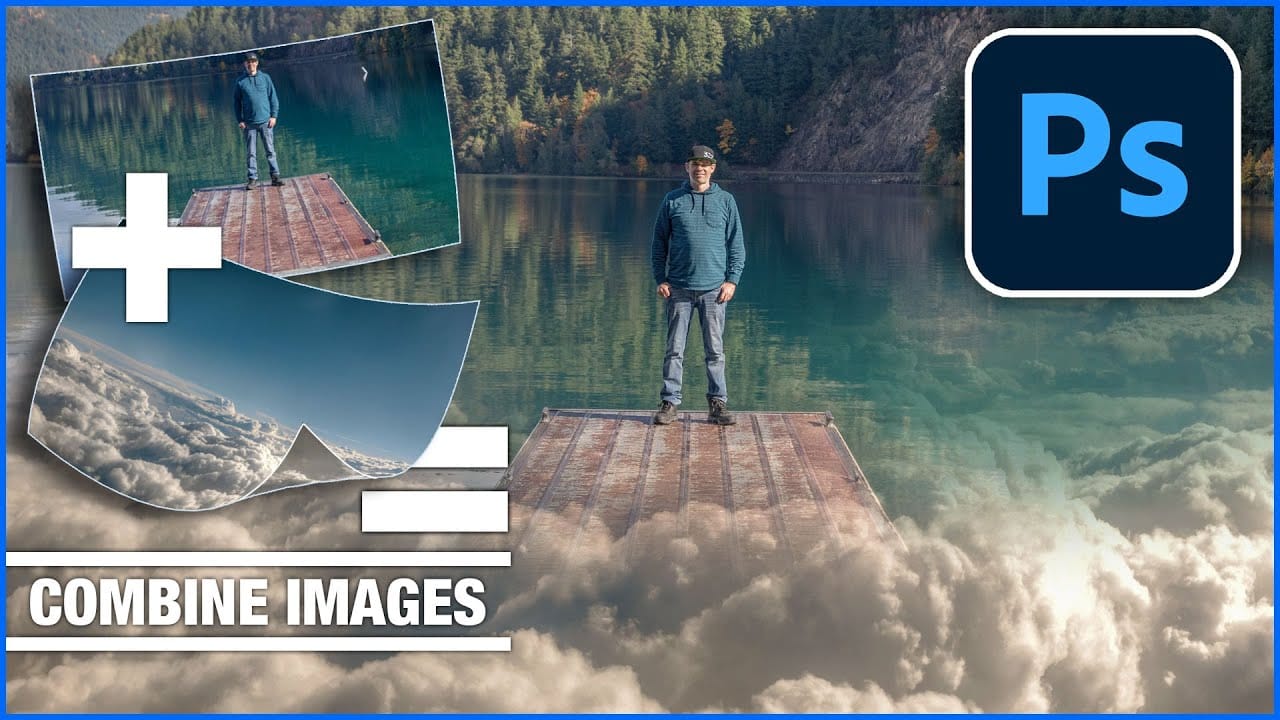
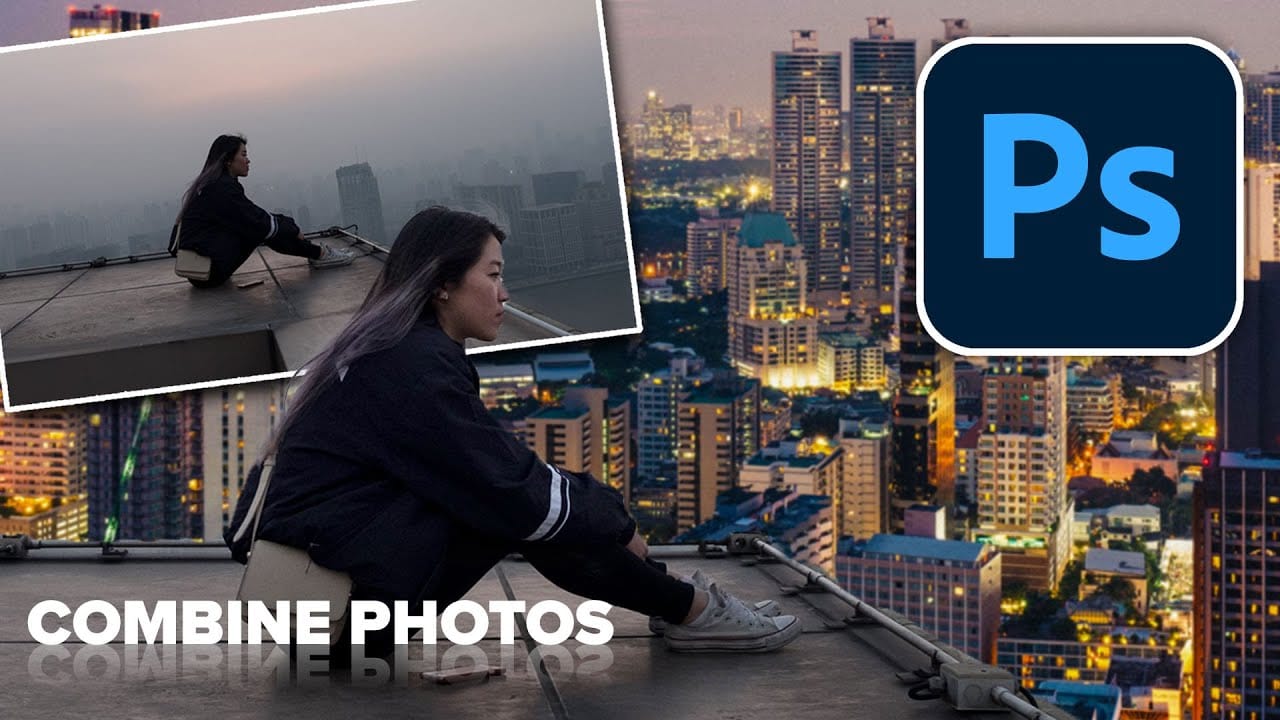
Photoshop's latest AI feature promises to solve one of compositing's biggest challenges: making cut-out objects look naturally integrated into new backgrounds. The new Harmonize tool automatically matches lighting, creates shadows, and adds reflections with a single click.

This breakthrough technology eliminates hours of manual work that traditionally required advanced knowledge of color theory, lighting principles, and complex adjustment layers. While still in beta, Harmonize represents a significant leap forward in automated image compositing.

Watch the Tutorial

Video by PiXimperfect. Any links or downloads mentioned by the creator are available only on YouTube

The Evolution of AI-Powered Compositing

Traditional photo compositing has always been a meticulous craft requiring deep understanding of light behavior, shadow casting, and color relationships. Professional compositors spend years mastering techniques like directional lighting analysis, ambient occlusion painting, and environmental reflection matching. Each composite demanded careful observation of how light interacts with surfaces, creating convincing shadows and reflections that sell the illusion.

Harmonize represents a fundamental shift in this workflow by using machine learning to analyze both the subject and background environment. The AI evaluates factors like light direction, color temperature, and surface properties to generate appropriate environmental effects. This automated approach doesn't replace artistic judgment but provides a sophisticated starting point that would have taken hours to achieve manually.

The technology works by generating new image data rather than applying adjustment layers, which explains both its capabilities and current limitations. While this approach enables dramatic lighting changes and shadow creation, it also introduces resolution constraints and potential quality variations that users need to understand.

Practical Tips for Using Harmonize Tool

  • Access Harmonize through the contextual taskbar after removing backgrounds, or navigate to Layer > Harmonize for direct access.
  • Always evaluate all three generated options before choosing, as each iteration can produce significantly different lighting interpretations.
  • Use the regenerate function if initial results don't match your vision—the AI creates different solutions each time.
  • Apply group masks to harmonized layers when you want to preserve original lighting in specific areas while keeping generated shadows.
  • Expect lower resolution in generated areas and plan to supplement with manual refinements for professional work.

Explore more techniques for seamlessly combining images in Photoshop.

Quick Tip: Create One-Click Photo Effects in Photoshop
Did you know that you can apply one-click color effects to your photos? It is very easy to do using the Color Lookup Adjustment Layer. In fact, it's so easy that even an absolute beginner can apply beautiful color effects just by following this short tutorial. Final image Without getting into too many technical details, a color look-up table (CLUT) is a mechanism used mainly in video or photography to transform a range of input colors into another range of colors. While difficult to create, t
Merge two photos in just a few clicks using Photoshop's Generative Fill
Photoshop Training Channel presents a helpful guide for blending multiple images together with ease. Generative Fill is one of Photoshop's most powerful but underutilized tools, and in this video PTC shows users how they can take advantage of its full capabilities. Through a simple step-by-step process, viewers will learn how to use Generative Fill to automatically composite numerous photos into a single cohesive image. Presented in PTC's clear training style, photographers and image editors of
How to combine and blend photos in Photoshop
In this tutorial, Colin Smith from Photoshop Cafe demonstrates effective techniques for combining and blending multiple photos in Photoshop. You'll learn two distinct methods for merging images, allowing you to seamlessly integrate different elements into a cohesive composition. Colin also covers four advanced techniques for blending layers together, helping you achieve smooth transitions and harmonious effects. These techniques are essential for creating compelling visuals where multiple image
How to combine and blend photos in Photoshop
In this tutorial by Colin Smith from Photoshop Cafe, you'll explore various methods to seamlessly combine and blend photos in Photoshop. Colin covers the basics of getting photos into Photoshop and demonstrates different techniques for layering and blending images. The tutorial provides practical guidance on how to integrate multiple photos into a cohesive composition. Whether you're working with selections or blending layers directly, you'll learn how to achieve smooth transitions and create v

Get tutorials & freebies delivered to you.

Subscribe to the Photoshop Roadmap newsletter, a weekly roundup of new tutorials, insights and quality downloads, trusted by 6500+ readers.

You might also like

Basic Photoshop techniques you really need to learn

Photoshop hasn’t changed as much as it looks. New features come and go, but the same core techniques keep showing up in real work. If you skip them, everything feels harder than it should. This post focuses on those basics, not as isolated tricks, but as skills you’ll...

How to Use Select Subject for Background Removal and Edge Refinement

Background removal becomes effortless when you know how to use the right tools. AI-powered selection can instantly isolate subjects from their backgrounds, but the real skill lies in refining those selections to create professional results. This guide covers the complete workflow from initial selection to edge refinement, plus creative techniques...

How to Wrap Text Around Any Shape in Photoshop

Creating text that flows naturally around irregular shapes transforms static layouts into dynamic, professional designs. This technique works particularly well for posters, magazine layouts, and editorial designs where text needs to integrate seamlessly with complex subjects rather than simply sitting in rigid rectangular boxes. The process combines selection tools, path...

How to Edit Text in Images Using Generative Fill

Changing text within existing images has traditionally required complex masking and reconstruction techniques. Modern AI-powered tools now make it possible to seamlessly replace words and phrases in photographs while maintaining realistic typography, lighting, and perspective that matches the original scene. This technique works particularly well for signs, storefronts, billboards, and...

How to Remove Dust and Sensor Spots Using Photoshop Tools

Dust spots and sensor particles are inevitable challenges in digital photography, appearing as dark specks that distract from otherwise clean images. Camera sensors collect dust over time, creating consistent spots that show up across multiple photos, particularly in bright sky areas or uniform backgrounds. Both Lightroom and Photoshop offer specialized...

Photoshop vs Affinity Photo: Feature Comparison and Professional Analysis

When choosing professional photo editing software, the decision often comes down to comparing features, performance, and value. This detailed comparison examines the core capabilities of both applications across noise reduction, smart selections, object removal, masking, and AI-powered tools. The analysis covers real-world scenarios that professionals encounter daily, from complex background...

You’ve successfully subscribed to Photoshop Roadmap
Welcome back! You’ve successfully signed in.
Great! You’ve successfully signed up.
Success! Your email is updated.
Your link has expired
Success! Check your email for magic link to sign-in.