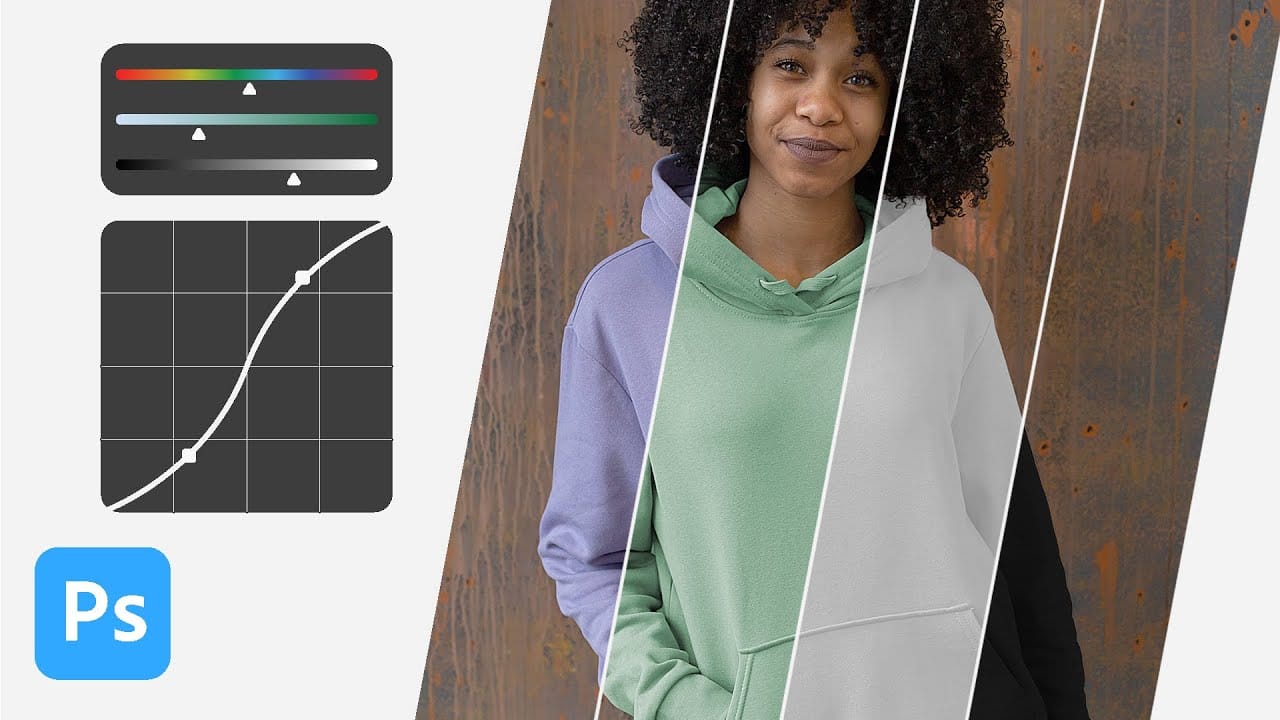
Recoloring an object is straightforward when its color stands apart from the rest of the image, but similar tones in skin, hair, or the background can make a clean edit harder. This workflow starts with Photoshop’s color adjustment controls, then refines the color range and uses a layer mask to keep the change on the intended object. Adjust hue, saturation, and lightness to explore different colors, including gray, black, and white.
Watch the Video
Video by photoshopCAFE. Any links or downloads mentioned by the creator are available only on YouTube
Practical Tips
Use these steps to keep the recolor controlled and preserve the image’s original detail:
- Sample the object’s color with the eyedropper to target the right starting range.
- Refine the color range sliders to reduce changes to nearby skin, hair, or background tones.
- Use the Object Selection tool to select the object, then apply the selection to the adjustment layer mask.
- Inspect the mask edges and paint on the mask where the adjustment spills beyond the object.
- Set hue for the color, saturation for its intensity, and lightness for darker or lighter results.
Related Articles and Tutorials
Explore these guides for more ways to recolor objects, clothing, and neutral tones in Photoshop.
The easiest way to change any color in Photoshop
Changing the color of specific elements within an image can often be a frustrating challenge for designers and photographers. Achieving a precise color shift without affecting surrounding areas, or dealing with complex selections, often leads to a time-consuming and imperfect process.
This guide introduces a highly efficient method utilizing Photoshop's latest updates, specifically the "Adjust Colors" feature found in the contextual taskbar. This technique simplifies accurate color manipulation
Transform Black to Any Color in Photoshop, Including White: Best Method
Changing the color of a black object in Photoshop can be a surprisingly frustrating task. Standard color adjustment tools often fail because pure black contains no hue or saturation data to manipulate, leaving designers and retouchers searching for a more effective solution.
This tutorial demonstrates a powerful and flexible method for recoloring black objects, allowing you to turn them into any color you choose—even solid white. By learning this non-destructive technique, you can gain precise
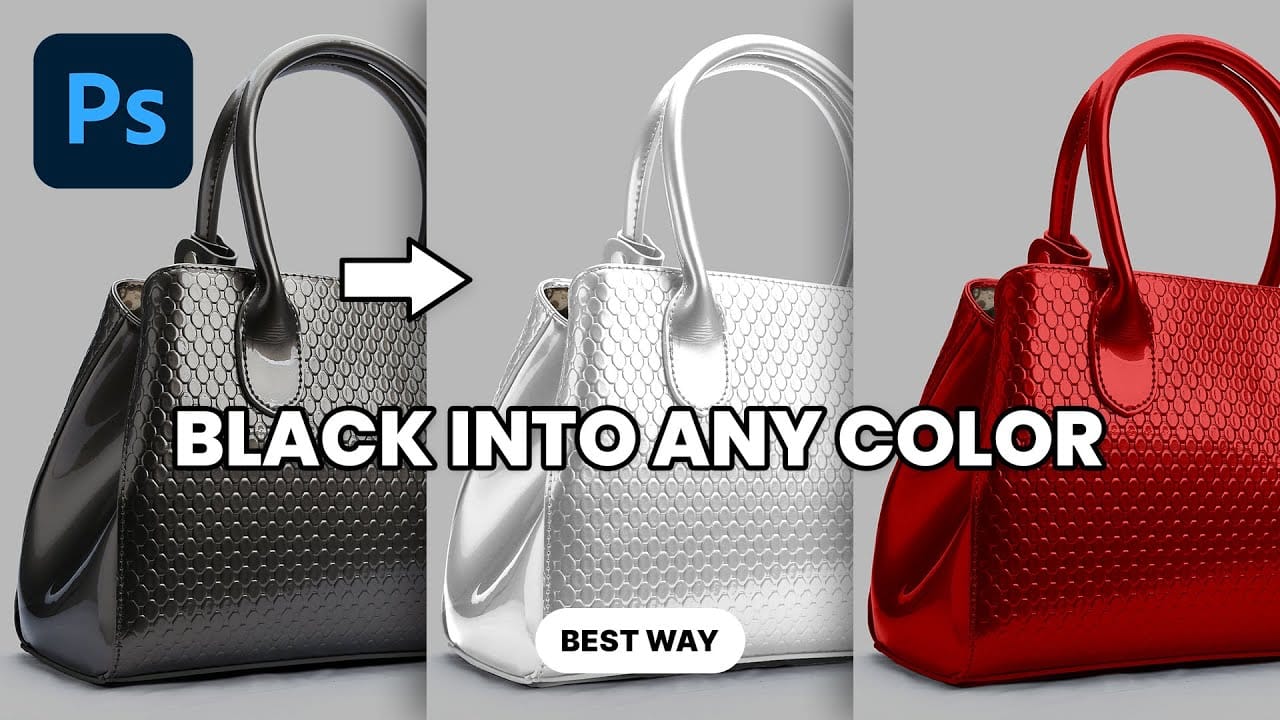
How to Change Black into Any Color in Photoshop
In this tutorial, Aaron Nace demonstrates how to transform black elements in your images into any color using Photoshop. This technique involves utilizing Levels and Hue/Saturation Adjustment Layers to achieve the desired color changes.
Aaron guides you through the process of adjusting these settings to effectively modify black areas in your photos. This method is particularly useful for fashion and product photo retouching, allowing you to customize colors for creative or branding purposes.
T
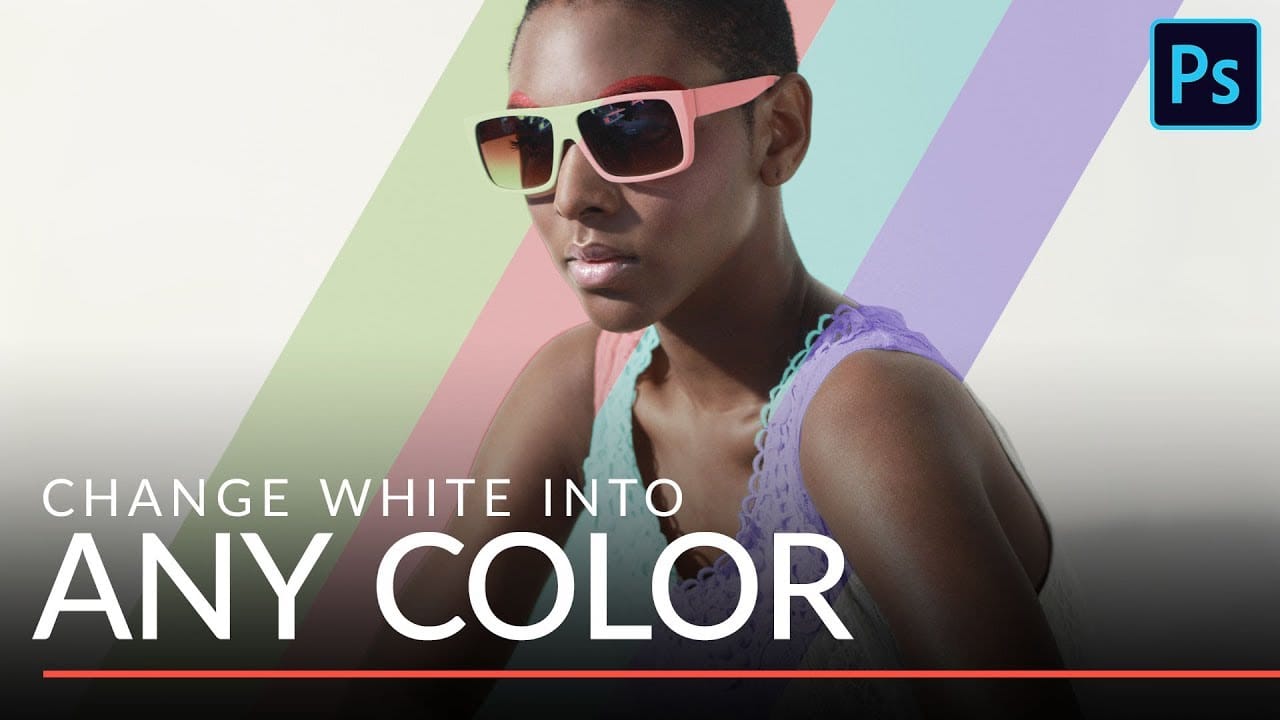
Change white into any color in Photoshop
Changing white clothing or objects to any color requires more than basic adjustment layers. White lacks the color information that standard tools need, making this a challenging task for many photographers and designers.
This technique uses channel masking combined with overlay brush techniques to create precise selections that isolate white areas perfectly. The method produces natural-looking color changes while preserving all the original texture and detail.
Watch the Video
Practical Tips
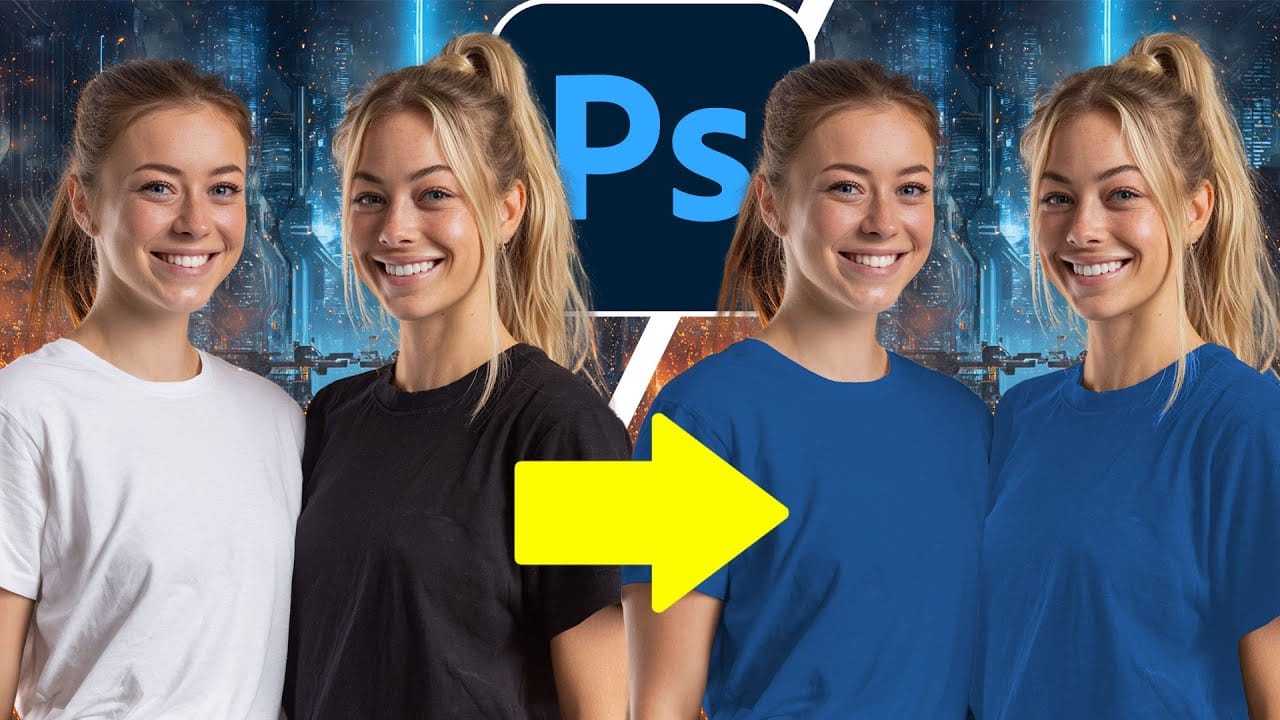
How to Change Black and White to Any Color in Photoshop
Standard color adjustment tools fail when you try to change pure black or white areas in your photos. These neutral tones lack the hue and saturation data that typical color replacement methods require.
This technique uses Hue/Saturation adjustment layers with strategic lightness modifications to transform both black and white areas into any color you need.
Watch the Tutorial
Essential Tips for Changing Black and White Colors
* Use the Object Selection tool with rectangle mode for fast
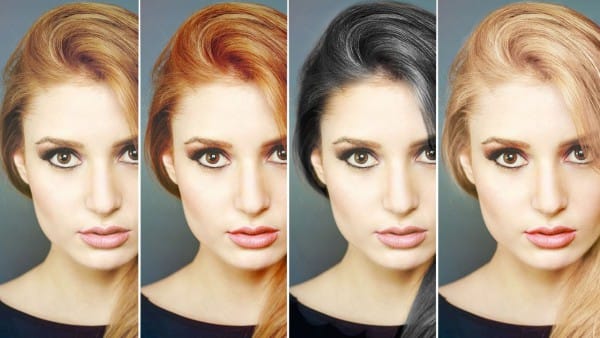
How to Change Hair Color in Photoshop
Changing hair color in Photoshop requires more than simple color adjustments. Hair contains multiple tones in highlights and shadows, and successful color changes must maintain natural-looking variations while staying within realistic color ranges.
The process becomes more complex when going from dark to light colors, as transforming black hair to blonde is nearly impossible to achieve convincingly. However, changing from light to dark or adjusting within similar tonal ranges produces excellent
Turn White into Any Color in Photoshop
In this tutorial, WebFlippy demonstrates how to effortlessly transform white areas into any color using blending modes in Photoshop. This technique is especially useful for photo retouching and product photography, allowing for versatile color adjustments without affecting the overall image quality.
The tutorial provides a straightforward approach to applying this method, ensuring that you can quickly adapt white elements to match your desired color scheme. With clear instruction
How to Change Object Colors in Photoshop Using Hue/Saturation
Changing the color of specific objects in your photos requires precision and the right technique. The key is creating an accurate selection and using a targeted adjustment layer that affects only your chosen subject while preserving the rest of the image.
This method combines the Object Selection tool with Hue/Saturation adjustment layers to achieve professional color changes. The technique works by isolating your subject with a layer mask, then using targeted color adjustments to transform hue
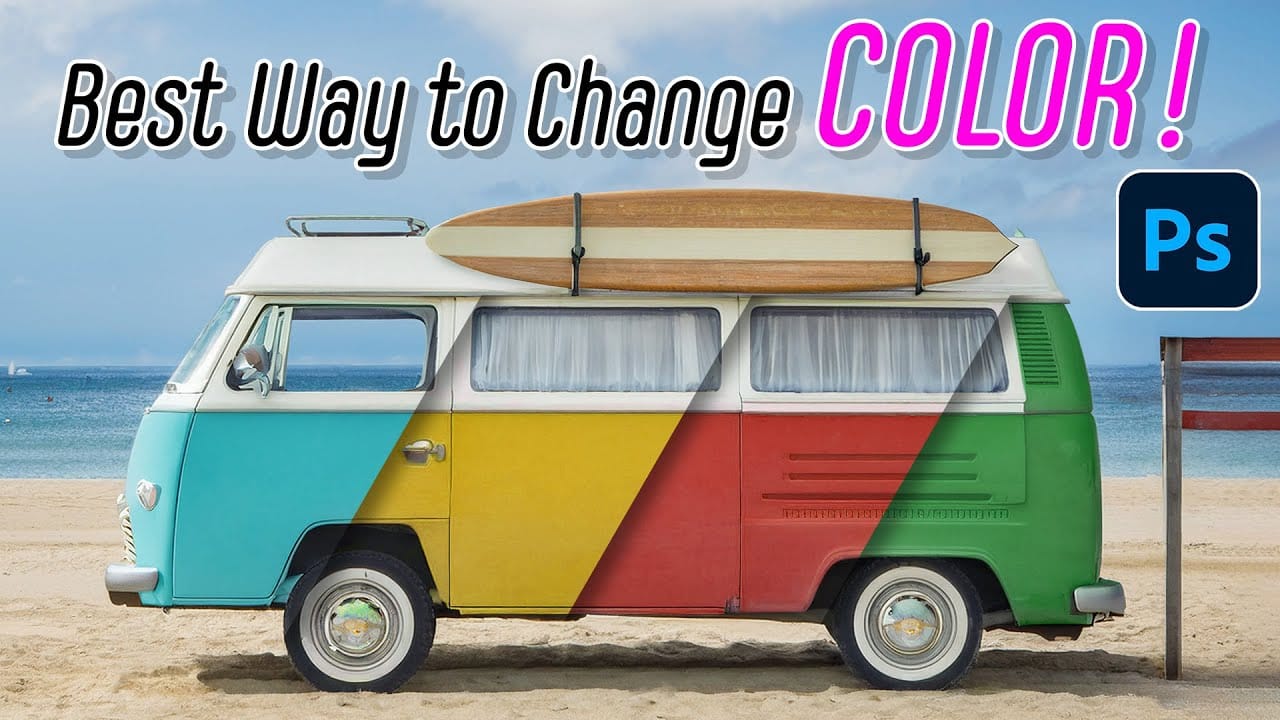
New Photoshop Feature for Changing Colors
Working on the color palette of an image is a fundamental task in photo editing, enabling designers and photographers to evoke different moods, correct imbalances, or simply reimagine visual elements. While Photoshop has long offered robust tools for color manipulation, achieving precise and natural-looking changes often required a multi-step workflow and a deep understanding of complex adjustments.
This video introduces a groundbreaking new feature in Photoshop's beta version, designed to stre
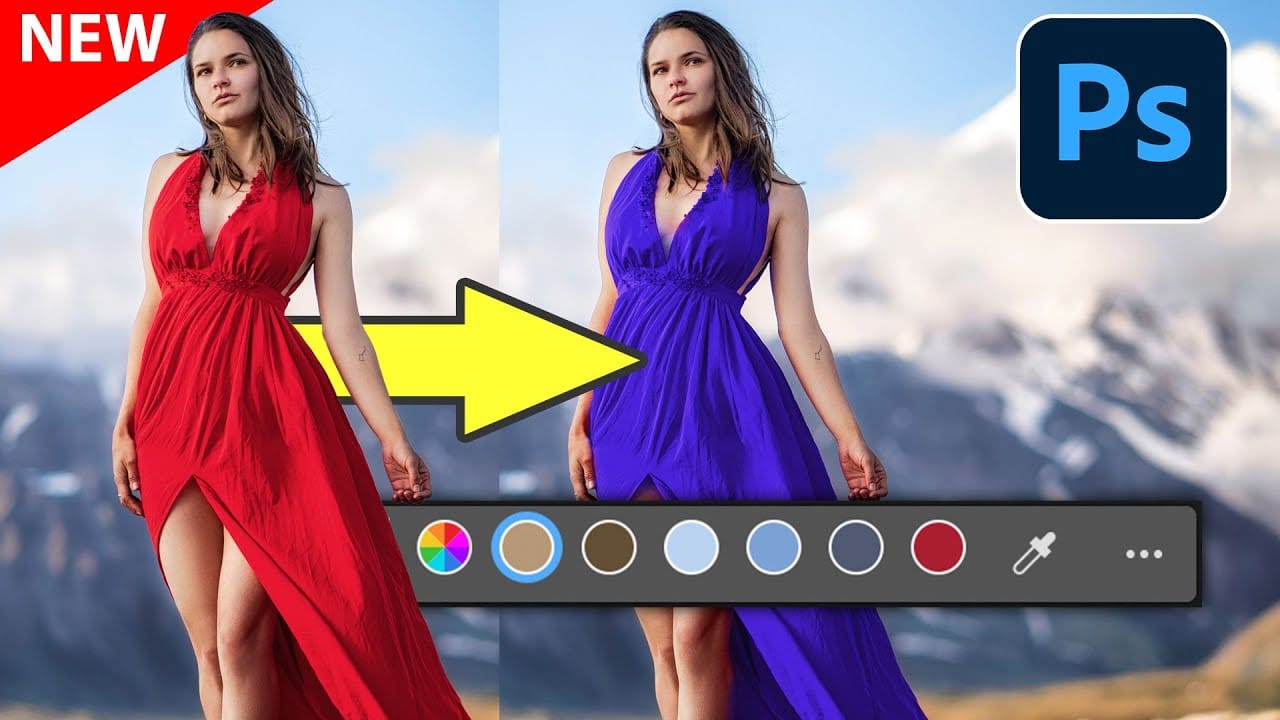
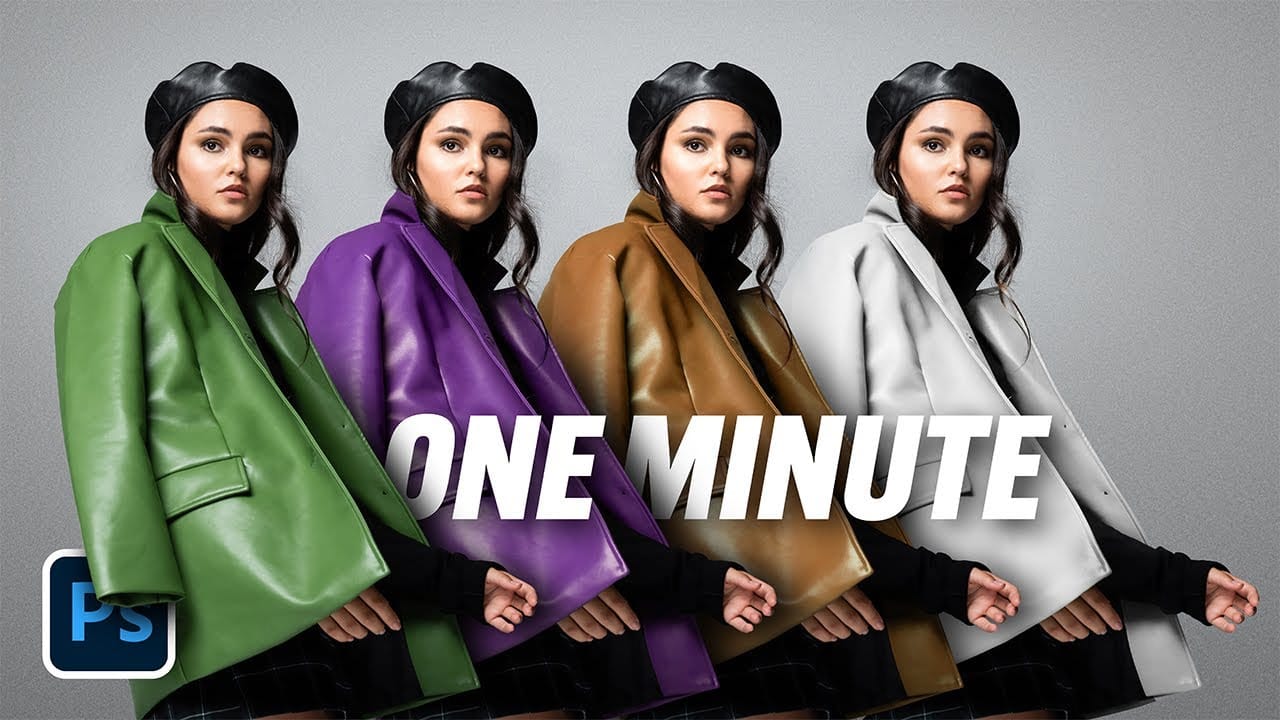
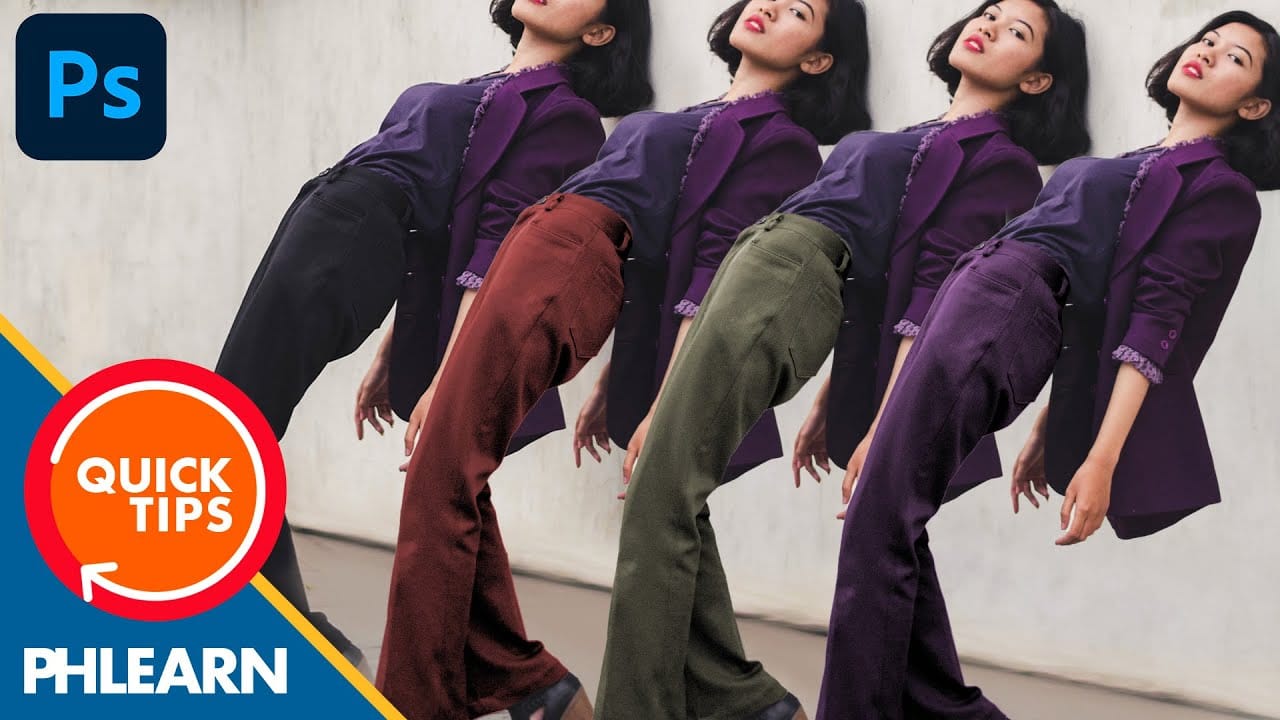
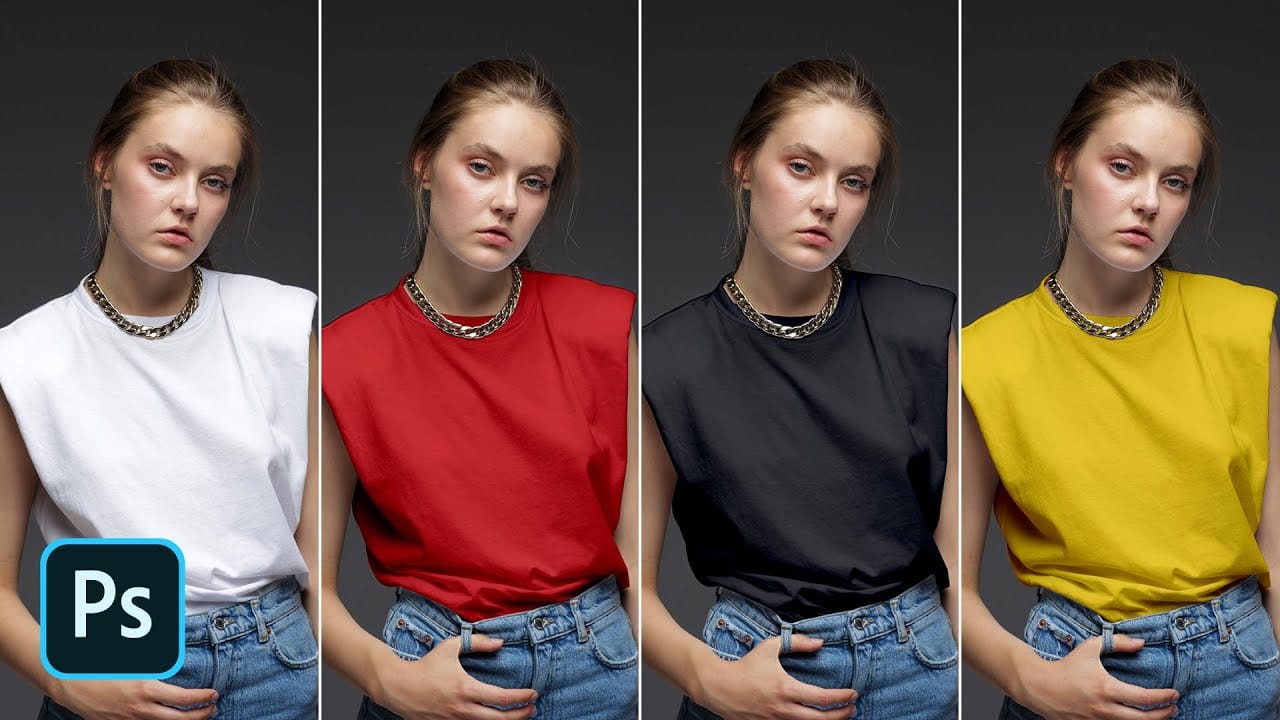
How to change the color of clothing in Photoshop
Changing clothing colors in product photos or portraits requires precise selection techniques and the right adjustment layers to achieve realistic results. Standard color replacement methods often fall short when creating convincing black or white clothing, which demand special attention to highlights and shadows.
This method combines selection tools with dual adjustment layers to control both color and contrast, ensuring your color changes look natural and professional across any fabric type.