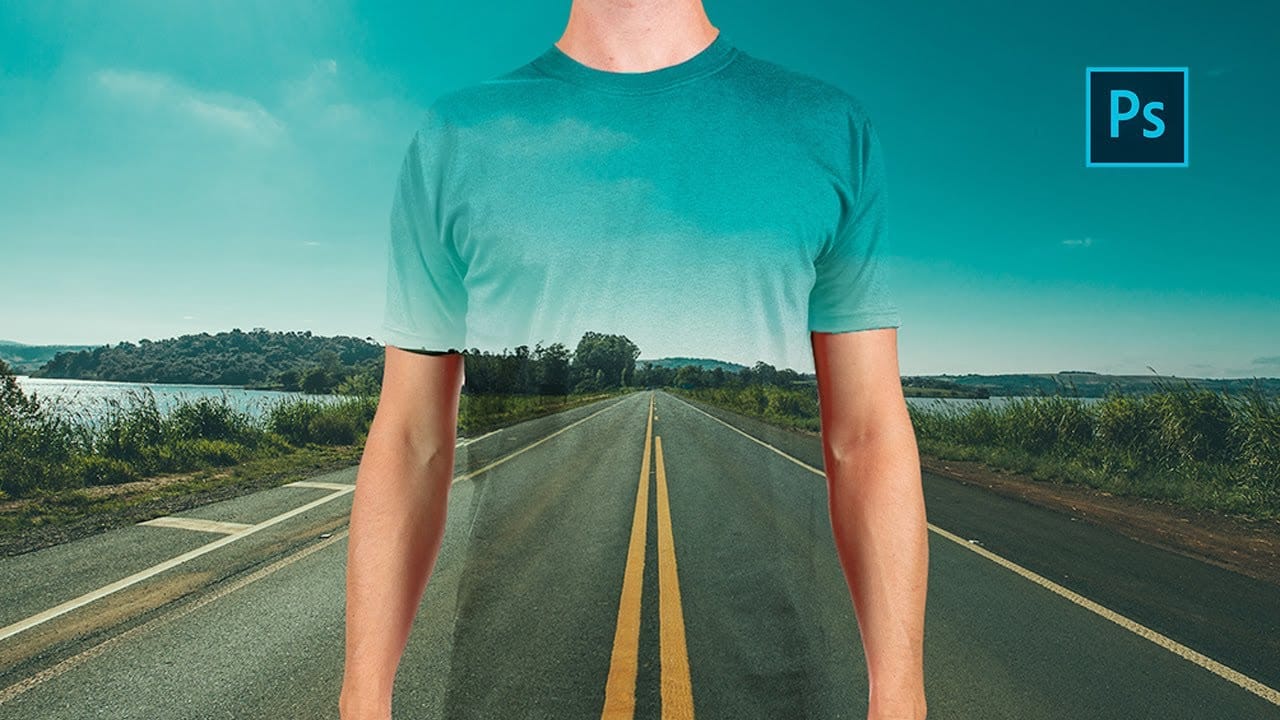
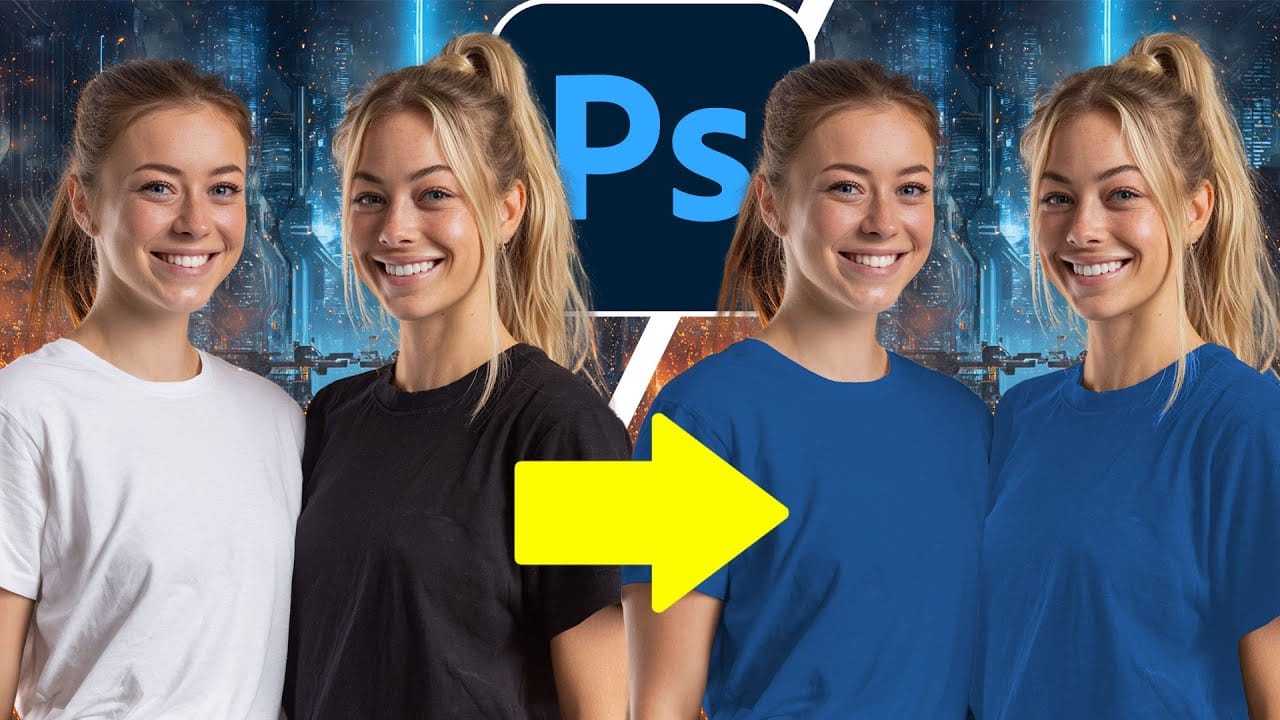
Changing clothing colors in product photos or portraits requires precise selection techniques and the right adjustment layers to achieve realistic results. Standard color replacement methods often fall short when creating convincing black or white clothing, which demand special attention to highlights and shadows.
This method combines selection tools with dual adjustment layers to control both color and contrast, ensuring your color changes look natural and professional across any fabric type.
Watch the Video
Practical Tips
These essential techniques will help you achieve professional clothing color changes with realistic results.
- Use Select Subject first, then refine your selection by painting black on the layer mask to exclude skin, hair, and unwanted areas
- Create a group with both Hue/Saturation and Curves adjustment layers to share the same mask and maintain consistent editing
- Enable the Colorize option in Hue/Saturation and avoid dragging lightness to extremes for more natural color transitions
- For realistic black clothing, use moderate lightness settings combined with Curves to darken shadows while preserving highlights
- When creating white clothing, use the opposite approach: moderate lightness in Hue/Saturation with Curves to brighten highlights and lift shadows
Related Articles and Tutorials
Explore more color changing techniques for different scenarios and challenging color transformations.
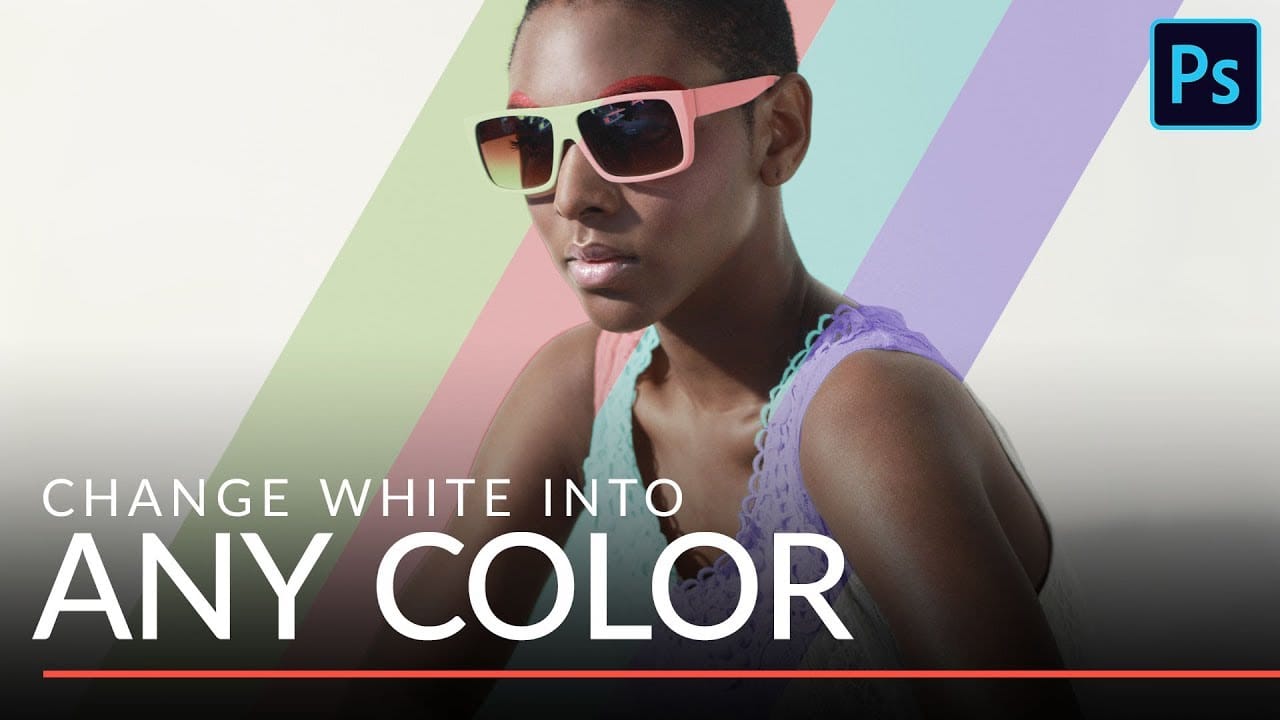
Change white into any color in Photoshop
In this tutorial Aaron Nace from Phlearn, will show you how to make insanely accurate selections and use them to change white clothes and a white background into any color that you want. This incredibly versatile technique will allow you to change any white elements in an image to any other color.
You will learn how to make extremely accurate selections using Channels and then how to use those selections in combination with a Hue/Saturation Adjustment Layer to replace any color that you want.
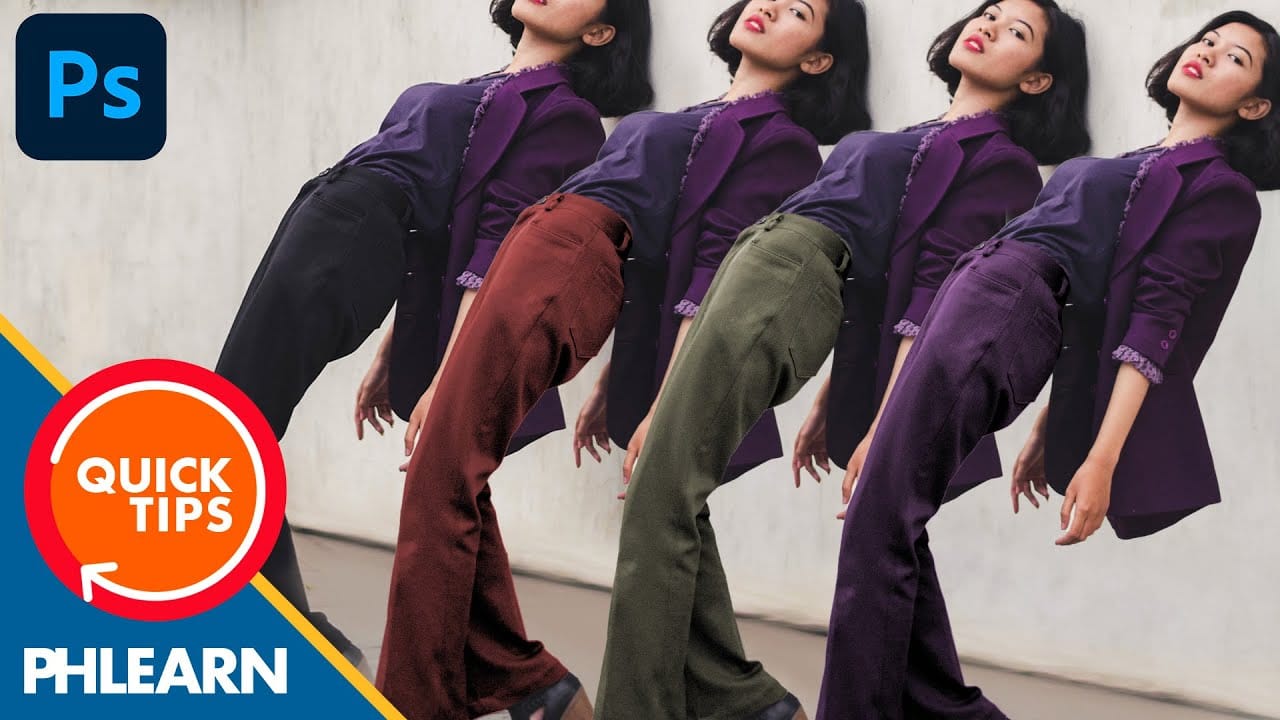
How to Change Black into Any Color in Photoshop
In this tutorial, Aaron Nace demonstrates how to transform black elements in your images into any color using Photoshop. This technique involves utilizing Levels and Hue/Saturation Adjustment Layers to achieve the desired color changes.
Aaron guides you through the process of adjusting these settings to effectively modify black areas in your photos. This method is particularly useful for fashion and product photo retouching, allowing you to customize colors for creative or branding purposes.
T
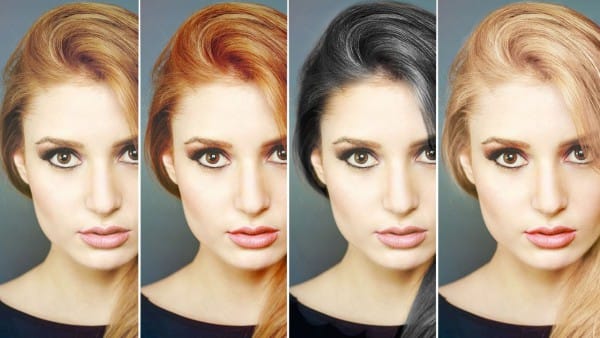
How to Change Hair Color in Photoshop
There are many reasons why you may want to change hair color in Photoshop. Perhaps your subject has recently dyed their hair and it doesn't look natural. Perhaps you want to see what you would look like with dark hair.
Changing Hair color in Photoshop is much easier than doing it in real life and by the time this tutorial is over you will be on your way to color city!
It is much easier to make hair dark than light. If you are starting out with a blonde and want to make her a brunette, not too
How to Change Black and White to Any Color in Photoshop
Standard color adjustment tools fail when you try to change pure black or white elements in your photos. These neutral tones lack the hue and saturation data that typical color replacement methods require.
This technique uses Hue/Saturation adjustment layers with strategic lightness modifications to transform both black and white areas into any color you need.
Watch the Tutorial
Essential Tips for Changing Black and White Colors
* Use the Object Selection tool with rectangle mode for fast
The easiest way to change any color in Photoshop
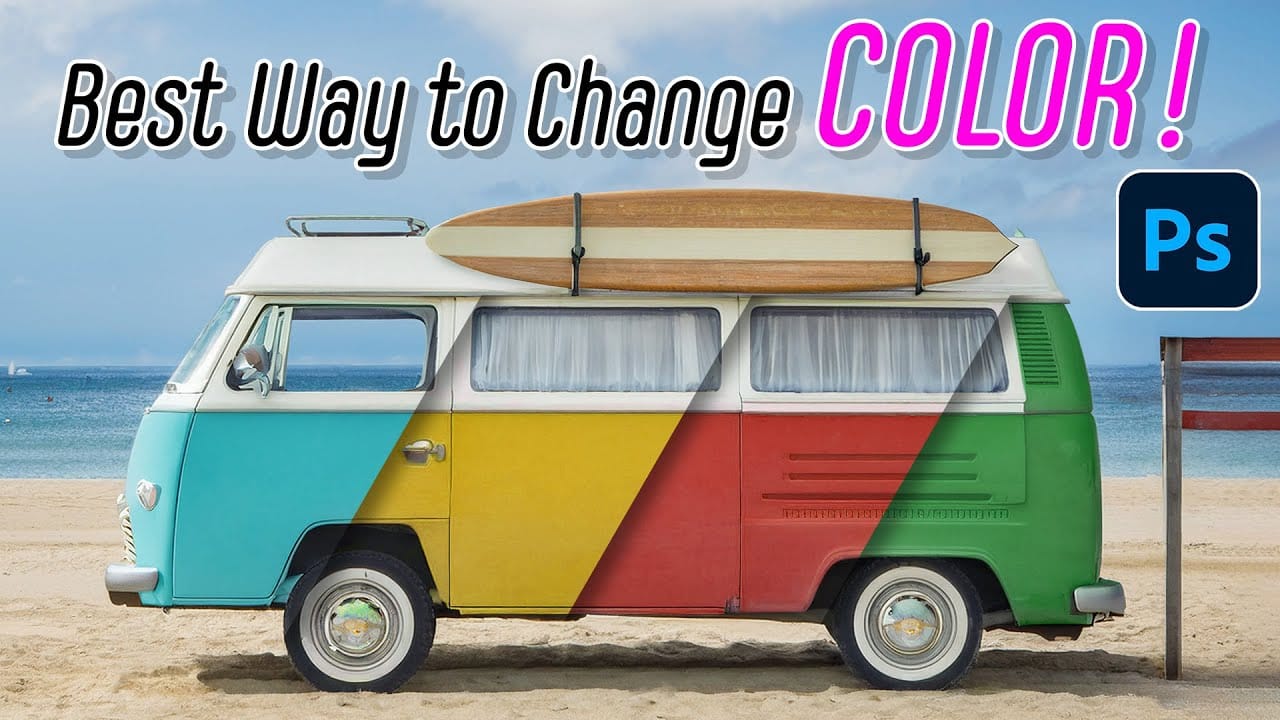
Changing the color of specific elements within an image can often be a frustrating challenge for designers and photographers. Achieving a precise color shift without affecting surrounding areas, or dealing with complex selections, often leads to a time-consuming and imperfect process.
This guide introduces a highly efficient method utilizing Photoshop's latest updates, specifically the "Adjust Colors" feature found in the contextual taskbar. This technique simplifies accurate color manipulation
How to Change Object Colors in Photoshop Using Hue/Saturation
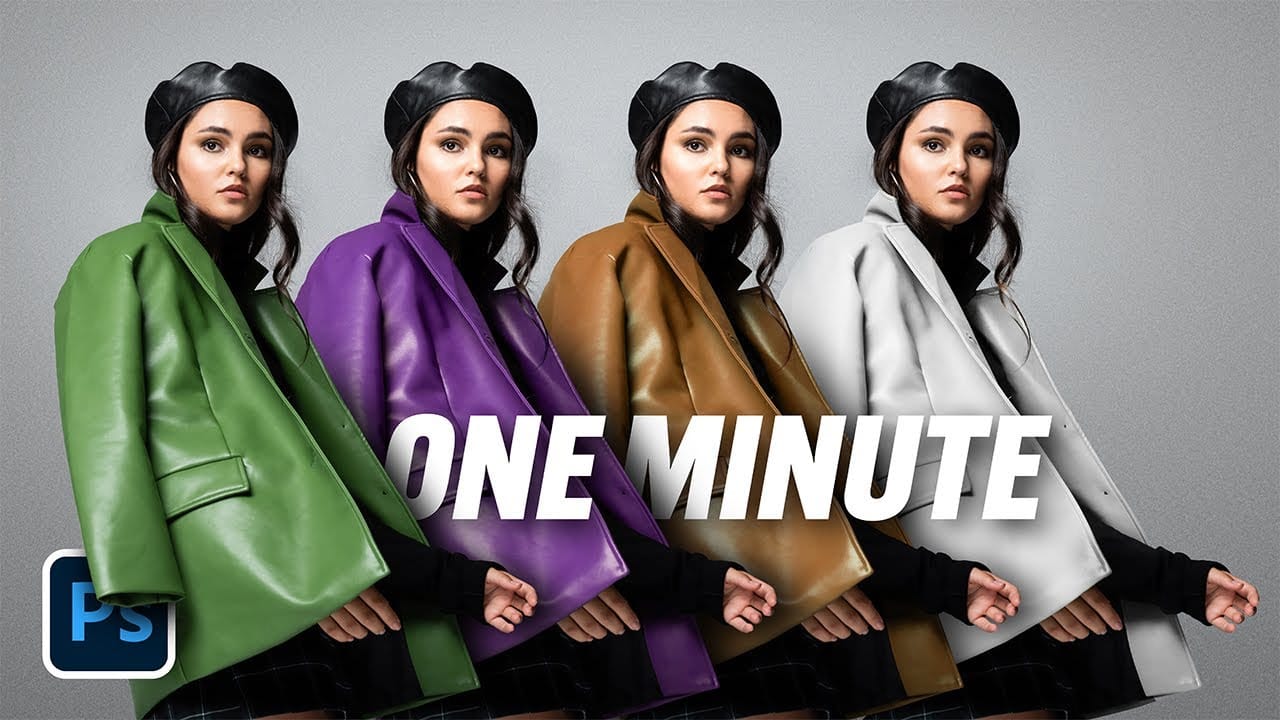
Changing the color of specific objects in your photos requires precision and the right technique. The key is creating an accurate selection and using a targeted adjustment layer that affects only your chosen subject while preserving the rest of the image.
This method combines the Object Selection tool with Hue/Saturation adjustment layers to achieve professional color changes. The technique works by isolating your subject with a layer mask, then using targeted color adjustments to transform hue
How to make colors pop in Photoshop
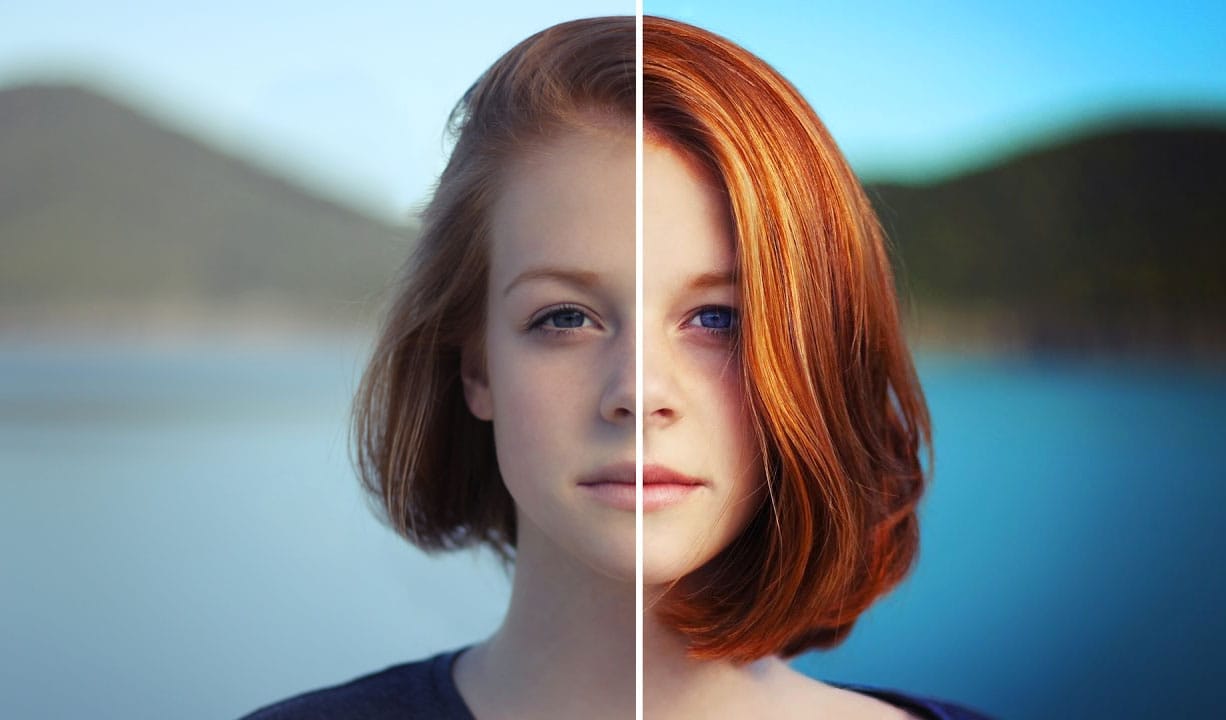
Selective color enhancement transforms dull photographs into vibrant, dramatic images by targeting specific areas like hair, skin, eyes, and clothing. This non-destructive approach uses precise selections and adjustment layers to boost colors naturally.
The technique creates professional results by treating each element separately, allowing you to enhance blue sweaters, brighten eyes, warm skin tones, and intensify hair colors without affecting the entire image.
Watch the Tutorial
Practical
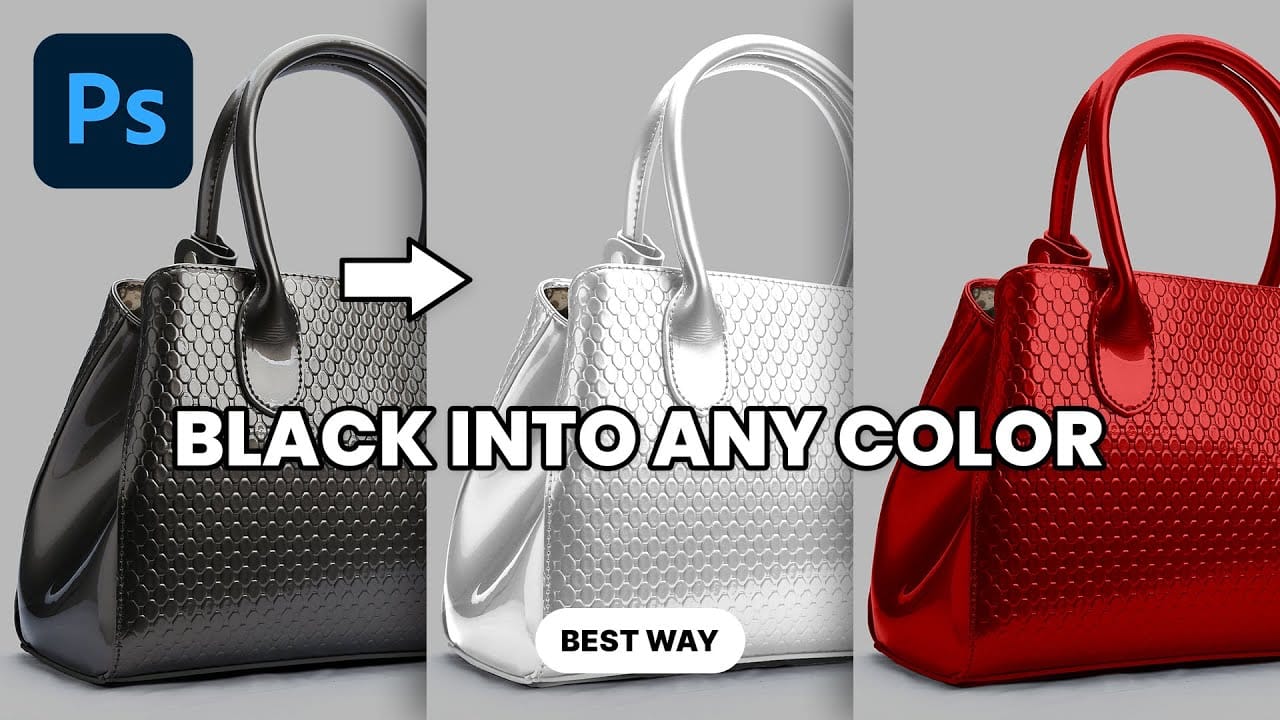
Transform Black to Any Color in Photoshop, Including White: Best Method
Changing the color of a black object in Photoshop can be a surprisingly frustrating task. Standard color adjustment tools often fail because pure black contains no hue or saturation data to manipulate, leaving designers and retouchers searching for a more effective solution.
This tutorial demonstrates a powerful and flexible method for recoloring black objects, allowing you to turn them into any color you choose—even solid white. By learning this non-destructive technique, you can gain precise
Create a transparent clothes effect in Photoshop
In this Photoshop tutorial you will to achieve a camouflage photo effect where we make t shirt look transparent. It's a super simple tutorial, quite easy for beginners to learn some things.
We will cut out the background and and than separate t-shirt from body and will change the blending mode to make it mix with background. The real trick is to make t-shirt black and white before making it transparent so we don't have any trouble with miss matching colors. Also we will use displacement map, wh