New Reflection Removal Tool in Photoshop

New Reflection Removal Tool in Photoshop

Capturing the perfect shot often means battling environmental challenges, and few are as persistent as unwanted reflections in windows or glass. These glare points can obscure subjects, distort details, and fundamentally compromise an image's impact.

Fortunately, Photoshop has introduced a new AI-powered feature designed to tackle this common photographic issue. This video demonstrates how to activate and effectively use this tool, showcasing its capabilities and outlining crucial workflow considerations for optimal results.

See the Tool in Action

Video by PiXimperfect. Any links or downloads mentioned by the creator are available only on YouTube

The Role of AI in Advanced Image Correction

Artificial intelligence plays an increasingly pivotal role in modern photo editing, extending beyond creative generation to sophisticated image correction. Tools like Photoshop's new reflection removal feature exemplify analytical AI, which is trained on vast datasets to identify and address specific visual anomalies without fabricating new content.

This AI model distinguishes reflections from the true underlying scene by analyzing patterns, light, and depth within thousands of images. Unlike generative AI, which creates novel elements, analytical AI focuses on intelligently refining existing pixel data to achieve a more accurate and visually coherent representation of the original subject.

This capability allows photographers to salvage images previously deemed unusable due to distracting glare, opening new possibilities for capturing moments through windows or glass barriers with greater clarity and detail.

Using the Reflection Removal Tool Effectively

  • Ensure your Camera Raw version is 17.1 or later to access this feature.
  • Activate the "New AI features and settings panel" in the Technology Previews section of Camera Raw preferences.
  • Apply reflection removal as the initial step in your editing workflow, before any color grading, contrast adjustments, or other corrections.
  • Note that the tool currently supports raw formats, with future updates planned to include JPEG and other non-raw formats.
  • Understand the tool's current limitations: it performs best on large reflection areas and flat surfaces, potentially struggling with complex reflections, non-flat surfaces (like car bodies), or small glares (such as eyeglasses).

Explore more techniques and tools to refine your images and overcome common photographic challenges.
The easy background remover tool hidden in Photoshop!
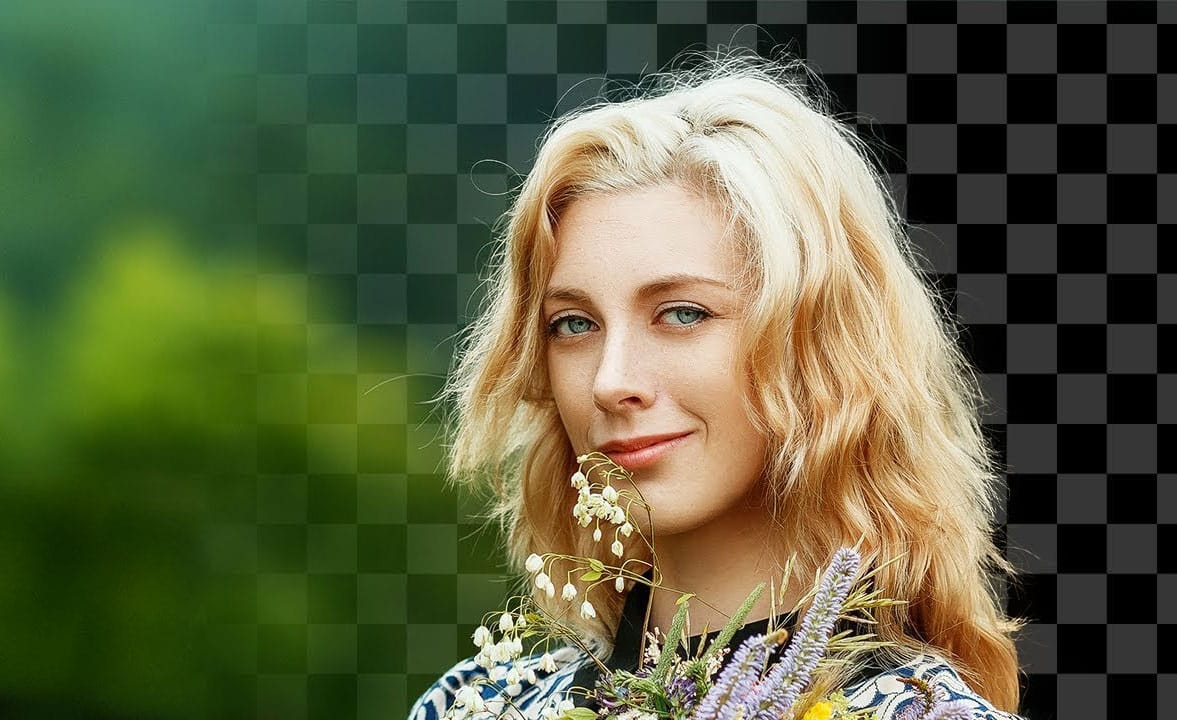
In this Photoshop tutorial, PiXimperfect shares their insights on the amazing power of the Background Eraser tool. Viewers will learn how to easily cut out hair or complex edges using this versatile tool, as well as the best settings for various situations. The tutorial also covers how to make the Background Eraser tool completely non-destructive. This allows users to change the background or make it transparent without permanently altering the original image. Whether you want to remove the bac
Photoshop’s Remove Tool is Broken—What Now?
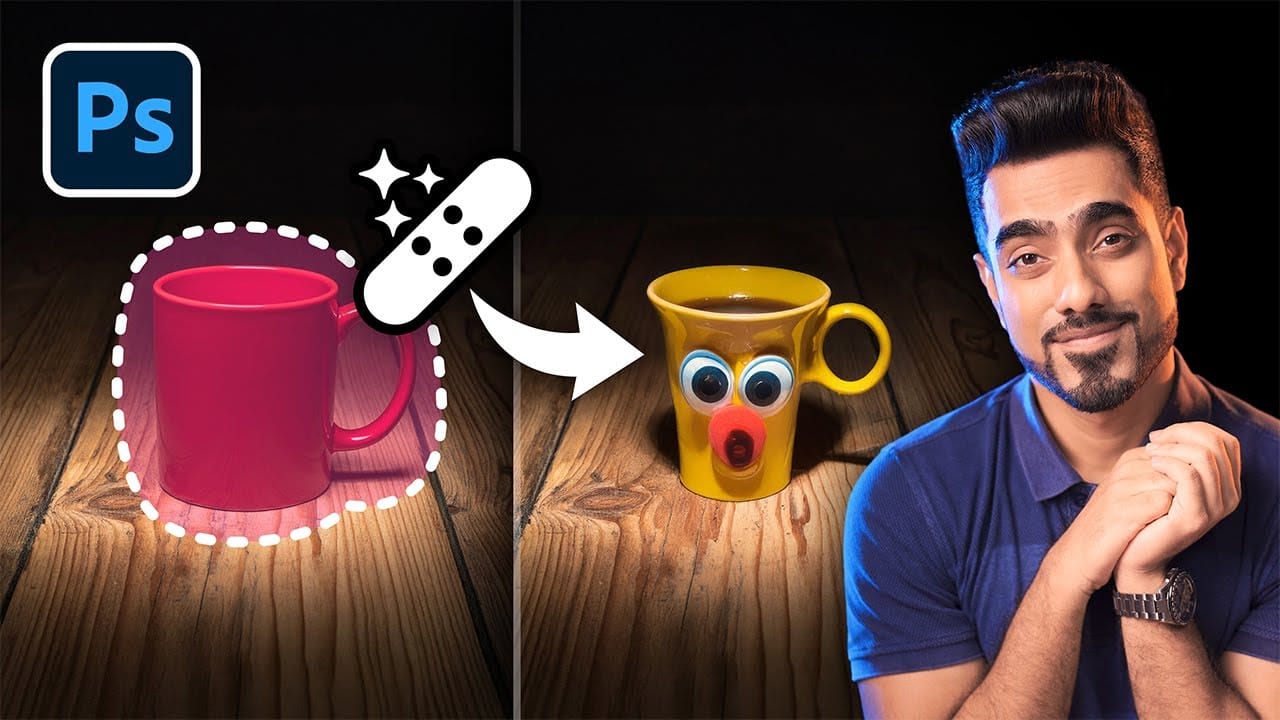
Object removal is a fundamental task in photo editing, but AI-powered tools can sometimes produce unpredictable results. It can be frustrating when a tool designed to remove an object instead replaces it with another unwanted element, disrupting your workflow and requiring extra steps to correct. This tutorial demonstrates how recent updates to the Remove Tool in Photoshop Beta solve these common issues. You will learn how to access the improved tool, use a new selection-based workflow for more
How to make epic reflections in Photoshop
This tutorial will teach you techniques to create captivating reflections and lifelike puddles in Photoshop. Renowned expert Colin Smith will guide you through the process, ensuring your images and designs achieve a heightened sense of realism and visual impact. You'll learn tips and strategies to craft reflections that seamlessly blend with your photographic elements or design compositions, whether replicating the surface of a lake, the facade of a skyscraper, or the rippling effect of a puddl
Create a mirror image photo effect in Photoshop
Symmetry is all around us in nature, and as human beings, we can’t get enough of it. Symmetry brings math, science and art together in a way that captures both our eye and our imagination. The most basic form of symmetry is Reflection Symmetry, also known as Mirror Symmetry, where one half of something is a perfect mirror reflection of the other half. In this video from Photoshop Essentials, Steve Patterson shows us how to take our natural fascination with symmetry and apply it to any image in

Get tutorials & freebies delivered to you.

Subscribe to the Photoshop Roadmap newsletter, a weekly roundup of new tutorials, insights and quality downloads, trusted by 6500+ readers.

You might also like

How to Use Color Average for Color Toning in Photoshop

Color average creates a unified color tone by analyzing all the colors in your image and calculating their mathematical average. This technique adds depth and cohesion to photos, composites, and AI-generated images by applying a subtle color wash that ties all elements together. The method works particularly well for composites...

How to Remove Complex Background Elements Using AI in Photoshop

Removing complex background elements like fencing or wire mesh has traditionally been one of the most time-consuming tasks in photo editing. New AI-powered tools in Photoshop can now eliminate these distracting elements while preserving fine details in your subject. This tutorial demonstrates two practical workflows: one using the latest Firefly...

How to Use Photoshop's Auto Layer Rename Feature

Messy layer names like "Layer 52 copy 4" and "Untitled 5" clutter your workspace and slow down complex projects. Photoshop's new auto-rename feature uses AI to automatically identify and name layers based on their content, from "Woman in yellow shirt" to "...

New Generative Fill Features in Photoshop Beta: Reference Images and Credit Tracking

Photoshop Beta introduces significant improvements to Generative Fill that address the most requested features from users. The updated interface now displays your generative credit balance and usage, while the new reference image capability lets you add up to eight specific images to guide AI generation with precise visual examples. These...

Essential Photoshop Tools for Beginners: Brush, Crop, and Move Tool Tutorial

Learning Photoshop tools feels overwhelming when you don't know where to start. This tutorial focuses on three essential tools that form the foundation of most Photoshop work: the brush tool for painting and retouching, the crop tool for resizing and straightening images, and the move tool for positioning...

How to Add Custom Textures to Photos in Photoshop

Adding textures to photographs can transform ordinary images into compelling artistic compositions. This technique uses multiple texture layers combined with strategic blending modes and color adjustments to create depth and visual interest. The process involves layering different texture types—color overlays, surface patterns, and lighting effects—then using masking techniques...

You’ve successfully subscribed to Photoshop Roadmap
Welcome back! You’ve successfully signed in.
Great! You’ve successfully signed up.
Success! Your email is updated.
Your link has expired
Success! Check your email for magic link to sign-in.