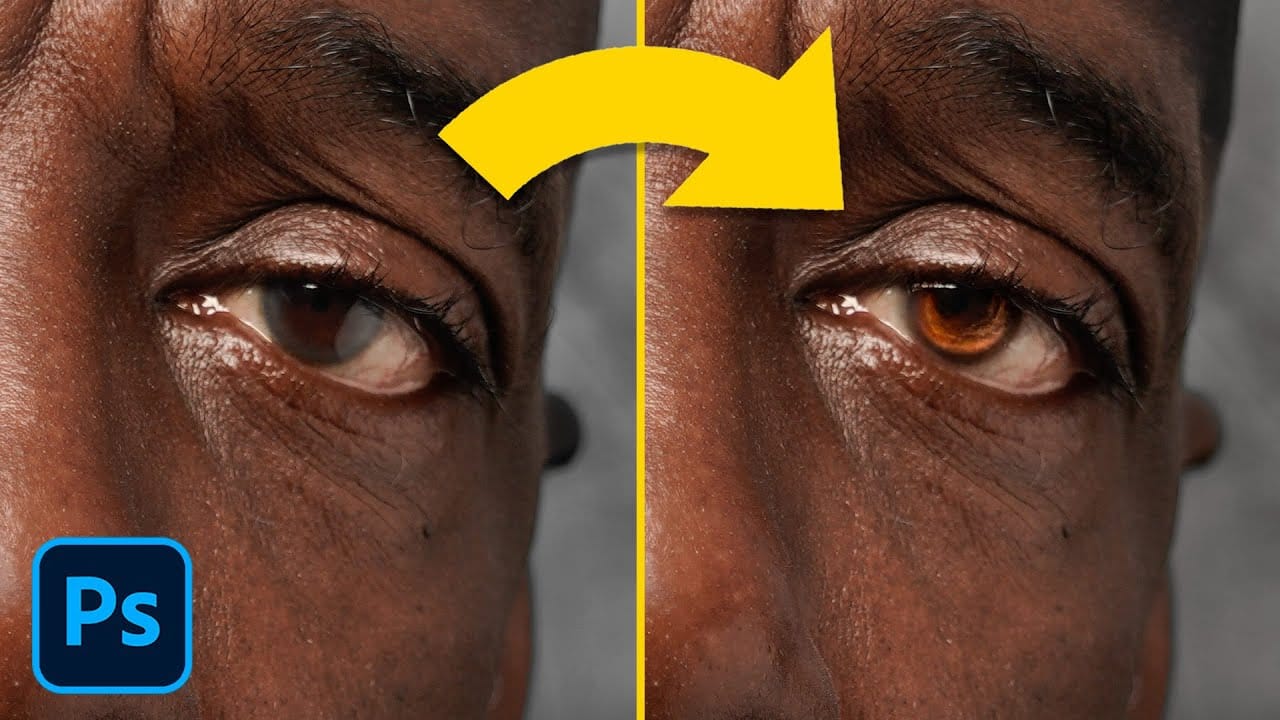
Eyeglass glare can ruin an otherwise perfect portrait, obscuring the subject's eyes with bright reflections. Photoshop's AI tools now offer powerful solutions for removing even the most stubborn reflections while preserving natural eye details.
This tutorial demonstrates proven techniques using multiple AI models and strategic masking to tackle any glare situation professionally.
Watch the Tutorial
Video by PiXimperfect. Any links or downloads mentioned by the creator are available only on YouTube
Essential Tips for Removing Glare with AI
- Use the Rectangular Marquee Tool for selections instead of custom shapes, as AI generates rectangular areas and provides better results with extra breathing room
- Choose Flux model with the prompt "remove the reflections from the glasses" for minor glare where eyes are partially visible
- Switch to Gemini 2.5 model with "remove the glasses altogether" prompt for severe glare that completely covers the eyes
- Work on one lens at a time for larger images to maintain resolution quality and avoid degradation
- Create negative masks using Alt+mask button, then paint with white brush only where changes are needed to preserve original edges and natural appearance
More Tutorials About Removing Reflections and Glare
Explore additional techniques for handling challenging reflection scenarios in portraits.
How to Professionally Remove Glare from Eyeglasses in Photoshop
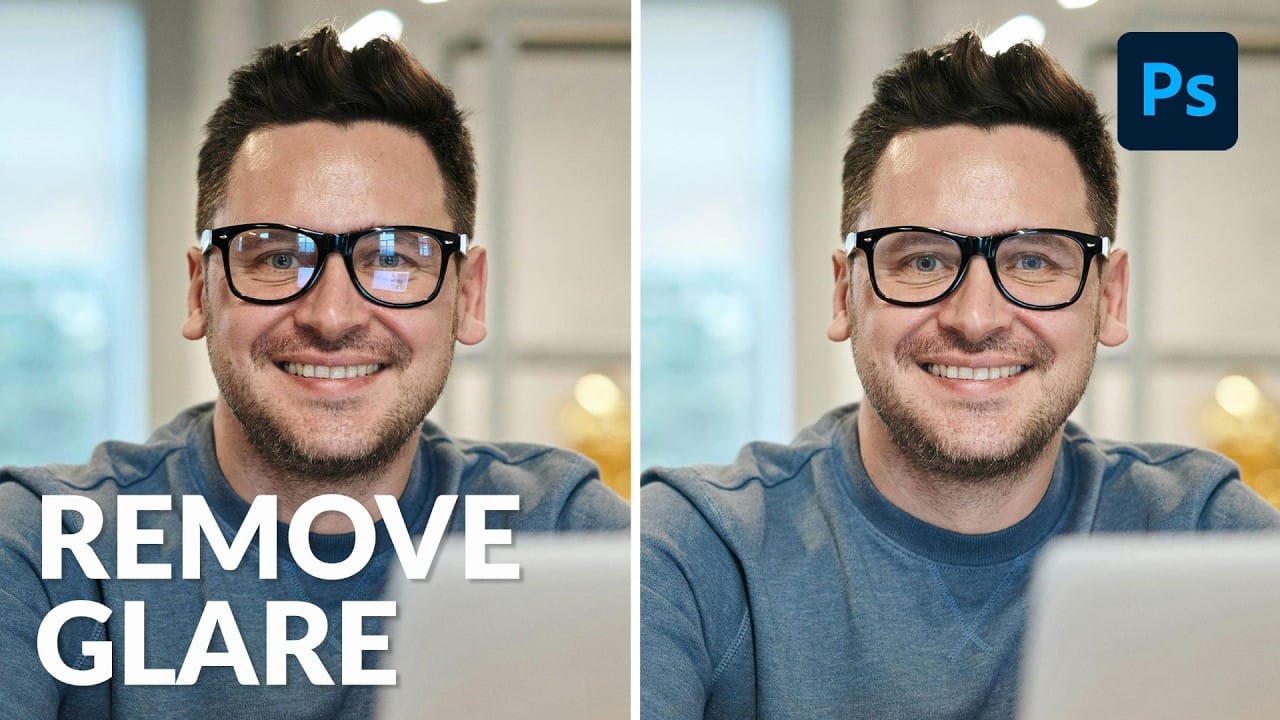
Glare on eyeglasses is a persistent and frustrating problem in photography, often obscuring the subject's eyes and facial features. This common issue can detract from an otherwise perfectly composed portrait, making it appear unprofessional or distracting due to bright reflections.
This tutorial demonstrates a robust hybrid approach to tackling eyeglass glare in Photoshop, combining the efficiency of AI-powered Generative Fill for minor touch-ups with the precision of the classic Clone Stamp to
New Reflection Removal Tool in Photoshop
Capturing the perfect shot often means battling environmental challenges, and few are as persistent as unwanted reflections in windows or glass. These glare points can obscure subjects, distort details, and fundamentally compromise an image's impact.
Fortunately, Photoshop has introduced a new AI-powered feature designed to tackle this common photographic issue. This video demonstrates how to activate and effectively use this tool, showcasing its capabilities and outlining crucial workflow cons

New Photoshop AI Features – Smarter, Faster, and More Efficient Tools!
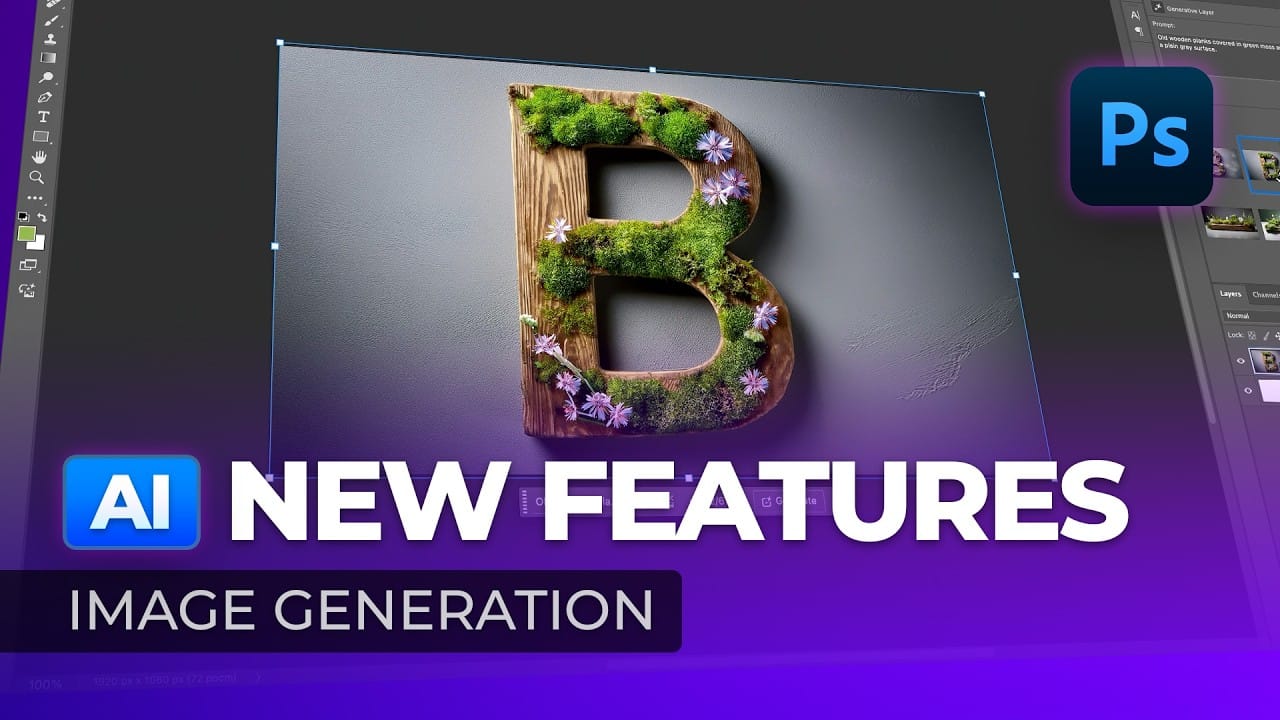
Editing detailed selections, adjusting colors, and removing backgrounds in Photoshop can be tedious, especially when working with complex edges like hair or challenging objects. Manual work often stalls creative flow and makes it tough to achieve clean, professional results on tight deadlines.
This article introduces essential, time-saving features in the latest Photoshop update—including advanced AI-powered selection, color, and removal tools. Learn how these updates streamline everyday editin
How to Enhance Dark Eyes in Photoshop Using Traditional and AI Techniques
Portrait photographers often face the challenge of completely dark, featureless eyes that resist traditional brightening techniques. When standard exposure adjustments fail to reveal detail, specialized methods can restore life and interest to these challenging areas.
This tutorial demonstrates two powerful approaches: a traditional texture-building technique using Photoshop's classic tools, and a modern AI-powered method that generates realistic iris patterns.
Watch the Tutorial
Essential