Portrait photographers often face the challenge of completely dark, featureless eyes that resist traditional brightening techniques. When standard exposure adjustments fail to reveal detail, specialized methods can restore life and interest to these challenging areas.
This tutorial demonstrates two powerful approaches: a traditional texture-building technique using Photoshop's classic tools, and a modern AI-powered method that generates realistic iris patterns.
Watch the Tutorial
Video by Glyn Dewis. Any links or downloads mentioned by the creator are available only on YouTube
Essential Tips for Eye Enhancement
- Create circular selections that leave a dark border around the iris edge to maintain natural eye depth and contrast
- Use 25-26% noise amount for high-resolution images, then apply radial blur on zoom mode at 11-12 intensity for realistic texture
- Set blend mode to Hard Light and reduce opacity to 70-80% for subtle, believable eye texture enhancement
- When using AI generative fill, try "brown iris identification pattern" for better ethnicity-matched results instead of generic terms
- Follow AI enhancement with Camera Raw masking to add exposure, texture, and clarity for maximum eye impact
More Tutorials about AI-Enhanced Photo Editing
Explore additional AI-powered Photoshop techniques and traditional enhancement methods.
How to Use Photoshop's New AI-Powered Actions Panel
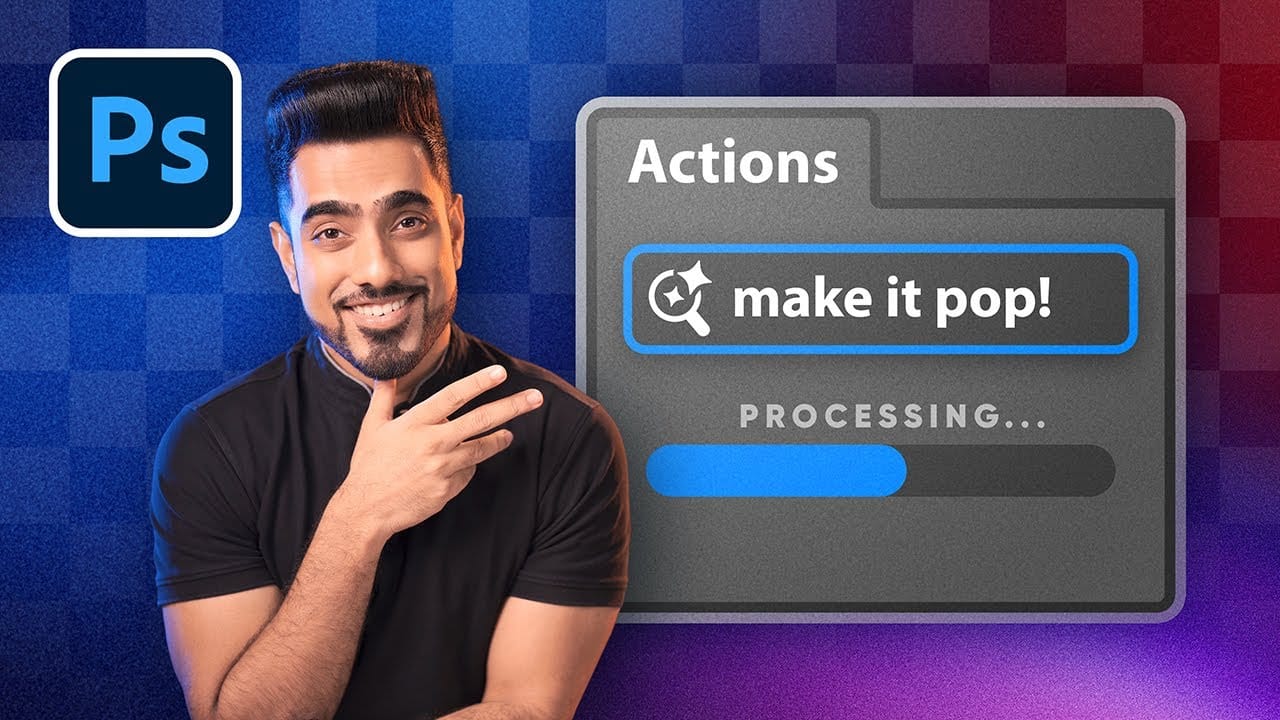
Photoshop's actions just became significantly smarter with AI integration. The new Actions panel understands natural language searches, automatically suggests relevant effects based on your image content, and provides live previews before you commit to changes.
This revolutionary update transforms how designers work with automated processes. Instead of browsing through countless preset names, you can simply type "make it pop" or "remove haze" and watch AI deliver exactly what you need.
Watch
Using Photoshop's New Generative Upscale Tool
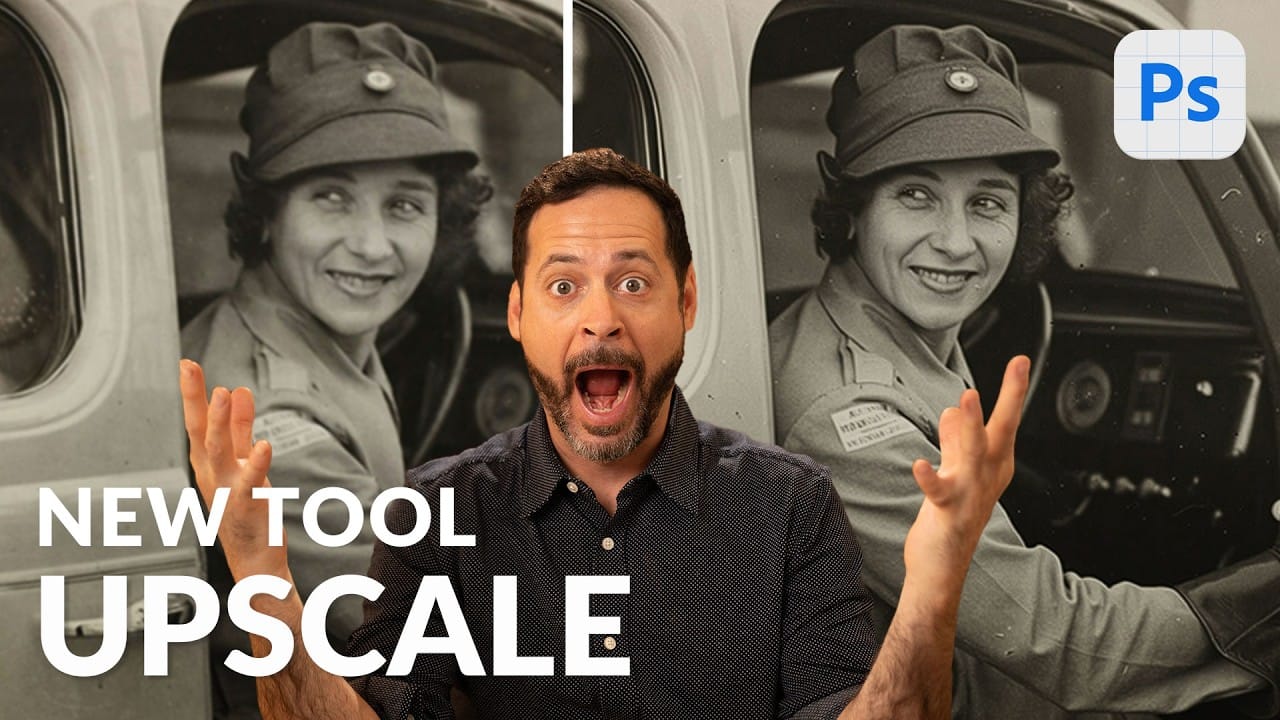
Old family photos often hold irreplaceable memories, but their small size and low resolution make them difficult to print or display properly. These cherished images deserve better than pixelated enlargements that lose all their detail and emotional impact.
Photoshop's new AI-powered Generative Upscale tool changes this completely. This beta feature can transform tiny, low-resolution images into crisp, printable photographs using artificial intelligence—all with a single click.
Watch the Tuto
Generative AI: A new era of Photoshop begins
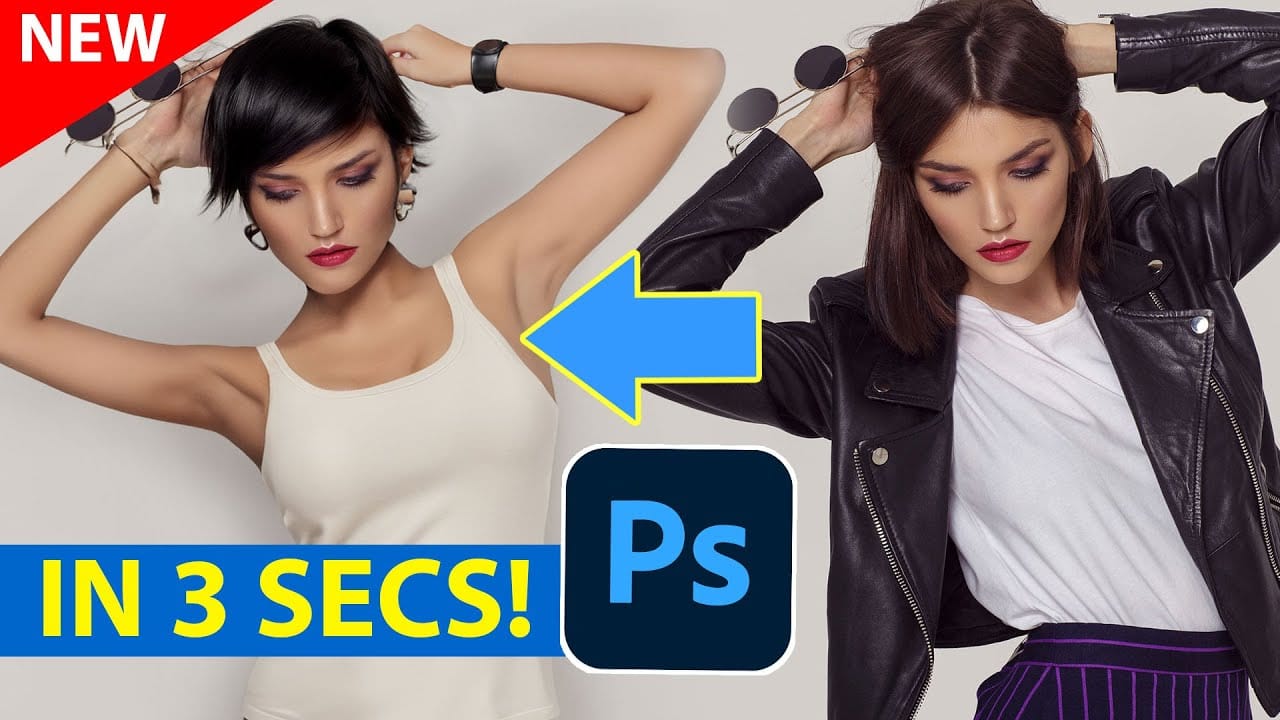
Generative AI has made its way into the world of Photoshop, and in this fascinating video, Colin Smith from Photoshop Cafe explores its transformative capabilities.
Generative AI is an incredible technology that's transforming the world of artificial intelligence. It's like having a creative companion that can generate all sorts of new content, from stunning images to captivating music and even imaginative stories. With its advanced algorithms and neural networks, generative AI brings a touch o
7 Photoshop Tools Replaced by AI: Are They Still Relevant?
Adobe's integration of AI-powered features has fundamentally changed how photographers and designers approach common editing tasks. From reflection removal to noise reduction, many traditional Photoshop tools now have AI counterparts that promise faster results with minimal manual work.
This video demonstrates how seven classic Photoshop tools compare against their AI replacements, showing practical examples of when the new technology excels and when traditional methods still hold their ground.