Using Photoshop's New Generative Upscale Tool

Using Photoshop's New Generative Upscale Tool

Old family photos often hold irreplaceable memories, but their small size and low resolution make them difficult to print or display properly. These cherished images deserve better than pixelated enlargements that lose all their detail and emotional impact.

Photoshop's new AI-powered Generative Upscale tool changes this completely. This beta feature can transform tiny, low-resolution images into crisp, printable photographs using artificial intelligence—all with a single click.

Watch the Tutorial

Video by PHLEARN. Any links or downloads mentioned by the creator are available only on YouTube

The Technology Behind AI Image Upscaling

Traditional image enlargement simply stretches existing pixels, creating blurry, pixelated results. AI upscaling works fundamentally differently by analyzing the original image and reconstructing it entirely using machine learning models trained on millions of high-quality images.

This process involves sophisticated pattern recognition that identifies features like faces, textures, and edges. The AI then generates new pixel data that maintains visual coherence while adding realistic detail. The result isn't just a bigger version of your original—it's essentially a new image that preserves the essential characteristics while improving overall quality.

However, this reconstruction approach means subtle details may change slightly. Reflections might disappear, facial features could shift marginally, and fine textures may be interpreted differently than the original photographer captured.

Practical Tips for Generative Upscaling

  • Start with smaller images: The beta version has size limitations (4,096 pixels maximum), so you may need to reduce your image size before upscaling
  • Check the details carefully: Compare before and after results at 100% zoom to ensure important details haven't changed unacceptably
  • Use 4x scaling strategically: Maximum upscaling works best for images that will be printed rather than viewed digitally at high magnification
  • Consider the subject matter: The tool works exceptionally well on landscapes and objects, with slight variations more noticeable on human faces
  • Remember generative credits: Each upscale uses AI credits, so plan your usage accordingly

Explore more AI-powered features that are transforming digital image editing.

Photoshop Beta: Exploring the New Generative Workspace
This Photoshop tutorial focuses on blending graphics with portrait photography to create striking visuals. You will learn how to use the Super Zoom feature, which allows you to upscale graphics while maintaining their resolution. This is particularly useful for achieving high-quality results in your projects. Another key component of the tutorial is the application of Gradient Maps for effective color matching. This technique helps to ensure that both the graphics and portraits harmonize well w
Generative AI: A new era of Photoshop begins
Generative AI has made its way into the world of Photoshop, and in this fascinating video, Colin Smith from Photoshop Cafe explores its transformative capabilities. Generative AI is an incredible technology that's transforming the world of artificial intelligence. It's like having a creative companion that can generate all sorts of new content, from stunning images to captivating music and even imaginative stories. With its advanced algorithms and neural networks, generative AI brings a touch o
Photoshop Beta: Discover the New Actions Panel
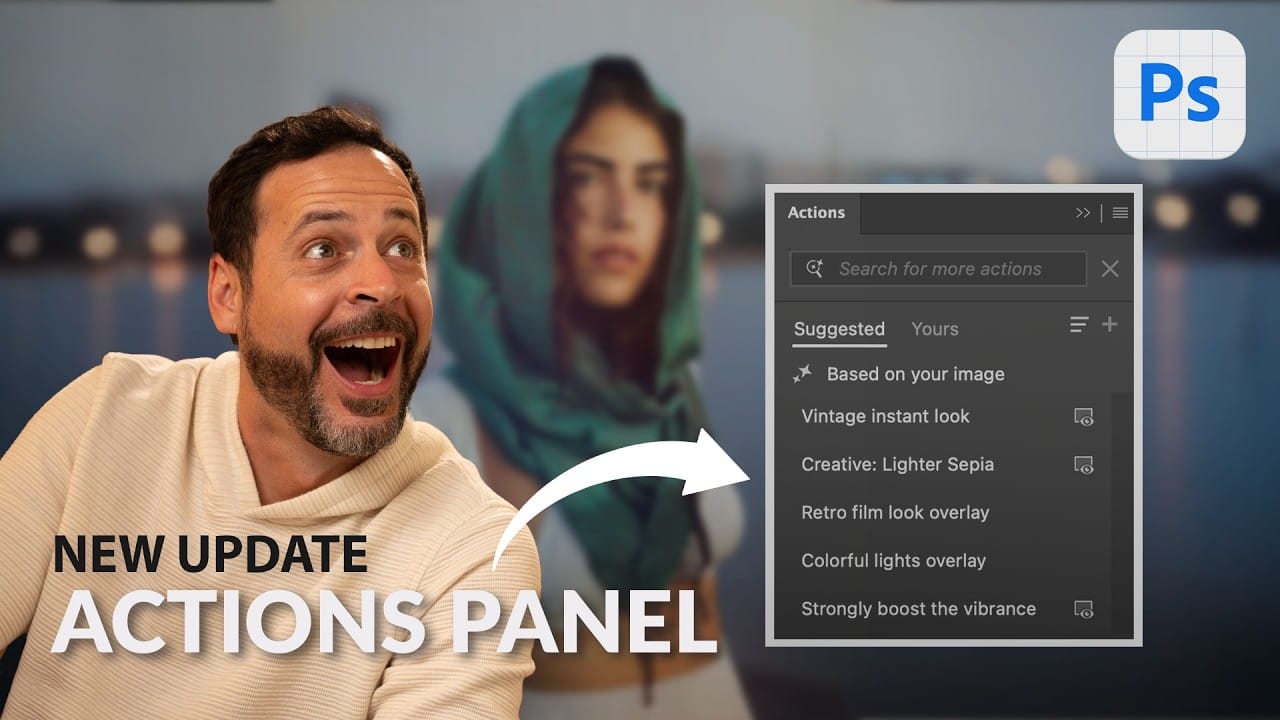
Achieving a specific creative look in Photoshop often requires knowing the right combination of tools and techniques, which can be a significant hurdle for both new and experienced users. While traditional actions can automate repetitive tasks, finding or creating the perfect one for a unique artistic goal isn't always straightforward. This tutorial explores the completely redesigned Actions panel in Photoshop Beta, which uses AI to simplify complex edits. You will learn how to use natural lang
How Generative Fill in Photoshop is Transforming Photo Editing
In the ever-evolving realm of photo editing, a game-changing feature has emerged that promises to revolutionize the way we approach image enhancement. Enter Generative Fill, an innovative tool introduced in the Photoshop Beta, and it's already making waves. Spearheaded by the renowned creative mind Aaron Nace from PHLEARN, this tool is poised to reshape the landscape of digital editing. Generative Fill isn't your typical editing tool that relies on traditional methods. Instead, it leverages the

Get tutorials & freebies delivered to you.

Subscribe to the Photoshop Roadmap newsletter, a weekly roundup of new tutorials, insights and quality downloads, trusted by 6500+ readers.

You might also like

How Photoshop's Enhance Edge Feature Removes Hair Masking Halos

Hair masking has long been one of the most tedious tasks in photo compositing — especially when switching between dark and light backgrounds reveals unwanted halos along the edges. Photoshop's new Enhance Edge feature, available in beta 27.11, offers an AI-powered approach to this problem by generating...

How to Use Quick Compare and Dynamic Layers in Photoshop Beta

Photoshop Beta's latest update introduces two tools worth knowing: a Quick Compare toggle for instant before/after previews, and a Dynamic Layer feature that lets you control AI-generated effects with a simple slider. Together, they streamline how you review edits and apply prompt-based changes like adding...

Retouching Pet Portraits in Photoshop: Cleaning Fur, Eyes, and Fine Details

Pet photos rarely arrive perfectly clean — staining around the eyes, discolored fur near the mouth, and stray hairs are common problems that need fixing before any serious portrait work begins. This workflow covers how to remove those distractions manually using overpaint and fur brushes, then finish with eye enhancement techniques...

Before and After View Plus Dynamic Layers in Photoshop Beta

Photoshop Beta currently includes two features that work quite differently from each other. The first adds a straightforward before-and-after comparison tool directly into the editing workspace — something that sounds simple but solves a real problem when a file already has multiple layers. The second, Dynamic Layers, uses AI...

How to Blend Multiple Exposures for Car Light Trails in Photoshop

Stacking multiple exposures of a night scene lets you capture far more light trail detail than any single shot can deliver. This technique uses the Lighten blending mode to combine a bright base image with several car light trail frames, keeping only the brightest pixels from each layer for a...

You’ve successfully subscribed to Photoshop Roadmap
Welcome back! You’ve successfully signed in.
Great! You’ve successfully signed up.
Success! Your email is updated.
Your link has expired
Success! Check your email for magic link to sign-in.