Photoshop's latest update brings cloud-quality selection algorithms directly to your device. This means precise subject selection without internet connectivity or sending images to Adobe's servers.
The new on-device algorithm rivals the cloud version's accuracy, handling complex subjects like bicycle spokes, hair details, and backlit scenes with impressive precision.
Watch the Video
Video by photoshopCAFE. Any links or downloads mentioned by the creator are available only on YouTube
Practical Tips for On-Device Subject Selection
The new on-device algorithm delivers professional-quality selections while keeping your work completely private and offline.
- Access the Object Selection tool and set it to Device mode before using Select Subject for offline processing
- Test both Device and Cloud settings on complex images to compare quality and choose your preferred result
- Use the new algorithm for travel work or sensitive projects where cloud processing isn't suitable
- Expect excellent results on challenging subjects like intricate details, fine hair, and low-contrast backgrounds
- Switch to Device mode when working with large files to avoid upload delays and bandwidth limits
Related Articles and Tutorials
Explore more techniques for working with selections and atmospheric effects in Photoshop.
Select People, the most requested new photoshop feature
Achieving precise selections in image editing, especially when dealing with complex subjects like people, has historically been one of Photoshop’s most time-consuming tasks. Manual masking of hair, intricate clothing, or multiple individuals often requires significant effort and a keen eye for detail, posing a common challenge for photographers and designers
 Photoshop Cafe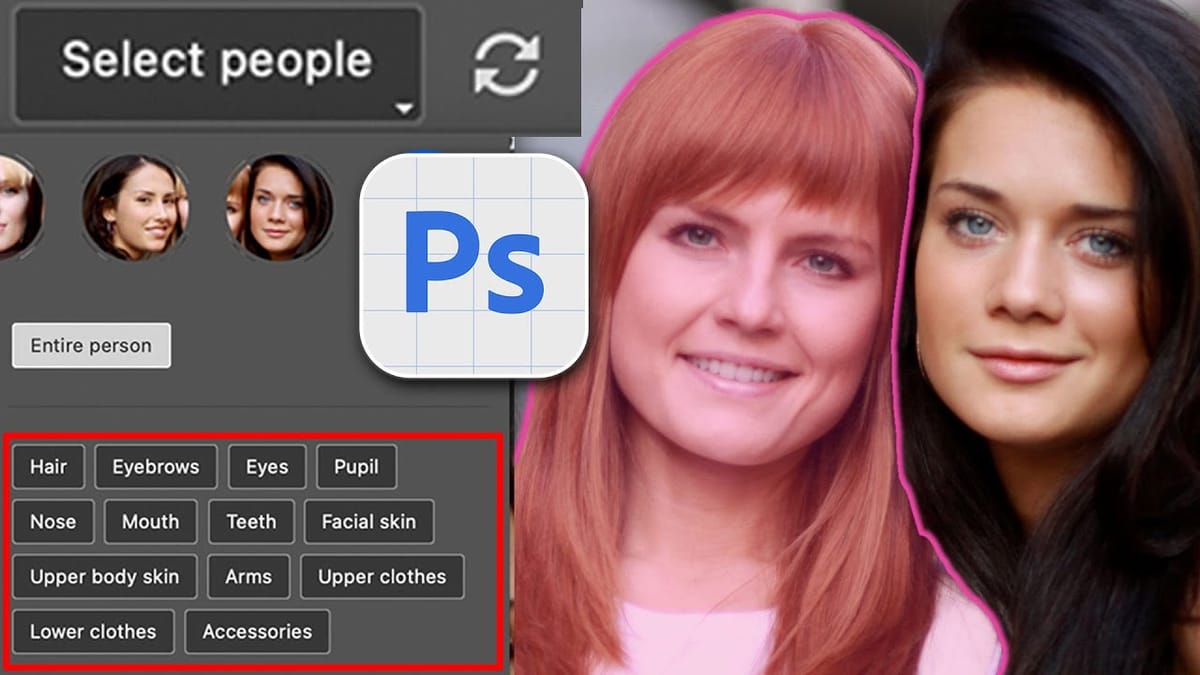
Hair Selection in Photoshop: Modern AI Tools vs Traditional Techniques
Hair selection remains one of Photoshop’s most challenging tasks, even with AI-powered tools. The new Select Subject feature with cloud processing offers impressive results, but often sacrifices fine hair details that make selections look natural. This comprehensive comparison reveals when to use modern AI tools versus traditional channel-based methods, and
 PiXimperfect
How to select transparent objects in Photoshop
Mask transparent or translucent objects using two simple yechniques in Photoshop. In this tutorial by PiXimperfect you’ll learn how to select and cut out see-through objects using the power of Refine Edge Tool and advanced selection features like Color Range. Download sample images here… More
 PiXimperfect
How to select and remove specific colors from images in Photoshop
Color removal can transform any image, from isolating subjects against clean backgrounds to creating dramatic artistic effects. The challenge lies in making precise selections that capture only the colors you want to eliminate while preserving the integrity of your main subject. The Magic Wand tool offers powerful solutions for color-based
 Brendan Williams