Adobe Camera Raw's July 2026 update adds a handful of useful tools that Lightroom users are still waiting on. The standout additions include native focus point display, independent feather controls for bidirectional linear gradients, and improvements to the generative expand feature inside the crop tool.
Watch the Video
Video by Matt Kloskowski. Any links or downloads mentioned by the creator are available only on YouTube
Practical Tips
Here are the key techniques covered in this update:
- View focus points by right-clicking the photo and selecting "Show Focus Point" — confirm where your camera locked focus, then turn it off once verified.
- Use the new feather triangles on bidirectional linear gradients to control the top and bottom falloff independently, giving you finer control over how the gradient blends into the image.
- Unlock the aspect ratio in the crop tool before using generative expand — this gives you more flexible control over which edges you're expanding.
- Choose between Firefly fill options carefully — the Firefly-powered expand uses generative credits, so reserve it for situations where a clean, AI-generated fill is worth the cost.
- Right-click the histogram to access the vectorscope, and use the presentation mode play button in the top-right corner to cycle through photos in a clean, distraction-free view.
Related Articles and Tutorials
These tutorials cover recent updates and editing techniques that pair well with what's covered above.
Big New Unique Features in Adobe Camera Raw 17 That Are Not Even in Lightroom.
According to Colin Smith from Photoshop Cafe, the latest update for Adobe Camera Raw, version 17.0, includes some impressive new features that significantly improve the process of editing raw images.
* One standout feature is the enhanced AI Noise Reduction. The update applies noise reduction to the original raw file, meaning it doesn't create an extra file like it used to. You can find this feature under the Detail panel and adjust the amount of noise reduction you want to apply. This is espe

14 New Features in Photoshop 27.6 You Need to Know
Photoshop 27.6 brings significant updates that enhance workflow efficiency and creative possibilities. From improved reflection removal tools to smarter AI models, these features address real challenges photographers and designers face daily.
This comprehensive overview covers 14 key additions, including enhanced distraction detection, new AI capabilities, and improved workspace organization tools that can streamline your editing process.
Watch the Video
Practical Tips
Key techniques to ma

Photoshop January 2026 Update: 5 New Features Including Grain and Clarity Adjustment Layers
Photoshop's January 2026 update brings five significant features that streamline common editing tasks. The highlight is new adjustment layers for grain and clarity effects, eliminating the need to work in Camera Raw for these adjustments.
The update also introduces an improved generative AI model with higher resolution output and enhanced reference image capabilities, plus a more effective Remove Tool for cleaner object removal.
Watch the Video
Practical Tips
Here are key techniques for wo

How to Use New Camera Raw Adjustment Layers in Photoshop Beta
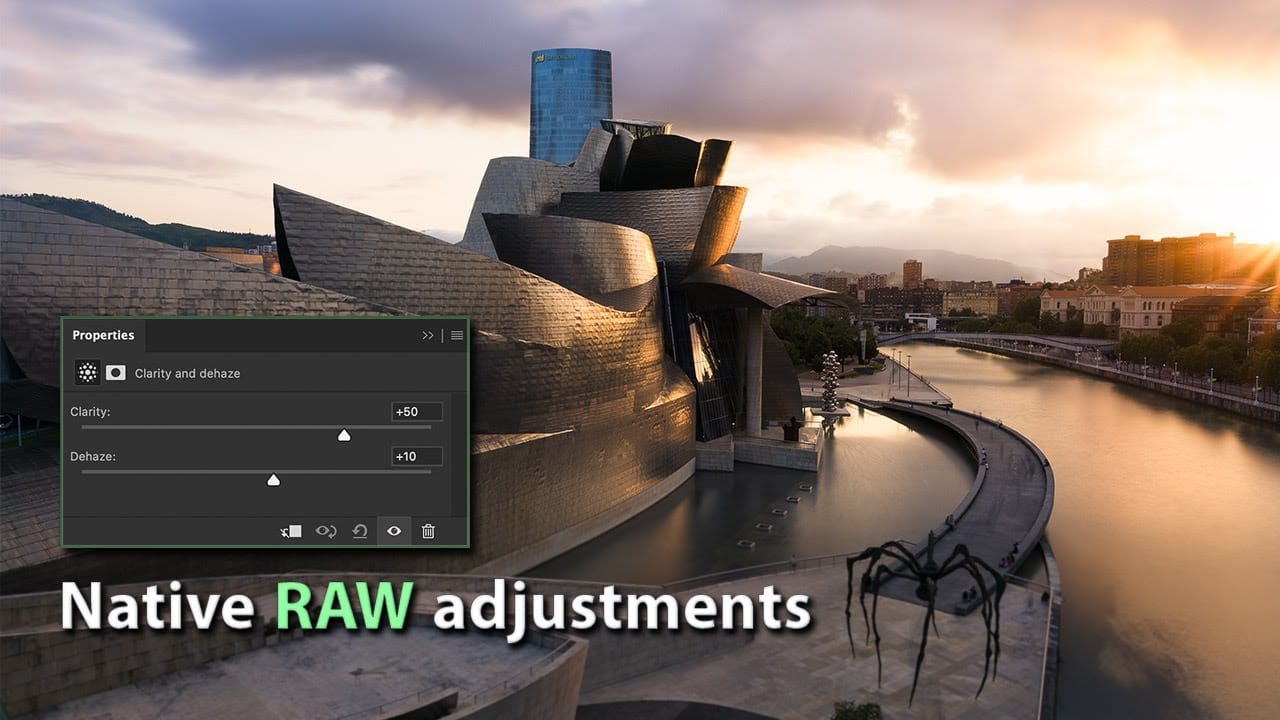
Three new adjustment layers in Photoshop beta bring Camera Raw's most powerful tools directly into your layers panel. Color and Vibrance, Clarity and Dehaze, and Grain adjustments now work as standard adjustment layers, eliminating the need for smart objects while maintaining all the precision masking and blending capabilities you expect.
This breakthrough allows photographers to apply global-quality Camera Raw adjustments with local control, creating more efficient workflows without file bloat
Photoshop August 2025 Update: 6 New Features Including Enhanced Remove Tool and Harmonize
Adobe continues to transform Photoshop with powerful AI-driven features that streamline complex editing tasks. The August 2025 update introduces six significant enhancements, from an improved Remove Tool that creates cleaner selections to the revolutionary Harmonize feature that automatically matches lighting and shadows across composite elements.
These updates address common workflow challenges while introducing new capabilities for collaborative projects and intelligent image processing.
Wa

How to Use Split Toning and Enhanced AI Masks in Camera Raw
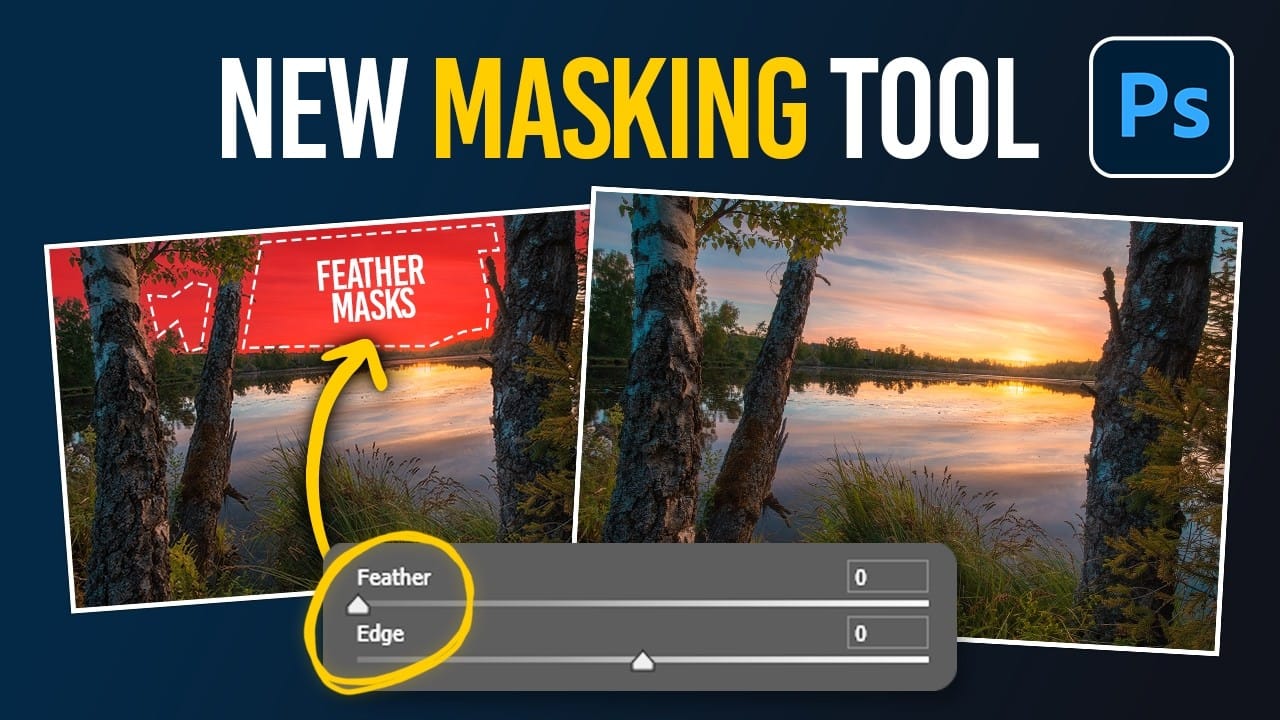
Adobe's latest Camera Raw update brings two powerful enhancements that transform how photographers work with masks and color grading. Split toning is now available directly within individual masks, allowing precise color control over shadows, midtones, and highlights in specific image areas. Additionally, AI masks like landscape selection and select subject now include feather and edge controls, solving the persistent problem of harsh mask edges that could ruin heavy adjustments.
These features
Camera Raw Feathering and Color Grading Features (May 2026 Update)
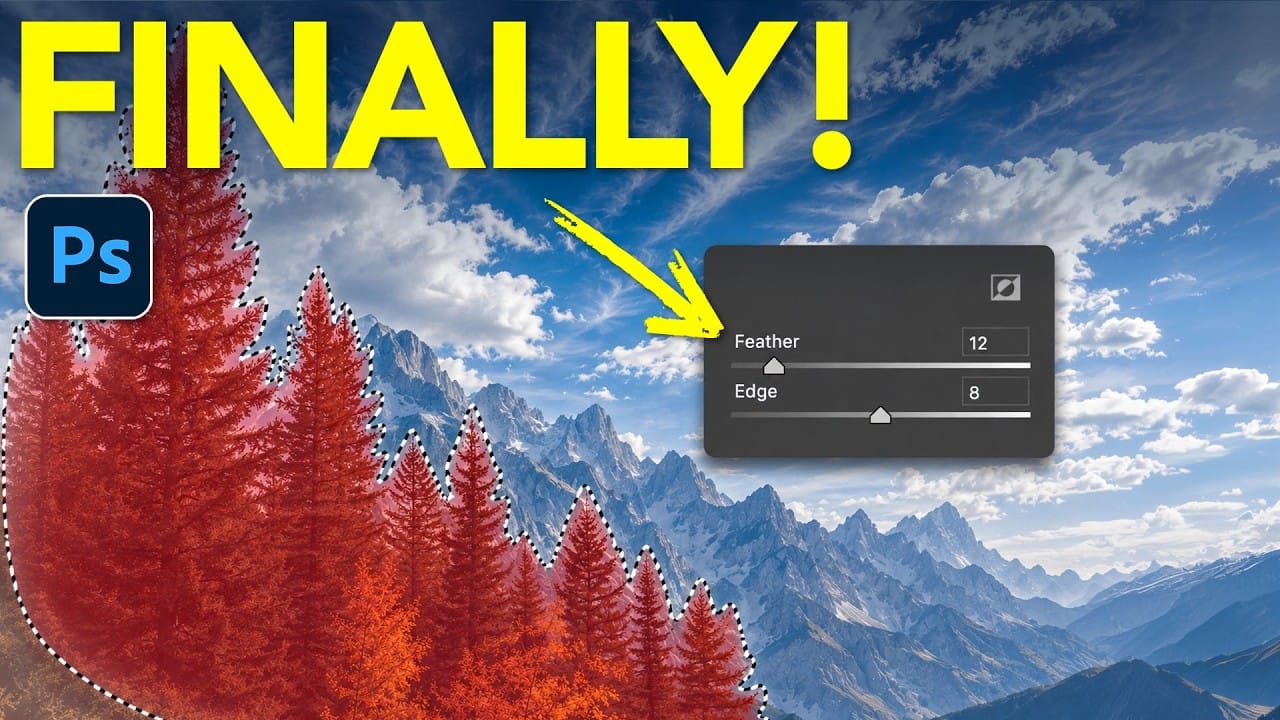
Adobe Camera Raw's latest update introduces two powerful masking features that solve common editing problems. The new feather and edge controls help create cleaner selections around complex shapes like trees, while color grading within masks allows for precise adjustments without affecting the entire image.
These tools work exclusively in Camera Raw for now, giving ACR users a significant advantage when working with landscape photos and complex selections that require natural-looking edges.
W
New Camera Raw Adjustment Layers in Photoshop: Color Grading, Clarity, and Grain
Working with multiple layers in Photoshop traditionally required complex workarounds to apply Camera Raw adjustments. The old process involved merging layers, converting to smart objects, and losing the flexibility that makes adjustment layers so powerful.
Three new adjustment layers bring Camera Raw's most useful tools directly into your layers panel. These additions eliminate the need for destructive editing while maintaining all the masking and blending capabilities you expect from adjustmen