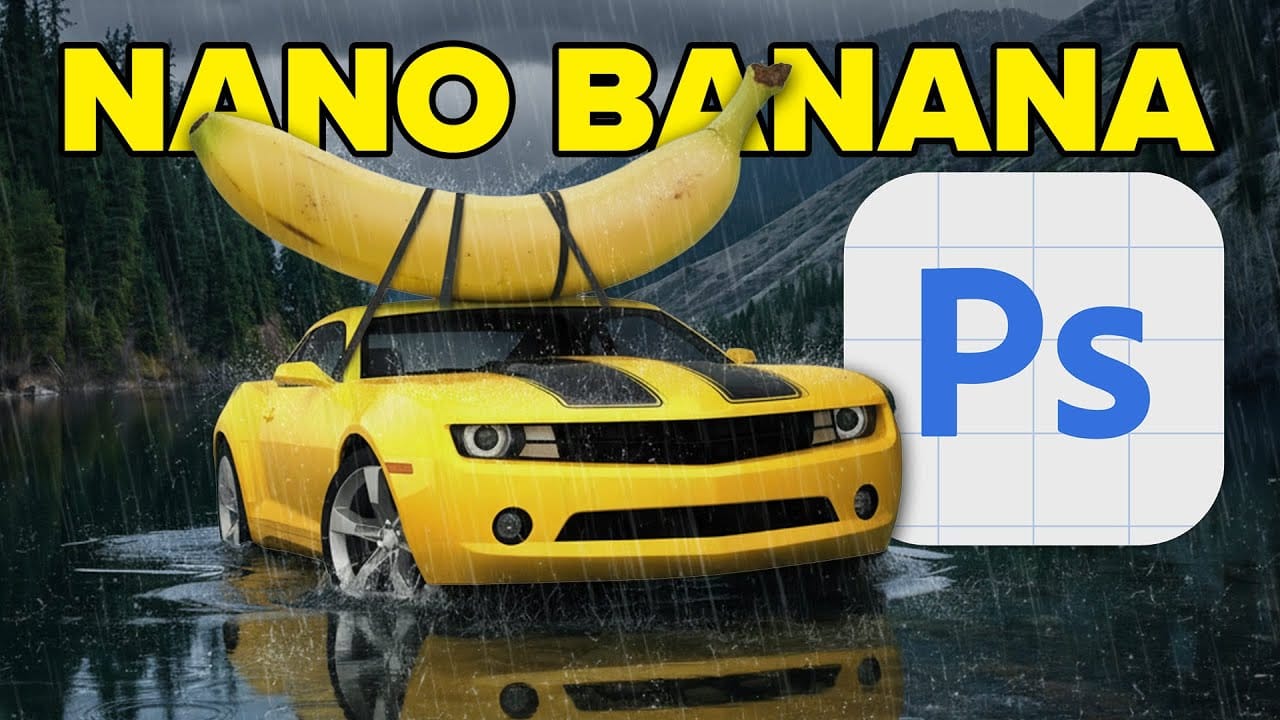
Google's Gemini 3 Nano Banana Pro brings powerful AI capabilities to Photoshop with features like focus shifting, text recognition, and 4K resolution support. Adobe integrated this advanced model immediately upon release.
The tool excels at maintaining context while transforming images, creating storyboards, and generating realistic text replacements with proper fonts and reflections.
Watch the Video
Video by photoshopCAFE. Any links or downloads mentioned by the creator are available only on YouTube
Essential Tips for Gemini 3 Nano Banana Pro
- Put text prompts in quotation marks when working with text generation for better accuracy and font matching
- Use the Properties panel for a larger prompt box when the default Generate Fill interface feels too cramped
- Add "Don't change colors" to prompts when you want to preserve the original color scheme during edits
- Work with 8-bit images instead of 16-bit to prevent unwanted color shifts during generation
- Access the model through the partner model switcher in Generate Fill to use Nano Banana Pro specifically
More Tutorials about AI Image Editing in Photoshop
Explore comprehensive guides for mastering AI-powered editing techniques and workflows.
How to Use Gemini 2.5 Nano Banana AI in Photoshop 2026
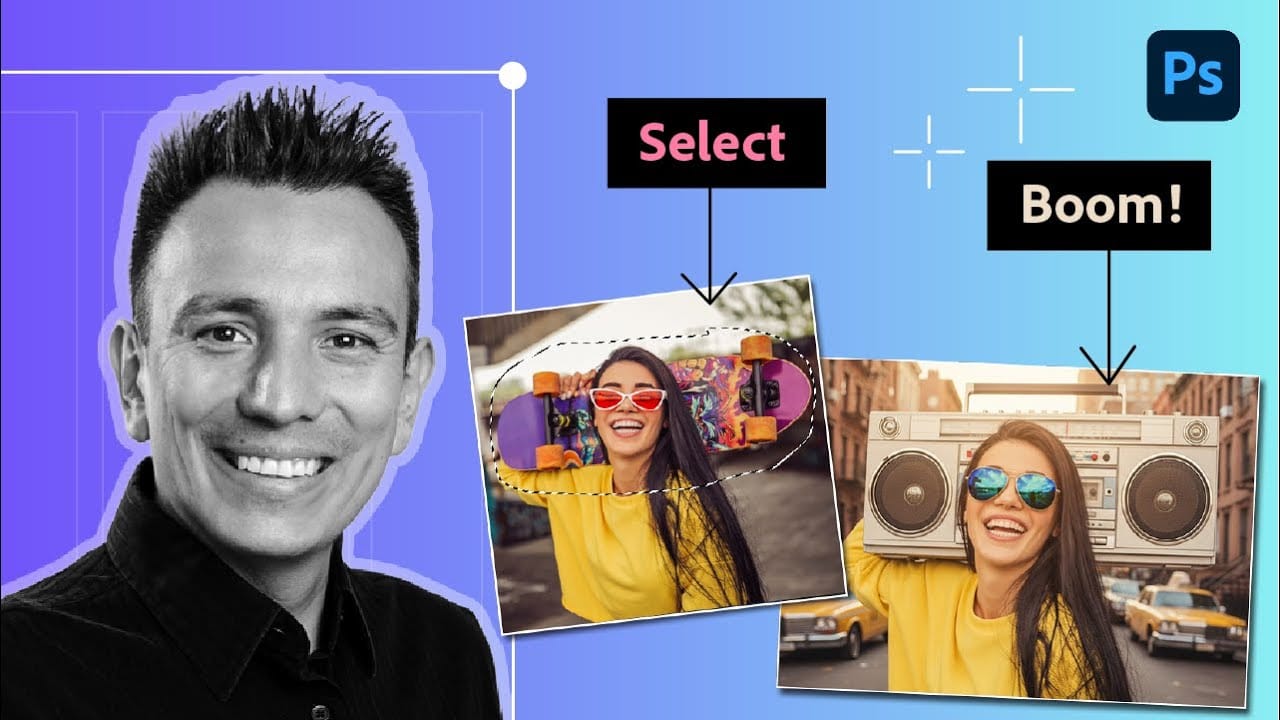
Photoshop 2026 introduces Gemini 2.5 Nano Banana, a powerful AI model that transforms how you edit images. This advanced tool maintains scene coherence while allowing dramatic changes to poses, backgrounds, and camera angles.
The technology understands context and lighting, creating realistic results that feel naturally integrated into your original photos.
Watch the Video
Key Tips for Using Nano Banana
* Make loose selections around your target area — the model needs context to understan
50+ Nano Banana Uses in Photoshop Beta for Advanced Image Editing
Google's Nano Banana AI model now integrates directly into Photoshop Beta, bringing powerful generative capabilities to image editing. The tool excels at maintaining subject likeness while transforming backgrounds, clothing, and entire scenes with simple text prompts.
This integration offers professional-grade AI editing within Photoshop's familiar interface, complete with advanced selection tools and workflow optimization.
Watch the Tutorial
Essential Tips for Using Nano Banana in Photosho
Gemini Nano Banana vs Photoshop: A Detailed Performance Comparison
Modern AI tools promise instant photo editing magic with simple text prompts. Gemini's Nano Banana and similar platforms can generate impressive results for basic tasks, but professional work demands precision and consistency.
This comprehensive comparison tests AI capabilities against traditional Photoshop techniques across skin retouching, compositing, background removal, and photo restoration to reveal where each approach excels.
Watch the Video
Key Insights from AI vs Photoshop Testing

Photoshop Beta: How to Use Google's Nano Banana AI for Advanced Image Editing
Google's Nano Banana AI model now integrates directly into Photoshop Beta, offering superior detail preservation and more realistic results than Adobe's Firefly. This powerful generative fill tool excels at maintaining subject likeness while transforming backgrounds, clothing, and entire scenes.
The integration brings professional-grade AI editing capabilities directly into Photoshop's familiar interface, complete with advanced selection tools and workflow optimization.
Watch the Tutorial
E