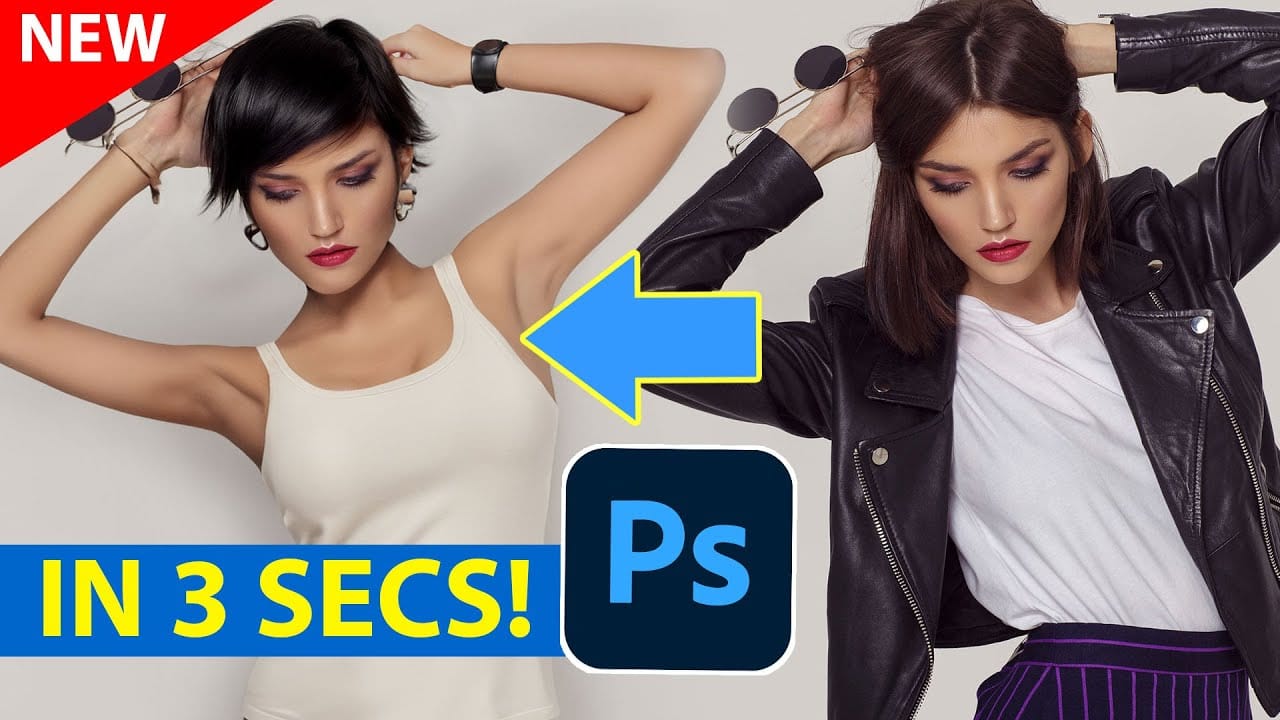
Photoshop 2026 introduces Gemini 2.5 Nano Banana, a powerful AI model that transforms how you edit images. This advanced tool maintains scene coherence while allowing dramatic changes to poses, backgrounds, and camera angles.
The technology understands context and lighting, creating realistic results that feel naturally integrated into your original photos.
Watch the Video
Video by Adobe Photoshop. Any links or downloads mentioned by the creator are available only on YouTube
Key Tips for Using Nano Banana
- Make loose selections around your target area — the model needs context to understand the scene and create coherent results
- Use soft brush edges with decreased hardness to help blend AI generations naturally with existing image elements
- Create new selections for each edit to build on previous generations, since new prompts always reference the original image
- Write detailed prompts that describe location, lighting, and mood when replacing backgrounds for more believable results
- Combine multiple instructions in a single prompt to change poses, expressions, and clothing simultaneously
More Tutorials About AI Photo Editing
Explore additional resources to master Photoshop's AI capabilities.
Photoshop 2026 New Features: AI Tools and Credit System Overview
Photoshop 2026 introduces powerful AI-driven features including advanced generative fill models, sophisticated upscaling tools, and seamless harmonization effects. These updates promise to streamline complex editing tasks while delivering professional-quality results.
The software now operates on a credit-based system that divides features into standard and premium tiers, fundamentally changing how users access certain tools.
Watch the Video
Key Features and Practical Tips
* Access the co

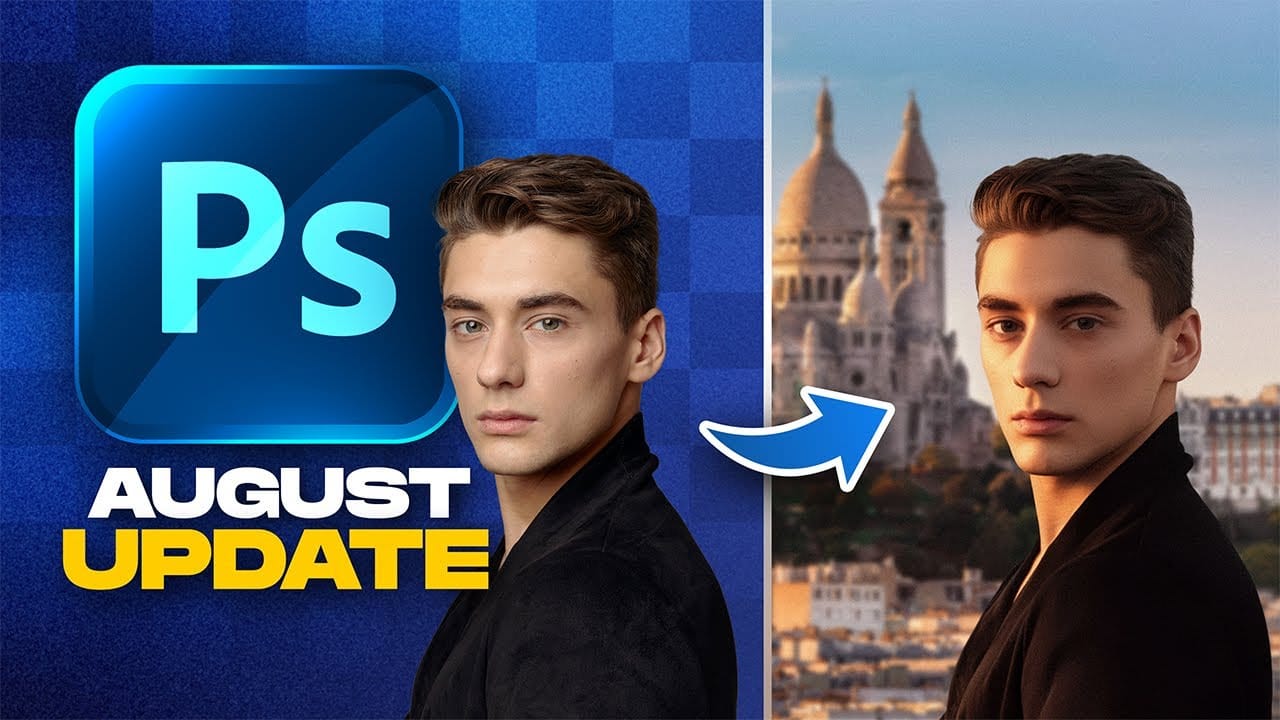
Photoshop August 2025 Update: 6 New Features Including Enhanced Remove Tool and Harmonize
Adobe continues to transform Photoshop with powerful AI-driven features that streamline complex editing tasks. The August 2025 update introduces six significant enhancements, from an improved Remove Tool that creates cleaner selections to the revolutionary Harmonize feature that automatically matches lighting and shadows across composite elements.
These updates address common workflow challenges while introducing new capabilities for collaborative projects and intelligent image processing.
Wa
Complete Guide to AI Photo Editing with Photoshop's Generative Fill
Modern photo editing has entered a new era where artificial intelligence can solve complex visual problems in seconds. Tasks that once required hours of manual work—removing unwanted objects, changing skies, adding realistic elements—can now be accomplished with simple selections and text prompts.
This comprehensive tutorial demonstrates 37 practical applications of Photoshop's AI-powered generative fill feature. From basic sky replacements to advanced portrait retouching, these techniques show
Generative AI: A new era of Photoshop begins
Generative AI has made its way into the world of Photoshop, and in this fascinating video, Colin Smith from Photoshop Cafe explores its transformative capabilities.
Generative AI is an incredible technology that's transforming the world of artificial intelligence. It's like having a creative companion that can generate all sorts of new content, from stunning images to captivating music and even imaginative stories. With its advanced algorithms and neural networks, generative AI brings a touch o