Complete Guide to AI Photo Editing with Photoshop's Generative Fill

Complete Guide to AI Photo Editing with Photoshop's Generative Fill

Modern photo editing has entered a new era where artificial intelligence can solve complex visual problems in seconds. Tasks that once required hours of manual work—removing unwanted objects, changing skies, adding realistic elements—can now be accomplished with simple selections and text prompts.

This comprehensive tutorial demonstrates 37 practical applications of Photoshop's AI-powered generative fill feature. From basic sky replacements to advanced portrait retouching, these techniques show how to integrate AI tools into professional workflows for faster, more creative results.

Watch the Tutorial

Video by Brendan Williams. Any links or downloads mentioned by the creator are available only on YouTube

Understanding AI-Powered Photo Enhancement

Generative fill technology represents a fundamental shift in how photographers and designers approach image editing. Unlike traditional tools that rely on sampling existing pixels or mathematical algorithms, AI-powered editing analyzes the context of an image and generates new content that seamlessly matches the surrounding environment.

The technology excels at understanding visual relationships—how light falls on objects, how textures should blend, and what elements belong together in a scene. This contextual awareness enables realistic results across diverse applications:

  • Environmental changes like sky replacement and background extension
  • Object removal and addition with proper lighting and shadows
  • Portrait enhancement including skin retouching and feature modification
  • Creative effects like texture generation and artistic transformations

The key advantage lies in reducing the technical barrier between creative vision and execution. Complex compositing tasks that previously required advanced masking and blending skills can now be achieved through intuitive selections and descriptive prompts.

Practical Tips for AI Photo Editing

  • Start with loose selections using the lasso tool—AI works better with general areas rather than precise edges, allowing it to blend naturally with surrounding content.
  • Leave the prompt field empty when removing objects to let Photoshop automatically fill based on surrounding context and patterns.
  • Use channels to create contrast-based selections for complex areas like reflections in glasses or flyaway hair, then apply generative fill for more accurate results.
  • Generate multiple variations by clicking the generate button repeatedly—AI produces different results each time, giving you options to choose from.
  • Work non-destructively by duplicating layers before applying AI effects, allowing you to mask or adjust the generated content as needed.

More Tutorials about AI Photo Editing

Explore additional resources for mastering AI-powered editing techniques in Photoshop.
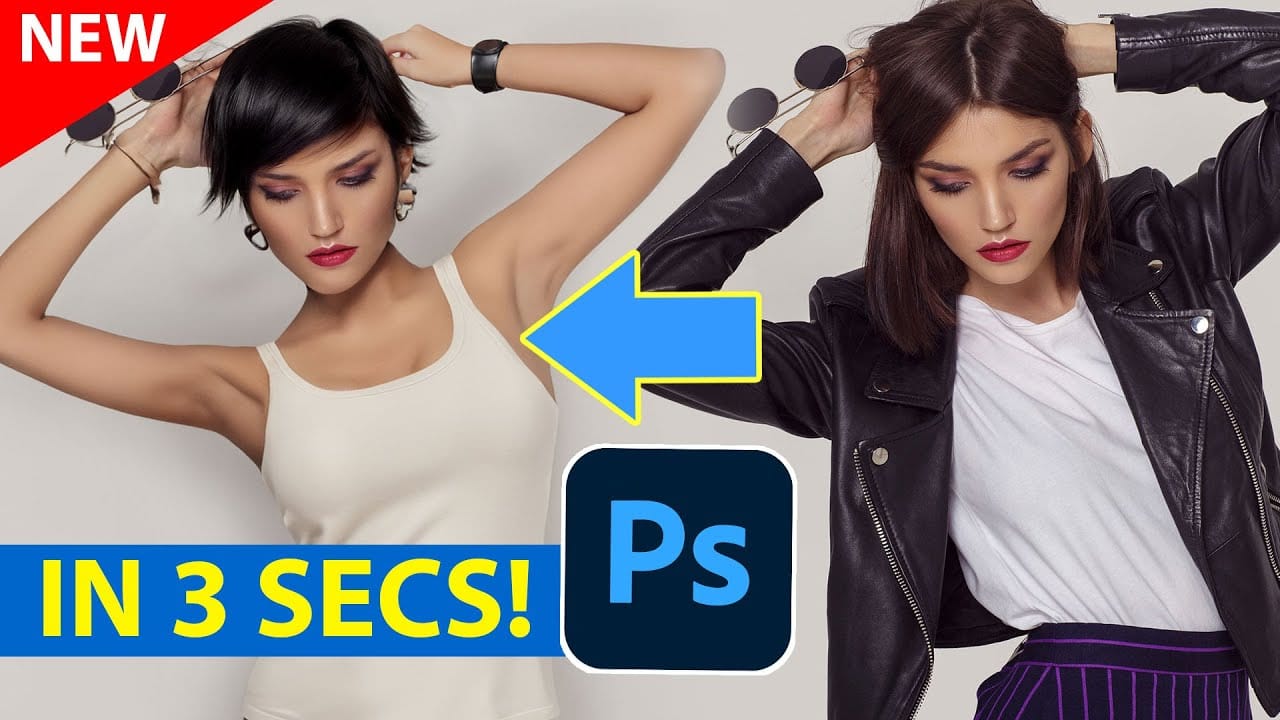
Generative AI: A new era of Photoshop begins
Generative AI has made its way into the world of Photoshop, and in this fascinating video, Colin Smith from Photoshop Cafe explores its transformative capabilities. Generative AI is an incredible technology that's transforming the world of artificial intelligence. It's like having a creative companion that can generate all sorts of new content, from stunning images to captivating music and even imaginative stories. With its advanced algorithms and neural networks, generative AI brings a touch o
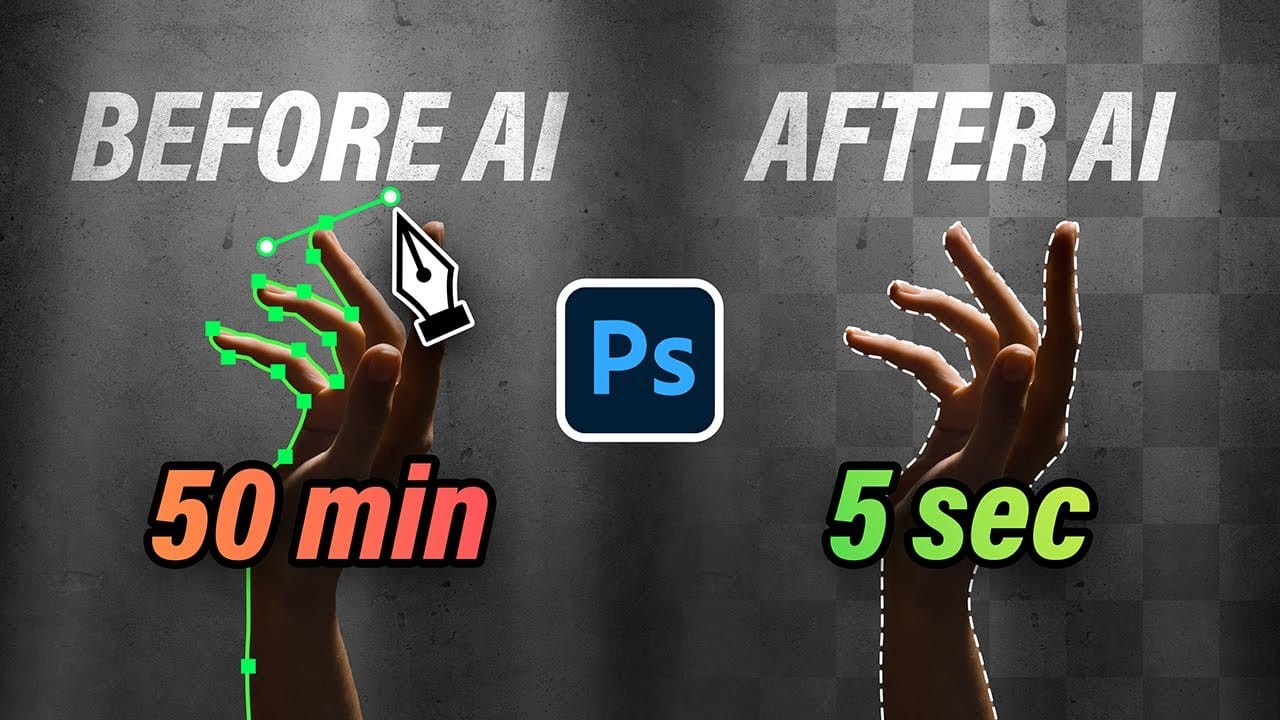
10 Ways AI Completely Transformed My Photoshop Techniques
Repetitive tasks like making complex selections, removing unwanted objects, and cleaning up blemishes can consume hours of an editor's time. While traditional Photoshop methods offer precise control, they are often slow and require significant technical skill for what should be simple fixes. This guide demonstrates how to integrate modern AI features into your daily workflow. You will learn practical techniques for everything from one-click selections and generative fills to automated retouchin
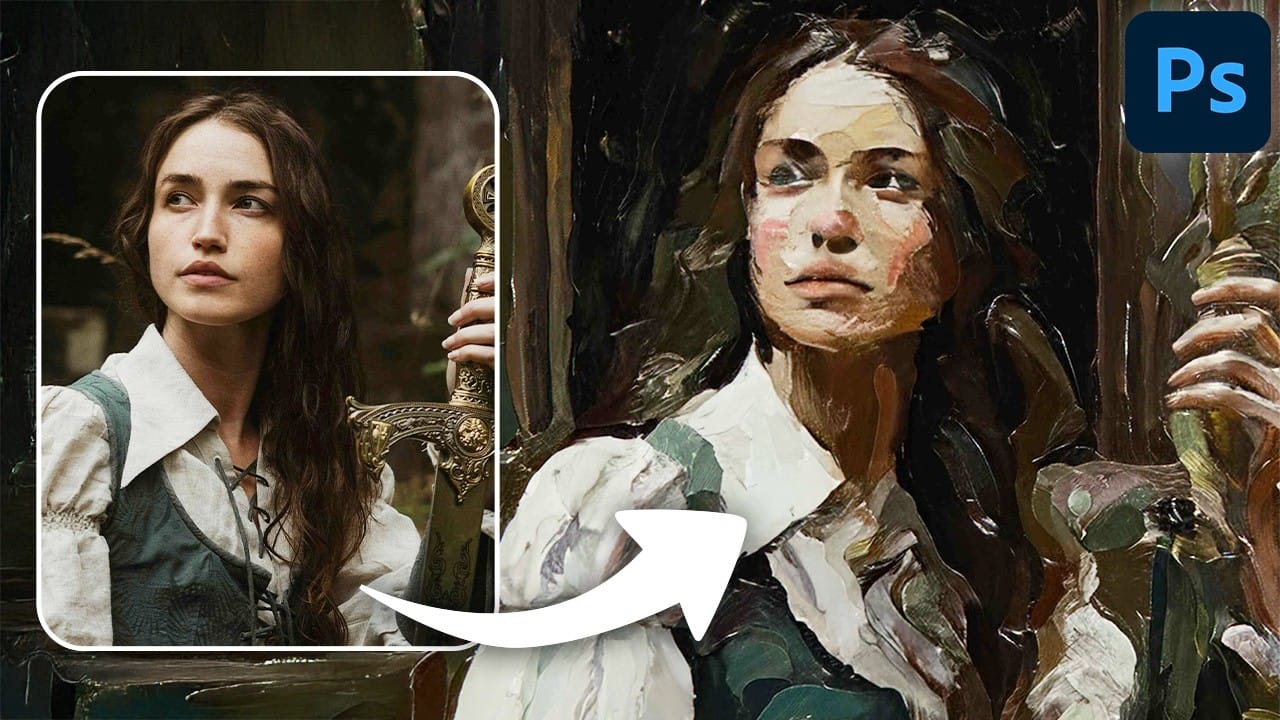
Turn Pictures Into Paintings Using Generative Fill In Photoshop
Converting photographs into artistic paintings has traditionally required advanced Photoshop skills, complex layer blending techniques, or expensive third-party plugins. Many photographers and designers struggle with creating convincing painted effects that maintain the original image's character while adding genuine artistic style. This tutorial demonstrates how to transform photos into paintings using Photoshop's generative fill feature combined with channel-based selections. The technique cr
How Generative Fill in Photoshop is Transforming Photo Editing
In the ever-evolving realm of photo editing, a game-changing feature has emerged that promises to revolutionize the way we approach image enhancement. Enter Generative Fill, an innovative tool introduced in the Photoshop Beta, and it's already making waves. Spearheaded by the renowned creative mind Aaron Nace from PHLEARN, this tool is poised to reshape the landscape of digital editing. Generative Fill isn't your typical editing tool that relies on traditional methods. Instead, it leverages the

Get tutorials & freebies delivered to you.

Subscribe to the Photoshop Roadmap newsletter, a weekly roundup of new tutorials, insights and quality downloads, trusted by 6500+ readers.

You might also like

How to Use AI Masking in Adobe Camera Raw for Professional Photo Editing

Adobe Camera Raw's AI masking tools automatically detect subjects, backgrounds, skies, and landscapes, letting you make precise adjustments to specific areas of your photos. These intelligent masks eliminate the need for manual selection work, while allowing you to combine and refine them for complete creative control. The technique...

How to Remove Objects from Photos Using AI Tools in Photoshop

Photoshop's AI-powered object removal tools can eliminate unwanted distractions from your photos with minimal effort. The Remove Tool and Generative Fill feature automated detection for common distractions like people and wires, plus manual painting options for custom removals. These tools work on separate layers, preserving your original image...

Speed Up Your Color Grading Workflow with Photoshop Actions

Color grading can transform your images, but manually adjusting curves and levels for every photo takes time. Photoshop actions offer a faster approach by applying professional color treatments with a single click. This workflow uses pre-built actions, tints, and LUTs to achieve various moods and styles instantly, letting you layer...

7 Essential Tips for Speed Painting in Digital Art

Speed painting isn't just about working faster—it's about eliminating friction from your creative process. These seven techniques help you get ideas onto canvas quickly without getting bogged down in unnecessary decisions or premature details. Whether you're exploring concepts for professional work or personal...

Professional Color Grading Techniques in Photoshop

Color grading transforms ordinary photos into compelling images with professional mood and atmosphere. These non-destructive techniques let you adjust tones, enhance specific colors, and create cinematic looks while preserving your original image data. Master these four essential color grading methods to develop a consistent editing workflow that elevates your photography....

How to Save Cut-Out Elements with Transparent Backgrounds in Photoshop

Creating seamless photo composites requires properly saving cut-out elements with transparent backgrounds. Whether you're extracting people, objects, or other elements for later use, the file format you choose determines how easily you can place these elements into new scenes. Two main approaches work best: saving as PSD files...

You’ve successfully subscribed to Photoshop Roadmap
Welcome back! You’ve successfully signed in.
Great! You’ve successfully signed up.
Success! Your email is updated.
Your link has expired
Success! Check your email for magic link to sign-in.