How to Use Harmonize and Rotate Object Tools for Better Composites in Photoshop

How to Use Harmonize and Rotate Object Tools for Better Composites in Photoshop

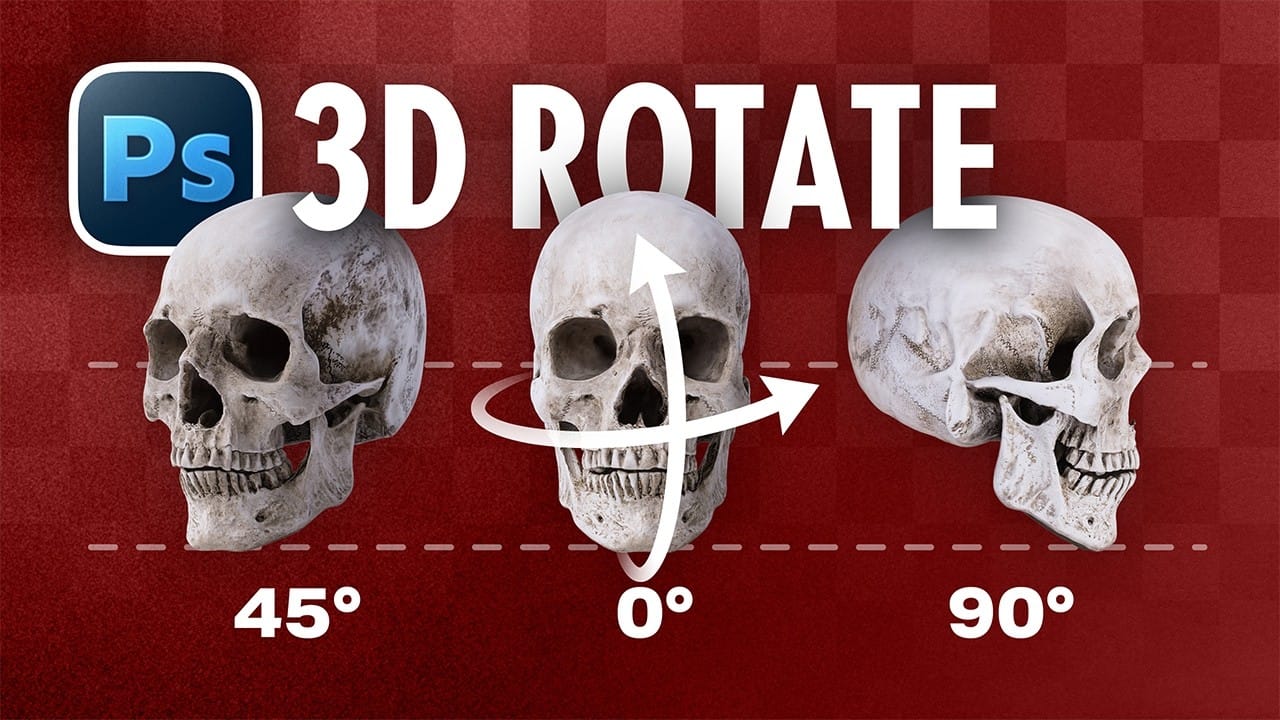
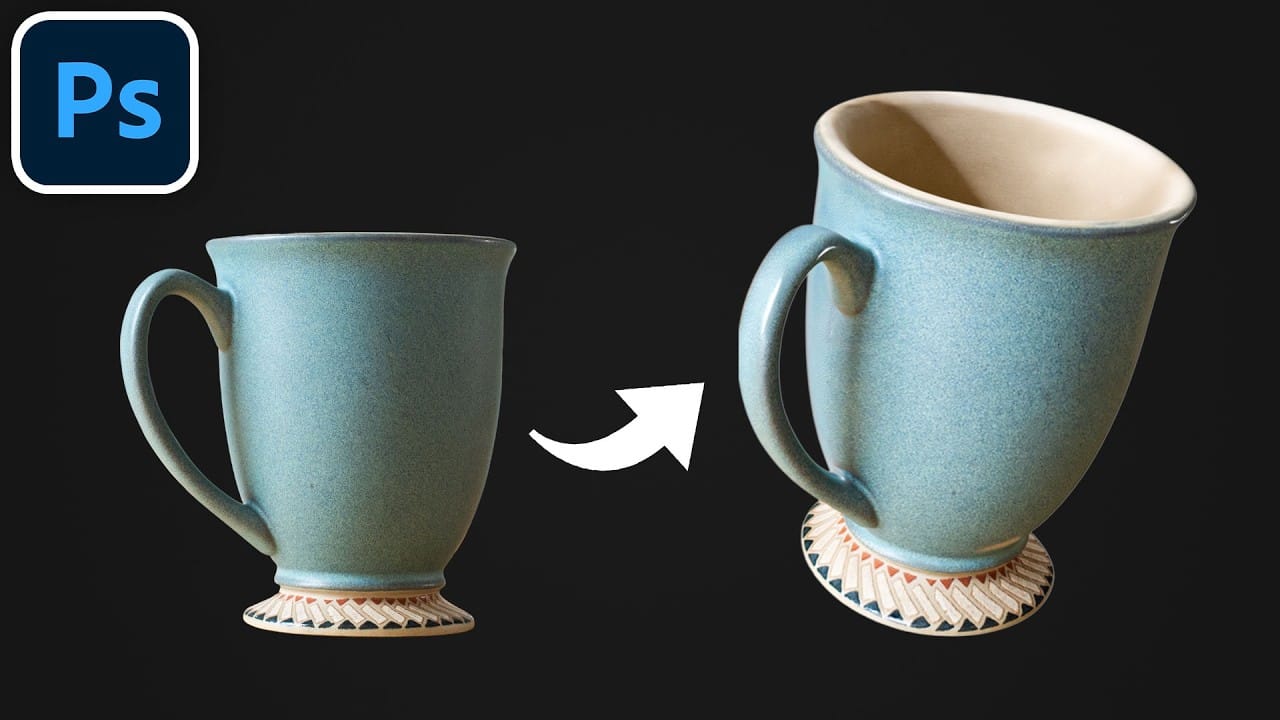
Creating believable composites traditionally required hours of manual perspective adjustments and color matching. Two new AI-powered tools in Photoshop change this workflow dramatically. The Rotate Object tool lets you adjust positioning and perspective with interactive 3D controls, while the Harmonize tool automatically matches lighting, shadows, and color tones to blend elements naturally into any scene.

These tools work together to eliminate much of the technical frustration in compositing, letting you focus on creative decisions rather than complex manual adjustments.

Watch the Video

Video by SandraD Imagery. Any links or downloads mentioned by the creator are available only on YouTube

Practical Tips

Master these essential techniques for using both tools effectively in your composite workflow:

  • Access the Rotate Object tool by pressing Ctrl+T (Cmd+T) and clicking the rotate object icon in the contextual taskbar
  • Use the three different handles for rotate, tilt, and perspective adjustments to position elements realistically in your scene
  • Choose subjects with similar color tones to your background before compositing to reduce the amount of color matching needed
  • Apply the Harmonize tool by selecting your object layer and clicking Harmonize in the contextual taskbar, then choose the best result from the three generated options
  • Use the alternative Neural Filters > Harmonization method if you need to avoid generative credits while still achieving color matching

Explore more advanced techniques for compositing and blending elements seamlessly in your projects:
How to Use Harmonize to Automatically Match Lighting in Photoshop Composites
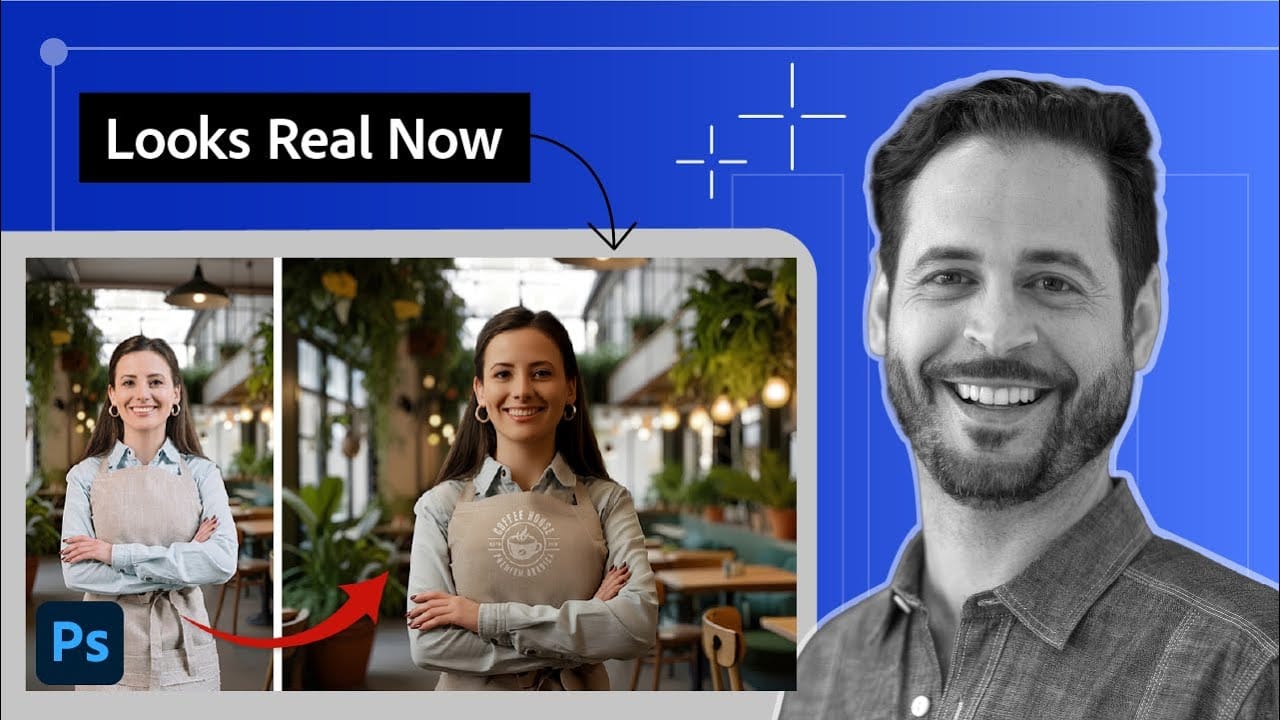
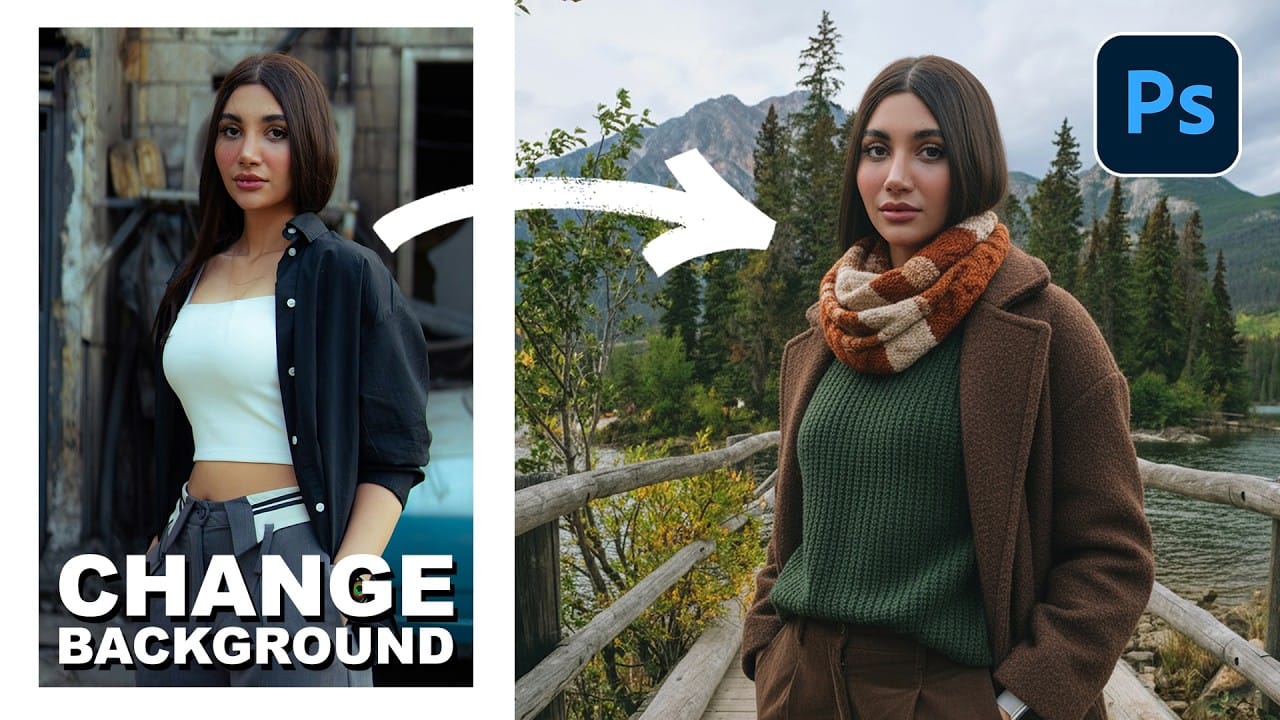
Creating seamless composites traditionally requires hours of manual color correction and lighting adjustments. The new Harmonize tool changes this by automatically analyzing your background and matching your subject's lighting, shadows, and color tones with a single click. This AI-powered feature eliminates the need for complex adjustment layers and advanced color theory knowledge, making professional-quality compositing accessible to editors at any skill level. Watch the Video Practical Ti
How to Use Harmonize and Generative Upscale Tools in Photoshop
Creating realistic photo composites requires matching lighting and color between different images—a traditionally time-consuming process. Two new AI-powered tools in Photoshop solve these challenges: Harmonize automatically adjusts lighting and shadows to blend subjects seamlessly into backgrounds, while Generative Upscale enlarges small images without losing detail. These tools work together to streamline complex editing workflows, from cutting out subjects and matching environmental lighting
How to Use Photoshop's New Harmonize Feature to Blend Images Automatically
Photoshop's latest AI feature promises to solve one of compositing's biggest challenges: making cut-out objects look naturally integrated into new backgrounds. The new Harmonize tool automatically matches lighting, creates shadows, and adds reflections with a single click. This breakthrough technology eliminates hours of manual work that traditionally required advanced knowledge of color theory, lighting principles, and complex adjustment layers. While still in beta, Harmonize represents a sign
How to Use the New Rotate Object Feature in Photoshop Beta
Photoshop's latest beta introduces a revolutionary feature that transforms flat 2D images into rotatable 3D objects. The new Rotate Object tool uses generative AI to create new angles and perspectives from a single image, then seamlessly composites them into scenes with realistic lighting and shadows. This breakthrough feature eliminates the need for multiple product shots or complex 3D modeling, making professional compositing accessible with just a few clicks. Watch the Video Practical Ti
How to Use the 3D Object Rotation Tool in Photoshop Beta
Adobe's new Rotate Object feature transforms flat 2D images into interactive 3D models that can be repositioned from any angle. This AI-powered tool automatically creates cutouts, maintains original textures, and generates missing details when objects are rotated beyond their original perspective. The feature opens new possibilities for product photography, compositing, and creative positioning, though it works better with some subjects than others. Watch the Video Practical Tips Master th
How to Use the New 3D Object Rotation Feature in Photoshop
Photoshop's new Rotate Object feature transforms flat 2D images into interactive 3D models that can be repositioned from any angle. This AI-powered tool automatically creates cutouts, maintains original textures, and generates missing details when objects are rotated beyond their original perspective. The feature opens new possibilities for product photography, compositing, and creative positioning, though it works better with some subjects than others. Watch the Video Practical Tips Maste
Using Photoshop's Harmonize Feature to Create Realistic Shadows for Human Composites
Photoshop's new Harmonize feature excels at compositing objects but struggles with human subjects. This clever workaround uses Harmonize specifically for creating realistic contact and cast shadows when compositing people into new backgrounds. The technique involves adding a fake light source to improve shadow generation, then isolating only the shadow elements for the final composite. Watch the Tutorial Key Tips for Shadow Compositing with Harmonize * Add a fake light source by duplicati
Creating Whimsical AI Composites with New Photoshop Tools
AI-generated imagery becomes truly compelling when combined with traditional compositing techniques. This behind-the-scenes look explores how to transform AI-created elements into cohesive, whimsical scenes using both classic methods and Photoshop's newest features. The tutorial demonstrates a complete workflow from background extension to character integration, showcasing how multiple adjustment layers, color matching tools, and creative problem-solving come together to build a charming narrat
Learn Photoshop by Combining Tools and Techniques
Achieving truly impressive image manipulations in Photoshop goes beyond mastering individual tools; it requires skillfully combining them. Many users learn techniques in isolation, but the real power of Photoshop emerges when these diverse methods are blended to create a cohesive final result. This tutorial demonstrates how to transform an ordinary photo into a dynamic composite. It guides you through integrating various tools and techniques, showing how to approach complex edits by layering di
Photoshop 2025 New Features: Harmonize, Improved Remove Tool, and Model Picker
Photoshop 2025 introduces ambitious new features that promise to streamline complex editing tasks. The latest update brings automated compositing through the new Harmonize feature, significant improvements to the Remove tool, and enhanced collaboration options for creative teams. These updates represent Adobe's push toward AI-assisted workflows that handle technical aspects while preserving creative control. Each feature addresses common pain points in professional editing workflows. Watch th

Get tutorials & freebies delivered to you.

Subscribe to the Photoshop Roadmap newsletter, a weekly roundup of new tutorials, insights and quality downloads, trusted by 6500+ readers.

You might also like

Create Realistic Rim Light Effects on Portraits in Photoshop

Rim lighting transforms ordinary portraits into dramatic, professional-looking images by adding bright highlights around the edges of your subject. This technique simulates light hitting the outer contours of a person, making them stand out from their background with a natural, glowing effect. The key to convincing rim light lies in...

How to Use Photoshop's Layer Cleanup Tool to Organize Messy Projects

Complex editing projects with Generative Fill and Expand often result in dozens of unnamed layers cluttering your workspace. The new Layer Cleanup tool automates the tedious process of renaming layers and removing empty ones, transforming chaotic layer panels into organized, manageable structures. This workflow improvement saves significant time during post-production...

How to Use Curves for Composite Color Matching in Photoshop

Curves adjustments are essential for making composite elements look natural and cohesive. Understanding how curves manipulate light values and color channels gives you precise control over matching different elements to their new backgrounds. The key to successful color matching lies in analyzing the color temperature and brightness relationships between your...

How to Fix Color Fringing in Subject Cutouts Using Clipping Masks

Perfect layer masks can still produce disappointing results when color fringing appears around hair and fur edges. This common problem isn't caused by poor masking technique—it's the original background bleeding through at the edges. Clipping masks offer a powerful solution by allowing you to paint...

Create Beautiful Floral Oval Frames for Portraits in Photoshop

Transform ordinary portraits into elegant artwork with decorative floral oval frames that blend seamlessly with your subject. This technique combines traditional framing with digital floral elements, creating a painterly effect that's perfect for fine art prints and creative portraits. The process involves creating an oval cutout, adding custom...

You’ve successfully subscribed to Photoshop Roadmap
Welcome back! You’ve successfully signed in.
Great! You’ve successfully signed up.
Success! Your email is updated.
Your link has expired
Success! Check your email for magic link to sign-in.