Nano Banana Pro transforms how you place subjects into new environments in Photoshop. This advanced AI model maintains perfect subject likeness while seamlessly integrating them into any background you can imagine.
The tool excels at matching lighting, preserving facial features, and even adapting clothing to complement new scenes, all through simple text prompts that work like natural conversation.
Watch the Video
Video by PHLEARN. Any links or downloads mentioned by the creator are available only on YouTube
Practical Tips
These essential techniques will help you get the best results when using Nano Banana Pro for scene replacement:
- Select your entire image with Ctrl/Cmd+A before accessing generative fill to give the AI full context
- Choose Gemini 3 with Nano Banana Pro from the model selector for superior subject preservation
- Write prompts like natural conversation, including lighting instructions for realistic integration
- Generate multiple variations using the properties panel to compare different results
- Delete unwanted variations with the delete icon to keep only your best options
Related Articles and Tutorials
Explore more advanced techniques and comparisons for AI-powered image editing workflows.
50+ Nano Banana Uses in Photoshop Beta for Advanced Image Editing
Google's Nano Banana AI model now integrates directly into Photoshop Beta, bringing powerful generative capabilities to image editing. The tool excels at maintaining subject likeness while transforming backgrounds, clothing, and entire scenes with simple text prompts.
This integration offers professional-grade AI editing within Photoshop's familiar interface, complete with advanced selection tools and workflow optimization.
Watch the Tutorial
Essential Tips for Using Nano Banana in Photosho
Photoshop Beta: How to Use Google's Nano Banana AI for Advanced Image Editing
Google's Nano Banana AI model now integrates directly into Photoshop Beta, offering superior detail preservation and more realistic results than Adobe's Firefly. This powerful generative fill tool excels at maintaining subject likeness while transforming backgrounds, clothing, and entire scenes.
The integration brings professional-grade AI editing capabilities directly into Photoshop's familiar interface, complete with advanced selection tools and workflow optimization.
Watch the Tutorial
E
How to Use Nano Banana Pro in Adobe Firefly for Advanced AI Image Generation
Adobe Firefly now includes Gemini 3 with Nano Banana Pro, offering sharper 2K image generation with improved text clarity and precision blending. This advanced AI model works seamlessly within Firefly's generative workspace, enabling powerful workflows like multi-image composition and virtual try-on effects.
The integration provides access to sophisticated presets and reference image capabilities that go beyond basic Photoshop workflows, making complex generative tasks simple and intuitive.
W

How to Use Gemini 2.5 Nano Banana AI in Photoshop 2026
Photoshop 2026 introduces Gemini 2.5 Nano Banana, a powerful AI model that transforms how you edit images. This advanced tool maintains scene coherence while allowing dramatic changes to poses, backgrounds, and camera angles.
The technology understands context and lighting, creating realistic results that feel naturally integrated into your original photos.
Watch the Video
Key Tips for Using Nano Banana
* Make loose selections around your target area — the model needs context to understan
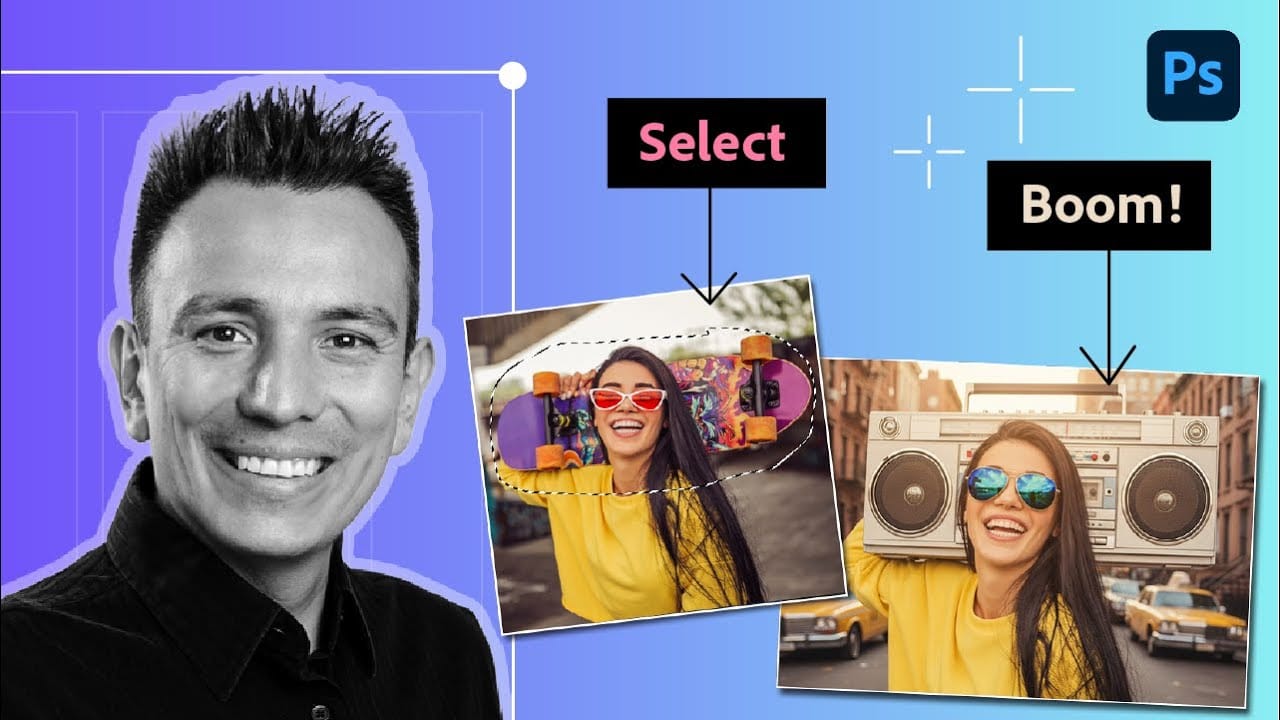
Flux Kontext Pro vs Nano Banana: Comparing Photoshop's AI Models for Realistic Image Generation
Photoshop Beta now includes two powerful AI partner models that handle image generation differently. Flux Kontext Pro excels at creating realistic, detailed results while maintaining original photo elements, making it ideal for natural-looking edits.
This comparison reveals when to choose Flux over the popular Nano Banana model for your creative projects.
Watch the Tutorial
Key Differences Between AI Models
* Use Flux Kontext Pro for realistic, photograph-like results that preserve origin
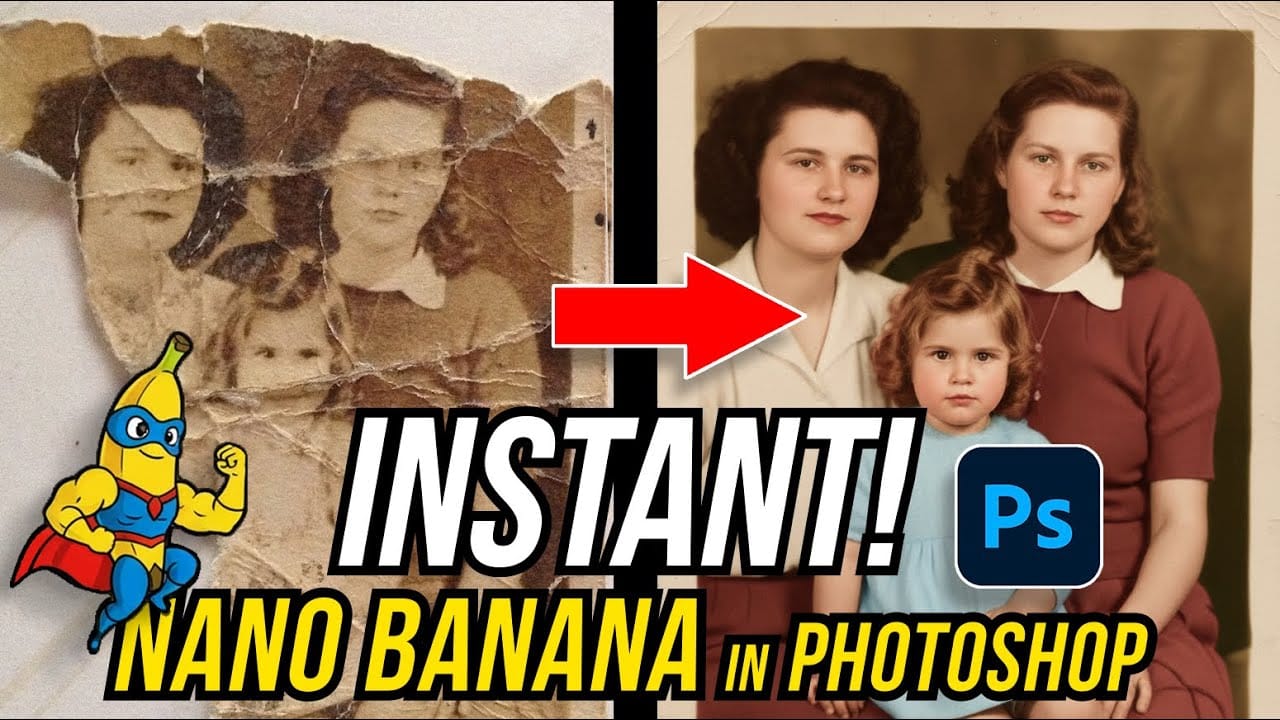
How to Restore Old Damaged Photos Using Nano Banana in Photoshop
Old family photos with scratches, tears, and missing sections can seem beyond repair. Google's Nano Banana AI model, now integrated into Photoshop, makes full restoration possible in minutes rather than hours.
This powerful tool excels at maintaining facial characteristics while automatically filling in damaged areas and adding realistic color to black and white images.
Watch the Tutorial
Essential Tips for Photo Restoration with Nano Banana
* Access the Contextual Taskbar — If you don't
Photoshop AI Comparison: Nano Banana vs Flux Kontext Pro Performance Test
Two powerful AI models now compete within Photoshop Beta: Nano Banana and Flux Kontext Pro. Each handles image generation differently, excelling in specific scenarios while struggling with others.
This comprehensive comparison reveals which model performs better across various editing tasks, from facial expressions to text generation and seasonal transformations.
Watch the Comparison
Practical Tips for AI Model Selection
* Use a softer selection brush to minimize image sliding glitches co
How to Use Gemini 3 Nano Banana Pro in Photoshop for Advanced AI Editing
Google's Gemini 3 Nano Banana Pro brings powerful AI capabilities to Photoshop with features like focus shifting, text recognition, and 4K resolution support. Adobe integrated this advanced model immediately upon release.
The tool excels at maintaining context while transforming images, creating storyboards, and generating realistic text replacements with proper fonts and reflections.
Watch the Video
Essential Tips for Gemini 3 Nano Banana Pro
* Put text prompts in quotation marks when wo
Gemini Nano Banana vs Photoshop: A Detailed Performance Comparison
Modern AI tools promise instant photo editing magic with simple text prompts. Gemini's Nano Banana and similar platforms can generate impressive results for basic tasks, but professional work demands precision and consistency.
This comprehensive comparison tests AI capabilities against traditional Photoshop techniques across skin retouching, compositing, background removal, and photo restoration to reveal where each approach excels.
Watch the Video
Key Insights from AI vs Photoshop Testing

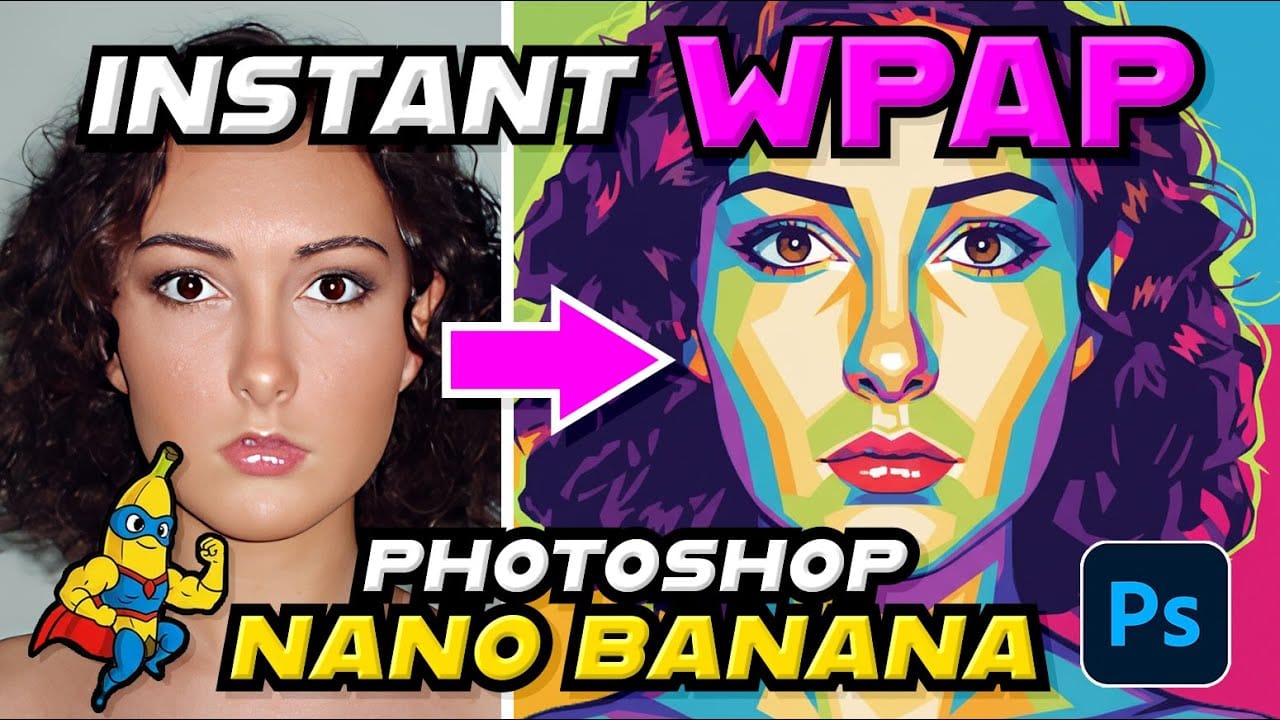
How to Create WPAP Pop Art Portraits Using Nano Banana in Photoshop
WPAP (Wedha's Pop Art Portrait) transforms ordinary photos into striking geometric art with sharp lines and vibrant contrasting colors. This Indonesian art style, created by Wedha Abdul Rasyid in the 1990s, features cubist-inspired deconstructions that turn portraits into dynamic visual statements.
Using Google's Nano Banana AI model in Photoshop, you can generate these complex artistic transformations in seconds rather than spending hours manually creating each geometric section and color bloc