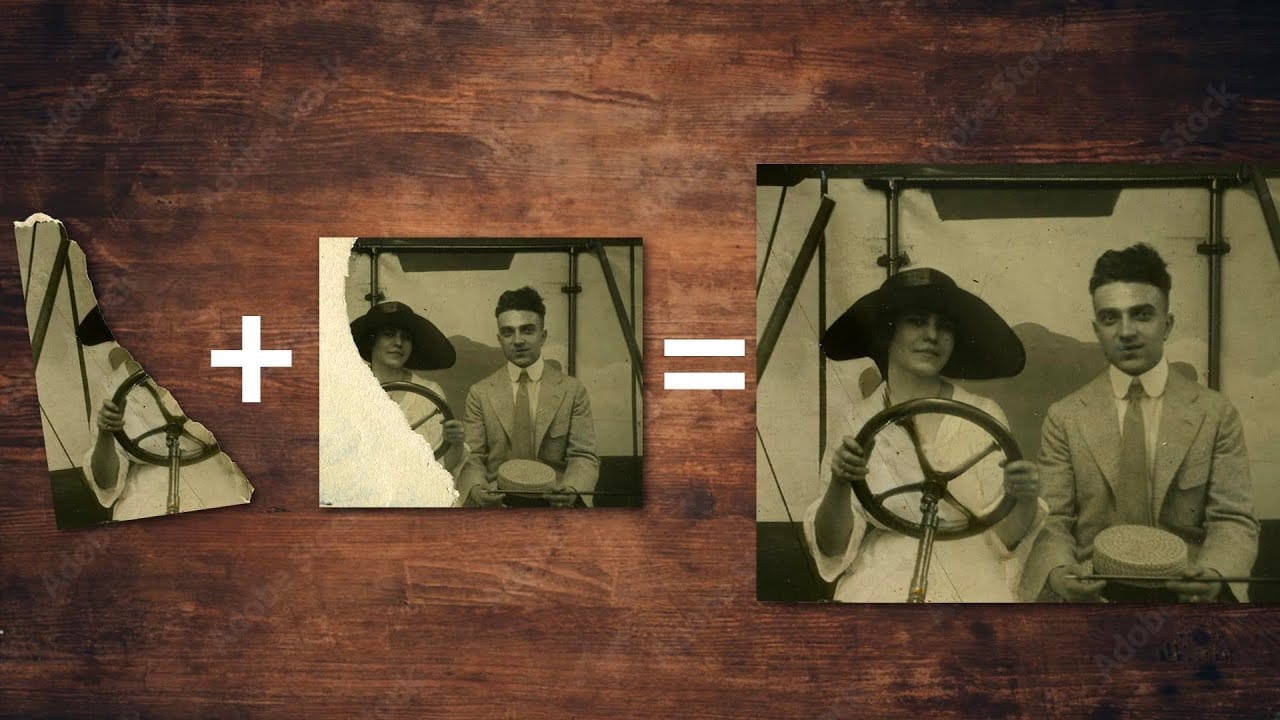
Old family photos with scratches, tears, and missing sections can seem beyond repair. Google's Nano Banana AI model, now integrated into Photoshop, makes full restoration possible in minutes rather than hours.
This powerful tool excels at maintaining facial characteristics while automatically filling in damaged areas and adding realistic color to black and white images.
Watch the Tutorial
Video by Photoshop Arthouse. Any links or downloads mentioned by the creator are available only on YouTube
Essential Tips for Photo Restoration with Nano Banana
- Access the Contextual Taskbar — If you don't see it, go to Window and click Contextual Taskbar at the bottom to enable AI features
- Use specific prompts — Type detailed commands like "restore photo and colorize, remove scratches, tears, creases, stains, and dust" for best results
- Choose Nano Banana for faces — This model maintains facial characteristics better than other AI options when restoring portraits
- Enhance colors carefully — Use Vibrance instead of Saturation to protect skin tones from oversaturation while intensifying muted colors
- Make selective edits — Use the Selection Brush Tool to modify specific areas like clothing color without affecting the entire image
More Tutorials About Photo Restoration
Explore additional techniques and AI tools for repairing damaged photographs.
Photoshop Beta: How to Use Google's Nano Banana AI for Advanced Image Editing
Google's Nano Banana AI model now integrates directly into Photoshop Beta, offering superior detail preservation and more realistic results than Adobe's Firefly. This powerful generative fill tool excels at maintaining subject likeness while transforming backgrounds, clothing, and entire scenes.
The integration brings professional-grade AI editing capabilities directly into Photoshop's familiar interface, complete with advanced selection tools and workflow optimization.
Watch the Tutorial
E
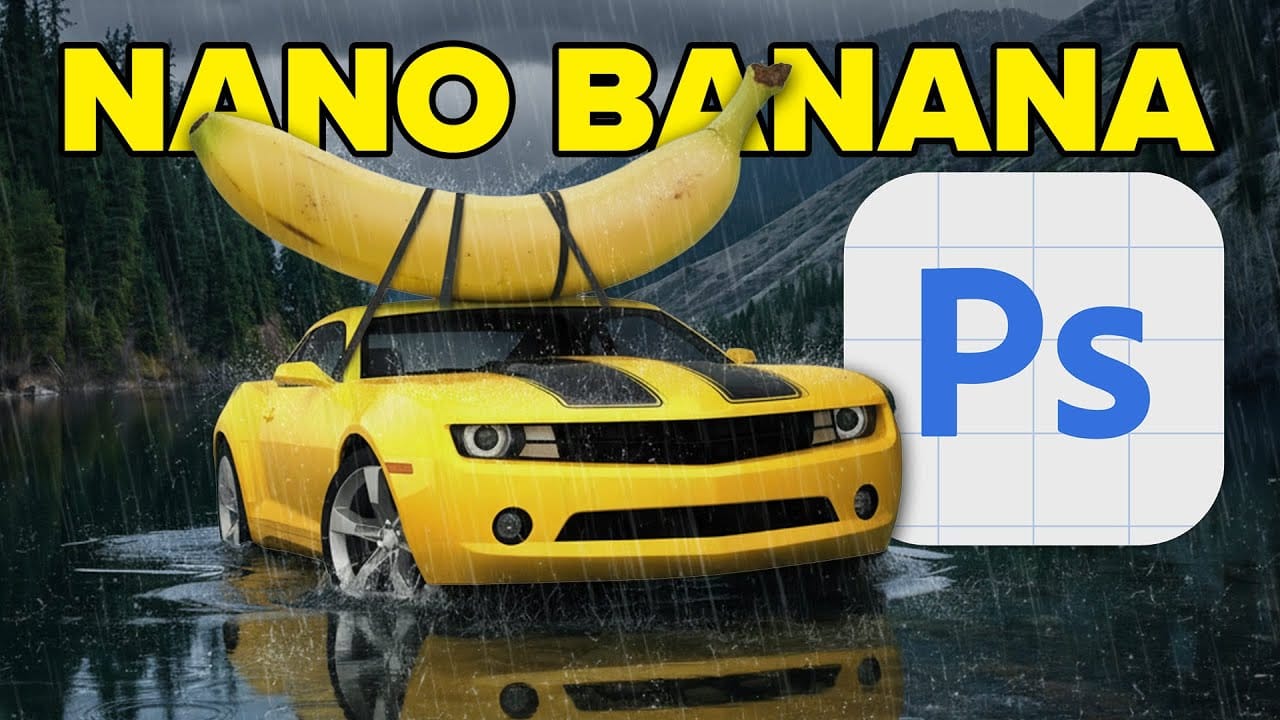
50+ Nano Banana Uses in Photoshop Beta for Advanced Image Editing
Google's Nano Banana AI model now integrates directly into Photoshop Beta, bringing powerful generative capabilities to image editing. The tool excels at maintaining subject likeness while transforming backgrounds, clothing, and entire scenes with simple text prompts.
This integration offers professional-grade AI editing within Photoshop's familiar interface, complete with advanced selection tools and workflow optimization.
Watch the Tutorial
Essential Tips for Using Nano Banana in Photosho
How to repair an old torn photo in Photoshop
In this tutorial, you'll discover how to breathe new life into an old, torn photograph using Photoshop. Aaron Nace, the expert from Phlearn, will guide you through the process step by step.
First, you'll learn how to assess the damage and create a plan for the restoration. Then, you'll dive into the various tools and techniques to repair the tears, scratches, and discoloration. By carefully blending layers and adjusting the image, you'll be able to seamlessly restore the photo to its former glo
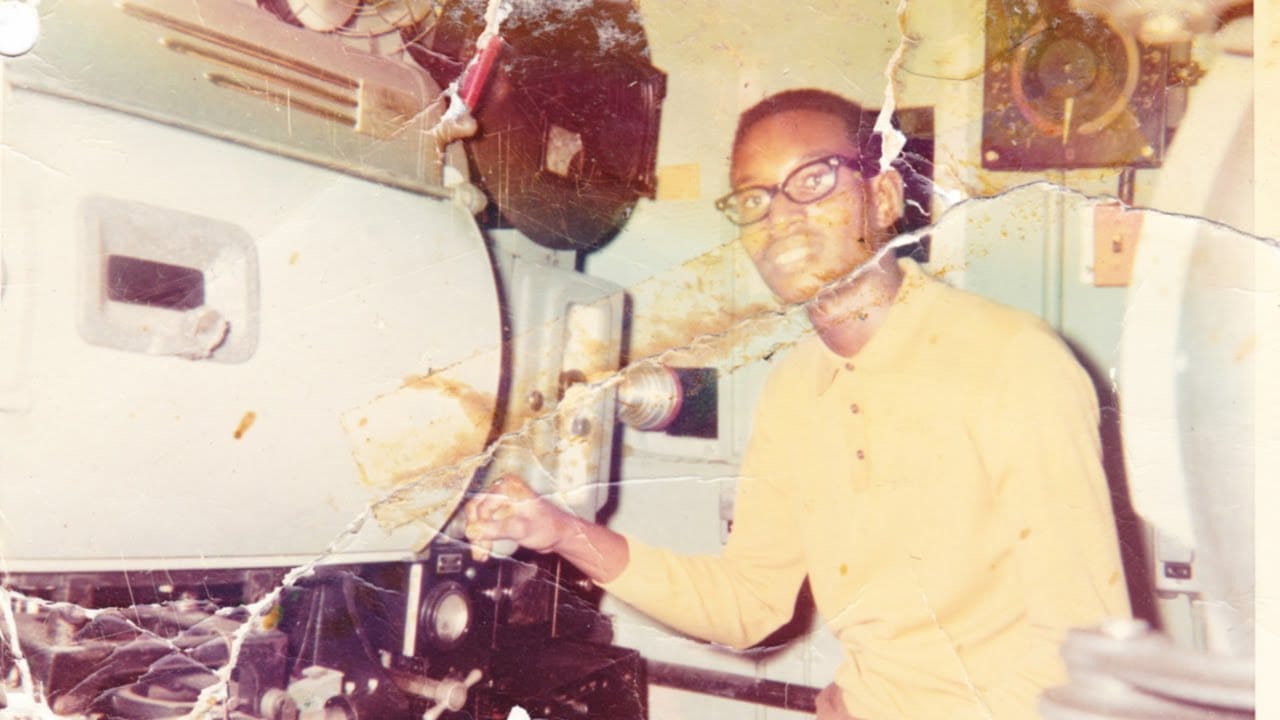
How Photoshop Photo Restoration Got Better Than Ever
This tutorial by Matt Kloskowski on Photoshop photo restoration reveals an impressive evolution in photo editing technology over the past few years. Many tasks that once required extensive time and complex processes can now be completed in just minutes. This is especially relevant after recent storms, which emphasized the need for restoring valuable family memories.
Photoshop's new tools and techniques make it easier than ever to tackle damaged images. Kloskowski emphasizes that achieving perfe