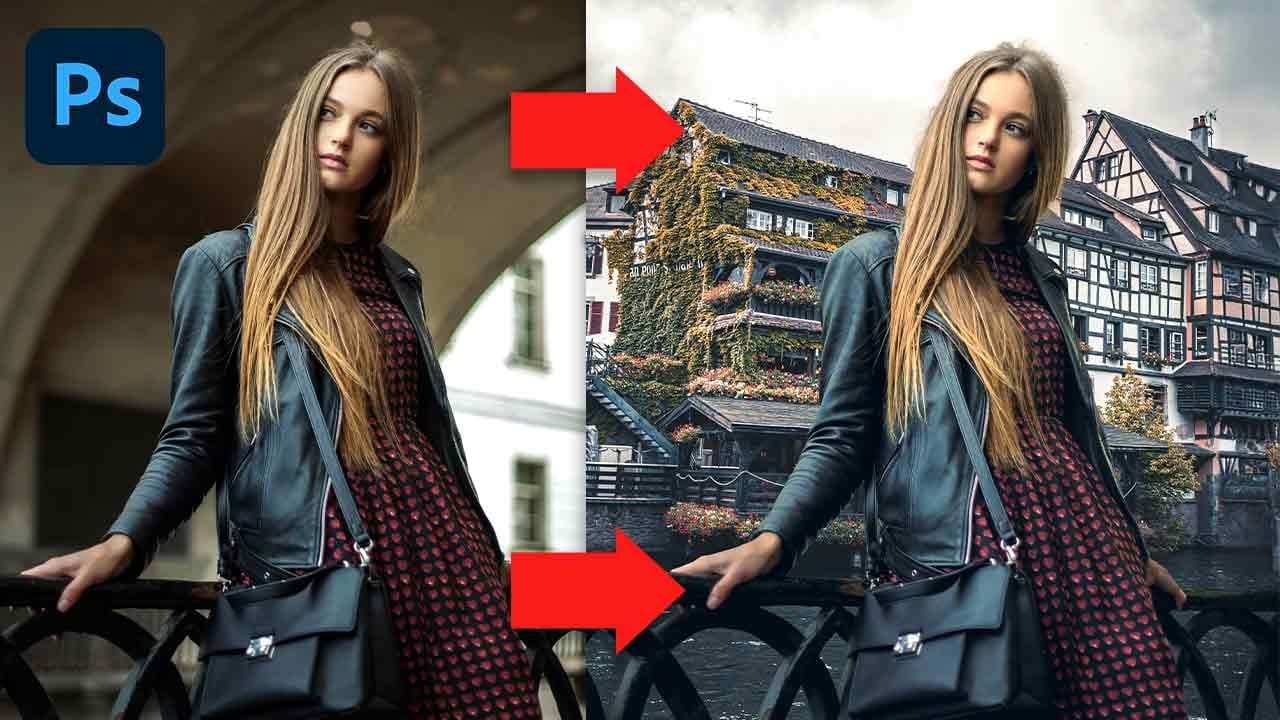
Blend modes control how the colors and tones on one layer interact with the layers below it. Learning a few core modes makes it easier to combine images, add textures, adjust contrast, remove dark or light backgrounds, and refine colors. This lesson explains how blend mode groups work and demonstrates practical techniques for compositing, retouching, and creating effects while keeping edits flexible.
Watch the Video
Video by PiXimperfect. Any links or downloads mentioned by the creator are available only on YouTube
Practical Tips
Use these core behaviors to choose a blend mode and build a flexible workflow:
- Use Multiply to darken an image or hide white areas in a layer, such as when adding paper texture or extracting shadows.
- Use Screen to brighten an image or hide black areas, such as when adding light overlays and scratches.
- Choose Overlay for stronger contrast or Soft Light for a gentler effect, including non-destructive dodge and burn.
- Use the Color blend mode to change color while preserving the underlying brightness and texture.
- Set a group to Normal to contain its adjustments and blending; use Pass Through when those effects should reach layers outside the group.
Related Articles and Tutorials
Explore these guides for more ways to understand layer interactions, tonal blending, and color workflows.
Understanding Photoshop Blending Modes: A Complete Guide to Layer Blending
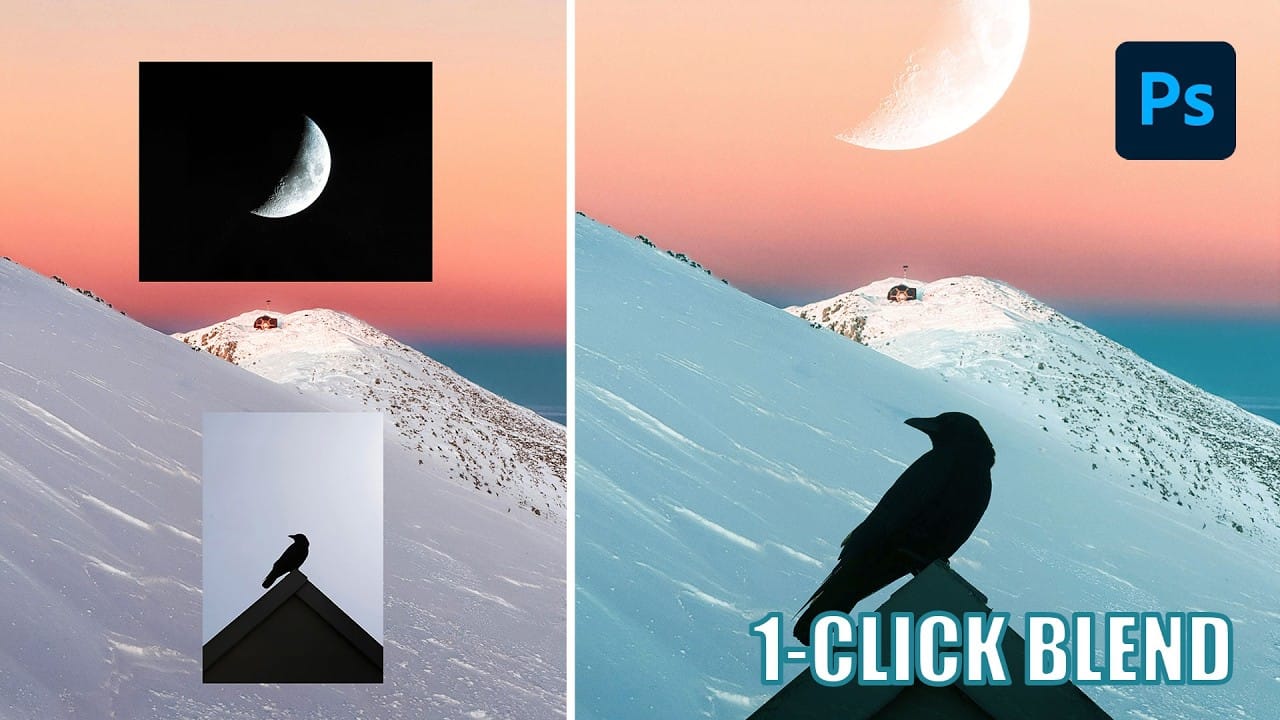
Blending modes transform how layers interact in Photoshop, letting you seamlessly combine images without complex masking. This technique reveals only light areas, dark areas, or specific colors from each layer.
Master these essential blending groups to create professional composites and artistic effects with just a few clicks.
Watch the Tutorial
Essential Blending Mode Tips
* Use Screen or Lighten modes to make dark backgrounds disappear while keeping bright elements visible
* Apply Mult
Understanding Blend Modes, Curves, Channels, and Fill vs Opacity in Photoshop
Most users cycle through blend modes randomly or avoid the curves panel entirely, missing out on precise control over their edits. These fundamental tools become intuitive once you understand the logic behind their organization and function.
This tutorial breaks down four essential concepts that separate casual users from confident editors: the six blend mode groups, how curves translate brightness, what RGB channels reveal about your images, and when to use fill versus opacity.
Watch the Vid
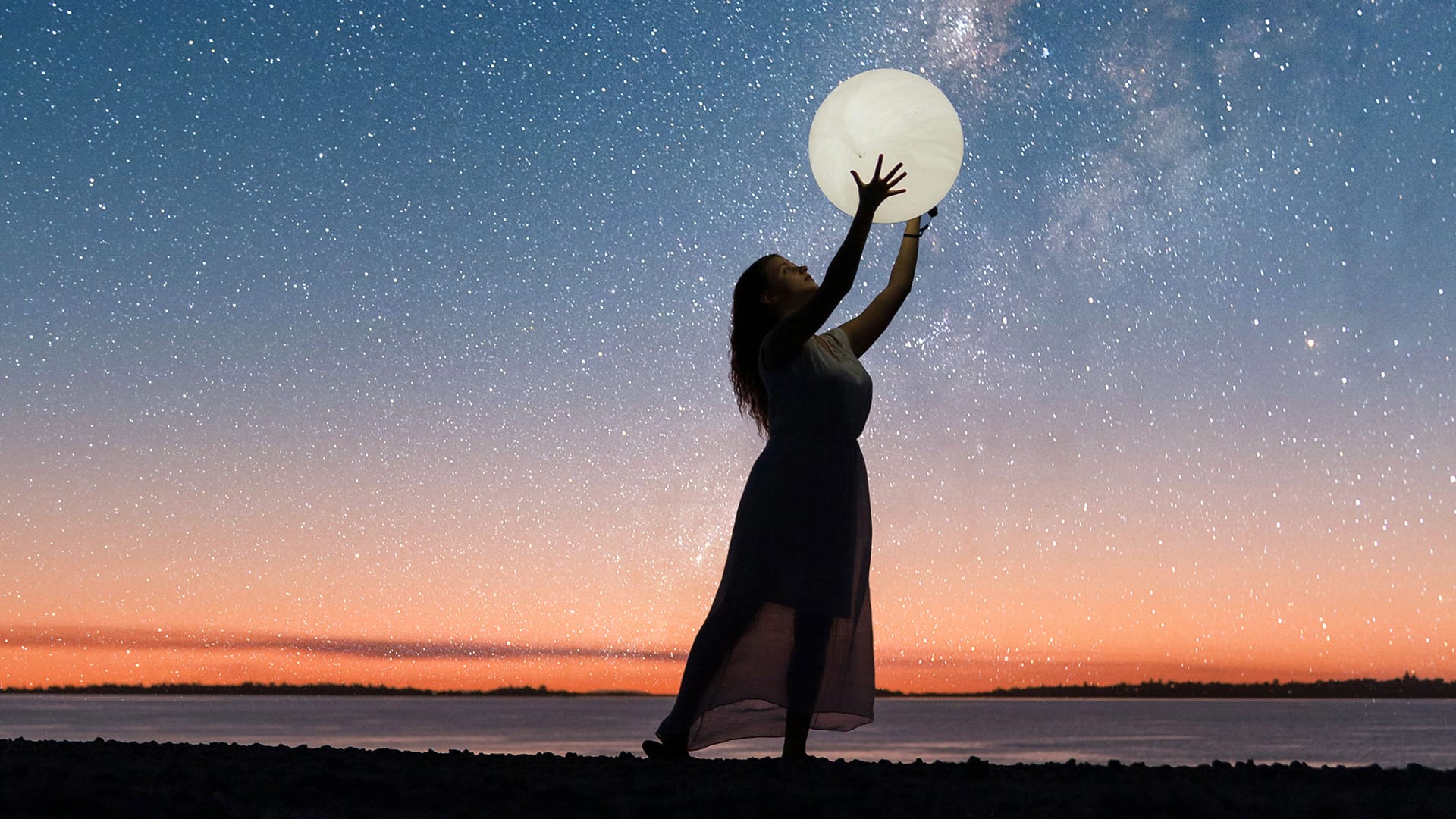
The Science of All 27 Blend Modes in Photoshop
Blend modes are a core feature in Photoshop, essential for manipulating how layers interact and visually combine. They unlock a vast range of creative possibilities, from subtle image enhancements to dramatic composite effects. Understanding each mode allows for precise control over your image adjustments and creative vision.
This comprehensive guide demystifies all 27 main blend modes, detailing their unique properties and practical applications. It serves as an invaluable reference, helping y

How to Use Blend If Sliders for Pixel-Perfect Transparency in Photoshop
Blend If sliders control transparency based on brightness levels, making complex selections unnecessary. Understanding how these two simple sliders work with RGB channels opens up precise compositing possibilities that would otherwise require multiple masks and selections.
The technique works by targeting specific brightness ranges from 0 to 255, allowing you to hide or reveal pixels based on their tonal values. This approach is particularly powerful for sky replacements, removing backgrounds,

Photoshop Basics: Three Ways to Use Blend If
Photoshop's Blend If feature is a powerful yet often underutilized tool for integrating multiple images. It unlocks creative possibilities, allowing elements to blend naturally without harsh edges or artificial-looking transitions. This method goes beyond basic opacity adjustments, offering precise control over how layers interact based on their tonal values.
This video tutorial provides a clear guide on leveraging Blend If to achieve professional results. It demonstrates how to seamlessly merg
Color Correction Using Lab Mode in Photoshop
Most color adjustments in RGB mode quickly look unnatural because the red, green, and blue channels control both color and brightness simultaneously. LAB color mode separates lightness from color information, letting you make dramatic color changes while preserving the original tonal range and depth of your image.
This approach gives you far more flexibility when pushing colors to creative extremes without the flat, oversaturated look that often results from aggressive RGB adjustments.
Watch
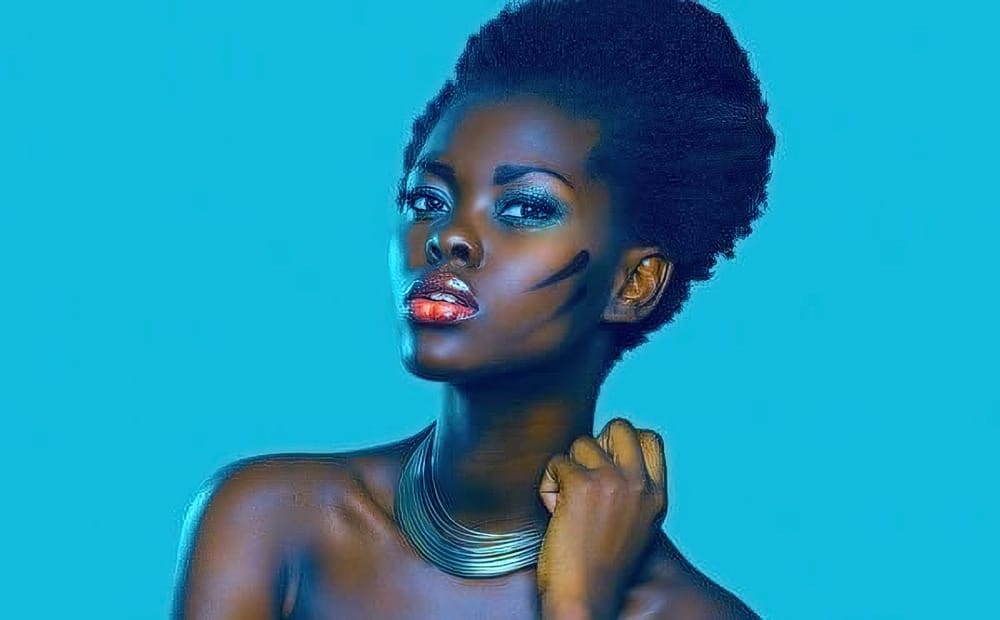
5 Essential Photoshop Techniques for Digital Artists and Photographers
Digital artists and photographers often find themselves repeating the same complex adjustments and effects across multiple projects. These five advanced techniques will help you work more efficiently while creating professional-quality results.
From custom presets that save hours of color adjustments to hand-painted digital enhancements that set your work apart from AI-generated content, these methods focus on building a sustainable creative workflow.
Watch the Video
Practical Tips
Here ar

Creative Uses of Photoshop's Difference Blending Mode
The Difference blending mode often gets overlooked in Photoshop, dismissed as too unpredictable or harsh for creative work. Most designers know it as a utility tool for layer alignment, but this powerful mode can create striking effects when used thoughtfully.
From grungy texture overlays to vintage solarized looks, Difference mode offers unique creative possibilities that other blending modes simply can't achieve. The key lies in understanding how it interacts with different tonal values and u
How to Create Digital Collages Using Layers and Blend Modes in Photoshop
Digital collages combine multiple images through strategic layering and blending techniques to create compelling visual stories. This beginner-friendly approach demonstrates how to build complex compositions by layering textures, portraits, and objects while using blend modes to seamlessly integrate each element.
The process focuses on practical workflow techniques including smart object management, precise subject selection, and effective masking methods that allow for non-destructive editing

How to Match Color in Photoshop for Beginners
Compositing images often requires precise color matching. When combining elements from different sources, slight variations in tone can disrupt the visual harmony, making the final image appear unnatural. Achieving a cohesive look is crucial for professional results.
This tutorial offers a straightforward method to blend disparate image elements seamlessly. The video demonstrates how to use Photoshop's built-in tools, specifically the Curves adjustment layer and Camera Raw, to unify the color p