How to Use Blend If Sliders for Pixel-Perfect Transparency in Photoshop

How to Use Blend If Sliders for Pixel-Perfect Transparency in Photoshop

Blend If sliders control transparency based on brightness levels, making complex selections unnecessary. Understanding how these two simple sliders work with RGB channels opens up precise compositing possibilities that would otherwise require multiple masks and selections.

The technique works by targeting specific brightness ranges from 0 to 255, allowing you to hide or reveal pixels based on their tonal values. This approach is particularly powerful for sky replacements, removing backgrounds, and creating natural-looking composites.

Watch the Video

Video by Photoshop Training Channel. Any links or downloads mentioned by the creator are available only on YouTube

Practical Tips

These essential techniques will help you master Blend If sliders for professional compositing results:

  • Hold Alt/Option and click sliders to split them in half, creating smooth gradual transitions instead of hard cutoffs
  • Use current layer sliders to hide pixels on the active layer based on brightness—drag black point right to remove dark areas, white point left to remove bright areas
  • Apply underlying layer sliders to reveal pixels from layers below—useful for making clouds appear in front of objects or bringing texture through overlays
  • Check individual RGB channels first to identify which has the most contrast between areas you want to keep and remove
  • Target specific color channels instead of overall brightness for more precise control over which colors become transparent

Explore more advanced blending and masking techniques to enhance your compositing skills:

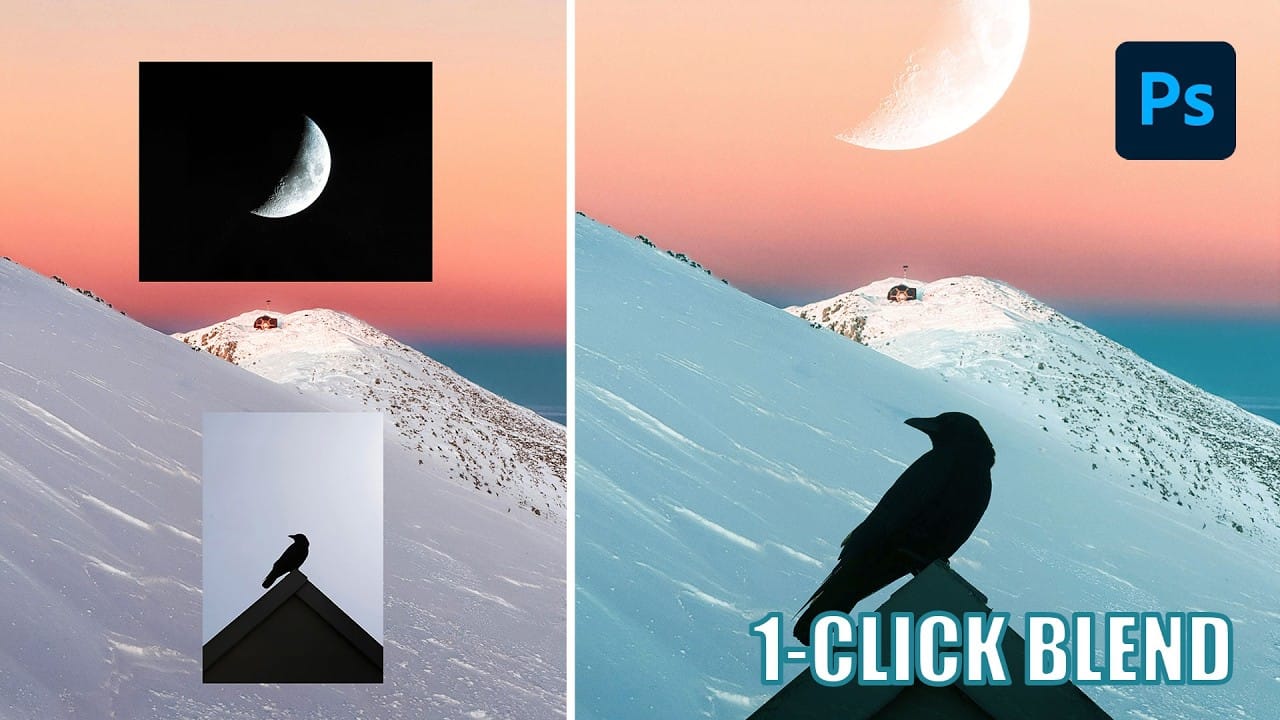
Photoshop Basics: Three Ways to Use Blend If
Photoshop's Blend If feature is a powerful yet often underutilized tool for integrating multiple images. It unlocks creative possibilities, allowing elements to blend naturally without harsh edges or artificial-looking transitions. This method goes beyond basic opacity adjustments, offering precise control over how layers interact based on their tonal values. This video tutorial provides a clear guide on leveraging Blend If to achieve professional results. It demonstrates how to seamlessly merg
Understanding Photoshop Blending Modes: A Complete Guide to Layer Blending
Blending modes transform how layers interact in Photoshop, letting you seamlessly combine images without complex masking. This technique reveals only light areas, dark areas, or specific colors from each layer. Master these essential blending groups to create professional composites and artistic effects with just a few clicks. Watch the Tutorial Essential Blending Mode Tips * Use Screen or Lighten modes to make dark backgrounds disappear while keeping bright elements visible * Apply Mult
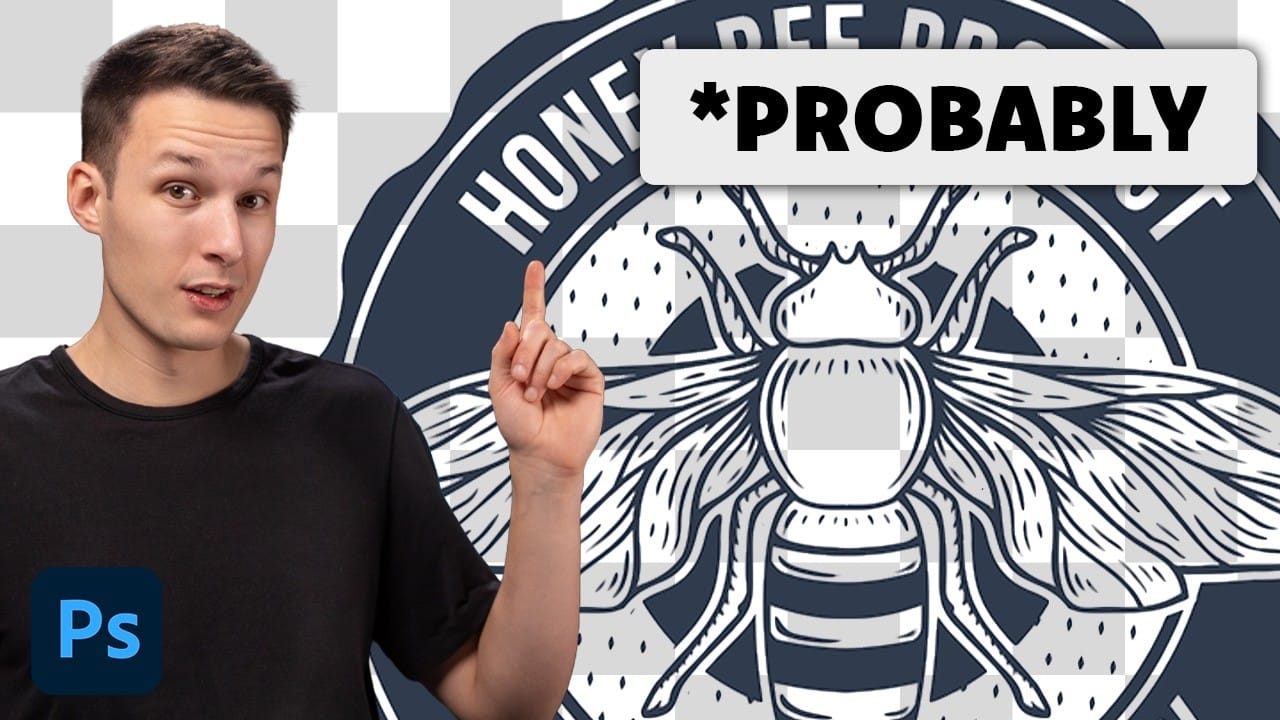
How to Remove White or Black Backgrounds Using Blend If in Photoshop
When standard selection tools fail to cleanly remove backgrounds from logos, icons, or graphics, you need a different approach. White edges, missed details, and poor selections can ruin what should be a simple task. The Blend If feature offers a direct solution for images with solid white or black backgrounds. This technique instantly hides specific tones and converts the result into true transparency for further editing. Watch the Tutorial Understanding Blend If for Background Removal The
10 little-known Photoshop features you should really learn
Photoshop's true power isn't just in its headline features—it's in the hidden gems that can transform your workflow overnight. While everyone knows about layers and the healing brush, these lesser-known capabilities can save you hours and open up creative possibilities you never knew existed. If you're a seasoned professional or an ambitious beginner, these 10 features will give you that unfair advantage that separates efficient creators from those still clicking through endless menus. 1. Ble
The Science of All 27 Blend Modes in Photoshop
Blend modes are a core feature in Photoshop, essential for manipulating how layers interact and visually combine. They unlock a vast range of creative possibilities, from subtle image enhancements to dramatic composite effects. Understanding each mode allows for precise control over your image adjustments and creative vision. This comprehensive guide demystifies all 27 main blend modes, detailing their unique properties and practical applications. It serves as an invaluable reference, helping y
Realistic Blend Effect in Photoshop
In this advanced Photoshop tutorial, WebFlippy guides you through creating a realistic blend effect for text, graphics, or logos on any surface. This tutorial is designed to help you seamlessly integrate elements into various backgrounds, making them look like a natural part of the scene. WebFlippy starts by demonstrating how to properly blend text or logos using Photoshop's powerful tools and techniques. You'll learn how to adjust and match the texture, lighting, and perspective of your surfac
Cut Out Glass in Photoshop with Blending Modes
Achieving a realistic cut-out of transparent objects, like glass bottles, can be a significant challenge in Photoshop. Traditional masking often struggles to maintain the natural light, shadow, and reflective qualities inherent in such items, leading to flat or artificial results. This video tutorial offers an advanced technique to meticulously mask transparent objects into new backgrounds. It leverages the power of blending modes and strategic layer organization to perfectly integrate the obje
Creative Uses of Photoshop's Difference Blending Mode
The Difference blending mode often gets overlooked in Photoshop, dismissed as too unpredictable or harsh for creative work. Most designers know it as a utility tool for layer alignment, but this powerful mode can create striking effects when used thoughtfully. From grungy texture overlays to vintage solarized looks, Difference mode offers unique creative possibilities that other blending modes simply can't achieve. The key lies in understanding how it interacts with different tonal values and u
Understanding Blend Modes, Curves, Channels, and Fill vs Opacity in Photoshop
Most users cycle through blend modes randomly or avoid the curves panel entirely, missing out on precise control over their edits. These fundamental tools become intuitive once you understand the logic behind their organization and function. This tutorial breaks down four essential concepts that separate casual users from confident editors: the six blend mode groups, how curves translate brightness, what RGB channels reveal about your images, and when to use fill versus opacity. Watch the Vid
Generate unlimited one-click color filters in Photoshop
In this tutorial, PiXimperfect shows viewers how to create one-click color filters in Photoshop. The process involves combining the concepts of Gradient Fill, Gradient Maps, Blend Modes, and Blend If. By following these steps, users can generate unlimited unique filters with ease. PiXimperfect takes the viewer through each technique, providing clear instructions and demonstrations. The tutorial promises to help users create "the most awesome filters automatically in Photoshop." With this knowle

Get tutorials & freebies delivered to you.

Subscribe to the Photoshop Roadmap newsletter, a weekly roundup of new tutorials, insights and quality downloads, trusted by 6500+ readers.

You might also like

How to Use Color Average for Color Toning in Photoshop

Color average creates a unified color tone by analyzing all the colors in your image and calculating their mathematical average. This technique adds depth and cohesion to photos, composites, and AI-generated images by applying a subtle color wash that ties all elements together. The method works particularly well for composites...

How to Remove Complex Background Elements Using AI in Photoshop

Removing complex background elements like fencing or wire mesh has traditionally been one of the most time-consuming tasks in photo editing. New AI-powered tools in Photoshop can now eliminate these distracting elements while preserving fine details in your subject. This tutorial demonstrates two practical workflows: one using the latest Firefly...

How to Use Photoshop's Auto Layer Rename Feature

Messy layer names like "Layer 52 copy 4" and "Untitled 5" clutter your workspace and slow down complex projects. Photoshop's new auto-rename feature uses AI to automatically identify and name layers based on their content, from "Woman in yellow shirt" to "...

New Generative Fill Features in Photoshop Beta: Reference Images and Credit Tracking

Photoshop Beta introduces significant improvements to Generative Fill that address the most requested features from users. The updated interface now displays your generative credit balance and usage, while the new reference image capability lets you add up to eight specific images to guide AI generation with precise visual examples. These...

Essential Photoshop Tools for Beginners: Brush, Crop, and Move Tool Tutorial

Learning Photoshop tools feels overwhelming when you don't know where to start. This tutorial focuses on three essential tools that form the foundation of most Photoshop work: the brush tool for painting and retouching, the crop tool for resizing and straightening images, and the move tool for positioning...

How to Add Custom Textures to Photos in Photoshop

Adding textures to photographs can transform ordinary images into compelling artistic compositions. This technique uses multiple texture layers combined with strategic blending modes and color adjustments to create depth and visual interest. The process involves layering different texture types—color overlays, surface patterns, and lighting effects—then using masking techniques...

You’ve successfully subscribed to Photoshop Roadmap
Welcome back! You’ve successfully signed in.
Great! You’ve successfully signed up.
Success! Your email is updated.
Your link has expired
Success! Check your email for magic link to sign-in.