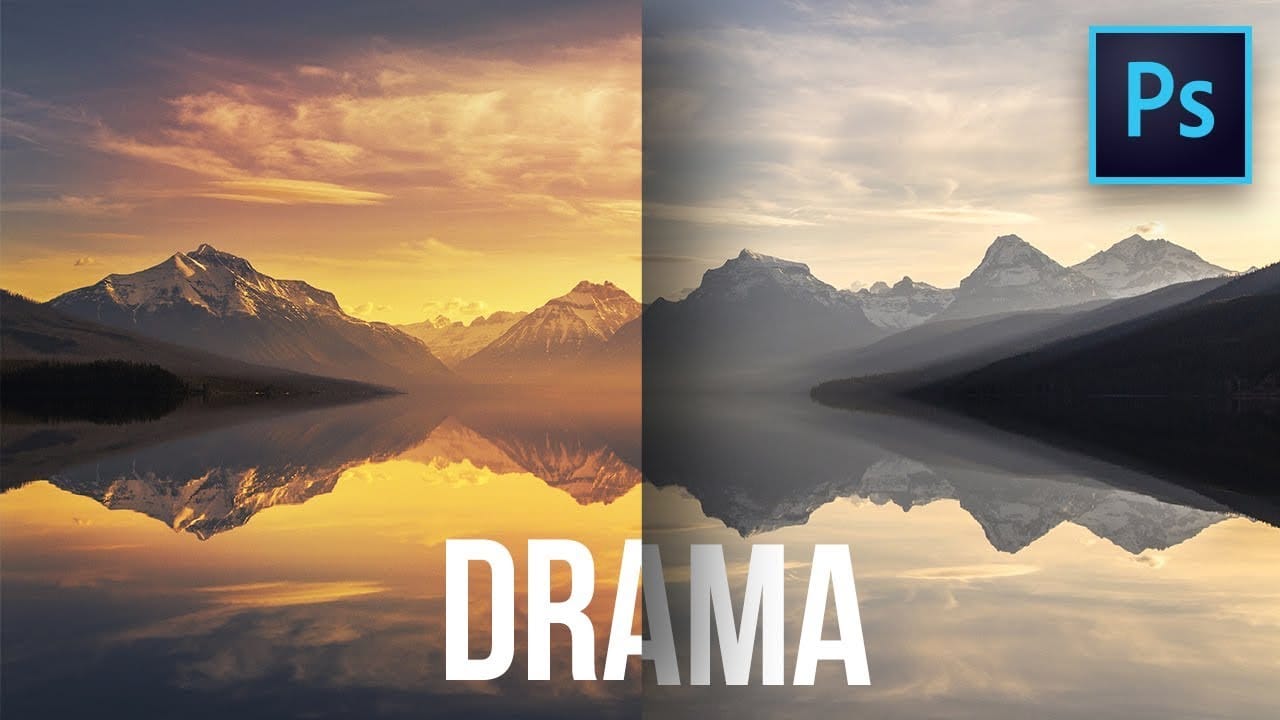
Creative Uses of Photoshop's Difference Blending Mode

Creative Uses of Photoshop's Difference Blending Mode

The Difference blending mode often gets overlooked in Photoshop, dismissed as too unpredictable or harsh for creative work. Most designers know it as a utility tool for layer alignment, but this powerful mode can create striking effects when used thoughtfully.

From grungy texture overlays to vintage solarized looks, Difference mode offers unique creative possibilities that other blending modes simply can't achieve. The key lies in understanding how it interacts with different tonal values and using that knowledge strategically.

Watch the Video

Video by Texturelabs. Any links or downloads mentioned by the creator are available only on YouTube

How Difference Mode Creates Visual Impact

Difference blending mode functions on a simple principle: black does nothing, white inverts. This fundamental behavior makes it particularly effective for creating symmetrical texture applications where the same detail appears as both positive and negative elements across an image.

The magic happens in the gray areas, where Difference mode produces a distinctive solarized effect. Unlike a standard invert adjustment that creates dead gray zones when faded, Difference mode maintains visual interest through these tonal transitions. This characteristic makes it especially valuable for vintage-style treatments and analog photography effects.

Professional designers often combine Difference mode with carefully selected black-and-white textures to achieve effects that would require multiple adjustment layers with other blending modes. The mode's ability to work simultaneously on red, green, and blue channels also opens up unique color inversion possibilities when used thoughtfully.

Practical Tips for Using Difference Mode

  • Use mostly black textures with white details to create controlled grunge effects that appear in both highlights and shadows
  • Apply the Fill slider instead of Opacity to reduce Difference mode effects more organically
  • Combine Difference mode with desaturated, monochromatic source images to avoid overly psychedelic color shifts
  • Create solarized vintage effects by using gradient overlays set to Difference mode on grayscale photographs
  • Experiment with limited color ranges (like blues and cyans) on high-contrast images for deliberate complementary color schemes

Explore more advanced blending mode techniques and creative applications.

Cut Out Glass in Photoshop with Blending Modes
In this informative tutorial, Jesus Ramirez demonstrates how to effectively cut out a glass bottle from a white background using Blending Modes in Photoshop. The focus is on selecting and masking transparent objects, such as glass, with precision and ease. Jesus starts by introducing the concept of Blending Modes and their role in enhancing the selection process for glass or other transparent items. He explains how to use these modes to create a clean and accurate cut-out while maintaining the
The Science of All 27 Blend Modes in Photoshop
Explore the comprehensive world of Photoshop's blend modes with Piximperfect's detailed tutorial. This guide provides an in-depth look at all 27 blend modes, breaking down the science and mathematical principles behind each one. You'll start by understanding the basic concept of blend mode groups and their shared properties, before diving into the specifics of individual modes. The tutorial offers clear explanations and practical examples to demonstrate how each blend mode interacts with layers
Realistic Blend Effect in Photoshop
In this advanced Photoshop tutorial, WebFlippy guides you through creating a realistic blend effect for text, graphics, or logos on any surface. This tutorial is designed to help you seamlessly integrate elements into various backgrounds, making them look like a natural part of the scene. WebFlippy starts by demonstrating how to properly blend text or logos using Photoshop's powerful tools and techniques. You'll learn how to adjust and match the texture, lighting, and perspective of your surfac
Create colorful dramatic skies with a simple blending trick in Photoshop
In this Photoshop tutorial by Unmesh Dinda from PiXimperfect you will learn how to extract amazing details from the sky, bring out the clouds, and add brilliant colors just using the Blend If sliders in Photoshop. Learn how to add drama, mood, and details to your skies by utilizing the power of Blending Options, Blend Modes, and Layers. In this video, we will simply paint the sky with the colors we desire and the details will simply follow. Whether you want to add the colorful sunset lights or

Get tutorials & freebies delivered to you.

Subscribe to the Photoshop Roadmap newsletter, a weekly roundup of new tutorials, insights and quality downloads, trusted by 6500+ readers.

You might also like

How to Use AI Masking in Adobe Camera Raw for Professional Photo Editing

Adobe Camera Raw's AI masking tools automatically detect subjects, backgrounds, skies, and landscapes, letting you make precise adjustments to specific areas of your photos. These intelligent masks eliminate the need for manual selection work, while allowing you to combine and refine them for complete creative control. The technique...

How to Remove Objects from Photos Using AI Tools in Photoshop

Photoshop's AI-powered object removal tools can eliminate unwanted distractions from your photos with minimal effort. The Remove Tool and Generative Fill feature automated detection for common distractions like people and wires, plus manual painting options for custom removals. These tools work on separate layers, preserving your original image...

Speed Up Your Color Grading Workflow with Photoshop Actions

Color grading can transform your images, but manually adjusting curves and levels for every photo takes time. Photoshop actions offer a faster approach by applying professional color treatments with a single click. This workflow uses pre-built actions, tints, and LUTs to achieve various moods and styles instantly, letting you layer...

7 Essential Tips for Speed Painting in Digital Art

Speed painting isn't just about working faster—it's about eliminating friction from your creative process. These seven techniques help you get ideas onto canvas quickly without getting bogged down in unnecessary decisions or premature details. Whether you're exploring concepts for professional work or personal...

Professional Color Grading Techniques in Photoshop

Color grading transforms ordinary photos into compelling images with professional mood and atmosphere. These non-destructive techniques let you adjust tones, enhance specific colors, and create cinematic looks while preserving your original image data. Master these four essential color grading methods to develop a consistent editing workflow that elevates your photography....

How to Save Cut-Out Elements with Transparent Backgrounds in Photoshop

Creating seamless photo composites requires properly saving cut-out elements with transparent backgrounds. Whether you're extracting people, objects, or other elements for later use, the file format you choose determines how easily you can place these elements into new scenes. Two main approaches work best: saving as PSD files...

You’ve successfully subscribed to Photoshop Roadmap
Welcome back! You’ve successfully signed in.
Great! You’ve successfully signed up.
Success! Your email is updated.
Your link has expired
Success! Check your email for magic link to sign-in.