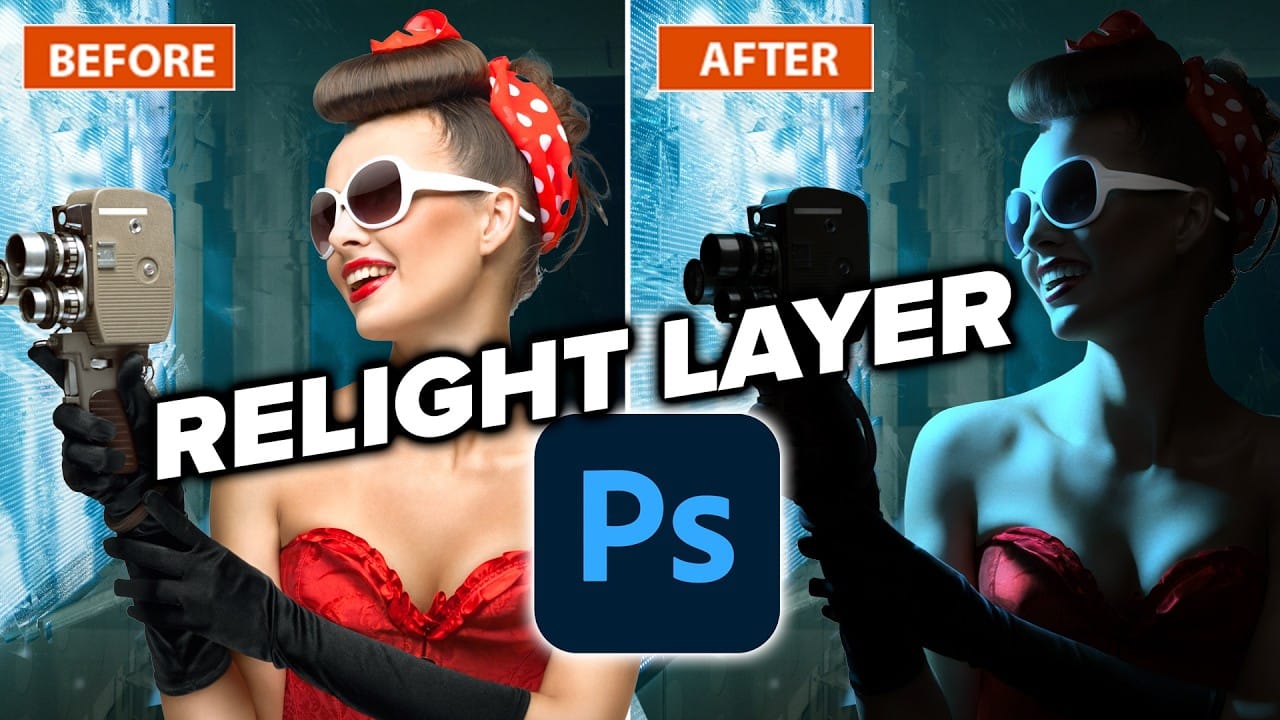
Photoshop’s Relight layer lets you reposition and adjust light on a selected subject after taking the photo. It can help match a subject to a composite scene, but the beta feature costs 30 credits to generate and may reduce image resolution. This walkthrough shows how to set up the light, compare Relight with Harmonize, and use layer blending to control the result without generating it again.
Watch the Video
Video by PHLEARN. Any links or downloads mentioned by the creator are available only on YouTube
Practical Tips
Use these steps to test the lighting effect while keeping the credit cost and image quality in mind.
- Select the subject layer before creating a Relight layer; the effect applies to one layer at a time.
- Position the light to match the scene, then adjust its color temperature, distance, intensity, and diffusion gradually.
- Balance the new light with the original lighting so the subject still fits the source photo.
- Compare the generated result with the original at full size, since Relight may reduce resolution.
- For a composite, try Harmonize first, then set the Relight layer to Lighten and adjust its opacity to control the effect without generating another version.
Related Articles and Tutorials
Explore more guides to lighting, image adjustments, and Photoshop’s latest features.
How to Use the Relight Layer in Photoshop Beta
Photoshop's new Relight Layer brings AI-powered directional lighting into the compositing workflow, filling the gap left by the deprecated Lighting Effects tool. You can place up to three independent light sources, control their color, intensity, diffusion, and distance, and blend them with the image's original ambient lighting.
Watch the Video
Practical Tips
Here are the key techniques from the video for getting useful results with the Relight Layer.
* Drag the light dot off the canvas e
Photoshop 2026: 5 New Features Worth Adding to Your Workflow
Photoshop 2026 arrives with a set of updates that genuinely change how certain editing tasks get done. The Light adjustment layer alone could replace a step many photographers have been routing through Camera Raw for years — and that's just the start.
Watch the Video
Practical Tips
Here are the key takeaways from the video, covering each of the five features and how to get the most out of them.
* Use the new Light adjustment layer to recover highlights and shadows directly on the canvas —

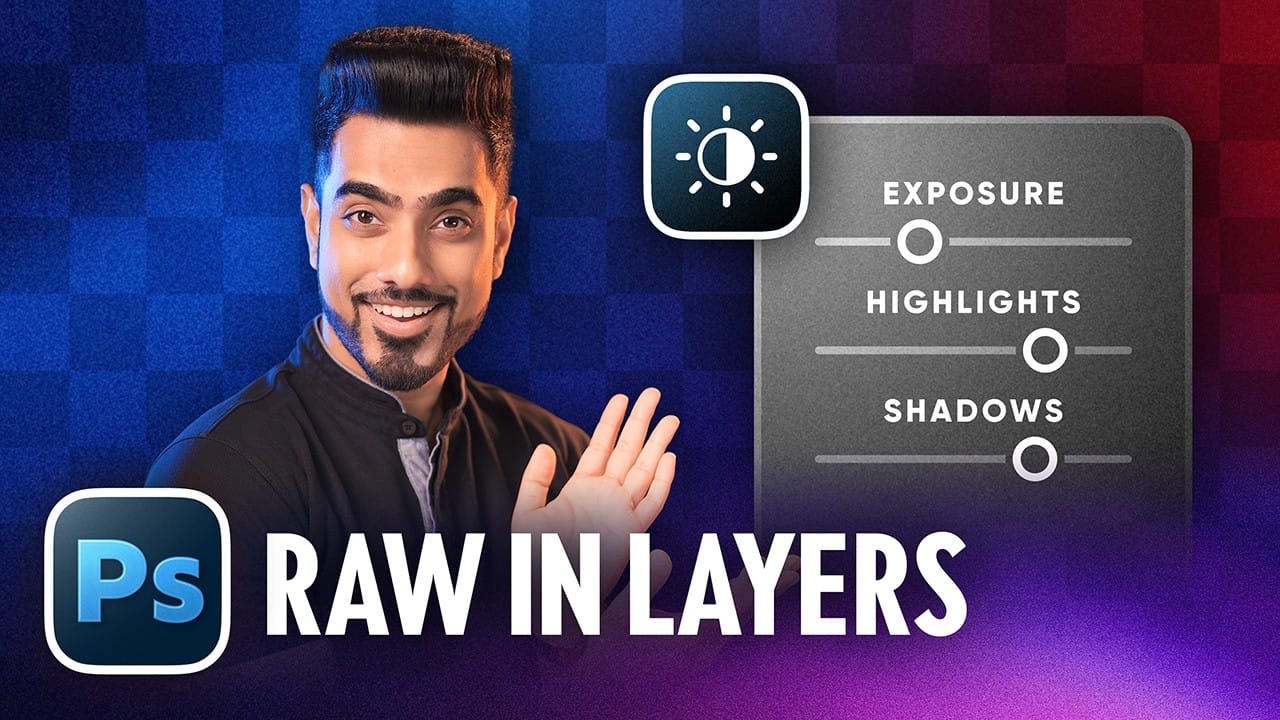
How to Use the Light Adjustment Layer in Photoshop
Photoshop's new Light adjustment layer brings Camera Raw controls — exposure, contrast, highlights, shadows, whites, and blacks — directly into the layers panel as a fully non-destructive, maskable layer. This means you can stack multiple light adjustments, target specific subjects, and combine them with Blend If and other adjustment layers without ever flattening your file.
Watch the Video
Practical Tips
Key techniques covered in this tutorial for working with the Light adjustment layer ef
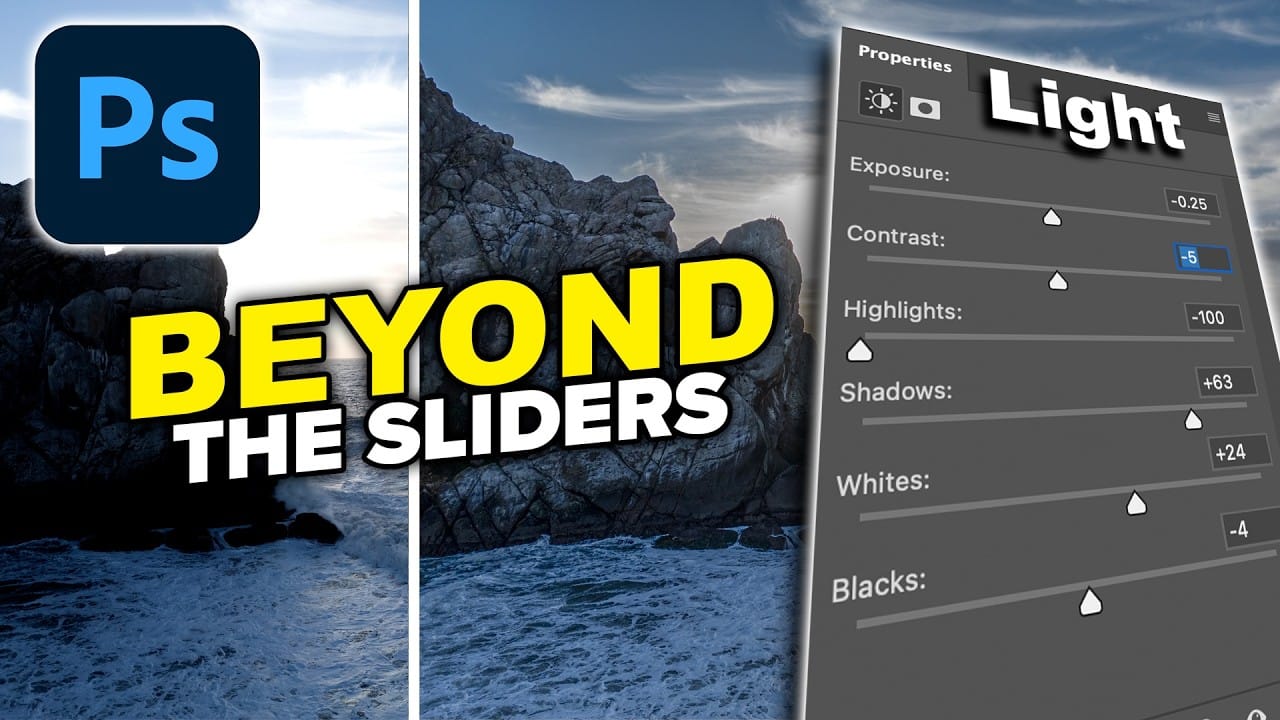
How to Use the Light Adjustment Layer in Photoshop Effectively
Photoshop's Light adjustment layer brings Camera Raw-style tonal controls — exposure, contrast, highlights, shadows, whites, and blacks — directly into a non-destructive layer workflow. The real value isn't in what the sliders do individually, but in how you sequence them to expand dynamic range and reveal detail in both shadows and highlights.
Watch the Video
Practical Tips
Here are the key techniques covered in this tutorial for getting the most out of the Light adjustment layer workflow.
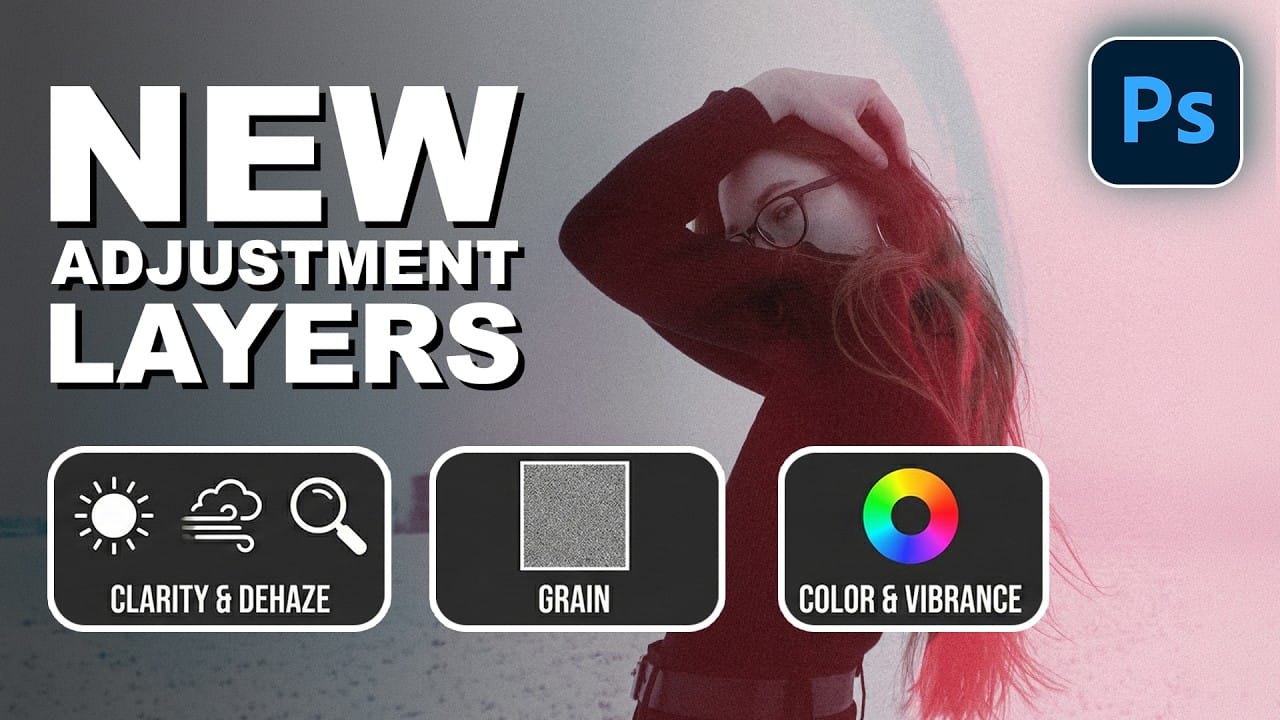
How to Use the New Color, Clarity, Dehaze, and Grain Adjustment Layers in Photoshop
Three powerful new adjustment layers bring Camera Raw's most popular tools directly into your layers panel. Color and Vibrance, Clarity and Dehaze, and Grain adjustments now work as standard adjustment layers with full masking capabilities and non-destructive editing.
These tools eliminate the need for smart objects when applying these specific adjustments, creating cleaner workflows while maintaining the precision control photographers expect from professional editing software.
Watch the Vid
Photoshop 27.6: Complete Guide to New Features and Tools
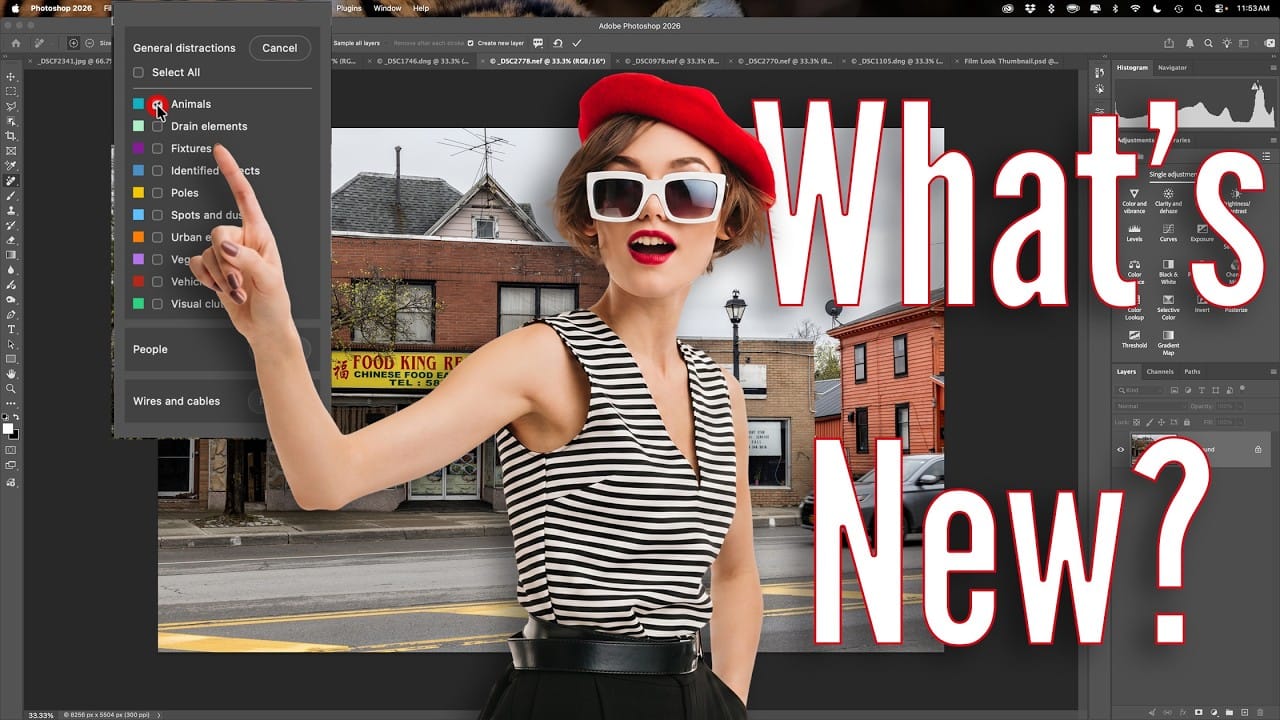
Photoshop 27.6 introduces several features that streamline common editing tasks. From bringing reflection removal directly into the main interface to AI-powered distraction detection, these updates focus on making complex workflows more accessible and efficient.
The update also includes enhanced generative models, improved layer management tools, and a redesigned actions panel that provides visual previews before applying effects.
Watch the Video
Practical Tips
Key techniques to m
How to Use Photoshop's AI Sharpen Filter and When It's Worth the Cost
Photoshop's new AI Sharpen filter promises one-click sharpening powered by advanced algorithms. This tool uses technology from Topaz Labs to enhance image details without manual adjustments, but it comes with a significant cost in credits.
Understanding when to use this automated approach versus traditional methods like the High Pass filter can save you both time and credits while achieving the sharpening results you need.
Watch the Video
Practical Tips
Here are essential tips for making t