Photoshop 2026 arrives with a set of updates that genuinely change how certain editing tasks get done. The Light adjustment layer alone could replace a step many photographers have been routing through Camera Raw for years — and that's just the start.
Watch the Video
Video by photoshopCAFE. Any links or downloads mentioned by the creator are available only on YouTube
Practical Tips
Here are the key takeaways from the video, covering each of the five features and how to get the most out of them.
- Use the new Light adjustment layer to recover highlights and shadows directly on the canvas — pull highlights down and open shadows before adjusting whites and blacks separately for better contrast control than the slider alone provides.
- In Camera Raw's Glow effect, choose the glow type to match your intent: Diffusion for a soft Orton-style look, Bloom for expanding window highlights, and Halation for a warm, filmic edge glow around brighter areas.
- When placing text on a path, draw your curve with the Freeform Pen tool, then use Dynamic Fit to spread the text automatically across the full length of the path rather than repositioning it manually.
- Use the brush annotation tool inside Prompt to Edit to sketch the approximate location and shape of objects you want to generate — rough outlines are enough, and you can label each one separately for precision.
- Apply Generative Fill with a loose selection brush to fill only a masked region; the AI will respect the painted boundary even if the strokes are imprecise, leaving the rest of the image untouched.
Related Articles and Tutorials
Explore more guides covering recent updates and practical editing techniques.
5 Recent Photoshop Features Worth Adding to Your Workflow
Photoshop has been receiving a steady stream of updates, and a handful of genuinely useful features have quietly slipped past most users. From one-click lighting harmonization to AI-powered object removal and automatic layer naming, these tools can meaningfully reduce the time spent on repetitive editing tasks.
Watch the Video
Practical Tips
Here are the key takeaways from the video, covering each of the five features and how to get the most out of them.
* Use Harmonize as a starting poin
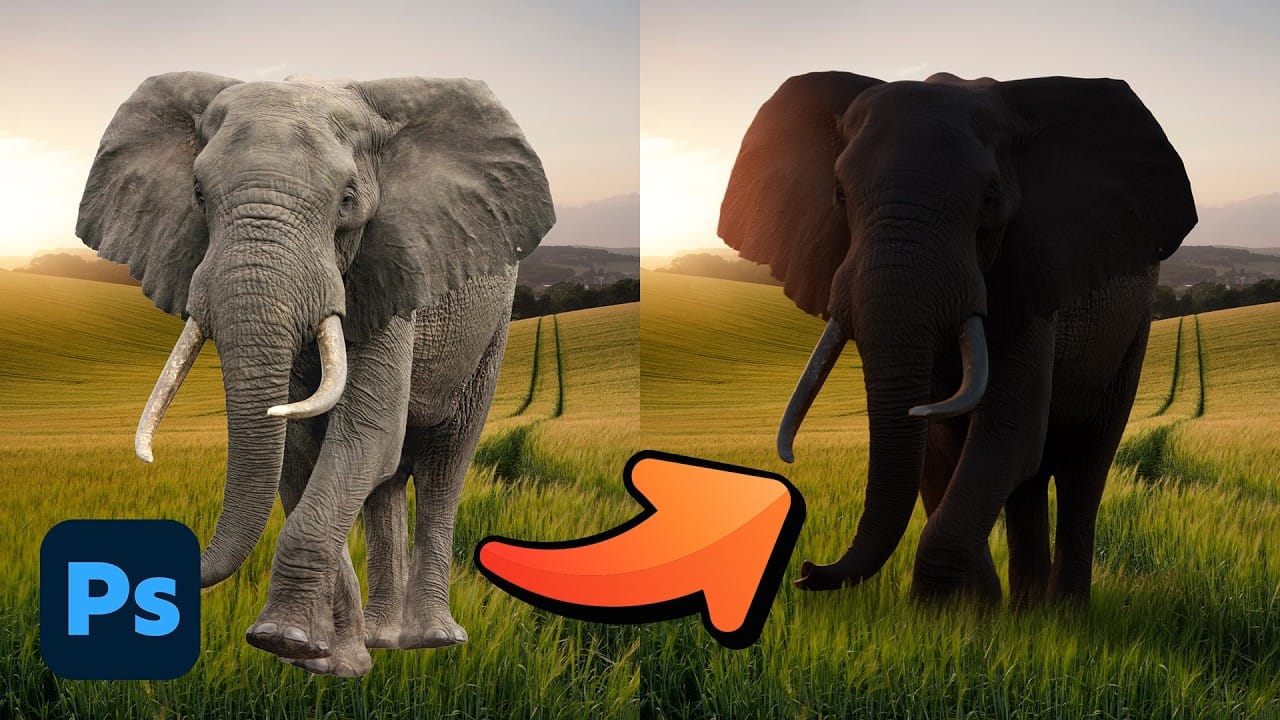
5 Hidden Photoshop Features You Probably Didn't Know
Many Photoshop users tend to rely on a familiar set of tools and workflows, often overlooking powerful but less obvious functionalities. This can lead to inefficient processes and missed creative opportunities, making certain tasks feel more cumbersome than they need to be.
This guide and accompanying video demonstrate five underutilized features within Photoshop that can significantly enhance your efficiency and expand your creative toolkit. Learning these capabilities transforms how you appro

Photoshop 2025 Top 7 New Features and Updates Explained
Photoshop 2025 brings significant improvements to everyday editing tasks with smarter AI tools, enhanced 3D capabilities, and more intuitive workflows. From automatic distraction removal to advanced generative features, these updates focus on making complex tasks faster and more accessible.
The standout addition is the Substance 3D viewer, which reintroduces 3D object compositing with sophisticated lighting and material controls that weren't available in previous versions.
Watch the Complete

TOP New Features in Photoshop – May 2025 Update
Many Photoshop users frequently encounter common challenges such as time-consuming manual selections for complex objects, difficulties in achieving precise color adjustments across an image, or struggling with inconsistent results when removing unwanted elements like reflections. These hurdles often slow down the creative process, making it frustrating to achieve a desired professional look efficiently.
This guide explains how Photoshop's latest updates introduce powerful new functionalities, i

14 New Features in Photoshop 27.6 You Need to Know
Photoshop 27.6 brings significant updates that enhance workflow efficiency and creative possibilities. From improved reflection removal tools to smarter AI models, these features address real challenges photographers and designers face daily.
This comprehensive overview covers 14 key additions, including enhanced distraction detection, new AI capabilities, and improved workspace organization tools that can streamline your editing process.
Watch the Video
Practical Tips
Key techniques to ma

Exploring the Latest Features in Photoshop 2025
Photoshop 2025 introduces powerful new tools designed to make creative work easier, faster, and more flexible. From fine-tuning selections to moving objects and speeding up your workflow, these features feel built for the way creators actually work.
In this video, we'll show you what's new and how these updates can help you work smarter — saving time on routine tasks, giving you more control over details, and opening up new ways to bring your ideas to life.
Watch the video
Breaking It Down

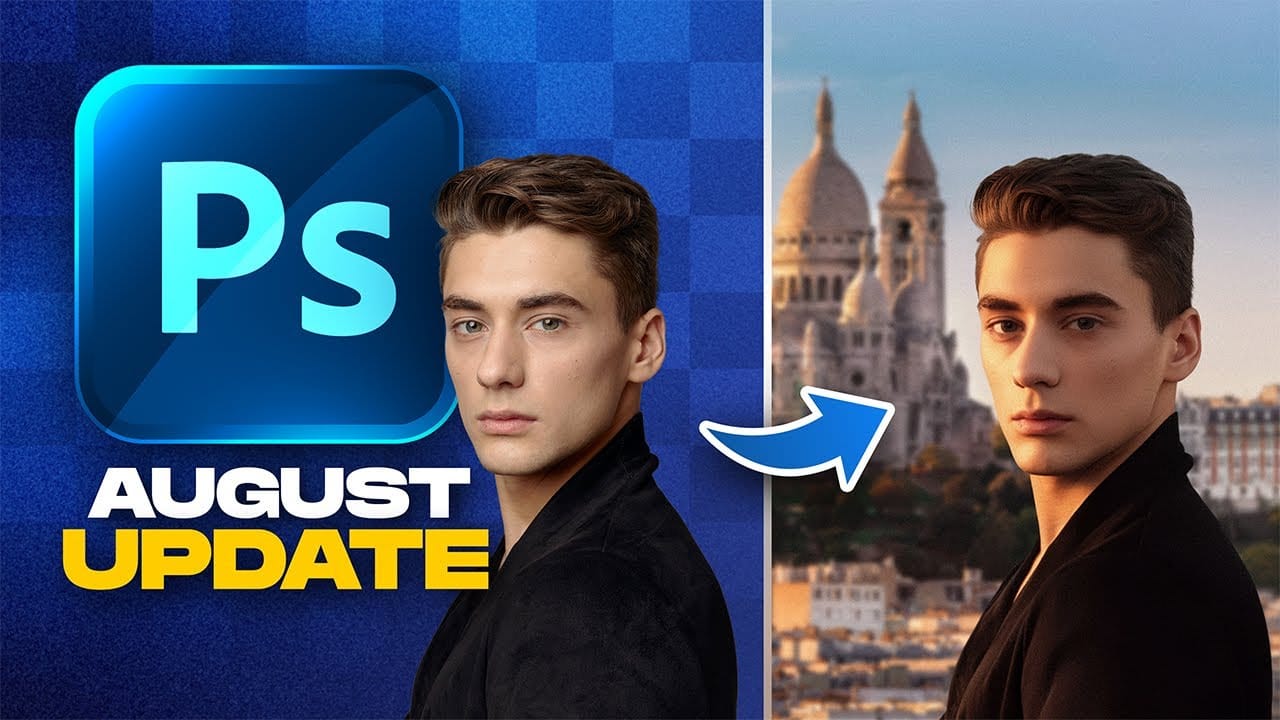
Photoshop August 2025 Update: 6 New Features Including Enhanced Remove Tool and Harmonize
Adobe continues to transform Photoshop with powerful AI-driven features that streamline complex editing tasks. The August 2025 update introduces six significant enhancements, from an improved Remove Tool that creates cleaner selections to the revolutionary Harmonize feature that automatically matches lighting and shadows across composite elements.
These updates address common workflow challenges while introducing new capabilities for collaborative projects and intelligent image processing.
Wa
10 little-known Photoshop features you should really learn
Photoshop's true power isn't just in its headline features—it's in the hidden gems that can transform your workflow overnight. While everyone knows about layers and the healing brush, these lesser-known capabilities can save you hours and open up creative possibilities you never knew existed.
If you're a seasoned professional or an ambitious beginner, these 10 features will give you that unfair advantage that separates efficient creators from those still clicking through endless menus.
1. Ble

5 Essential Photoshop Techniques for Digital Artists and Photographers
Digital artists and photographers often find themselves repeating the same complex adjustments and effects across multiple projects. These five advanced techniques will help you work more efficiently while creating professional-quality results.
From custom presets that save hours of color adjustments to hand-painted digital enhancements that set your work apart from AI-generated content, these methods focus on building a sustainable creative workflow.
Watch the Video
Practical Tips
Here ar